
Syntopia BOX Guide
YouTube live shopping with AI means one thing in practice: an AI digital human host runs the stream — greeting viewers, pitching products and answering the chat — while nobody has to sit on camera for hours. This guide shows you how to set one up and go live on YouTube the right way.
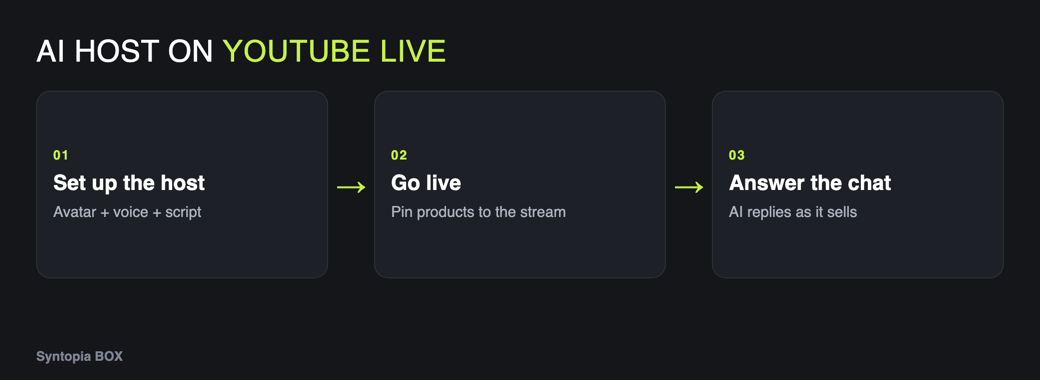
The usual blocker to a profitable YouTube live shopping stream is simple: being live long enough to sell. A pro live host in the West costs roughly $100–200 an hour, and most sellers can’t broadcast around the clock. An AI host can — and YouTube, like the other major markets, allows AI content as long as you label it and don’t mislead.
Below we cover what YouTube requires before you can go live, the two ways YouTube lets you stream, exactly how Syntopia BOX feeds its AI host into a YouTube live, how to disclose it, and which stream type fits your products. Syntopia BOX is an on-premise Windows application you install and run on your own PC; it builds the AI host and pipes its picture and voice straight into your streaming path.
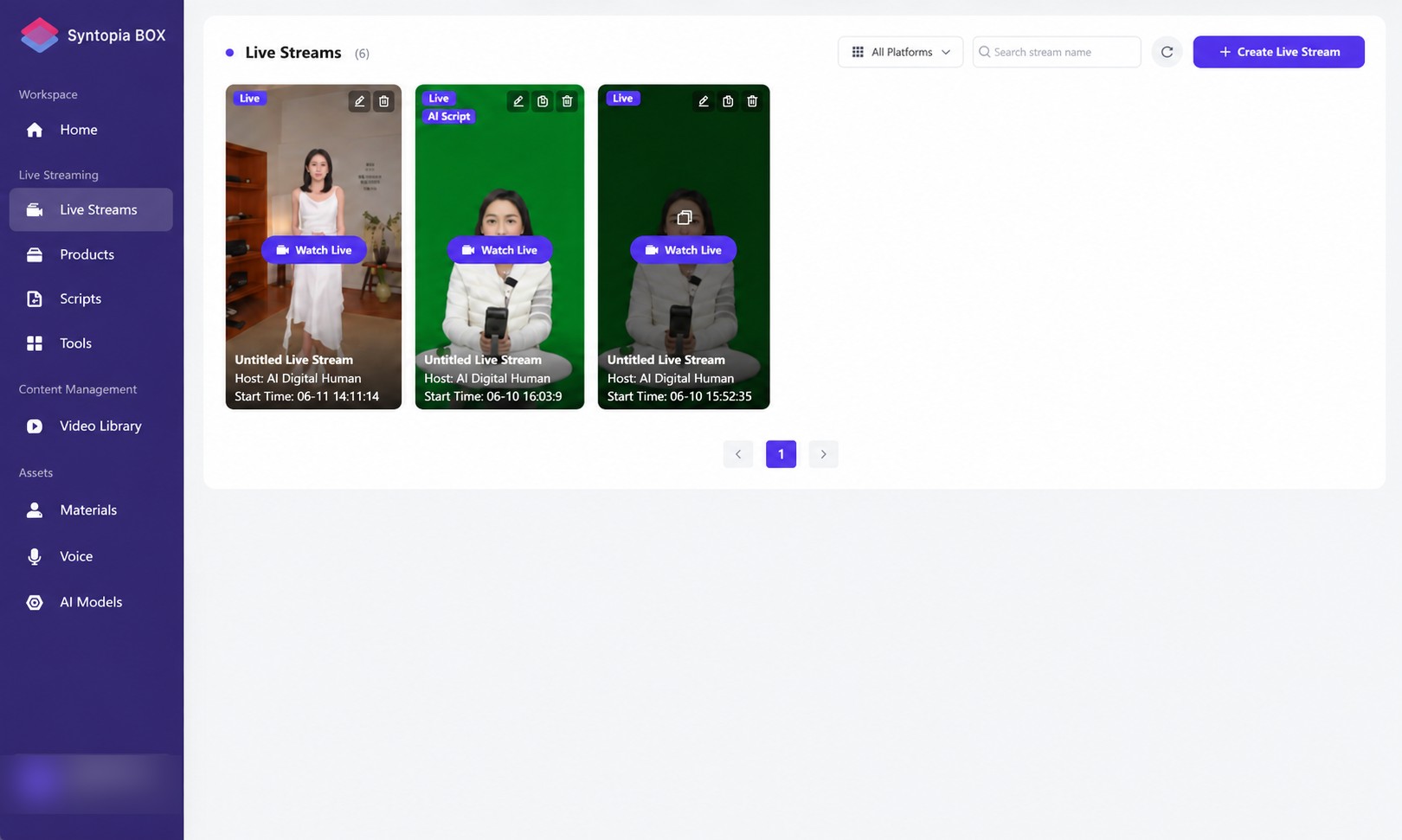
- YouTube is a supported platform in Syntopia BOX — you pick it in the New Livestream dialog alongside TikTok Shop, Shopee and more.
- Two go-live paths: YouTube’s browser webcam (Live Control Room) or streaming software over RTMP. BOX feeds either one.
- The two-channel rule is the same everywhere: the AI host’s picture travels through a virtual camera (HD Camera), its voice through a virtual sound cable.
- Label it as AI. Use YouTube’s altered/synthetic content disclosure and tell viewers in the chat — that is what every market’s policy asks for.
- Product tagging depends on your channel’s YouTube Shopping eligibility; set that up on YouTube’s side, independent of the AI host.
Before you start: what YouTube requires
Three things live on YouTube’s side, not Syntopia’s. Sort them first so the stream itself is the easy part. YouTube changes eligibility rules from time to time, so confirm the current details in your own YouTube Studio.
| Requirement | What it is | Where to sort it |
|---|---|---|
| Live streaming enabled | Your channel must be verified and enabled for live streaming. First activation can take time, so do it before stream day. | YouTube Studio → Create → Go Live |
| YouTube Shopping (to tag products) | Tagging products during a live needs your channel to be eligible for YouTube Shopping — your own connected store or the affiliate programme, depending on your market and channel size. | YouTube Studio → Earn / Shopping |
| AI disclosure | YouTube asks creators to disclose realistic altered or synthetic content. An AI host is exactly that, so you declare it when you set up the live. | Go-live setup → “Altered or synthetic content” |
The two ways YouTube lets you go live
Unlike TikTok, YouTube does not have a single desktop app. It offers two legitimate go-live paths, and Syntopia BOX feeds both because both ultimately just need a camera and a microphone.
How Syntopia BOX feeds a YouTube live
Whichever path you use, BOX sends two things into it and keeps one connection open for interaction. This “two-channel rule” is identical to every other platform — only the destination changes.
- Picture: BOX creates a virtual camera called HD Camera — that is what YouTube (or OBS) uses as its video source.
- Voice: in BOX set Speaker = CABLE Input; in YouTube’s webcam page or in OBS set the Microphone = CABLE Output. Whatever enters one end of the VB-Audio cable comes out the other.
- Interaction: paste your YouTube live room link into BOX and click Connect, so the AI host can read the chat and answer viewers on its own.
You install HD Camera and VB-Audio Virtual Cable once, during first-time PC setup. The full install walkthrough is in the Syntopia BOX complete guide; this post assumes that one-time setup is done.
Set up the AI host and room for YouTube
These steps happen inside Syntopia BOX, before you touch YouTube.
Create your AI host
Build an AI digital human from a short training video (a V5 look is the fastest), then clone a voice from a few seconds of clear audio or pick a ready-made voice. The V10 voice family supports 600+ languages, with the common ones pre-loaded; to run a second-market room you record a short sample in that language, train a V10 voice on it and write that room’s script in that language — so you can run an English YouTube room and a second-market room from the same host, each in your own voice. The host is a synthetic AI avatar — not a real person.
Open New Livestream and choose YouTube
Click New Livestream, then select YouTube as the platform, set your product category, and pick a live stream type (digital human, real-scene, smart recorded, AI hosting assistant or human takeover — see below). Choose your language.
Build the room and script
Use Standard Mode to write every word yourself (best for must-say offers), or AI Stream Mode to import product info and let the AI write the script. To stop repetition on a long YouTube session, split the script into 300–500 character segments and run Variation on each, so no two loops sound the same.
Turn on Smart Live Chat
In the AI Chat tab, enable Smart Live Chat so an LLM answers viewer questions in real time from your knowledge base (up to 20,000 characters: prices, sizes, shipping, returns). Set Live Chat Method to Host, Chat message, Assistant, or a mix. This real-time answering is what keeps a YouTube live from looking like a lifeless loop.
Save and Publish
Click Save and Publish, then Go Live Now in BOX. Wait for the host preview to come up — now you route it into YouTube.
Route into YouTube — Path A (browser webcam)
- In YouTube Studio → Go Live, choose the Webcam option and set your title, visibility and the AI disclosure.
- Select HD Camera as the camera and CABLE Output (VB-Audio Virtual Cable) as the microphone.
- In BOX’s live console, confirm Speaker = CABLE Input so the host’s voice flows into YouTube.
- Start the stream, then copy your YouTube live link, paste it into BOX, and click Connect. The host now answers the YouTube chat on its own.
Route into YouTube — Path B (OBS + RTMP)
Use this when you want OBS scenes and overlays, or when your BOX stream runs in window mode. Never go live from a bare window directly — always go live from a camera, which is what OBS produces.
- In OBS, add Sources → Video Capture Device → HD Camera for the picture, and set OBS’s audio input to CABLE Output.
- In YouTube Studio → Go Live → Streaming software, copy YouTube’s Stream URL and Stream key.
- In OBS Settings → Stream, set Service to YouTube (or Custom with the copied URL) and paste the stream key.
- Click Start Streaming in OBS, go live in YouTube, then paste your YouTube live link into BOX and click Connect.
If you are going live from a recorded video rather than a live host, this is also where the OBS Real-Time Deduplicator comes in — it keeps a looped recording from looking pre-recorded. That full workflow is covered in the complete guide.
Label it as AI (disclosure)
This is non-negotiable and it is also easy. YouTube’s own policy, like TikTok Shop’s and Shopee’s, is not anti-AI — it is anti-fake-live. Every major market allows AI content provided it is disclosed and does not mislead.
The rules aren’t anti-AI. They’re anti-fake-live — an interactive host that answers in real time and is labelled as AI is exactly what the policy describes.
- Declare it at setup: tick YouTube’s “altered or synthetic content” disclosure when you start the live.
- Say it in the room: have the AI host mention it, and keep it in your Proactive Live Chat prompts, so new viewers know they’re talking to an AI host.
- Keep product info accurate: load correct prices, sizes and claims into the knowledge base so the host never oversells.
For the full policy breakdown — what is and isn’t allowed — see is AI livestreaming allowed on YouTube.
Which stream type fits your YouTube shopping live?
Running more than one YouTube room
A single PC runs a single live room. To run several YouTube (or cross-platform) rooms at once, you add more PCs and more Syntopia BOX accounts — one account and livestream slot per concurrent room. There is no hard cap; it scales effectively without limit, bounded only by the PCs and accounts you put behind it. For plans and the per-hour cost, see the Syntopia pricing page.
- Channel verified and live streaming enabled on YouTube.
- YouTube Shopping sorted if you plan to tag products.
- HD Camera and VB-Audio Virtual Cable installed; BOX console running.
- Room built, Smart Live Chat on, knowledge base filled.
- AI disclosure ticked and mentioned in chat.
- Picture = HD Camera, voice = CABLE Input → CABLE Output, live link pasted into BOX and Connected.
Frequently asked questions
Can I run an AI host on a YouTube live shopping stream?
Yes. YouTube allows AI-generated and AI-assisted content as long as you disclose it and keep it accurate. Syntopia BOX builds an AI digital human host that goes live on YouTube, pitches products and answers the chat in real time. You select YouTube as the platform in the New Livestream dialog, build the room, then route the host’s picture and voice into YouTube.
How do I connect Syntopia BOX to YouTube?
BOX sends two channels into YouTube: the picture through a virtual camera called HD Camera, and the voice through VB-Audio Virtual Cable (set BOX Speaker to CABLE Input and YouTube’s microphone to CABLE Output). You can go live either through YouTube’s browser webcam option or through streaming software such as OBS over RTMP. Then paste your YouTube live link into BOX and click Connect so the host can read and answer the chat.
Do I need OBS to go live on YouTube with an AI host?
Not for a simple digital-human stream — YouTube’s browser webcam option can take HD Camera as the camera and CABLE Output as the microphone directly. You need OBS when you want composed scenes and overlays, when your BOX stream runs in window mode, or when you go live from a recorded video with the OBS Real-Time Deduplicator.
How do I label an AI live stream on YouTube?
Tick YouTube’s altered or synthetic content disclosure when you set up the live, and have the AI host tell viewers it is an AI host in the chat. Keep prices and product claims accurate in the knowledge base. Every major market’s policy allows AI content when it is disclosed and does not mislead, so a labelled, interactive AI host is exactly what the rules describe.
Can the AI host sell in more than one language on YouTube?
Yes. V10 supports 600+ languages, with the common ones pre-loaded. For a second language you record a short sample in it, train your V10 voice on that sample and write that room’s script in that language, so the host sells in your own voice. You can run an English YouTube room and a different-language room from the same host — add a PC and a Syntopia BOX account per concurrent room.
How many YouTube live rooms can I run at once?
One PC runs one live room. To run several at the same time you add more PCs and more Syntopia BOX accounts, one account and livestream slot per concurrent room. There is no hard limit — it scales with the PCs and accounts behind it.