
Syntopia BOX Guide
Want to live sell without showing your face? You do not need to be on camera, and you do not need an on-screen avatar either. With Syntopia BOX you can run an AI voice live stream with no avatar — your real camera or your products fill the screen, and an AI voice presents, pitches and answers the chat for you.

Plenty of sellers freeze at the same wall: the products are ready, the stream could run for hours, but nobody wants to sit in front of a camera all day — or show their face at all. Camera shyness, privacy, or simply that the product is the star and a talking head only gets in the way.
This guide covers the two faceless live-selling modes inside Syntopia BOX — Real-Scene Live Stream and the AI Hosting Assistant — so you can go live with only your products on screen and an AI voice doing the talking. For the full install-to-live walkthrough of every stream type, see the complete Syntopia BOX guide.
- No face, no avatar: both modes put your camera or products on screen — there is no AI digital human and no human presenter required.
- Real-Scene Live Stream = products or a physical space on camera while a scripted AI voice sells and answers viewers.
- AI Hosting Assistant = your own camera on screen with an AI voice that only speaks when a viewer asks a question.
- The AI voice is AI — clone a voice from a few seconds of audio or use a ready-made one; with V10 it can sell in 600+ languages (you train a voice per market).
- Neither mode needs OBS or deduplication: both use a real live camera.
What “voiceover-only” live selling actually is
A normal AI live stream in Syntopia BOX puts an AI digital human on screen. Voiceover-only live selling drops that face entirely. The picture comes from a real camera — pointed at your products, your store, or a presenter — and the intelligence lives in the voice: an AI voice that reads your script, reacts to the room, and answers buyers in real time.
Syntopia BOX ships two ways to do this, and the right one depends on how much talking you want the AI to do:
| Real-Scene Live Stream | AI Hosting Assistant | |
|---|---|---|
| On screen | Your products, store or physical space — no person needed | Your own camera — you, a presenter, or products |
| Script | Yes — written by you or AI-written; the voice presents continuously | None — the voice stays quiet until asked |
| AI voice role | Hosts the whole stream and answers the chat | Answers viewers’ questions only |
| Avatar on screen | No | No |
| OBS / deduplication | Not needed | Not needed |
| Best for | Food, retail, product demos, unboxings | Adding live AI chat support to a product or human-run stream |
Before you start: the one-time setup
Both modes share the same foundation. Syntopia BOX is an on-premise Windows application that runs on your own PC and pipes a picture and a voice into your live app (the examples use TikTok LIVE Studio, but every supported platform works the same). You only configure this once:
- Virtual camera: in the BOX human-infer folder, double-click Install Camera to create the HD Camera device.
- Virtual sound card: install VB-Audio Virtual Cable (Run as Administrator → Install Driver → restart the PC), then set the system output to CABLE Input.
- Start BOX: double-click Start in the human-infer folder and wait until the console stops scrolling. Keep it open the whole time you are live.
The full step-by-step for this stage is in the complete guide — this post focuses on what is different once you choose a faceless mode.
Give the stream its voice
Because there is no face on screen, the voice is the host — so it is worth getting right. You can clone a voice from a few seconds of clear audio, or pick one of the ready-made voices. The AI voice is a synthetic voice model, not a live person. There are two voice families: V6 (tuned mainly for English) and V10 (English too, but built for foreign-language voices). V10 supports 600+ languages, with the common ones pre-loaded; to sell in a market you record a short sample in that language, train a V10 voice on it and write your script in that language. You select the voice in each room’s Settings before you go live.
Mode 1 — Real-Scene Live Stream (products on camera, AI sells)
Real-Scene Live Stream is the purest faceless setup: the physical product is the whole picture, and a scripted AI voice does all the selling. Nobody is on camera, and there is no avatar. It is built for food stalls, retail shelves, jewellery, gadgets — anything that sells better shown than described.
How to set up a Real-Scene Live Stream
- Point a camera at your products. Connect a webcam, or a camera plus a capture card, aimed at the product, store or space. Good lighting matters more here than anywhere else — the picture is your presenter.
- Create the room. Click New Livestream → Real Scene (this is the type with no host avatar).
- Add products and scripts. Add your products, then write scripts yourself or let AI Stream Mode draft them from the product name, price and selling points. The voice reads these continuously to keep the room alive.
- Choose the voice. Pick your cloned or ready-made voice in Settings.
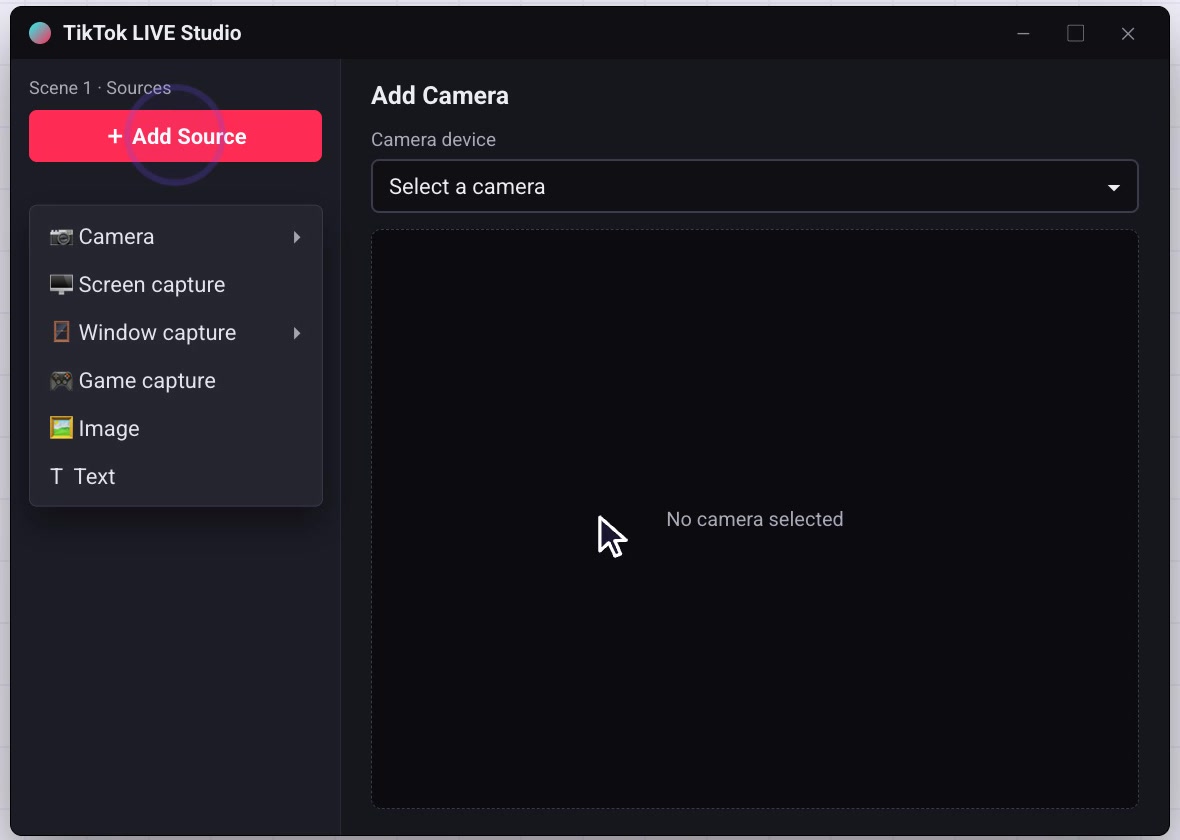
- Go live. Click Go Live Now. In TikTok LIVE Studio, add your real camera as the video source and set Microphone = CABLE Output so the AI voice travels in through the virtual cable.
Because it is a genuine live camera, there is nothing for a platform to flag as pre-recorded, so you do not need OBS or the deduplicator. Turn on Smart Live Chat (below) and the same AI voice that reads your script will also answer buyers who type in the chat.
Mode 2 — AI Hosting Assistant (your camera, AI answers)
The AI Hosting Assistant flips the balance. Here there is no script and no avatar — the AI voice stays silent until a viewer asks something, then answers out loud from your knowledge base. The picture is simply your own camera: you, a colleague, or your products. It is the way to add a tireless, always-accurate support voice to a stream without scripting a full show.
How to set up an AI Hosting Assistant stream
- Create the room. Click New Live Stream → AI Hosting Assistant. There is no digital human and no script to write.
- Add your products. List the products you will be covering so the assistant knows what it is answering about.
- Turn on Smart Live Chat. In the AI Chat tab, enable Smart Live Chat and add your product knowledge to the knowledge base (up to 20,000 characters — prices, sizes, shipping, returns, common questions).
- Route answers to the voice. Set Live Chat Method and tick Assistant so replies come out as spoken audio, then pick the assistant voice in Settings.
- Publish and go live. Click Save & Publish, then Go Live Now, and add your camera as the video source in your live app with Microphone = CABLE Output.
This is different from the assistant voice inside a digital human stream, which reads bracketed script lines. In AI Hosting Assistant mode, the voice is purely reactive — a live FAQ that speaks.
How the AI voice actually answers buyers
Both modes get their intelligence from the same place: Smart Live Chat and a custom knowledge base. Connect an AI model (paste an API key from a provider such as OpenAI or DeepSeek), fill the knowledge base with your real prices, shipping rules and stock answers, and the AI reads the chat and replies in real time — out loud in your chosen voice. The better your knowledge base, the better the answers.
In Real-Scene you can also leave Proactive Live Chat on, so the voice welcomes new viewers, asks for follows and likes, and nudges people to buy between product beats. In AI Hosting Assistant mode you lean on the reactive side — let a human or the product carry the picture, and let the AI voice catch every question that would otherwise go unanswered.
Your products stay on screen; the AI voice keeps the room talking, selling and answering — no face required.
Which faceless mode should you pick?
Both modes run around the clock on your own PC, so a faceless room can stay live far longer than a human host could — a key reason AI live selling costs a fraction of a pro host’s hourly rate (from around $2.26/hour on current plans; see the Syntopia pricing page).
- Keep the AI nature of the voice honest in your stream — it is an AI voice, not a hidden live person.
- In Real-Scene, nobody is on camera, so there is no likeness to disclose — just the AI voice.
- In AI Hosting Assistant, if a real person is on camera, they are genuinely there; only the answering voice is AI.
Another faceless route: a cloned AI avatar
Voiceover-only is not the only way to stay off camera. If you would rather have a presenter on screen but it still must not be you, you can clone yourself — or a model — as an AI avatar and let that avatar host the stream. You train an AI digital human from a short video (of you, or of a presenter who has agreed to it), and from then on the avatar goes live, pitches and answers the chat on its own — you never sit in front of the camera.
So “faceless” really covers two routes, and you can pick whichever fits: keep no presenter at all with the Real-Scene or AI Hosting Assistant modes above, or put a cloned avatar on screen so there is a face — just never your live one. Both run the same AI voice and Smart Live Chat; the only difference is whether a synthetic host appears on screen.
Frequently asked questions
Can I go live and sell without showing my face at all?
Yes. Syntopia BOX has two faceless modes. Real-Scene Live Stream puts your products or store on camera while an AI voice presents and answers the chat, with no person and no avatar on screen. The AI Hosting Assistant mode shows your own camera while an AI voice answers viewers’ questions only. Neither requires you to appear on camera.
What is the difference between Real-Scene and the AI Hosting Assistant?
Real-Scene Live Stream uses a script: the AI voice hosts the whole stream, pitching your products continuously and answering the chat. The AI Hosting Assistant has no script — the voice stays silent until a viewer asks a question, then answers from your knowledge base. Real-Scene is a full faceless show; the Hosting Assistant is a reactive support voice over your own camera.
Is the AI voice my real voice?
The voice is an AI voice model. You can clone a voice from a few seconds of clear audio or choose a ready-made one. With V10 it supports 600+ languages; to sell in a given market you record a short sample in that language, train a V10 voice on it and write your script in that language. It is synthetic audio generated live, not a recording of a person speaking each line.
Do I need OBS or the deduplicator for a faceless stream?
No. Both Real-Scene Live Stream and the AI Hosting Assistant use a real live camera, so there is nothing that looks pre-recorded for a platform to flag. You only need OBS and the OBS Real-Time Deduplicator when you go live from a recorded video file, which is a different stream type.
How does the AI voice answer buyers accurately?
You connect an AI model with your own API key and fill a custom knowledge base (up to 20,000 characters) with prices, sizes, shipping, returns and common answers. Smart Live Chat reads viewer messages and replies in real time out loud in your chosen voice. The more complete your knowledge base, the more accurate the answers.
Can I run several faceless live rooms at once?
Yes. A single PC runs one live room. To run more at the same time, you add more PCs and more Syntopia BOX accounts — one account and livestream slot per concurrent room. There is no hard cap; it scales to effectively unlimited rooms, limited only by the PCs and accounts behind it.