
Syntopia BOX Guide
You want to clone your voice for live selling — record yourself once, then have an AI host sell in that voice around the clock. Here is the part most people miss: cloning your voice and selling in a new language are two different steps. You clone your voice; then, for each language you want to sell in, you train that voice on a short sample in that language and write your script in it. Syntopia’s V10 engine supports 600+ languages, with the most common ones pre-loaded.

So your brand voice can sell in English, Brazilian Portuguese, Vietnamese, Thai, Korean or Bahasa Indonesia — you record a short sample in each language you add, and the same recognisable voice reads that market’s script. This guide covers the full workflow: what to record, how V10 trains your voice per language, when to use a ready-made voice or a native speaker instead, and how the Voice Conversion tool turns old clips into one consistent voice.
- You clone a voice from a few seconds of clean audio. To sell in a given language you then train that voice on a short sample in that language and write your script in it — the host speaks it live, in your voice.
- V10 supports 600+ languages, with the most common ones pre-loaded when you set up a stream; for a language that is not included yet, translate your content and paste it, or request that the language be added.
- Three ways to voice each market: a ready-made voice (fastest), your cloned voice (one consistent brand voice everywhere), or a cloned native speaker (a local accent for one market).
- Voice cloning is included in every Syntopia BOX plan and the cloned voice does not expire.
- The Voice Conversion tool rewrites existing audio clips into one chosen voice — useful when different people recorded your scripts.
Why clone a voice for AI live selling at all?
A live-selling host talks for hours. Reading every line yourself, every day, in every market you sell in, does not scale — and hiring a professional host in the West runs roughly $100–$200 per hour. Cloning a voice solves both problems: your AI host sounds like you (or like whichever voice you choose), never gets tired, and can go live in a new market as soon as you train the voice on a short sample in that language.
It also keeps your sound consistent. Shoppers come to recognise a brand’s voice the way they recognise its logo. Instead of a different freelancer in every country, a cloned voice model carries the same tone across TikTok Shop, Shopee, YouTube and every other platform you stream to.
Step 1 — Record one clean sample
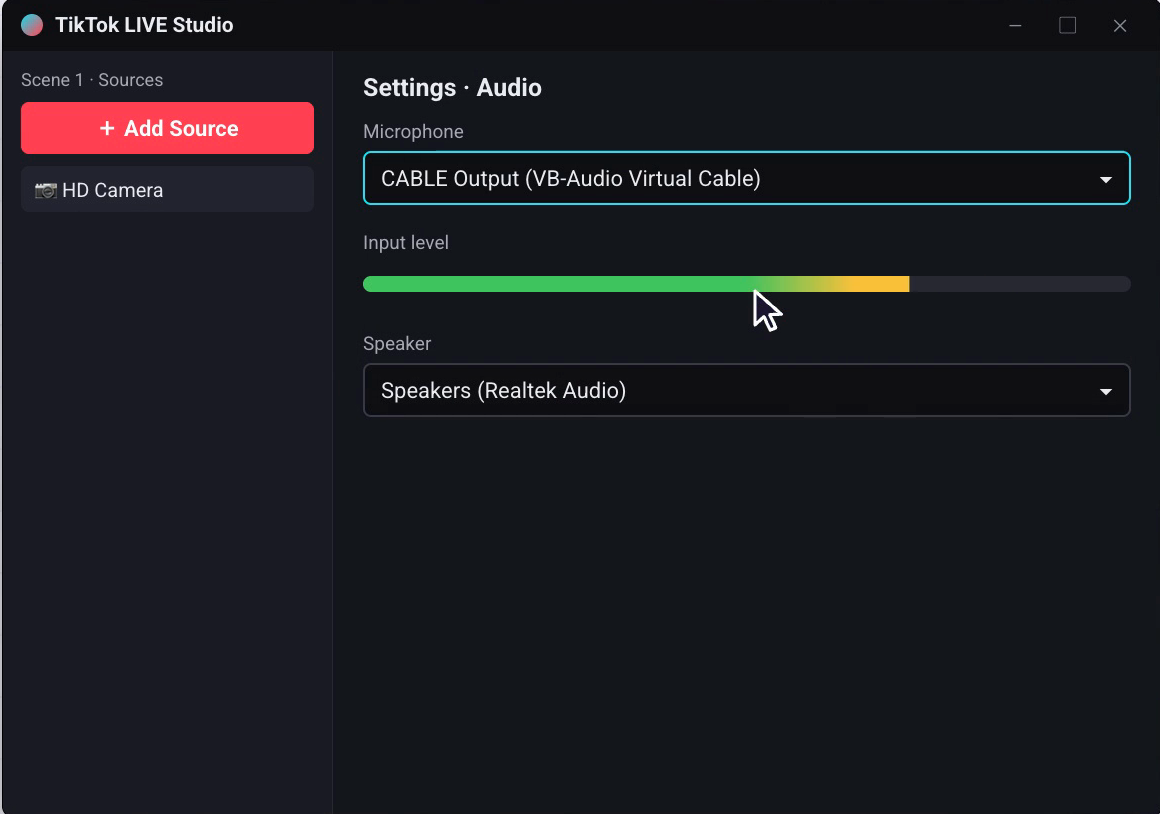
This is the only recording you have to do. Inside Syntopia BOX, under your AI host, you clone a voice from a short piece of audio. A few seconds of clear speech is enough. The quality of the sample is what matters, not the length:
- Clean audio only — no background music, TV, traffic or room echo. Voice Conversion needs the same: clean reference audio with no music or noise.
- Natural pace and tone — speak the way you would on a live stream, not slower or more formal.
- One speaker — just you, no one talking over the top.
- A quiet room and a decent mic — the cleaner the input, the more natural the clone.
If you do not want to clone your own voice at all, you can skip this step entirely and pick a ready-made voice instead (more on that below). Cloning is optional — but it is what gives you a voice that is unmistakably yours.
Step 2 — V10 trains your voice, with 600+ languages supported
Once you hand BOX that sample, the V10 voice engine trains a voice model from it. There are two voice families: V6, tuned mainly for English, and V10, which speaks English too but is built for foreign-language voices — pick whichever fits the market. V10 is the leap that matters: earlier voice cloning was limited to around 13 languages, whereas V10 supports 600+ languages, with the most common ones pre-loaded when you set up a stream — Brazilian Portuguese among them, the single most-requested language from sellers.
Clone your voice. Then record and train it per language you sell in — same recognisable host, every market.
Here is exactly how it works, because this is where most guides get it wrong: you do not clone one voice and instantly get all 600 languages. You clone your voice, and then, for each language you want to sell in, you record a short sample in that language, train your V10 voice on it, and write that market’s script in that language. The host then speaks that language live, in your own voice. The most common languages are already loaded when you set up a stream; for a language that is not included yet, you can translate your content and paste it in, or request that the language be added.
Voice cloning is included in every Syntopia BOX plan, and a cloned voice does not expire — once it is trained, it stays in your account for every future live room. (See current plans on the Syntopia pricing page.)
Step 3 — Ready-made vs cloned vs native-speaker, per market
You do not have to use the same approach in every country. Syntopia gives you three voice options, and the right one depends on the market you are entering:
| Voice option | What it is | Best when | Languages | Setup effort |
|---|---|---|---|---|
| Ready-made voice | A pre-built voice you pick from the BOX library — no recording at all. | You want to go live today, or you do not need a personal voice. | Around two dozen languages | None — just select one |
| Your cloned voice | Your own voice, cloned with V10 from a clean sample. | You want one consistent brand voice across every market you sell in. | 600+ supported (train per language) | Clone, then a short sample per language |
| Cloned native speaker | A local presenter’s voice, cloned the same way you would clone your own. | A specific market responds best to a genuine local accent and delivery. | 600+ supported (train per language) | Clone them, then a sample per language |
Many sellers mix all three: a cloned brand voice for their home markets, a cloned native speaker for one or two priority countries, and a ready-made voice to spin up a test room fast. Because cloning is included and never expires, there is no penalty for keeping several voices on hand.
Reuse old recordings with the Voice Conversion tool
If you already have audio — past live streams, recorded scripts, clips recorded by different team members — you do not have to re-record everything in one voice. The BOX Toolbox has two tools that work together for exactly this. Go deeper here than the complete guide does:
Split Audio into Clips
Prep
Voice Conversion works on short clips (3–15 seconds each), so first cut one long file into clips at natural pauses. Three settings control it:
- Silence threshold — audio quieter than this counts as a pause where a cut can happen. Default −24; lower it to −30 if it is cutting too often.
- Minimum Duration — default 3 seconds.
- Maximum Duration — default 15 seconds; lower it if clips come out too long.
Select your audio file and BOX splits it into the right-sized clips automatically.
Voice Conversion
Convert
This changes the voice in your audio clips into a single cloned voice — so clips recorded by different people all end up sounding like one chosen host. It needs 3–15 seconds of clean reference audio (no music, no noise). Select the reference audio, point it at your clip folder, and it converts every clip in one pass.
Tip: run Split Audio into Clips first so every clip is already the right length before you convert.
How your cloned voice works across every way to go live
Once a voice is cloned, it is available everywhere BOX speaks for you:
- Digital human host: the AI avatar reads your scripts and answers chat in your cloned voice.
- Assistant (co-host) voice: give a second voice to the assistant in Settings → Assistant Voice → Enable, and pick a timbre different from the host so the two voices are easy to tell apart.
- Smart Recorded Stream: viewers watch a recording of the real you, and when they ask a question the AI answers in your cloned voice with your lips moving.
- Real-Scene and AI Hosting Assistant streams: no avatar on screen — your products are on camera while the cloned (or ready-made) voice does the talking.
For the full end-to-end setup — PC configuration, building a live room, and going live on TikTok Shop or any platform — see the Syntopia BOX complete guide. This post is the deep dive on the voice layer specifically.
- A cloned voice is AI-generated audio. On TikTok Shop and Shopee, label your stream as AI and keep your host interacting with viewers in real time — that is what every market’s AI content policy asks for.
- Clone a voice (yours, or a native speaker who has agreed to it) — do not clone a person’s voice without permission.
Frequently asked questions
How do I clone my voice for live selling?
Inside Syntopia BOX, under your AI host, choose to clone a voice and give it a short, clean audio sample — a few seconds of clear speech with no background music or noise is enough. The V10 engine trains a voice model from that sample. You only record once; the cloned voice is then available for every live room you build.
Does my cloned voice really speak 600+ languages?
V10 supports 600+ languages, and the most common ones are pre-loaded when you set up a stream. Cloning your voice and selling in a new language are two steps: you clone your voice, then for each language you record a short sample in that language, train your V10 voice on it and write that market’s script in that language — so the host speaks it live, in your own voice. For a language that is not included yet, translate your content and paste it, or request the language. Earlier voice cloning was limited to around 13 languages, so V10 is a major step up.
What is the difference between a ready-made voice and a cloned voice?
A ready-made voice is a pre-built voice you select from the BOX library with no recording at all — fastest to launch, available in around two dozen languages. A cloned voice is your own voice (or a native speaker’s), trained from a clean sample in each language you sell in, with V10 supporting 600+ languages. Use a ready-made voice to go live fast; use a cloned voice when you want one consistent brand voice across every market.
Can I use a local native speaker’s voice for a specific market?
Yes. You clone a native speaker’s voice exactly the way you clone your own — one clean sample — and use it for the market where a genuine local accent lands best. Many sellers run a cloned brand voice in their home markets and a cloned native speaker in one or two priority countries. Only clone a voice you have permission to use.
I have old recordings in different voices. Can I make them one voice?
Yes, with the Voice Conversion tool in the BOX Toolbox. It changes the voice in your audio clips into one chosen cloned voice, so clips recorded by different people all sound like a single host. It needs 3–15 seconds of clean reference audio. Run Split Audio into Clips first (default clips of 3–15 seconds) so everything is the right length before you convert.
Does voice cloning cost extra, and does the clone expire?
Voice cloning is included in every Syntopia BOX plan, and a cloned voice does not expire — once trained, it stays in your account for every future live room. You can see current plans on the Syntopia pricing page.