

Syntopia BOX Guide
Every AI live stream starts with one decision: the host. This guide shows you how to create an AI avatar — and how to train a digital human that looks natural on camera — inside Syntopia BOX, the on-premise Windows app that runs your AI live host on your own PC.

Most of the quality you see on a finished stream is decided before you ever go live, in the few minutes of footage you feed the trainer. Get the footage right and your avatar turns to the side, sips water, holds a product up to the lens and talks for hours without ever looking stiff. Get it wrong and no setting later will fully fix it.
So this is the part the complete guide covers in a few lines, slowed right down: what to shoot, which look to pick, what your trained avatar can actually do, and the two special cases — two-presenter training and the Smart Recorded option — that trip people up most.
- An AI avatar in Syntopia BOX is a synthetic host — AI generated, not a real person — built from a short training video you upload.
- Pick a V5 look for the quickest, most reliable setup.
- Good light and a steady camera in training are what let the avatar hold, wear and show your products convincingly later.
- You can train with two presenters (host + assistant), or tick Smart Recorded Only to turn a long recording of yourself into an interactive stream.
- Creating an AI avatar is included in every plan — it used to be billed at $1,380 per avatar.
What “creating an AI avatar” actually means
Your AI host has two separate parts: how it looks (the AI digital human) and how it sounds (the voice model). This post is about the look. You build it in BOX under Step 1 — Create digital human by uploading a short video of a presenter; BOX trains an avatar model from that footage. The result is an AI digital human — a synthetic, AI-generated host, not a copy of a specific real person.
That distinction matters for both expectations and compliance: once trained, the avatar is driven entirely by AI — it reads your script, answers the chat and moves on its own. (The one exception is Human Takeover, covered below, where a real human is the face and AI only drives the lip movement.)
What footage to shoot for training
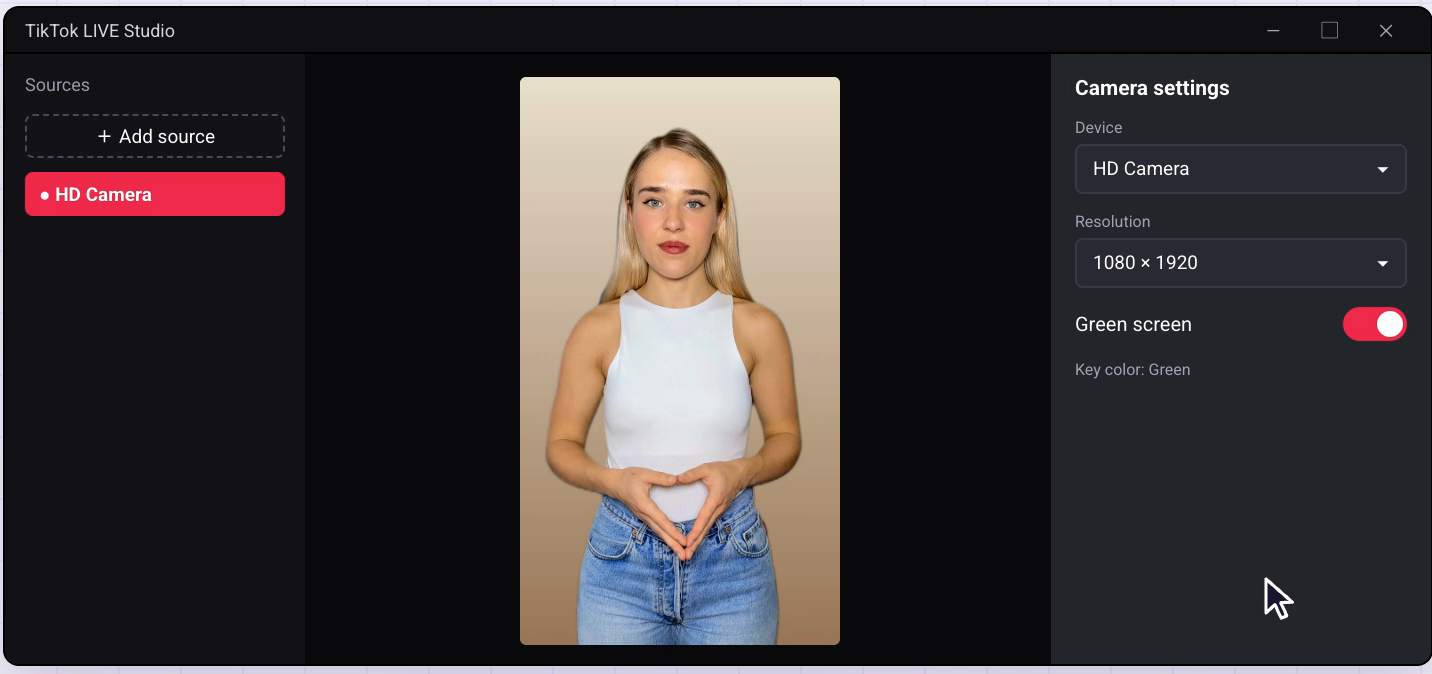
The training video is the single biggest lever you have. BOX learns the avatar’s face, body and the way it moves from this clip, so the cleaner and more natural your footage, the more natural the finished host. You do not need a studio — you need control.
Camera, light and framing
Film with a steady camera (a tripod or a propped-up phone is fine) and good, even lighting on the presenter’s face. Shoot against a clean, uncluttered background, keep the presenter well inside the frame, and avoid harsh shadows or a window blasting light from behind. These are the same conditions BOX’s own walkthroughs call for — “good lighting and a steady camera” — because jitter and uneven light in the source are exactly what make a trained avatar look off.
What the presenter should do on camera
Have the presenter speak and behave the way a real host would on a sales stream: talk naturally, gesture, move a little, look into the lens. BOX learns range from range — a presenter who sits frozen gives you a frozen-looking avatar, while a presenter who moves naturally gives you a host that can later turn, lean in and gesture on its own.
- Steady camera (tripod or stable mount), presenter centred in frame.
- Soft, even light on the face; no backlight or deep shadows.
- Clean, plain background with nothing moving behind the presenter.
- Presenter talks and moves naturally, eyes to the lens.
- Clear audio if you also plan to clone the presenter’s voice.
Pick a V5 look for the quickest setup
When you upload the training video, BOX asks which avatar look to build. Choose V5. It is the version to reach for when you want the quickest, most dependable setup, and it is the look the official walkthroughs use for digital human, Smart Recorded and Human Takeover training alike. Unless you have a specific reason to experiment, V5 is the right default for a first avatar.
What your avatar can do once it is trained
This is why footage quality is worth the effort. A Syntopia BOX avatar is not a static talking head — once trained it moves like a real person. It turns to the side, sips water, walks out of frame and back, covers its mouth, jumps, and takes a rest between pitches.
The most-requested capability is product handling. Your avatar can hold your product up close, wear your clothes, and show them to the camera — the difference between an AI host that merely describes a product and one that demonstrates it the way a human live seller does.
Hold it. Wear it. Show it. The avatar you train can present your actual products on camera, not just talk about them.
You can also build a whole team of avatars, each trained separately and each given its own voice, and have two of them share a single room as co-hosts. Training good footage for each one pays off every time that host goes live.
Train with two presenters (host + assistant)
If you want a host and an on-screen assistant, film the training video with two people in frame: the main host on the left and the assistant on the right. The assistant can talk, react, and step in and out of frame during the clip — that range is what lets the trained assistant do the same on your live stream.
The one setting to remember: tick the mouth closed option when you train this way, so the main host stays quiet while the assistant is the one speaking. The payoff comes later in the live room — two-person training means the assistant actually appears on screen (on the right) and can read the assistant’s bracketed script lines or answer the chat. If you train with only one person, the assistant still exists, but as a voice only, with no second figure on screen.
Match your footage to how you’ll go live
Three of the five ways to go live depend on footage you shoot yourself, and each wants a slightly different training clip. Shoot for the mode you actually intend to use.
| Mode | What to film | Train as | Key setting |
|---|---|---|---|
| Standard AI digital human | A short clip of your presenter speaking and moving naturally. | Digital human, V5 look | — |
| Smart Recorded Stream | 3–4 hours of yourself hosting, good light and a steady camera. | Digital human, V5 look | Tick Smart Recorded Only |
| Human Takeover | A clip filmed in the same fixed setup, lighting and distance you’ll go live in. | Digital human, V5 look | Camera at 1920×1080 when you go live |
The Smart Recorded option
Smart Recorded turns a long recording of you into an interactive stream: viewers see your real recording, and when they ask a question the AI answers in your voice with your lips moving. To set it up, record 3–4 hours of yourself hosting with good lighting and a steady camera, then train it as a digital human — upload with a V5 look and tick Smart Recorded Only. There is no product script to write; BOX builds the script from your recording via speech recognition, and you add product cards that pop up when a product is mentioned. Because viewers are watching your genuine recording with AI lip-sync, no deduplication is needed.
A note on Human Takeover footage
Human Takeover is different: there, a real person is the face of the stream and the AI only moves the mouth to match the script — it is not an AI avatar in that mode. But it still benefits from a trained look, so the guidance is to train a V5 look on video filmed in the same fixed setup, lighting and distance you will actually sit in when you go live. The closer your training clip matches your live conditions, the cleaner the hand-off.
Give your avatar a voice
A look needs a voice. After the avatar is trained you can clone a voice from a few seconds of clear audio, or pick one of the ready-made voices. There are two voice families: V6 (tuned mainly for English) and V10 (English too, but built for foreign-language voices). V10 supports 600+ languages, and the most common ones are pre-loaded when you set up a stream. To go live in a specific language you record a short sample in that language, train a V10 voice on it and write your script in that language — so the host speaks it in your own voice. If a language isn’t pre-loaded, translate your content and paste it, or request it be added. Voice cloning, like avatar creation, is included — the full voice and live-room steps are in the complete Syntopia BOX guide.
Create your AI avatar: step by step
Creating an AI avatar is included in every Syntopia BOX plan — see current plans on the pricing page, then follow the complete guide to build your live room and go live.
Frequently asked questions
What footage do I need to create an AI avatar in Syntopia BOX?
A short video of your presenter, filmed with a steady camera and good, even lighting against a clean background. Have the presenter speak and move naturally, looking into the lens. The cleaner and more natural the footage, the more natural the trained AI avatar will look and move.
What is a V5 look, and why pick it?
V5 is the avatar look to choose when you upload your training video. It gives the quickest, most reliable setup and is the version used in the official digital human, Smart Recorded and Human Takeover walkthroughs. For a first avatar, V5 is the recommended default.
Can I train an AI avatar with two presenters?
Yes. Film the training video with two people — the main host on the left and the assistant on the right — and tick the mouth closed option so the host stays quiet while the assistant speaks. Two-person training puts the assistant on screen (on the right); one-person training gives you an assistant as a voice only.
How is a Smart Recorded avatar different from a standard AI avatar?
A standard AI avatar is a synthetic host generated from a short clip. Smart Recorded instead uses a long recording of you (3–4 hours) so viewers watch your real recording while the AI lip-syncs answers in your voice. You train it as a digital human with a V5 look and tick Smart Recorded Only.
Does each AI avatar cost extra?
No — creating an AI avatar is included in every Syntopia BOX plan. It used to be billed at $1,380 per avatar. You can build and train more than one avatar and give each its own voice.
Can my AI avatar hold and wear my products?
Yes. Once trained, your avatar moves like a real person — it can hold your product up close, wear your clothes and show them to the camera, as well as turn, gesture and take breaks. This is why natural movement in your training footage matters.