

Syntopia BOX Guide

Syntopia BOX runs on your own hardware, so the PC you choose sets how many rooms you can sell from. This tutorial walks through the PC and hardware requirements for AI live selling with Syntopia BOX — why it is on-premise, the GPU, CPU and RAM tiers to aim for, how many rooms a PC can drive, and how to add machines as you scale.
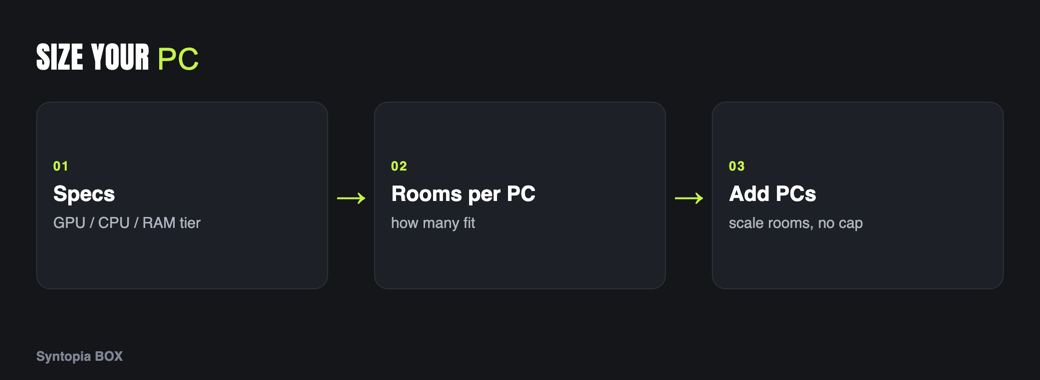
- Syntopia BOX is an on-premise Windows app, so the capability of your PC directly sets what you can run.
- Lean on the GPU first — a stronger graphics card with more video memory is what lets one PC render more rooms.
- A single PC drives one or more rooms; leave headroom rather than pushing a machine to its limit.
- Scale by adding PCs and shop accounts — there is no hard cap on total rooms.
- Give each PC a reliable wired connection with enough upstream bandwidth for every room running at once; check /pricing/ for plan costs.
Most software questions end at “which plan?” Syntopia BOX adds one more, because it runs on your machine rather than in someone else’s cloud: “which PC?” Getting that right up front saves you from the most common and most avoidable problem new sellers hit — trying to run a demanding live host on an underpowered laptop.
Why BOX is on-premise (Windows)
Syntopia BOX is a Windows application you install and run on your own PC. On-premise means the rendering, the avatar, the voice and the live room all run locally, which gives you control over your data and your streams and removes any per-minute cloud rendering meter. The trade is that the work happens on hardware you provide, so the capability of that hardware directly sets what you can do. (This is BOX, not the fully hosted Syntopia Cloud.)
Minimum vs recommended specs
Real-time avatar rendering is demanding, and the biggest lever is the graphics card (GPU). As general guidance — not exact published figures, which you should confirm in the current setup documentation:
| Component | Minimum (try it out) | Recommended (sell daily) |
|---|---|---|
| GPU | A modern dedicated gaming-grade GPU | A current higher-tier dedicated GPU with ample video memory — the main driver of how many rooms you can run |
| CPU | A recent multi-core desktop processor | A higher-core-count current-generation CPU |
| RAM | Enough for one room comfortably | Generous headroom so several rooms and the OS never compete |
| Storage / OS | SSD, supported Windows version | Fast SSD with room for models and recordings |
The pattern to remember: lean on the GPU first. A stronger graphics card with more video memory is what lets one PC render more rooms at once. For what a given plan includes and current pricing, check the pricing page rather than any figure quoted here.
How many rooms per PC
A single PC can drive one or more live rooms, and exactly how many depends on its GPU, CPU and RAM — a stronger machine handles more concurrent rooms. Rather than pushing one PC to its limit, leave headroom so every room stays smooth; a stuttering stream costs more in lost sales than the spare capacity costs in hardware.
Adding PCs to scale rooms
This is the core scaling model: one PC drives N rooms; add PCs to run more rooms in parallel. There is no hard cap on total rooms — you scale by adding machines and shop accounts, so a large operation is simply several PCs each running its share. Mapping rooms and accounts across machines is covered in manage multiple shop accounts, and running many lives at once in how to run multiple lives at once.
Network and bandwidth
Live streaming is only as stable as your upload. Each live room pushes a continuous video stream to its platform, so give your PCs a reliable, wired connection with enough upstream bandwidth for every room running at once. A wobbly connection shows up as dropped streams and buffering viewers — the kind of thing your scheduling recovery plan exists for, but far better to prevent.
Remote cameras via RTMP
If you want to bring in a real camera feed — a physical product demo, a presenter in another location — you can route it in over RTMP. That lets a remote source feed a room without that source being the PC doing the rendering, which is useful for real-scene demos and distributed teams. Set the RTMP path up first, then build the room around it.
Buying vs upgrading
If you already own a capable gaming-grade PC, start there and prove the model before spending. When you are ready to grow, the cheapest route is usually to upgrade the GPU on an otherwise solid machine, since the graphics card is the main constraint; past that, add another PC to add rooms. Buy for the room count you are scaling toward, not just today’s, so you are not re-buying in a month. For the full setup flow, see the complete Syntopia BOX guide; for what BOX is, what is Syntopia BOX.
Step-by-step recap
Frequently asked questions
What PC do I need to run Syntopia BOX?
Syntopia BOX is an on-premise Windows application, so you need a capable Windows PC, and the single most important part is a modern dedicated GPU with plenty of video memory, backed by a recent multi-core CPU and generous RAM. These are general tiers rather than exact published specs, so confirm the current figures in the setup documentation, and check the pricing page for what each plan includes.
How many live rooms can one PC run?
A single PC can drive one or more rooms, and how many depends on its GPU, CPU and RAM, with a stronger graphics card handling more concurrent rooms. Leave headroom rather than pushing a machine to its limit, because a stuttering stream costs more in lost sales than the spare capacity costs in hardware.
How do I scale to more rooms?
Add PCs. The model is one PC drives several rooms, and you add machines and shop accounts to run more in parallel. There is no hard cap on total rooms, so a large operation is simply several PCs each running its share rather than one overloaded machine.
Do I need a lot of upload bandwidth?
Yes. Each live room pushes a continuous video stream to its platform, so give your PCs a reliable, preferably wired connection with enough upstream bandwidth to cover every room running at once. A weak connection shows up as dropped streams and buffering, so it is worth getting right before you scale.