
Syntopia BOX Guide

A product card is the shortcut between “I want that” and the checkout. This tutorial shows you how to add product cards to an AI live stream in Syntopia BOX — linking your catalog, timing each card to the script, and making your AI host actually point at the pinned item so viewers know exactly what to tap.
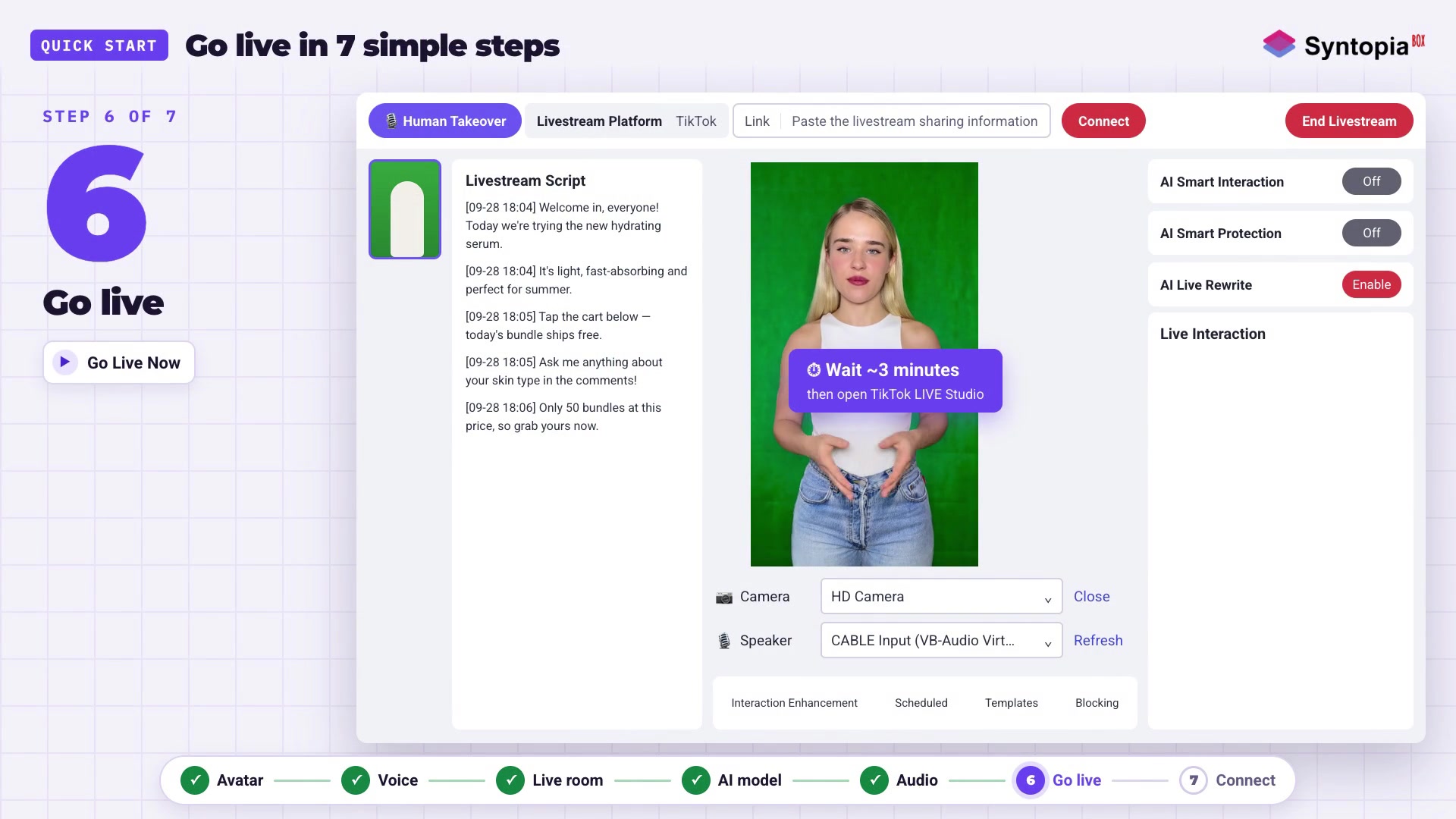

- A product card pins the item on screen, shows the price and gives a one-tap path to buy while the host is still pitching.
- Link your shop account and import products first, then create a card for each item you plan to feature.
- Tie each card to the point in the script where the product is introduced so the pin and pitch stay in sync.
- Write a spoken cue so the avatar tells viewers to tap the card while it is live — a top conversion move.
- Let the card reflect your live shop price and the correct variant, and test every card on its platform before a real stream.
On a live shopping stream, attention is measured in seconds. A viewer who hears “this is the one I use every morning” and then has to hunt for the product will usually just keep scrolling. A product card closes that gap: it pins the item on screen, shows the price, and gives a one-tap path to buy while the host is still talking about it.
What product cards do for conversion
Product cards (also called pins) do three jobs at once: they confirm which item the host means, they remove friction by putting the buy action on screen, and they create urgency when timed to a limited offer. The host and the card working together — voice plus visual plus a tap target — is the core mechanic of live commerce, and it is exactly what a plain video cannot do.
They also do quiet work for buyers who join late. Someone who lands on your stream halfway through a pitch has missed the setup, but a pinned card tells them instantly what is being sold and for how much, so they can buy without needing the host to start over. On a stream where viewers arrive and leave constantly, that on-screen anchor is often what converts the casual scroller into a customer.
Linking your catalog
Before you can pin anything, Syntopia BOX needs to know your products. The flow is:
- Connect your shop account for the platform you are selling on (TikTok, YouTube or Shopee).
- Import or add your products so each item exists in the room with its name, image and price.
- Create a product card for each item you plan to feature during the stream.
If you sell a physical range, our guide to AI live selling for physical products covers how the host demonstrates items alongside the cards.
Timing cards to the script
A card that appears at the wrong moment is noise. The goal is for the card to pop the instant the host starts talking about that product and to come down when the host moves on. In BOX you tie each card to the point in the script where the product is introduced, so the pin and the pitch are in sync automatically rather than relying on a human to click at the right second.
Making the avatar reference the pinned item
The highest-converting streams have the host explicitly point viewers at the card: “tap the card at the bottom to grab it.” Write that cue into your script so the AI avatar says it out loud when the card is live. Combined with smart live chat answering “how much?” and “does it come in black?” in real time, the card plus the spoken cue plus the chat answer form a complete, repeatable sell.
Price and variant display
Keep the card honest and current. Show the price as it is on your shop, and if an item has variants — sizes, colours, bundles — make sure the card points to the right variant so buyers do not land on the wrong option. We deliberately do not hard-code prices in BOX scripts that could go stale; the card reflects your live shop listing.
Platform differences
How a pinned product appears is partly set by each platform. On TikTok, YouTube and Shopee, the shop and checkout live inside that platform, so BOX pins the item and the tap-to-buy happens natively there. The practical upshot: link the correct shop account for each room, and test the card on that specific platform before a real stream, because the on-screen placement differs between them.
Testing before you go live
Always rehearse the card flow once before a live sale. Run a private or test stream, trigger each card at its script cue, and confirm the price, the variant and the tap target are all correct. Catching a wrong link in a test costs you nothing; catching it mid-stream costs you the sale and your credibility. Once your cards are solid, scene and overlay placement is covered in backgrounds and scenes setup, and the full room build is in the complete Syntopia BOX guide.
Step-by-step recap
Frequently asked questions
How do I add a product card to an AI live stream in Syntopia BOX?
Connect your shop account for the platform, add or import your products so each has a name, image and price, then create a product card for each item. Tie the card to the point in your script where the host introduces that product so the pin appears automatically at the right moment.
Can my AI host tell viewers to tap the product card?
Yes. Write a cue into the script, such as ‘tap the card below to grab it,’ at the point where the card appears. The AI avatar reads it out loud while the pin is live, which is one of the strongest conversion moves on a live shopping stream.
Do product cards work the same on TikTok, YouTube and Shopee?
The pin-and-buy mechanic works on all three, but the on-screen placement and the native checkout differ by platform because the shop lives inside each one. Link the correct shop account per room and test the card on that specific platform before a real stream.
Should I put the price in the script or the card?
Use the card, which reflects your live shop listing, rather than hard-coding a price into the script where it could go stale. If an item has variants, point the card at the correct one so buyers do not land on the wrong option.