

Syntopia BOX Guide

If you cannot measure a live room, you cannot improve it. This tutorial shows you how to read your AI live analytics in Syntopia BOX — what to measure, where to find it, how to compare rooms, avatars and scripts, and how to feed what you learn back into better streams.
- Measure a few numbers you act on — watch time, comments answered, conversions and uptime — not a long vanity dashboard.
- Read at two levels: per-room to tune a single stream, per-account to judge a whole shop.
- Use analytics to A/B test avatars and scripts with conversions and watch time, instead of guessing which feels better.
- Catch a stalling room early — sliding watch time, flat conversions — and change one variable at a time.
- Close the loop: feed what converts back into the next script, and report hours, comments and conversions clearly.
Analytics is how a live-selling operation stops guessing. The difference between a room that quietly loses money and one you can double down on is visible in the numbers — if you know which ones to read and what to do about them.
What to measure
Start with the handful of metrics that actually move decisions, not vanity counts:
- Watch time / viewers — are people staying, and how many are there?
- Comments answered — is the host engaging the room or talking into the void?
- Conversions — taps on product cards and sales, the number that pays the bills.
- Uptime — how many of your scheduled hours actually went live.
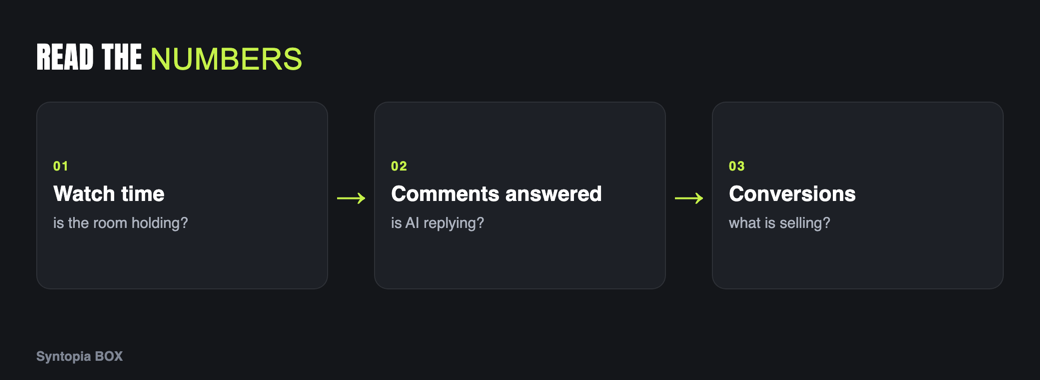
Four honest numbers you act on beat twenty you only glance at. A useful habit is to pair each metric with a question you are trying to answer: watch time asks “is the content holding attention?”, comments answered asks “is the room a conversation?”, and conversions ask “is any of this turning into money?”. If a metric does not change a decision you would make, you can safely stop tracking it.
Where to find metrics in BOX
Open the room or account you want to review and find its metrics view. From there you can read the current session and compare it against previous ones. The goal of this step is simply to know where to look so a review takes a minute, not an afternoon — make it a habit tied to your scheduled streams check.
- Pick what matters for this review — usually conversions and comments answered.
- Open the metrics view for the room or account.
- Compare against a baseline — the same room last week, or another room running now.
Per-room vs per-account views
Read at two levels. The per-room view tells you whether a specific stream — this avatar, this script, this slot — is working. The per-account view rolls up a shop’s whole performance across its rooms. Use per-room to tune individual streams and per-account to judge whether a shop is worth the airtime. Managing those accounts is covered in manage multiple shop accounts.
Comparing avatars and scripts
Analytics turns opinions into A/B tests. Run the same product with two avatars, or the same avatar with two scripts, and compare conversions and watch time. Over a few sessions you will see which host and which pitch your audience responds to — and that is far more reliable than guessing which one “feels” better.
Spotting a stalling room
A stalling room has tells: watch time sliding within a session, comments drying up, conversions flat while viewers are present. When you see them, change one variable — the script hook, the featured product, the slot — and measure again. The point of watching the numbers is to catch a fade early, while a small change can still turn it around.
Change one thing at a time. If you swap the avatar, the script and the product all at once and sales recover, you have learned nothing about which change did it. Disciplined, single-variable tweaks turn each stream into a small experiment whose result you can actually reuse on the next room.
Feeding insights back into scripts
The loop that compounds: read the numbers, find the moment viewers drop or convert, and rewrite the script to do more of what worked and less of what did not. If a product card consistently converts when the host says a particular line, put that line in more scripts. Analytics is only valuable when it changes the next stream.
Reporting to stakeholders
If you run rooms for clients or report to a brand — the agency and multi-account use case — package the numbers into a simple, honest summary: hours live, comments handled, conversions, and what you changed and why. Clear reporting builds the trust that keeps the rooms running.
Resist the urge to report every number you can see. A stakeholder wants to know whether the rooms are earning their keep and what you are doing about the ones that are not — so lead with conversions and coverage, add one line on what you tested, and keep the rest in reserve for anyone who asks. An honest report that admits a slow week and names the fix earns far more confidence than a wall of flattering charts. For the ROI framing behind these numbers, see the AI live selling overview, and for the full setup, the complete Syntopia BOX guide.
Step-by-step recap
Frequently asked questions
What should I measure on an AI live stream?
Focus on a few metrics that drive decisions: watch time and viewers, comments answered, conversions (product-card taps and sales), and uptime against your scheduled hours. A handful of numbers you actually act on is more useful than a long dashboard you only glance at.
Can I compare two avatars or scripts in Syntopia BOX?
Yes, and it is one of the most valuable things analytics lets you do. Run the same product with two avatars, or the same avatar with two scripts, then compare conversions and watch time over a few sessions. That turns a guess about which host or pitch works into evidence.
How do I tell if a live room is stalling?
Watch for the tells: watch time sliding within a session, comments drying up, and conversions staying flat while viewers are still present. When you see them, change one variable such as the hook, the featured product or the slot, and measure again before changing anything else.
What is the difference between per-room and per-account analytics?
The per-room view shows whether a specific stream, with its avatar, script and slot, is working, so you use it to tune individual streams. The per-account view rolls up a shop’s whole performance across its rooms, so you use it to judge whether a shop earns its airtime.