

To go live on TikTok Shop you need a ready account and shop, eight steps in the TikTok app, a plan for the chat and the right hour. This guide walks the whole route in order: the 8 in-app steps, the phone path versus the PC (OBS) path, what to do during the live, when to go live and the numbers to check afterwards. This is the written version of Lesson 1 of our TikTok Shop LIVE Academy, filmed step by step in the real app. If you would rather not present for hours, the last section shows how to go live with a Syntopia AI host.
What this video covers
- What a TikTok Shop live needs (0:00): products on show, offers on screen and a host selling live, and what goes wrong with no products added, no moderator or the wrong hour.
- Get your account ready (0:31): a photo and username that match what you sell, a bio that says why to follow, your live times in your profile, and products in your TikTok Shop.
- The 8 app steps to go live (1:04): plus to LIVE, device camera or Connect to PC/Mac, title with a country hashtag, moderators, keyword filter, gifts off, products, then go live. From a PC, copy the server URL and stream key into OBS, with a new key every live.
- During the live (2:54): add products from the shopping bag, pin the product you are talking about, answer questions, greet viewers by name and ask them to follow and tap the cart.
- Your room: kit and lighting (3:17): a mobile room or a high definition room, what to start with and what to add as you grow, and six lighting layouts picked by room depth.
- When to go live (4:26): check your market’s peak hours in Seller Center, post teaser videos before every live, follow a roadmap from your first 14 days to five months, and start with three to five products.
- After the live: your numbers (5:41): your live summary straight away, then average watch time, product click rate and conversion rate in Seller Center within 48 hours.
- Go live with an AI host (6:16): Syntopia runs an AI host for your live streams, on Syntopia BOX (a desktop app) or Syntopia Cloud, presenting your products and answering the chat out loud on TikTok Shop, Shopee, YouTube and more.
Read the full transcript
Products on show. Offers on screen. A host, selling live. That’s a TikTok Shop live, done right. This is the complete setup to get there, step by step, on the real app. Get one setting wrong, and it shows. No products added, so there’s nothing to buy. No moderator, and nobody manages the chat. The wrong hour, and fewer people show up. So here’s the whole route:
the eight app steps first, then the kit for your room, the best hours to go live, and the numbers to check when you finish. Your menus may look a little different. Before you start, get the account ready. Your photo and username should match what you sell. Your bio should say why people should follow you. And put your live times in your profile, so followers know when to come back. You also need products in your TikTok Shop. Tap me to open your shop.
No products yet? Tap get started. Already have some? Tap manage shop. Live unlocks at a follower threshold, and it differs by market, so check the threshold in your market and look for the live option in your own app. No live option yet? Build followers with short videos first. Step one. Tap the plus button at the bottom of TikTok. It opens on video, so swipe the bottom bar all the way across to live.
Step two. Choose how you go live. Device camera uses your phone’s front or back camera. Connect to PC or Mac streams from a computer through O B S, free streaming software. More on that in step eight. Step three. Before you press go live, edit the title. Add your country hashtag, so the stream reaches more viewers in your market. Then change the cover picture,
and pick a topic. Step four. Open settings, then moderators. A moderator can manage comments, and ban or mute users. You need to follow each other on TikTok first. Then you can add them before the stream starts. Step five. The keyword filter. Add up to two hundred words, each under thirty characters, and comments that contain them are hidden.
Add words like spam, Q V C, pre-recorded, and fake. Type each one, then tap send. Step six. Switch off live gifts, so gifting doesn’t pull attention away from shopping. Leave comments on. Step seven. Back on the main screen, tap products. Anything already in your showcase, the list of products you’ve chosen to sell, can be added straight away.
Or, if you promote other shops’ products as a creator, add them from the affiliate platform. Add everything you plan to show before you start. Step eight. With a phone camera, just press go live. With a computer, first copy the server U R L and the stream key into O B S, then go live. Every new live gets a new key, and switching apps during the live can reset it. When you finish, end the broadcast in both O
B S and the app. So that’s the app side. Plus, live, camera, title, moderators, filter, gifts off, products, go. If this is your first shop live, subscribe, because this is lesson one of a series on live selling. Once you’re live, tap the shopping bag to add more from your shop. Then pin the product you’re talking about. TikTok says pinning gives it more visibility and clicks. When you move on, unpin it and pin the next
one. Keep talking to the chat. Answer questions as they come in, greet new viewers by name, and ask people to follow and tap the cart. If you have an assistant, they can answer questions while you present. Now your room. There are two ways to set up. A mobile room: a phone, a phone holder, and a light. It’s flexible and works without broadband, but the picture is softer. Or a high definition room:
a computer running O B S, a camera, a ring light, a camera stand, and a table and chairs. A sharper picture, and more effects. You don’t need it all on day one. Start with a phone, a computer, a holder, and a ring light, and a studio light is even better. Once your lives sell well, add a camera, a tripod, and a capture card. And at every stage: stable wi-fi, a charger, and an extension lead. Lighting.
Here are six layouts, picked by how deep your room is. In a small room, use layout one, a single main light, or layout two, a main and a side light. With products behind you, layouts four and six add backlights to light them. Here’s what that looks like on real shop lives. The host and the product are bright, close to the camera, and easy to see on a small phone screen. Behind you, show your category.
Think a rail for clothes, a tiered table for shoes and accessories, plinths for hero products, and a lit shelf. Keep it tidy, and keep it on brand. Now, when to go live. Peak hours differ by market, so check your market’s peak hours in Seller Center. Here’s one market’s pattern from the playbook. The best window was five p m to midnight. Seller competition was highest from nine a m to nine p m.
The sales rate was highest from seven p m to midnight. And more people were active at weekends. So look for the hours when competition drops and sales peak. Before each live, post teaser videos with the time, the products, and the deals. Post one a day for the week before, plus two or three just before you go live. Use the live preview, so people can set a reminder. And comment the time slot on your own teaser.
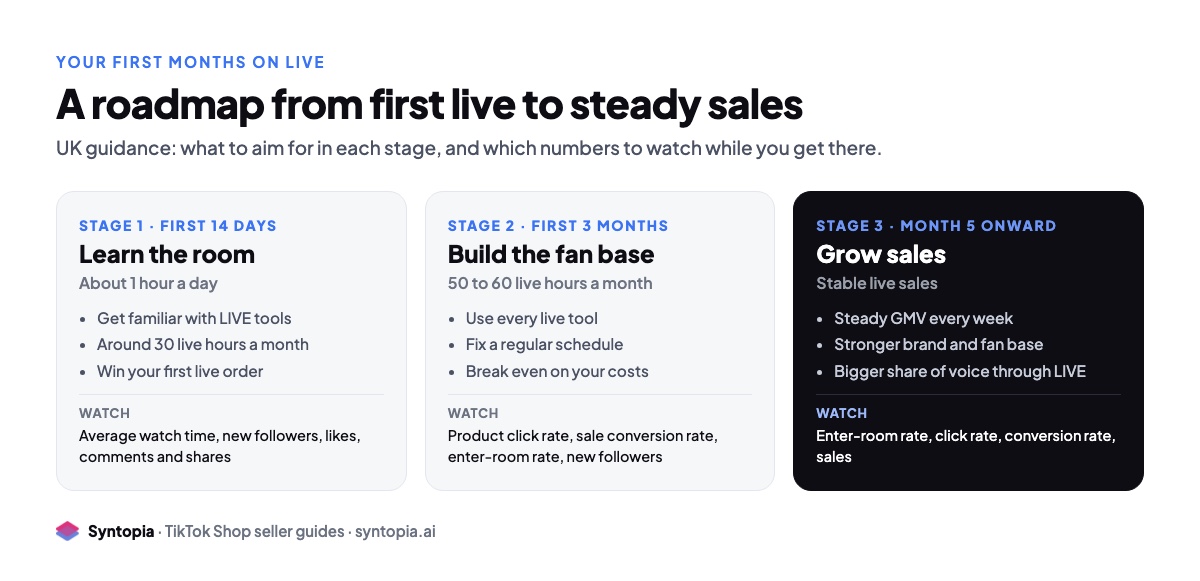
How often should you go live? Here’s a roadmap. In your first fourteen days, aim for about one hour a day at a fixed time, around thirty hours a month, and get your first live order. Over the first three months, build to fifty or sixty hours a month. After five months, the goal is stable sales. And how many products? Start with three to five. Later, at ten to twenty minutes per product, up to about ten products fit a two hour live.
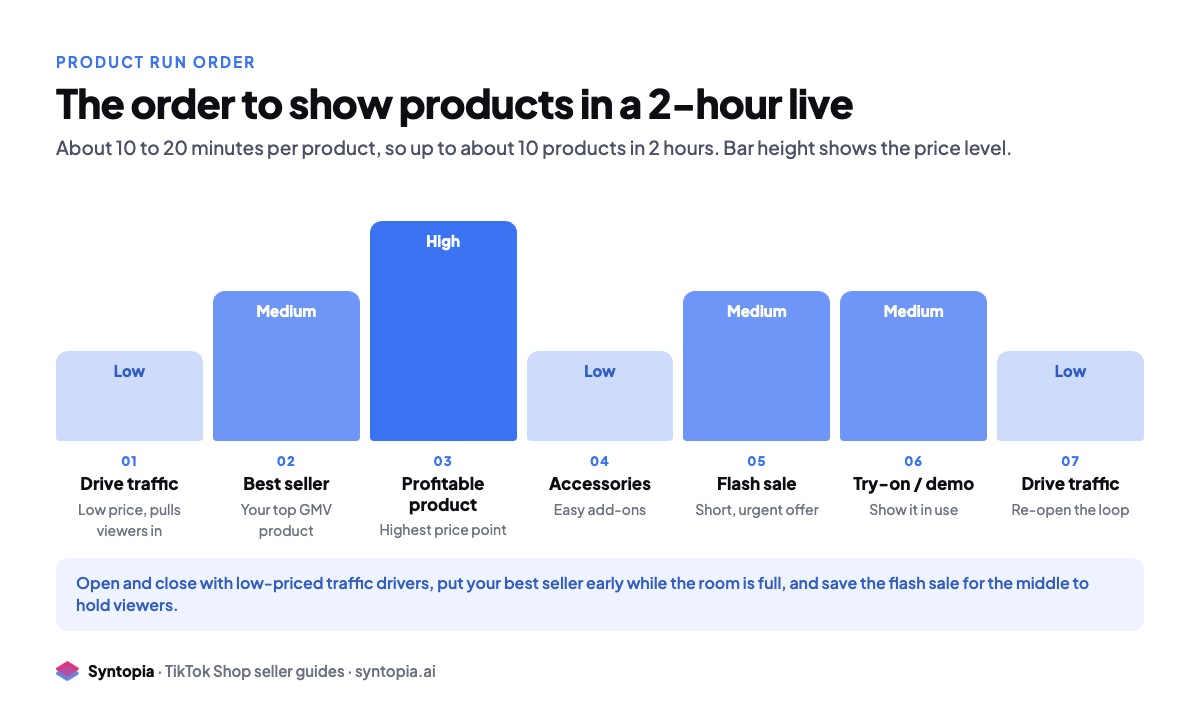
Run them in an order: a low price item to drive traffic, your best seller, a profitable product, accessories, a flash sale, a demo or try-on, then traffic again. When you end, your live summary shows viewers, new followers, and more, straight away. For past lives, go to me, then showcase, then TikTok Shop, then today’s data. Then, within forty eight hours, review the full data in Seller Center, your shop’s web dashboard.
Watch three numbers: average watch time, product click rate, and conversion rate. Change one thing for the next live, and compare. That’s the full setup. Account ready, eight app steps, pin as you present, the right kit and light, the right hours, teasers before, three to five products to start, and a review within forty eight hours. One more thing. All of this assumes someone presenting on camera for hours, every day. If you’d rather not, Syntopia BOX is a
desktop app that runs an AI host for your live streams. It presents your products and answers the chat out loud, on TikTok Shop, Shopee, YouTube, and more. Same shop, same products, a different host. Find it at syntopia.ai. Watch one of these next. See you in the next one.
- Get the account ready first: a photo and username that match what you sell, a bio that says why to follow, and your live times in your profile.
- The 8 app steps: plus to LIVE, camera or PC, title and country hashtag, moderators, keyword filter, gifts off, products, go live.
- On a phone, just press Go LIVE. From a PC, copy the server URL and stream key into OBS first, and use a new key every live.
- During the live, pin the product you are talking about and keep answering the chat.
- UK figures: the suggested window is 5 pm to midnight (UK). Review your numbers in Seller Center within 48 hours.
What a TikTok Shop live needs before you start
Two things have to be in place before you tap anything: an account people want to follow, and products in your TikTok Shop.
Get the account ready. Your photo and username should match what you sell. Your bio should say why people should follow you. And put your live times in your profile, so followers know when to come back.
Get the products ready. Tap Me to open your shop. No products yet? Tap Get started. Already have some? Tap Manage shop.
Check you can see the live option. In the UK, live unlocks at 1,000 followers (UK). Rules differ by market, so check for the live option in your own app. No live option yet? Build followers with short videos first. Your menus may look a little different from the ones shown here.
The 8 in-app steps to go live
Once the account and shop are ready, these are the eight steps in the TikTok app, in the order to do them.
Open the live screen
Tap the plus button at the bottom of TikTok. It opens on video, so swipe the bottom bar all the way across to LIVE.
Choose how you go live
Device camera uses your phone’s front or back camera. Connect to PC/Mac streams from a computer through OBS, free streaming software. The two paths are compared in the next section.
Title, hashtag, cover and topic
Before you press Go LIVE, edit the title. Add the country hashtag, like #UK to the title. Then change the cover picture and pick a topic.
Add moderators
Open Settings, then Moderators. A moderator can manage comments, and ban or mute users. You need to follow each other on TikTok first; then you can add them before the stream starts.
Set the keyword filter
Add up to 200 words, each under 30 characters, and comments that contain them are hidden. Words like spam, scam, pre-recorded and fake are a good start. Type each one, then tap send.
Switch off live gifts
Turn LIVE gifts off so gifting doesn’t pull attention away from shopping. Leave comments on.
Add your products
Back on the main screen, tap Products. Anything already in your showcase, the list of products you’ve chosen to sell, can be added straight away. If you promote other shops’ products as a creator, add them from the affiliate platform. Add everything you plan to show before you start.
Go live
With a phone camera, just press Go LIVE. With a computer, first copy the server URL and the stream key into OBS, then go live.
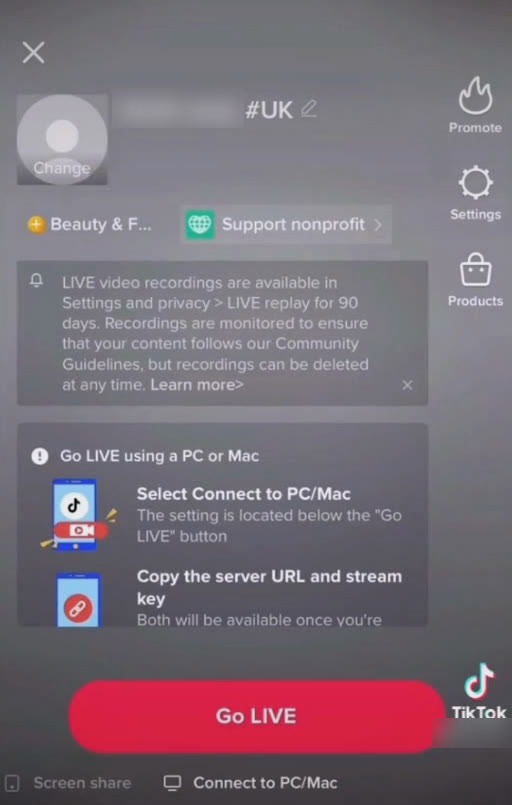
That is the app side: plus, live, camera, title, moderators, filter, gifts off, products, go.
Phone path or PC path (OBS)
Step 2 is where the two paths split. Both use the same eight steps; only the camera and the last step change.
| Phone (device camera) | PC or Mac (OBS) | |
|---|---|---|
| Pick in step 2 | Device camera | Connect to PC/Mac |
| Camera | Your phone’s front or back camera | A computer running OBS, free streaming software |
| Step 8 | Press Go LIVE | Copy the server URL and stream key into OBS first, then go live |
| Stream key | Nothing to copy | Every new live gets a new key, and switching apps during the live can reset it |
| When you finish | End the live in the app | End the broadcast in both OBS and the app |
| Room | A mobile room: a phone, a phone holder and a light. Flexible, but the picture is softer. | A high definition room: a computer running OBS, a camera, a ring light, a camera stand, and a table and chairs. A sharper picture and more effects. |
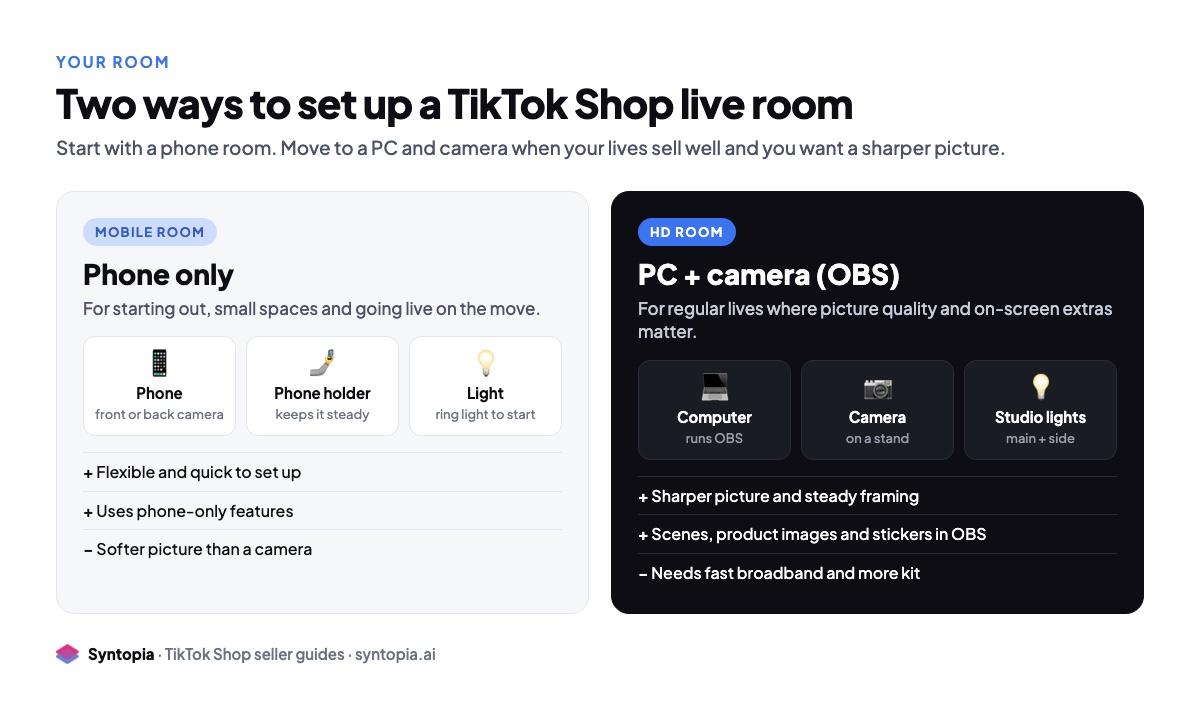
You don’t need it all on day one. The phone path gets you live with what you already have, and the PC path is there when you want a sharper picture and more effects.
Note that this is the TikTok app setup. Syntopia, covered in the last section, is a different setup: it runs on a Windows PC with a GPU.
During the live: bag, pin and chat
Once you’re live, tap the shopping bag to add more products from your shop. Then pin the product you’re talking about. Pinning gives it more visibility and clicks. When you move on, unpin it and pin the next one.
Keep talking to the chat:
- Answer questions as they come in.
- Greet new viewers by name.
- Ask people to follow and tap the cart.
- If you have an assistant, they can answer questions while you present.
Your moderators and keyword filter from steps 4 and 5 are already working in the background. If you want words for the hour itself, see our guide to writing a TikTok Shop livestream script.
Your room: kit and lighting
You don’t need a studio to start. Start with a phone, a computer, a holder and a ring light; a studio light is even better. Once your lives sell well, add a camera, a tripod and a capture card. At every stage you need stable wi-fi, a charger and an extension lead.
| Kit | Cold start | Stage I | Stage II | Stage III |
|---|---|---|---|---|
| Phone | ✓ | ✓ | ||
| Phone holder | ✓ | ✓ | ||
| Computer | ✓ | ✓ | ✓ | ✓ |
| Camera on a tripod | ✓ | ✓ | ||
| Video capture card | ✓ | ✓ | ||
| Ring light | ✓ | |||
| Studio light | better to have | ✓ | ✓ | ✓ |
| Reflector | ✓ | ✓ | ||
| Microphone | ✓ | |||
| Wireless microphone | ✓ | ✓ | ||
| Stable wi-fi, charger, extension lead | Every stage | |||
Kit by stage, from our TikTok Shop LIVE training hardware sheet (UK). Each stage matches a higher level of hourly live sales; Stage III is the level of top creators and star lives.
For lighting, pick a layout by how deep your room is. In a small room, use layout one, a single main light, or layout two, a main and a side light. With products behind you, layouts four and six add backlights to light them. Keep the host and the product bright and close to the camera so they are easy to see on a small phone screen, and show your category behind you, such as a rail for clothes, a tiered table for shoes and accessories, plinths for hero products or a lit shelf. Keep it tidy and on brand.
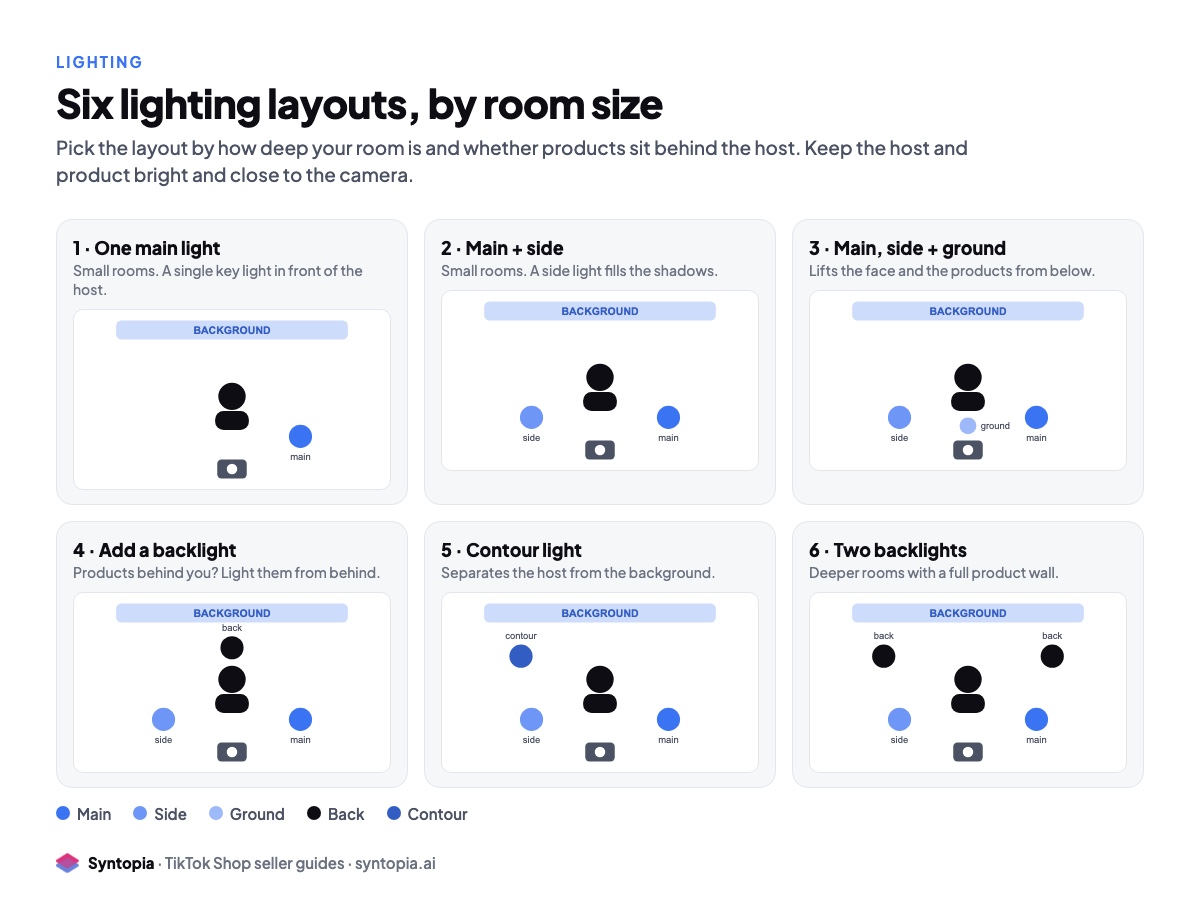
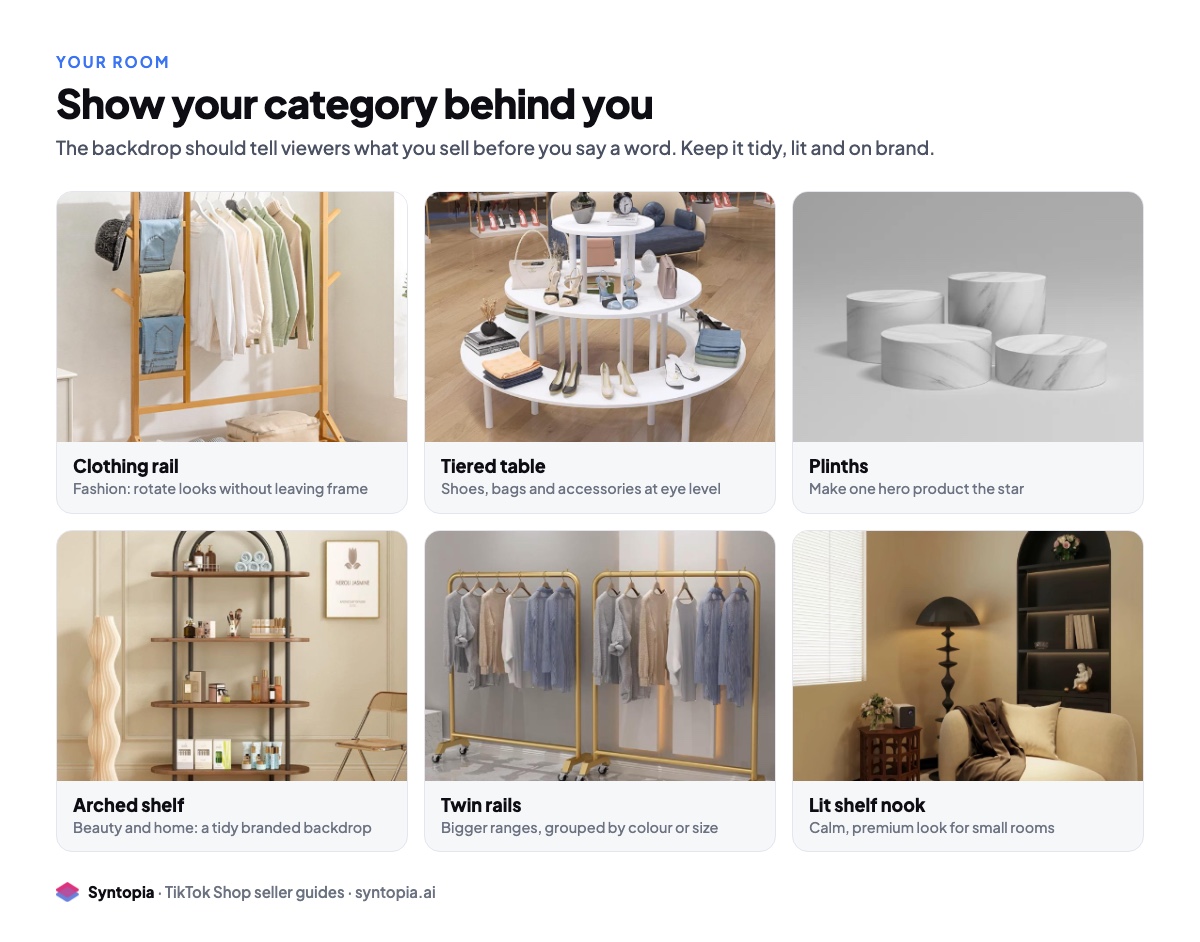
For the full room setup, including team roles, compliance and your first sessions, read our guide to setting up a TikTok Shop live room.
When to go live (UK figures)
These hours are for the UK. Check your own market before you copy them.
- The suggested live window is 5 pm to midnight (UK).
- Seller competition is highest from 9 am to 9 pm (UK).
- The sales rate is highest from 7 pm to midnight (UK).
- More people are active at weekends.
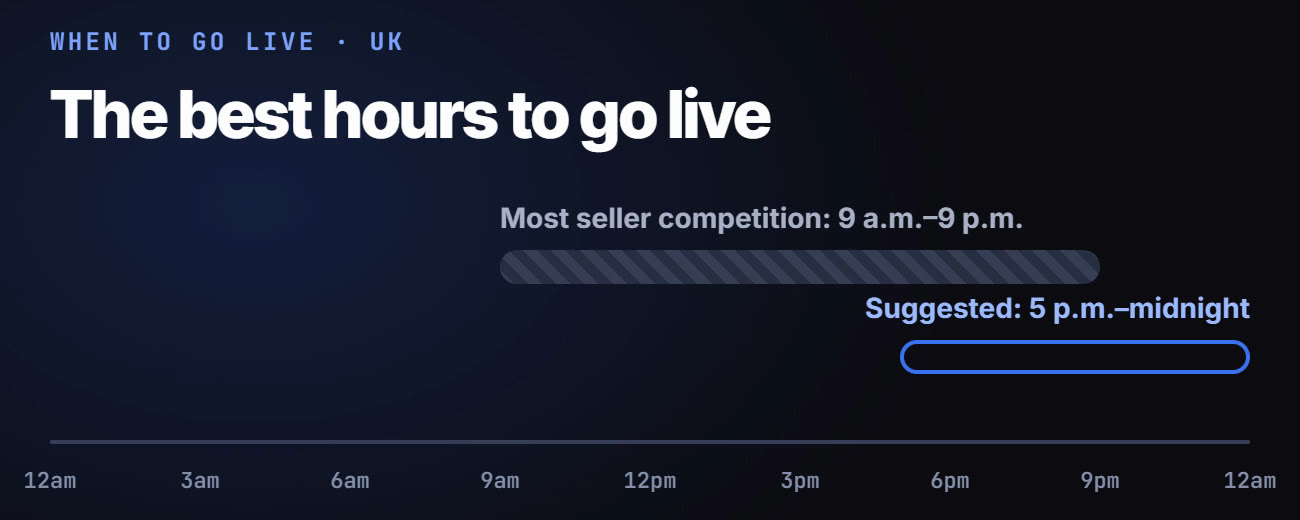
So the sweet spot looks like after 9 pm, when competition drops and sales peak. That is our reading of the UK numbers. To find the hours that work for your own audience, see the best time to go live for sales.
Post teasers before every live
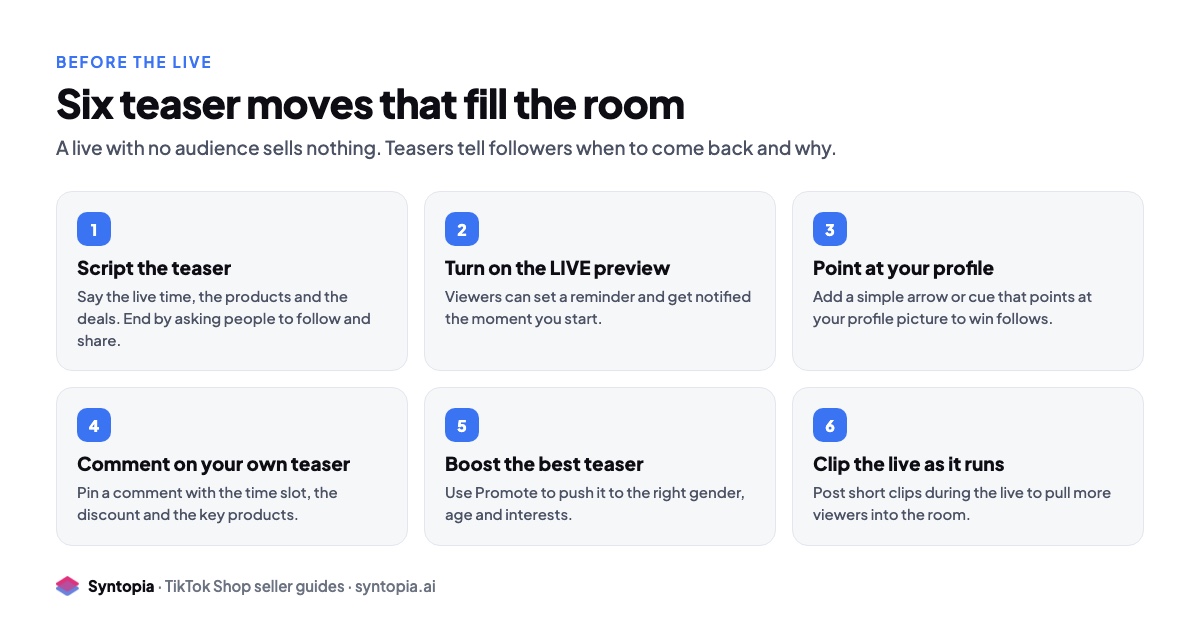
Before each live, post teaser videos with the time, the products and the deals. Post one a day for the week before, plus two or three just before you go live. Use the live preview, so people can set a reminder, and comment the time slot on your own teaser.
How often to go live (UK guidance)
- First 14 days: about one hour a day at a fixed time, around 30 hours a month, and aim for your first live order.
- First three months: build to 50 or 60 hours a month.
- After five months: the goal is stable sales.
The first-sessions framework is in our TikTok Shop live cold start guide.
How many products (UK guidance)
Start with three to five products. Later, at 10 to 20 minutes per product, up to about ten products fit a two-hour live. Run them in an order: a low-price item to drive traffic, your best seller, a profitable product, accessories, a flash sale, a demo or try-on, then traffic again. For what to sell and in which order, see our guide to TikTok Shop live product selection.
After the live: your numbers
When you end, your live summary shows viewers, new followers and more, straight away. For past lives, go to Me, then Showcase, then TikTok Shop, then Today’s Data.
Then, within 48 hours, review the full data in Seller Center, your shop’s web dashboard. Watch three numbers: average watch time, product click rate and conversion rate. Change one thing for the next live, and compare.
For a structured way to read the data, use our TikTok Shop live stream review framework.
Go live with a Syntopia AI host
Everything above assumes someone is presenting on camera for hours, every day. If you would rather not, Syntopia runs a hyper-realistic AI host for your live streams, on Syntopia BOX (on your own PC) or Syntopia Cloud. It presents your products and answers the chat out loud, 24/7, on TikTok Shop, Shopee, YouTube and more. Same shop, same products, a different host.

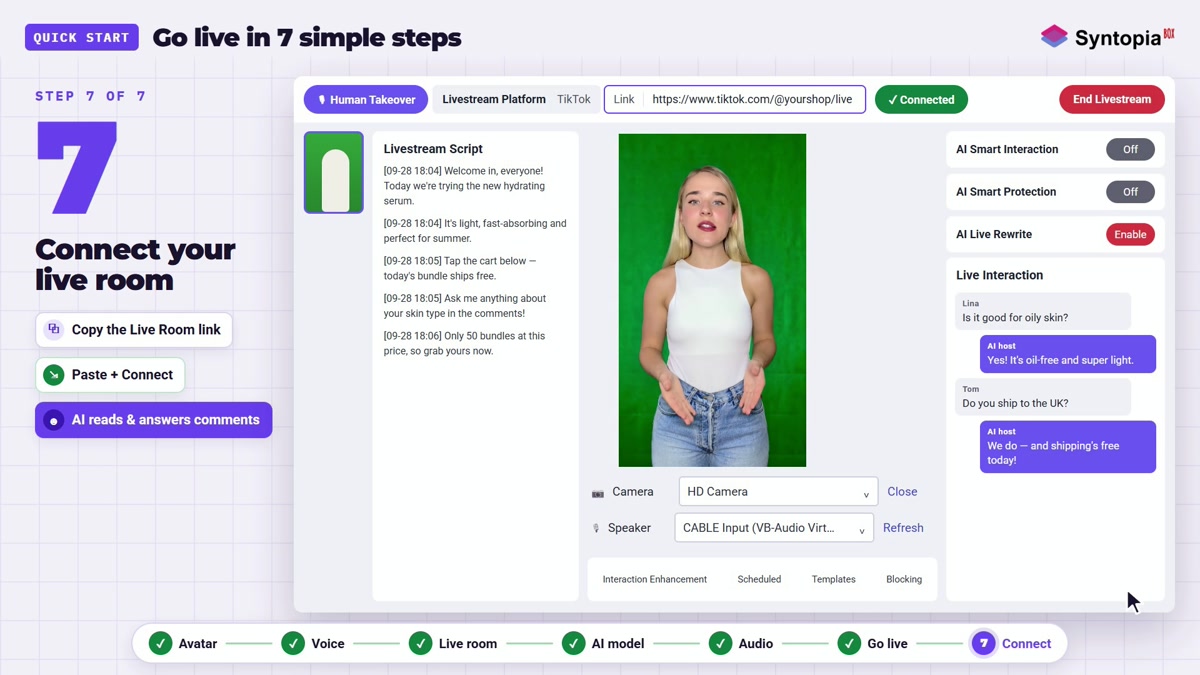
BOX runs on a Windows PC with a GPU, and Cloud runs the same AI host for you, so either way it is a different setup from the phone path in this guide. If you want an AI host presenting for you, take a look at the plans.
TikTok Shop features, menus and rules vary by market and change over time: always check TikTok Shop Seller Center for your market. Figures marked UK apply to the UK only.
Frequently asked questions
How do I go live on TikTok Shop?
Get your account and products ready, then follow the eight in-app steps: tap the plus button and swipe to LIVE, choose device camera or Connect to PC/Mac, set the title with a country hashtag, cover and topic, add moderators, set the keyword filter, switch off live gifts, add your products, and press Go LIVE.
Can I go live on TikTok Shop from a PC?
Yes. In step 2 choose Connect to PC/Mac, then copy the server URL and the stream key into OBS, free streaming software, and go live. Every new live needs a new key, switching apps during the live can reset it, and you end the broadcast in both OBS and the app.
How many followers do I need to go live on TikTok?
In the UK, live unlocks at 1,000 followers. Rules differ by market, so check for the live option in your own app. If there is no live option yet, build followers with short videos first.
What is the best time to go live on TikTok Shop?
In the UK, the suggested window is 5 pm to midnight. Seller competition is highest from 9 am to 9 pm, the sales rate is highest from 7 pm to midnight, and more people are active at weekends. Check your own market, and see our guide to the best time to go live for how to find your own hours.
How do I pin a product during a TikTok Shop live?
Once you are live, tap the shopping bag to add products from your shop, then pin the product you are talking about. Pinning gives it more visibility and clicks. When you move on, unpin it and pin the next one.
What should I check after a TikTok Shop live?
Check your live summary straight away. Then, within 48 hours, review the full data in Seller Center: average watch time, product click rate and conversion rate. Change one thing for the next live and compare.
Can I go live on TikTok Shop without being on camera myself?
Yes, with an AI host. Syntopia runs an AI host for your live streams on BOX (your own PC) or Cloud. It presents your products and answers the chat out loud, on TikTok Shop, Shopee, YouTube and more. BOX runs on your own Windows PC with a GPU.