
Taobao Live: Face + Hands, AI Handheld Products and KT Board
This guide covers the three Taobao Live setups in Syntopia BOX and how to build the Taobao livestream room:
- Face + Hands mode: a real host on camera, with hand close-ups of each product.
- AI Handheld Products with RunningHub: BOX generates the hand close-ups for you.
- KT Board: product images placed onto a board the host holds.
- Taobao livestream room setup.
Taobao Live only. These setups are built for Taobao Live. Face + Hands and KT Board streams can go straight into Taobao’s public traffic pool.
1. Face + Hands mode
Face + Hands is a popular Taobao Live format that suits the public traffic pool and avoids low-quality-content risk controls. A real host appears on camera to introduce products, without reading out detailed product specs. When a product is shown, the stream switches to a close-up of hands with that product’s image placed over it.
How the stream runs: the face clips introduce products and draw viewers in, then the stream cuts to the hand shot with the matching product image. All footage is prepared in segments in advance, and BOX rotates through them during the livestream.
1.1 Preparation
- Prepare two sets of footage: (1) a face video of the host presenting products, and (2) a silent video of hands and the table.
- Write the script in advance, in segments of 20–30 seconds, with pauses between segments so the shots are easy to cut later.
1.2 Filming with one camera
First, film the face video for 5–10 minutes:
- Read the livestream script to camera, about 30 seconds per segment.
- After each segment, pause for 20–30 seconds without speaking.
Then film the hands + table video for 5–10 minutes:
- Keep the scene, lighting and camera position exactly the same as the face video.
- No sound at all. The hands pick up and show the products, and the video is muted.
- Film one hand segment per product.
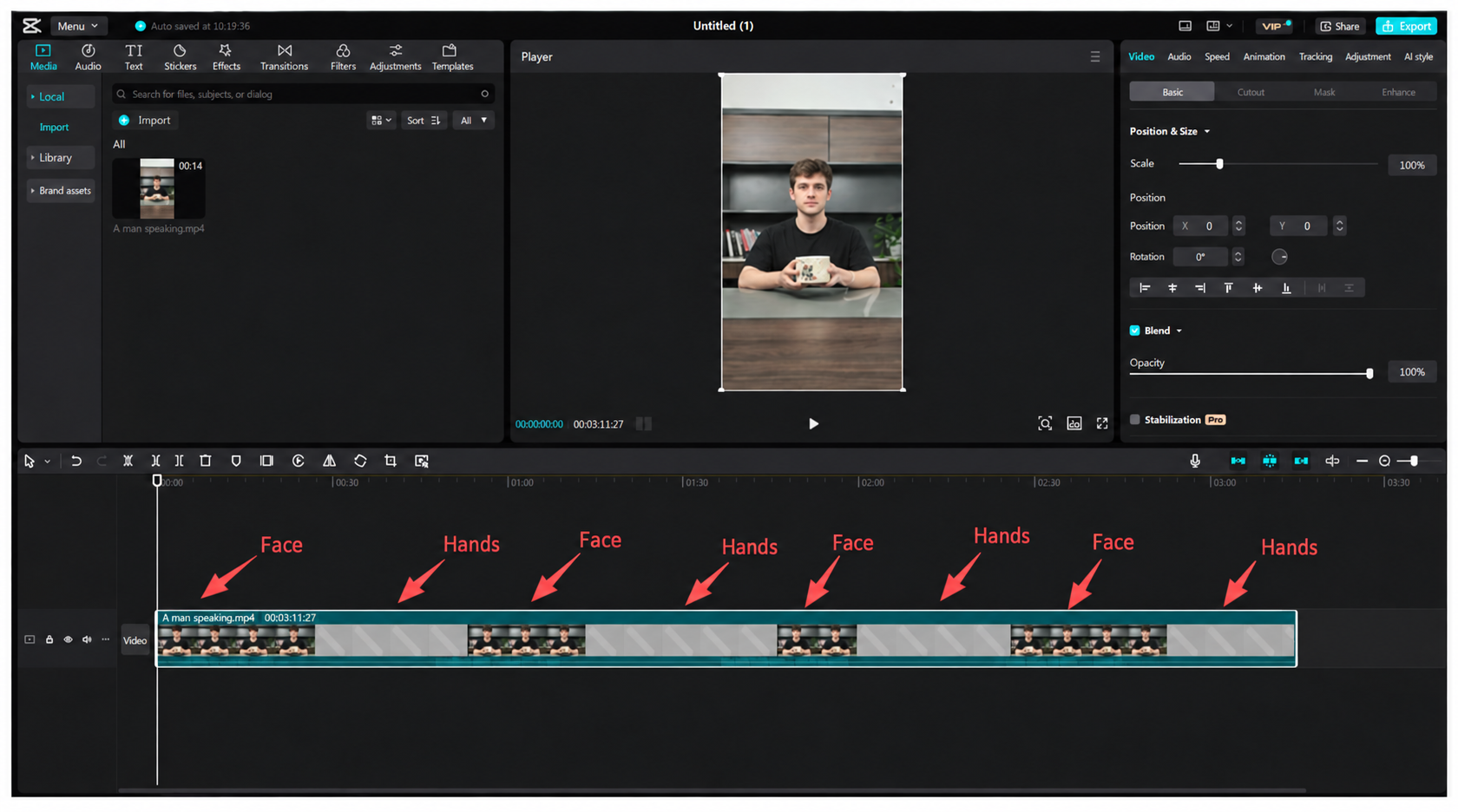
1.3 Edit and merge in CapCut
- Import the face video and the silent hand video into CapCut.
- Speaking segments: keep the face footage with its original audio.
- Silent segments: hard-cut to the silent hand footage.
- Use hard cuts only: 30 seconds face, 30 seconds hands, 30 seconds face, 30 seconds hands, and so on. No transitions, crossfades or fades, because training detects the segments from the scene changes.
- Export the finished video. You will use it to train the V5 avatar in Face + Hands mode.
1.4 Train the V5 avatar in Face + Hands mode
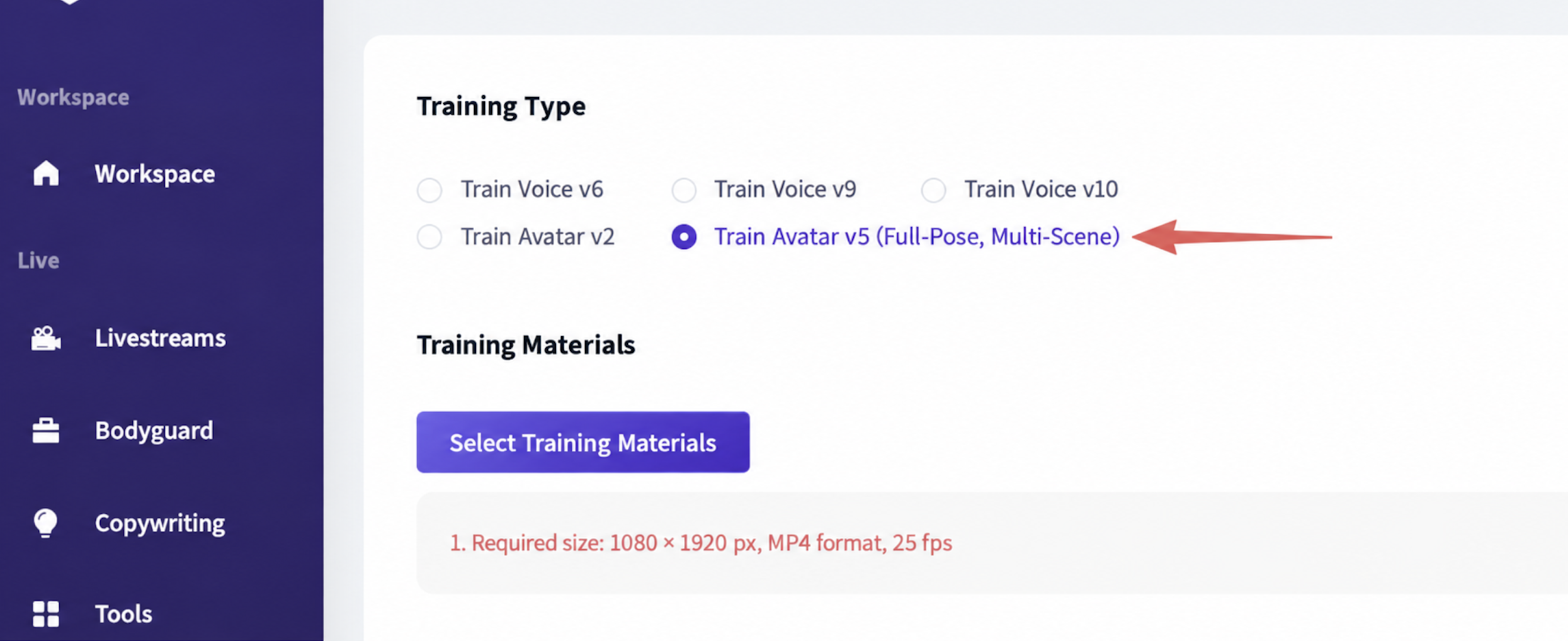
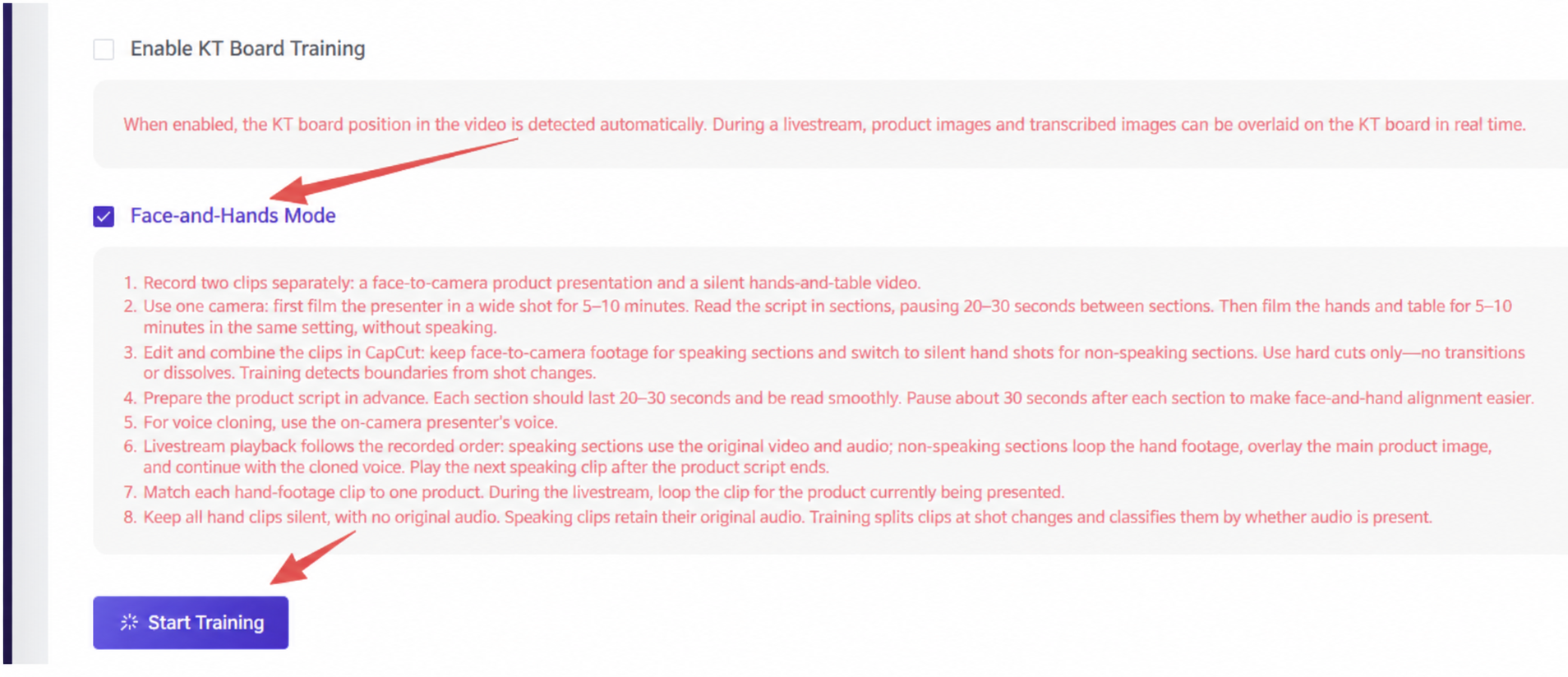
On the BOX Dashboard, open the Digital Human card (One-Click Training). Choose Train Digital Human V5 (Full-Pose, Multi-Scene), click Select Training Media to choose your merged video, tick Face + Hands Mode, and click Start Training. When training finishes, add the resource package under Assets → Digital Human → + Add Digital Human.
1.5 Clone the host’s voice
Clone the on-camera host’s voice (Dashboard → Voice Cloning). During the livestream, the AI uses this voice to keep presenting products during the hand shots.
1.6 What viewers see
- The stream plays in the order of your merged video.
- Speaking segments: the original face video plays with the host’s own voice.
- Silent segments: the hand footage for the current product loops with the product’s main image placed over it, while the cloned voice keeps presenting the product.
- When the current product’s script is finished, the stream cuts to the next face segment.
- Each product always gets its own hand footage: whichever product is being presented, its hand segment is the one that loops.
2. AI Handheld Products with RunningHub
Instead of filming hands holding every product, BOX can generate the hand close-ups for you. It takes each product’s main image and creates a picture of your avatar’s hand holding it. Then it turns that picture into a 5-second clip, played forward and back as a smooth 10-second loop. During the hand stage, BOX plays the AI clip for the product being presented, and falls back to your real hand footage if a product has no AI clip yet.
The generation runs on RunningHub, an AI generation platform. You connect your own RunningHub account with an API key, and the cost is charged to your RunningHub balance.
2.1 Before you start
- A V5 avatar trained in Face + Hands mode (Section 1).
- A Taobao livestream room with your products imported from Taobao (Section 4).
- A RunningHub account with balance.
2.2 Create your RunningHub account and top up
Sign up at runninghub.ai, the international site in English. Then top up your wallet first: API generation is billed by run time from your wallet balance, so it won’t work at zero balance. Current rates are on RunningHub’s API Pricing page.

The screenshots show RunningHub’s China site. The international site, runninghub.ai, has the same layout in English.
2.3 Copy your API key
In RunningHub’s API console, find API keys. Click Copy on your own key. The shared platform key in the first row can’t be copied. If you don’t have a key yet, click + New to create one.

2.4 Connect RunningHub to Syntopia BOX
- In Syntopia BOX, open AI Model in the left menu and scroll to RunningHub Settings.
- Paste your key into APIKey.
- Under Region, choose International for a runninghub.ai key, or China for a runninghub.cn key.
- Click Save Settings.

2.5 Generate handheld images and videos
- Open your Taobao livestream room in the editor, make sure the Face + Hands avatar is selected, and click the AI tab on the right.
- Find AI Handheld Product Display. If it shows a red RunningHub not configured badge, click Configure or repeat step 2.4.
- Leave Play AI handheld videos in the hand stage switched on. During the hand stage, BOX then plays the current product’s AI handheld video if it has one, and your real recorded hand footage if it doesn’t.
- Check the Hand Reference Image. BOX takes it from your Face + Hands avatar’s hand footage. If it says No local hand-model directory matched the selected model, the room is not using a Face + Hands avatar.
- Set Generate This Many: how many unfinished products to process per click, in list order. Example: you imported 100 products and set this to 4, so BOX makes one image each for products 1–4.
- Set Concurrency: how many run at the same time. Example: set to 2, those 4 products are made 2 at a time.
- Click Batch Generate Images first. When the images are done, click Batch Generate Videos.
- Watch the counters (Total Products, Holding Images, Videos) and preview each product’s image and video in the list. Click again to continue with more products. Finished products are skipped.

Tips: generate 4 products first and preview them before doing the rest, because every image and video uses RunningHub balance. Use clear, well-lit main product images, because BOX uses the original image as-is with no cropping or cutout. Concurrency 2 is a good default.
3. KT Board livestream
A KT Board raises your product-presentation rate and improves your Taobao livestream room’s quality score. During the livestream, BOX places the product image onto the board in the host’s hands automatically.
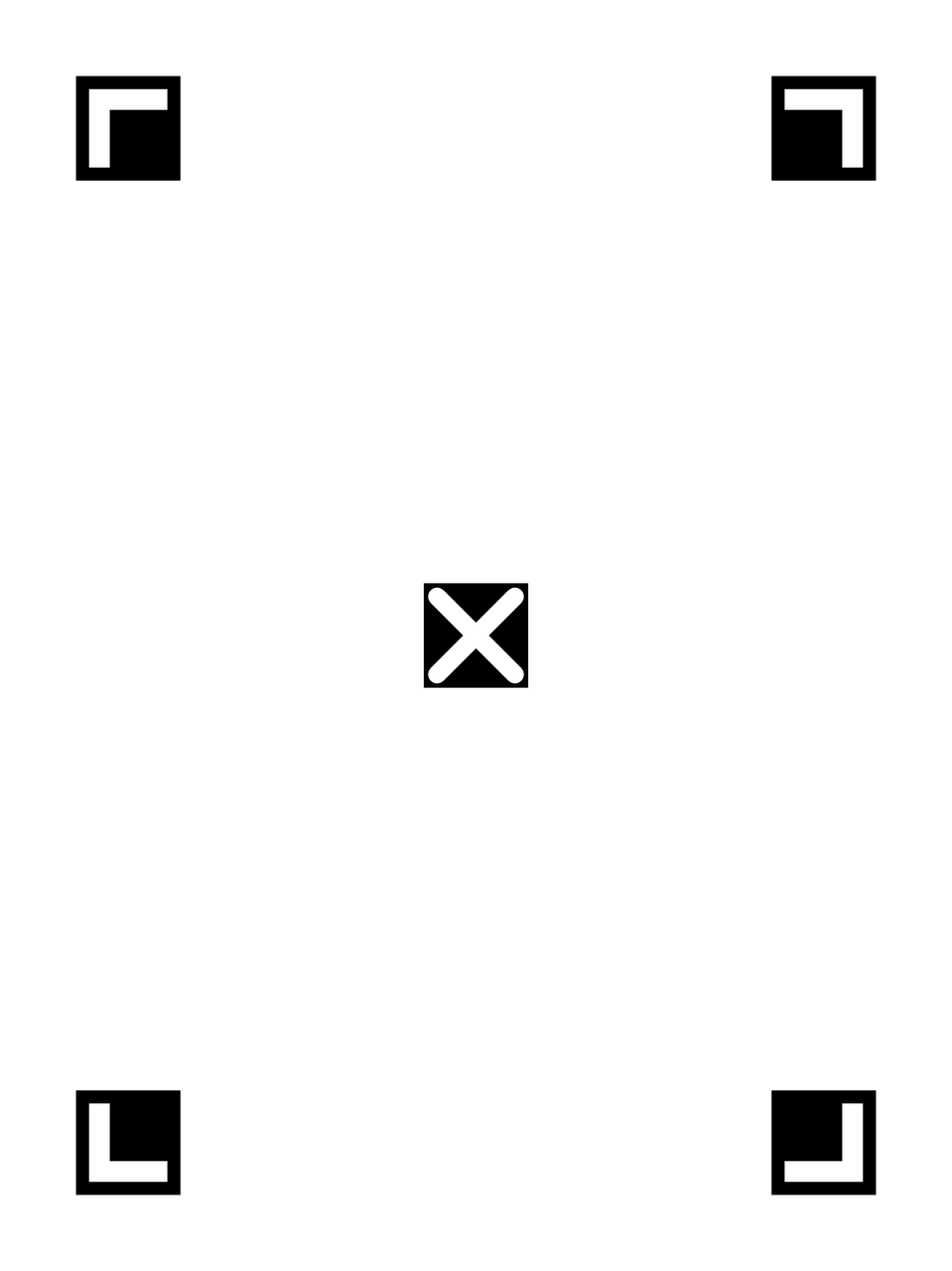
3.1 Print the standard KT board
Print it at A4 size and don’t laminate it, to avoid glare. When filming, all four corner L markers and the centre X marker must be fully in frame and never covered by hands. You can also download the board in BOX under One-Click Training → Enable KT Board Training → Download Standard KT Board Image (For Printing).
3.2 Recording requirements
- Use a green screen or solid-colour background with even lighting, so the board doesn’t show glare or overexposure. Keep the camera focused so the board is sharp.
- Hold the board by its top and bottom edges or its left and right sides with both hands. Never cover the four corner L markers or the centre X.
- Keep the board facing the camera and fully in frame. A slight tilt is fine, but the markers must never leave the frame or be blocked by your body.
- Move the board slowly and steadily. When it moves in or out of frame, all the markers must stay clearly visible.
- The host faces the camera in a fixed half-body or full-body position. The video resolution must match the quality chosen for the cloned model.
- Record for 8 minutes, silent throughout.
Sample KT board recording: [August 19.mp4]
3.3 Train the V5 avatar with KT Board
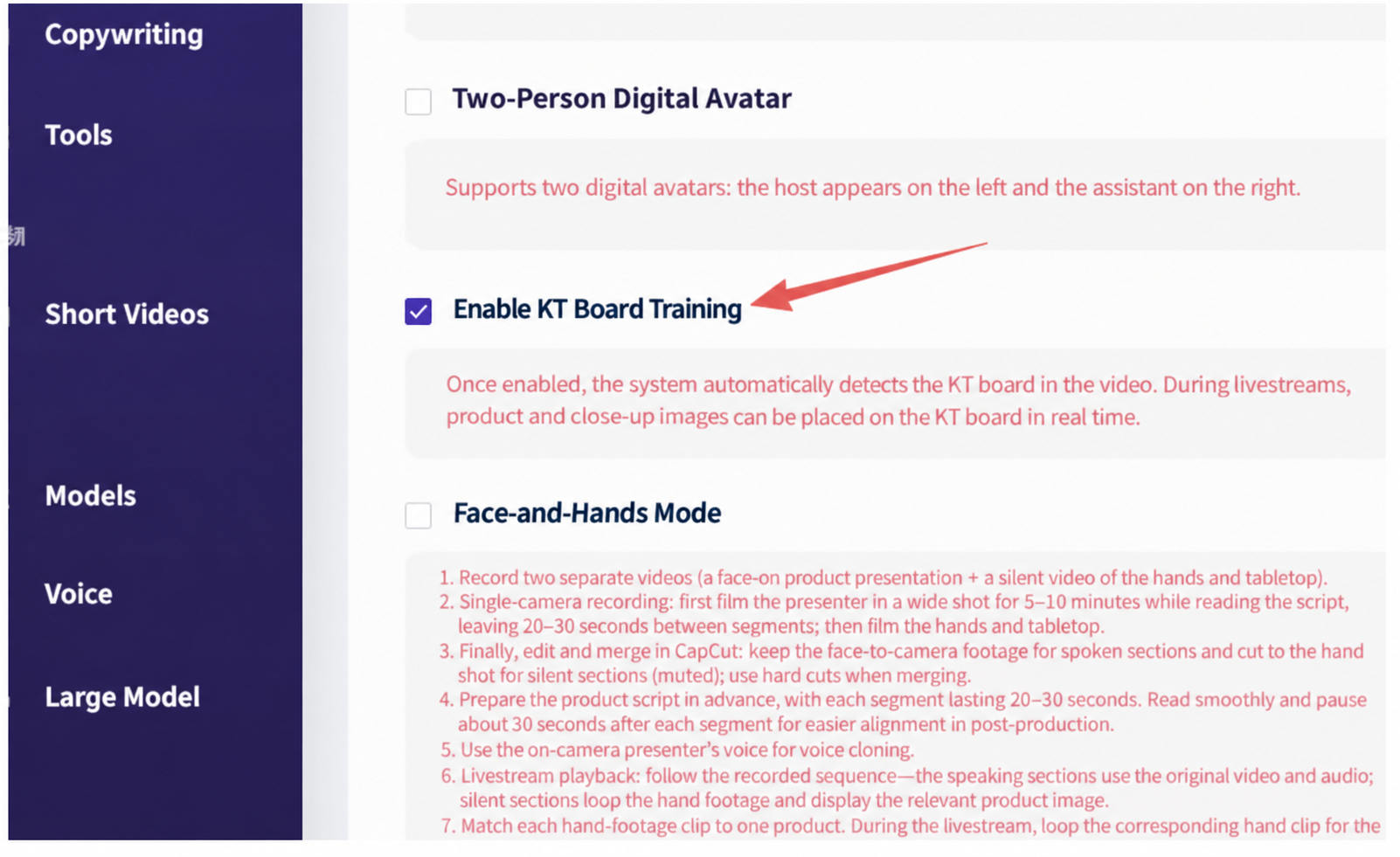
In One-Click Training, choose V5 and tick Enable KT Board Training, then select your KT board video and start training.
4. Set up the Taobao livestream room
4.1 Create the livestream on Taobao
On the Dashboard, click Create Live Stream and choose Taobao as the streaming platform.

4.2 Import your Taobao products
First, add your products under Product Planning in Taobao Live: liveplatform.taobao.com. Then, in the room editor, click Import Taobao Product and scan the QR code to authorise your Taobao Live account. BOX syncs the product list and pulls in each product’s main image automatically.

Once a product is imported, its KT product image is generated automatically from the main image.
