10_3 Major AI Semi-Unmanned Livestream Setup Solutions - Operating Details
3 Major AI Semi-Unmanned Livestream Setup Solutions - Operating Details
1. Real-Scene Livestream + Co-Host Voice Driving
A real-scene livestream is one broadcast in an actual physical setting; this real scene can be a green-screen person, a built set, or a natural real-world environment.
For a real-scene AI livestream, note that the system's Co-Host Voice Driving feature should be used during the stream, with a real person chiming in periodically (every 3-5 minutes is recommended) to ensure the room's audio has variation.
For Douyin, Real-Scene (real person on camera) + Co-Host Voice Driving is the top recommendation.
2. Setup Plans for Different Scenes
In the digital human system, set the livestream type to Real Scene; Livestream Companion goes live using a real camera, with only the real person in the room, acting as the co-host.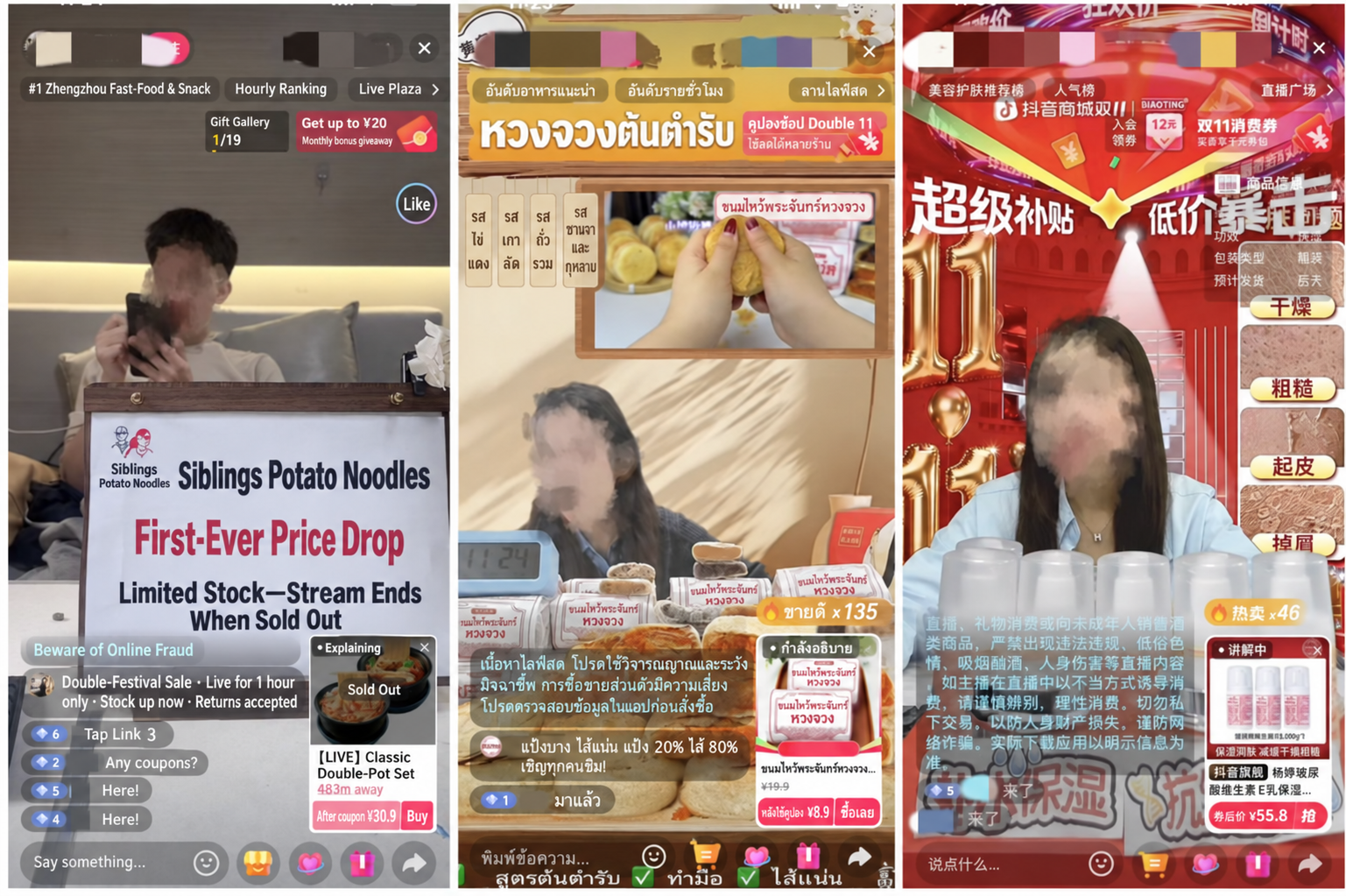
- Note! If the background is a video, the video must undergo deduplication
Below is the method for video deduplication: Attachment 1: Video Deduplication Tutorial
A natural real-world scene, as the name suggests, means Livestream Companion goes live using the computer's real camera, with the livestream room set in a natural environment.
To avoid being flagged as a non-real-person livestream or pre-recorded playback due to a static picture or lack of interaction — which could lead to a ban — here are some setup suggestions to ensure the picture has movement and increase authenticity:
- Swinging clocks/balance ornaments: such as a Newton's cradle, perpetual motion device, or clock.
- Wind-driven devices: such as a small fan blowing a wind chime, light fabric strips, or dried flower branches.
- A small desktop fountain: flowing water ripples provide continuous dynamic movement.
- A humidifier/aroma diffuser: choose a model with a fine, gentle mist output — the slowly rising white vapor greatly enhances the liveliness and atmosphere of the scene.
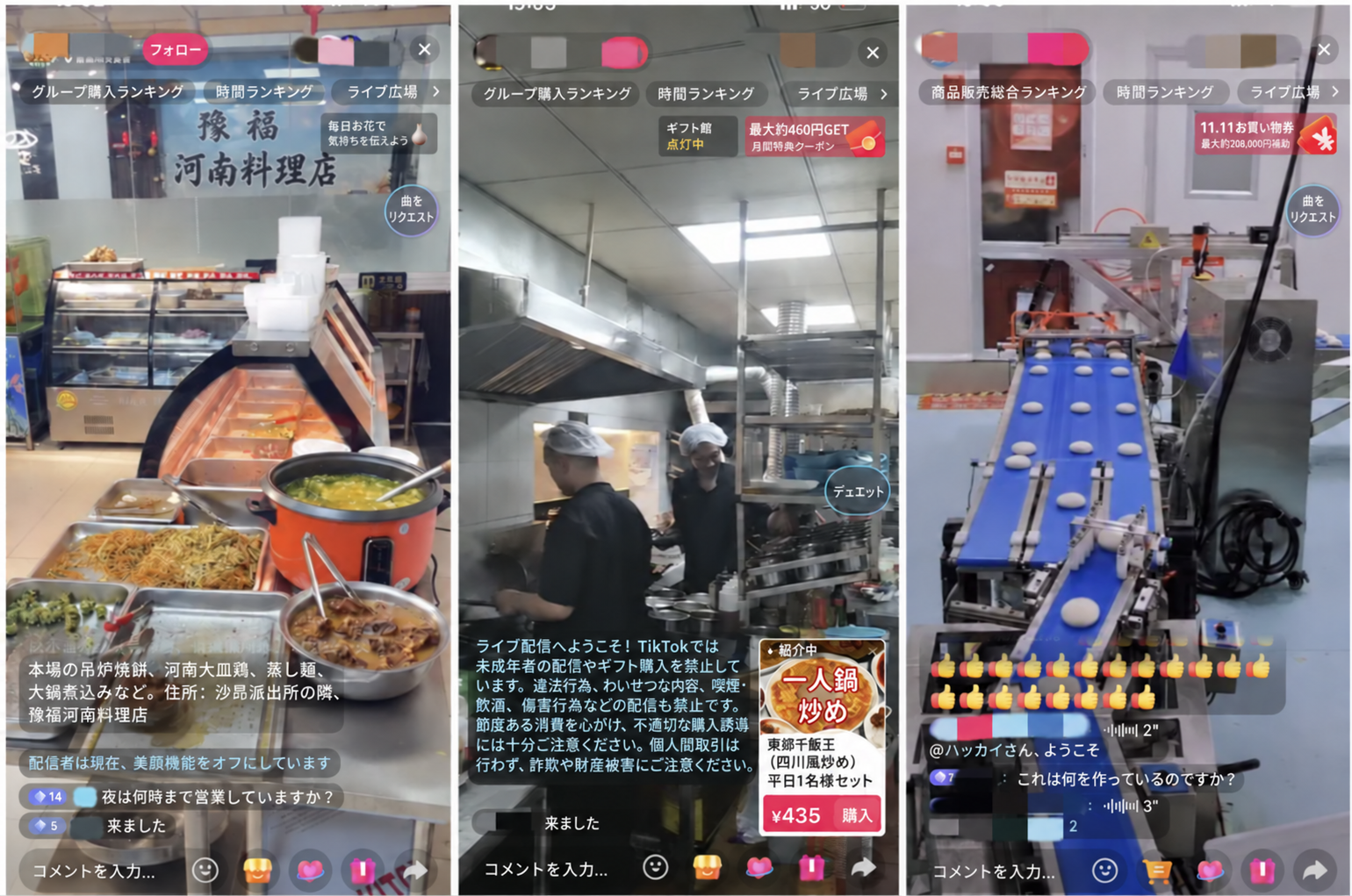
Below are examples of real-scene setups for different types of livestream rooms: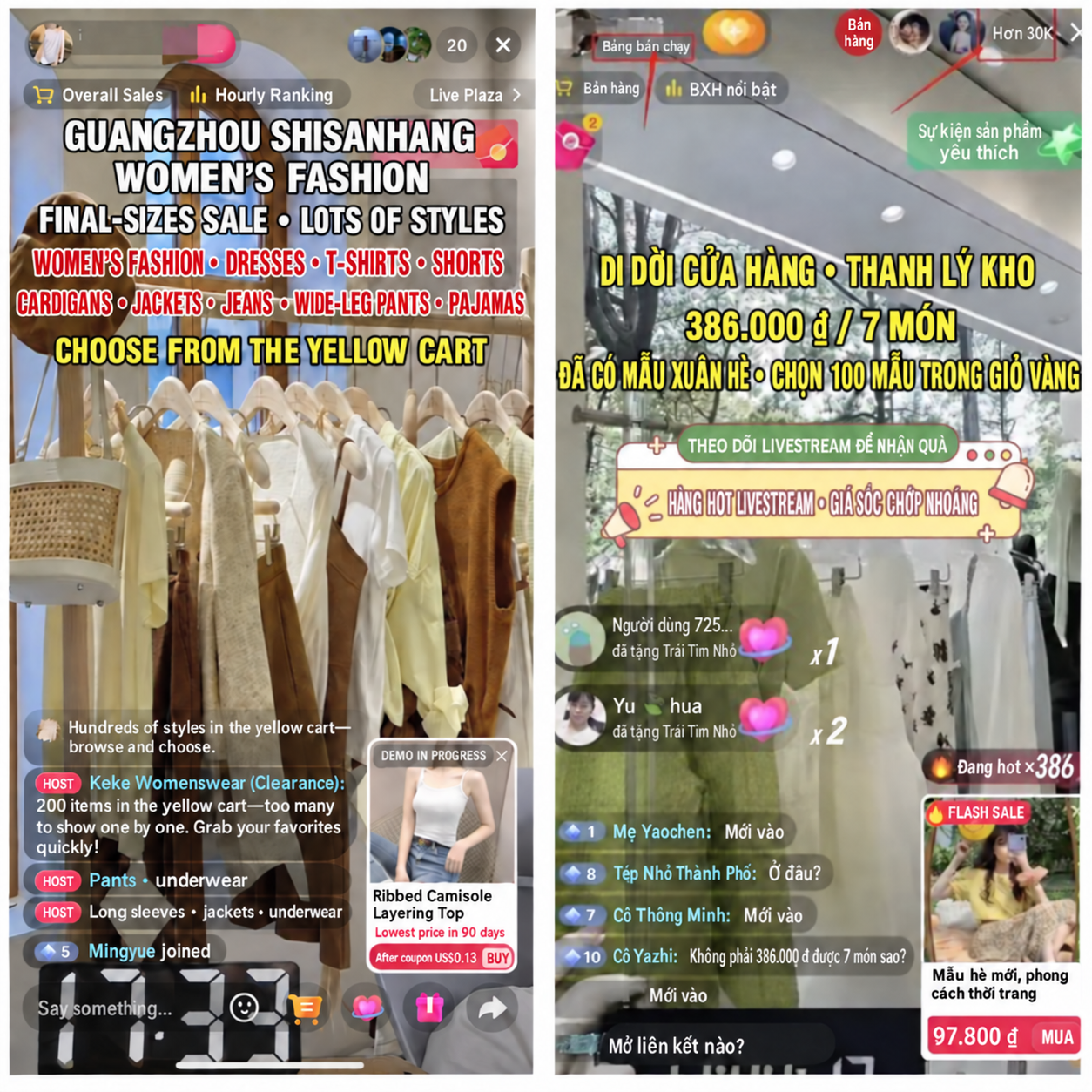

Snack Foods Category:
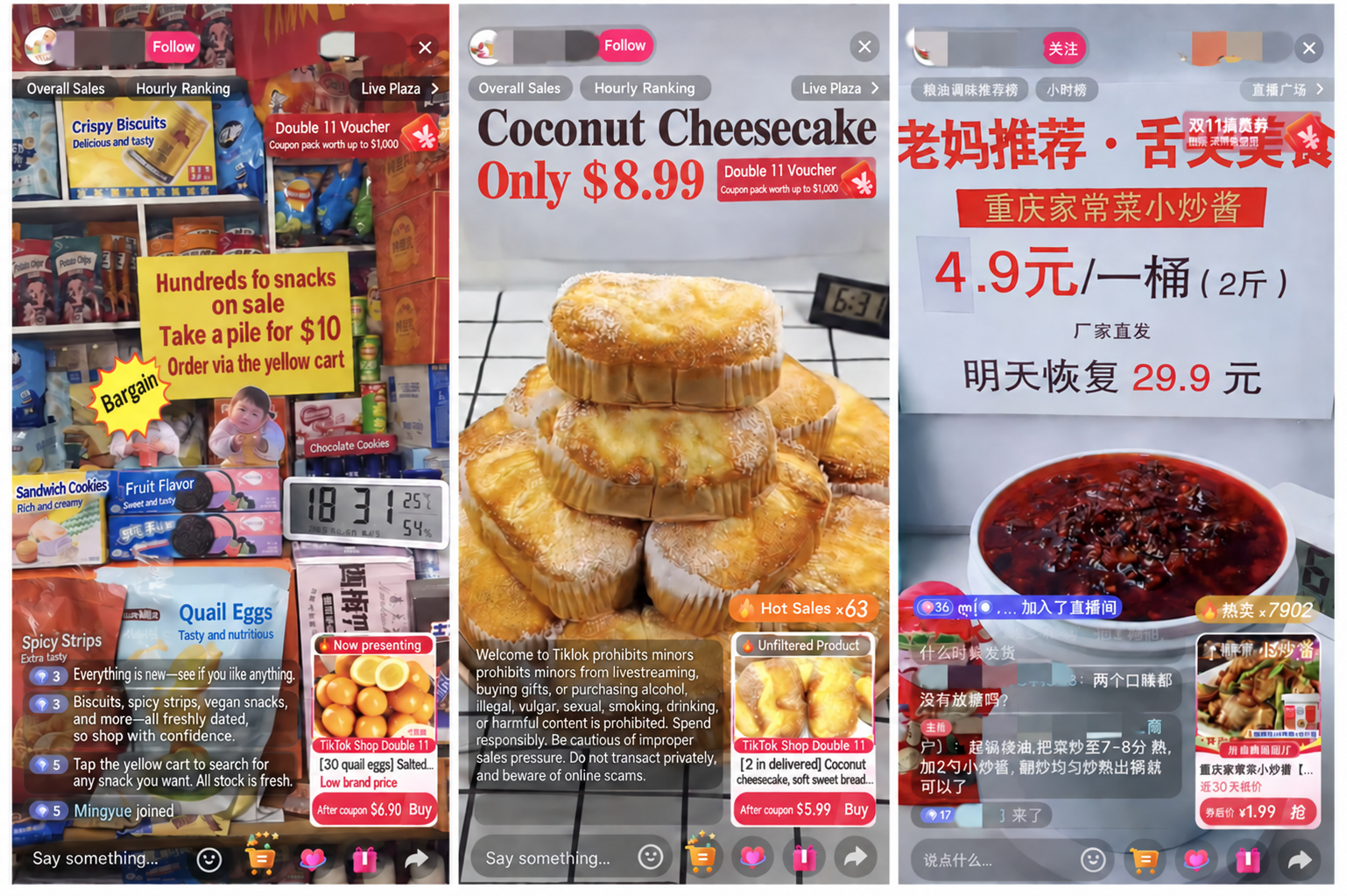
Other Natural Real-World Scene Livestream Rooms: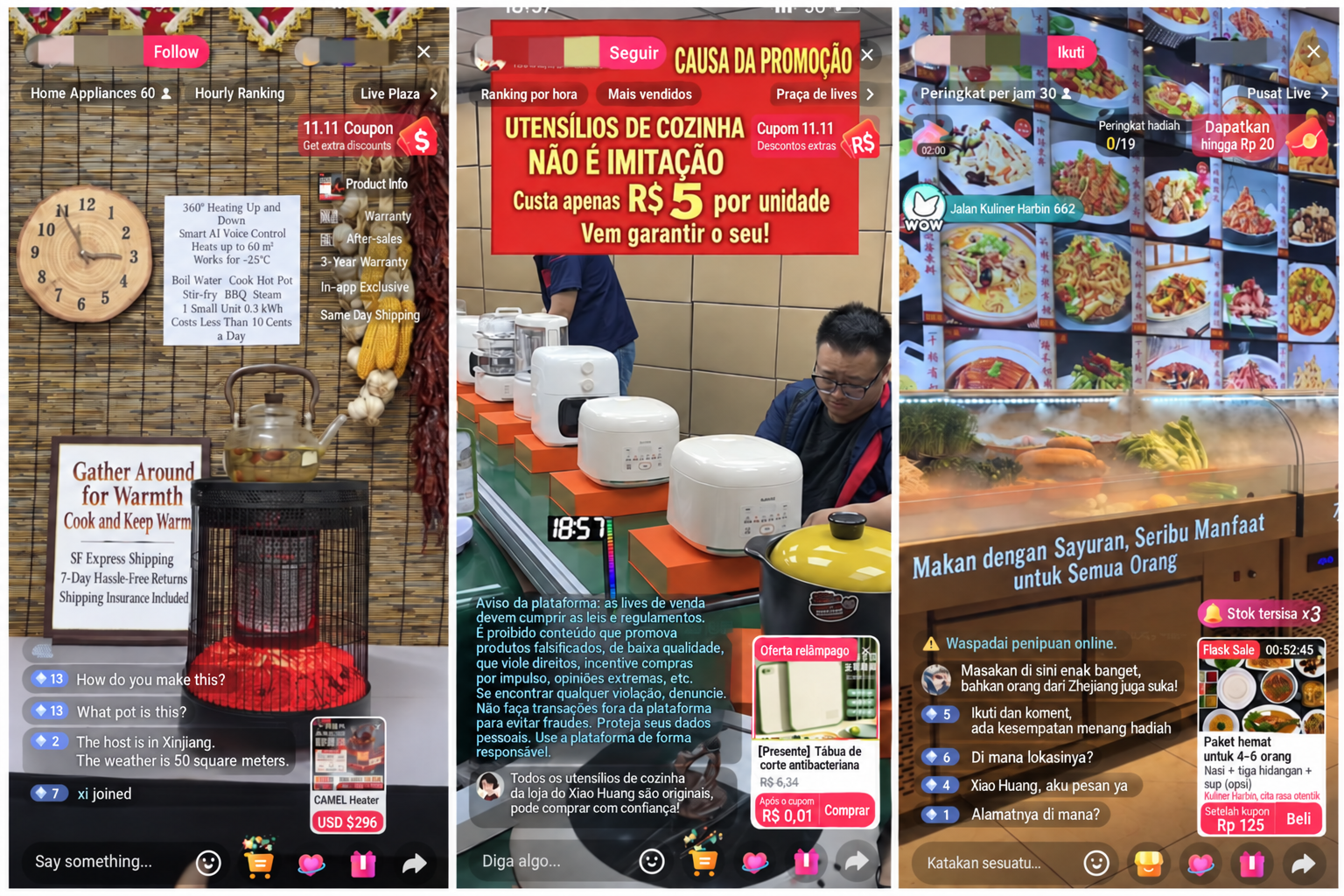
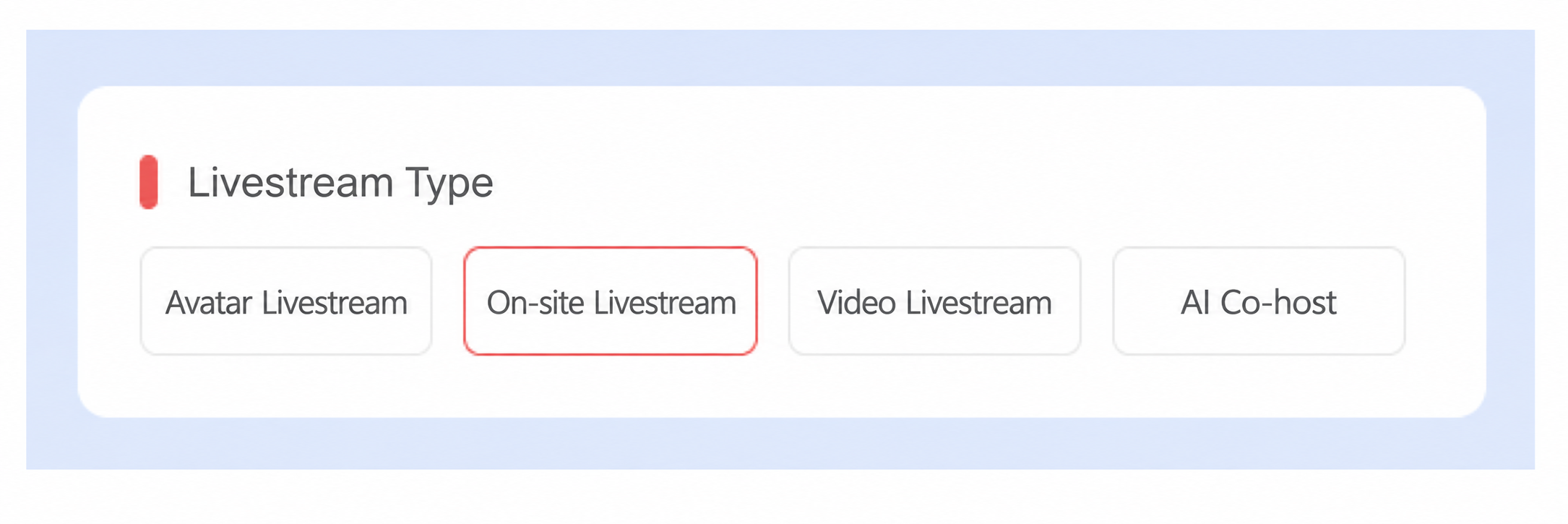
- Select "Real-Scene Livestream" as the livestream type
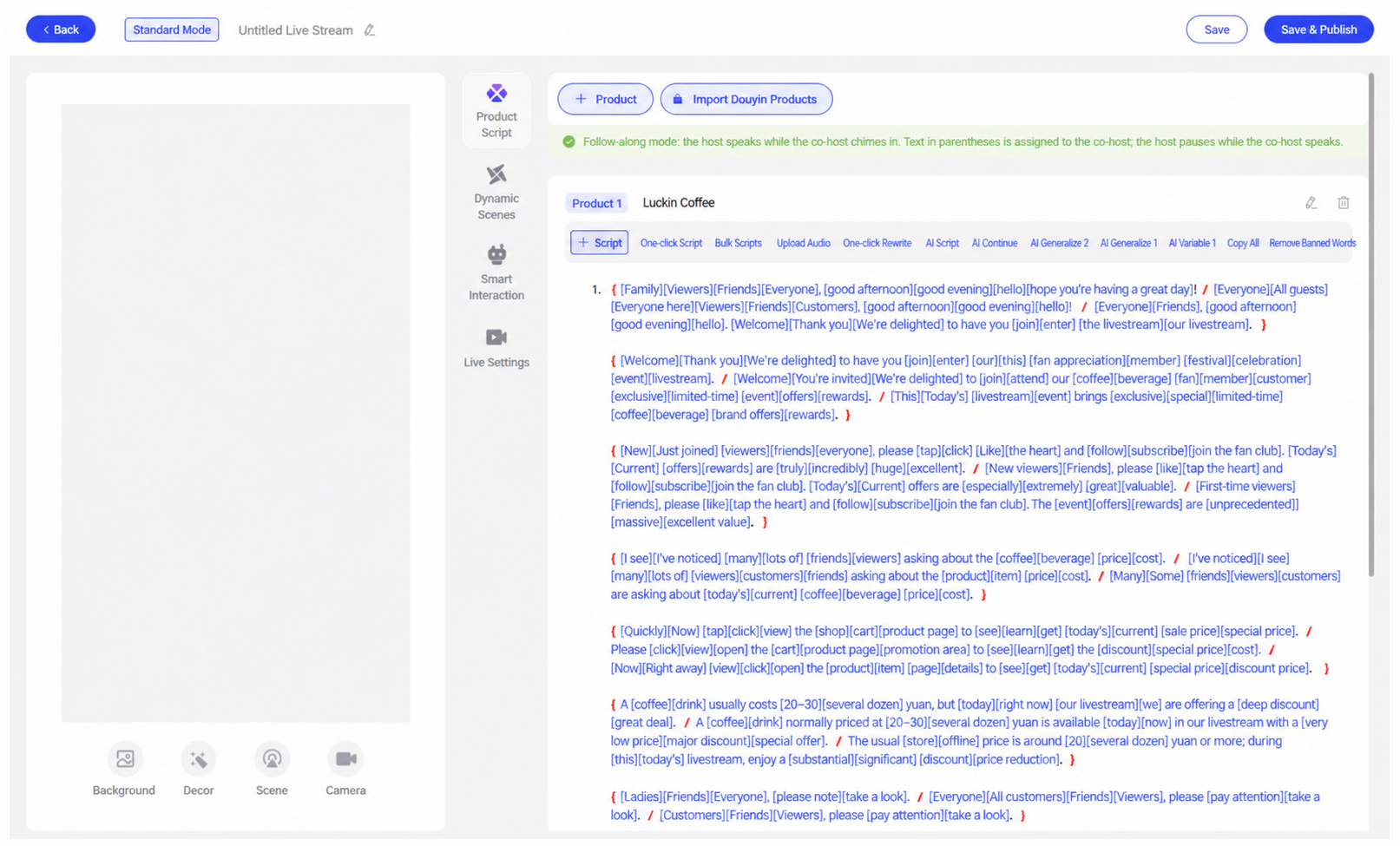
- Setting up a real-scene livestream room follows the same process as a digital human livestream (both require setting up scripts, interaction, etc.); the only difference is that a real-scene livestream does not require selecting a host avatar. Once the digital human system has finished setting up the livestream room, save and publish, then click Go Live Now.
- If you have a capture card, set the control console's audio to the capture card's audio; if you don't have a capture card, set the control console's audio to the virtual sound card.
Capture card audio device names usually start with "UGREEN" or "HDMI."
3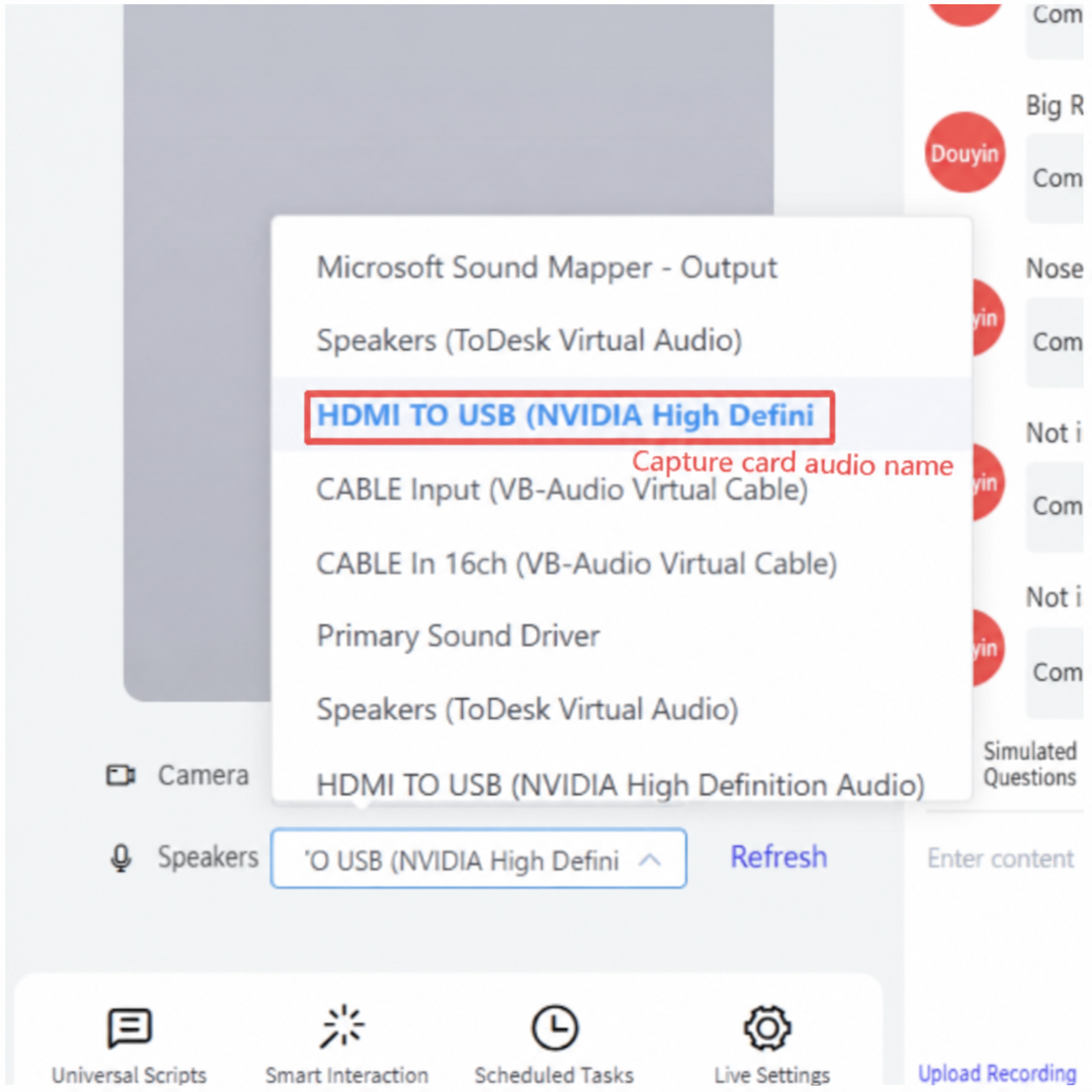
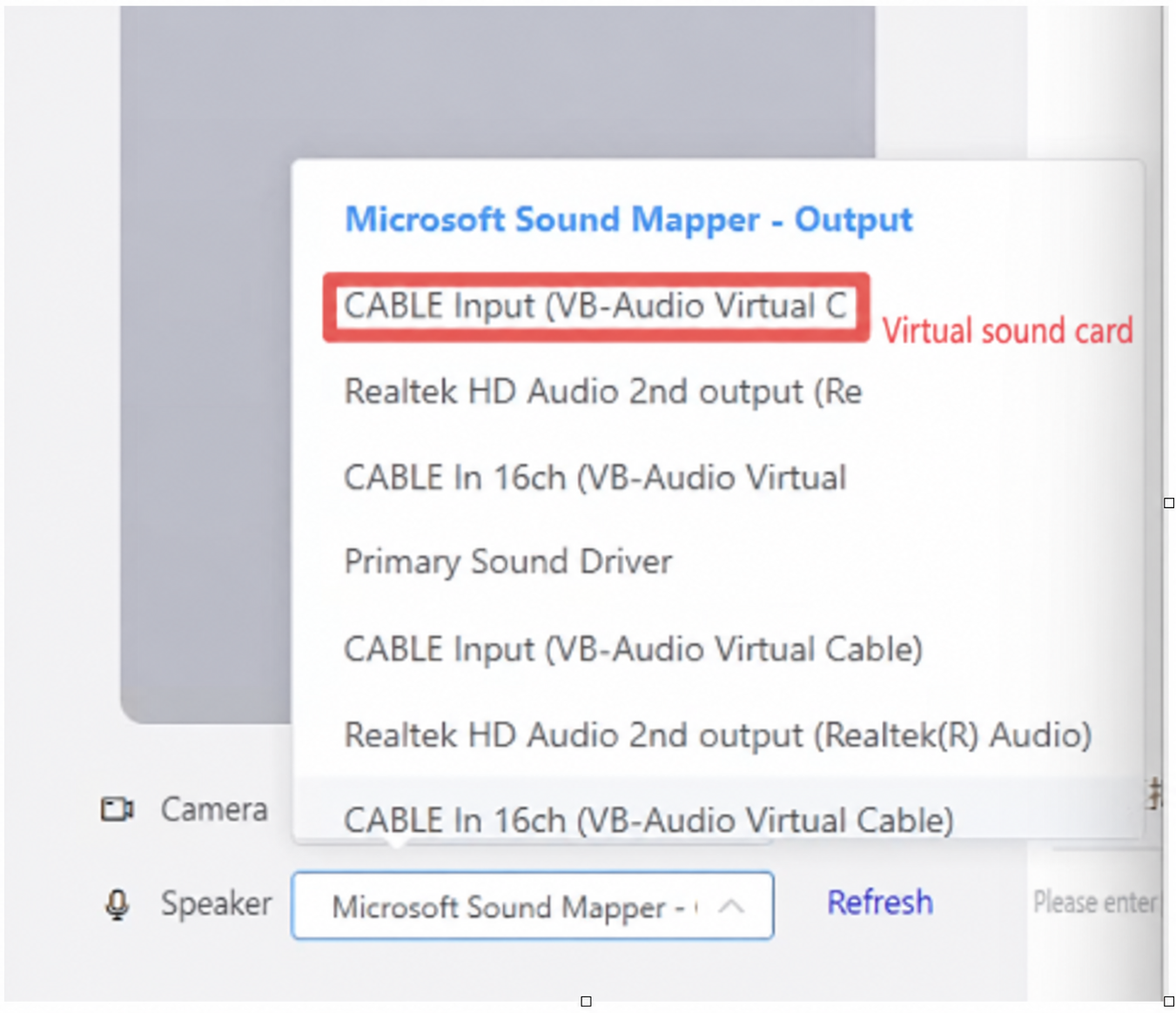
- In Livestream Companion, add the computer's real camera, and select the virtual sound card or capture card audio for the audio source (matching the control console's audio selection).
Voice Driving refers to a real person being able to take over the audio at any time during the livestream, allowing the room to output the real person's voice in real time.
Note! Voice Driving can only be used with the V5 avatar — the V2 and V3 avatars cannot use the Voice Driving feature.
Preparation: plug headphones or a microphone into the computer, open the sound settings in the bottom-right corner of the computer, and set the sound input device to the microphone (the input device name recognized varies by computer — check what name your computer recognizes for the microphone device).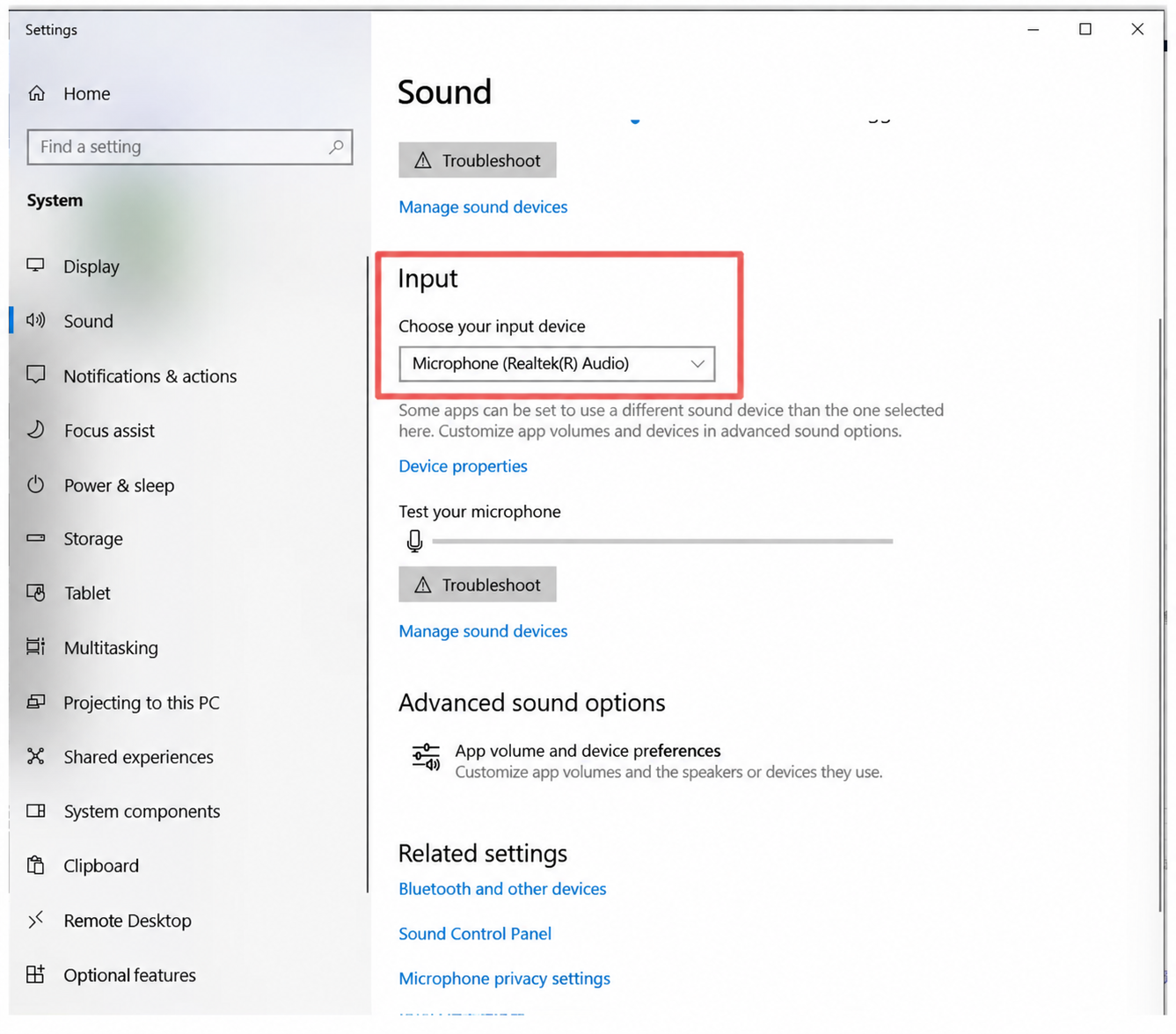
At the same time, open the computer's sound settings and turn off the microphone monitoring feature. The steps are as follows: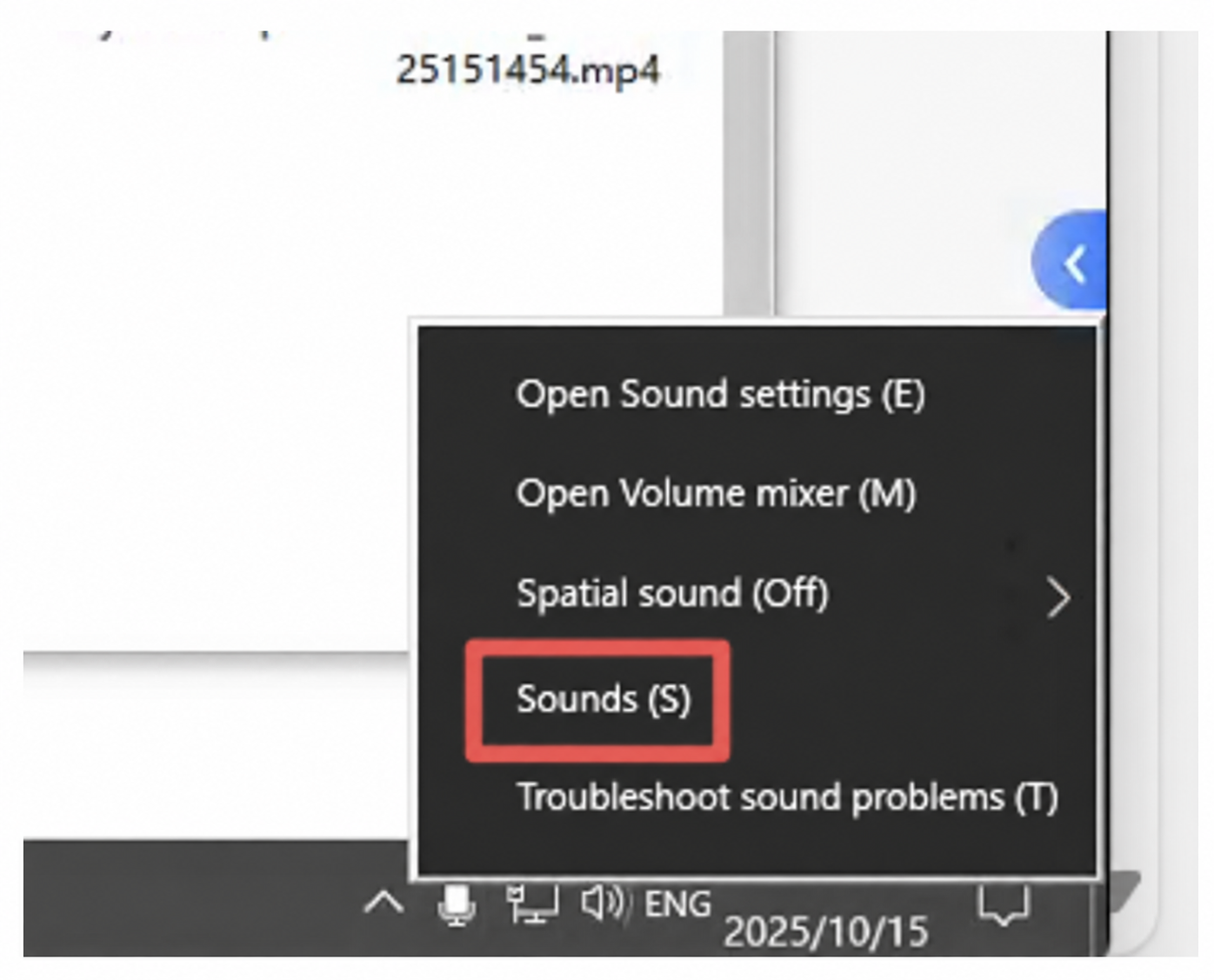
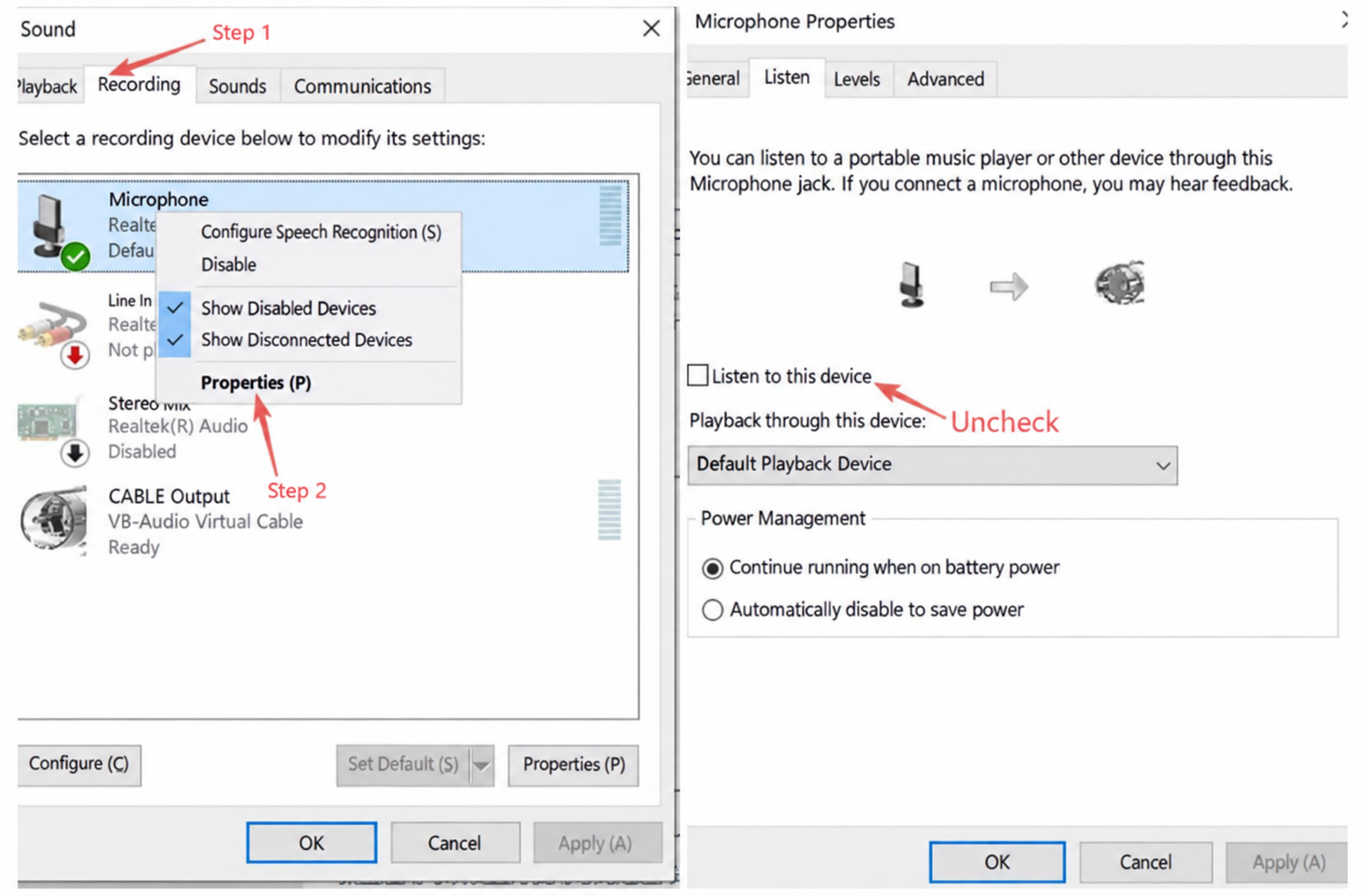
Note! Be sure to plug in the microphone before launching the digital human system!! Make sure only one microphone is connected — if multiple microphones are present, turn off the audio for the other microphones!
In the top-left corner of the control console, click Voice Driving, and in the pop-up window select Co-Host Driving. For the Monitor Microphone option, select the microphone device plugged into the computer. The real person's voice is fed into the livestream room through the microphone, the system recognizes the real voice in real time, and the AI voice automatically "closes its mouth to yield the floor."
After going live, click the "Co-Host Driving" button once and click Confirm — the audio status is monitored automatically throughout the entire livestream, with no other action needed.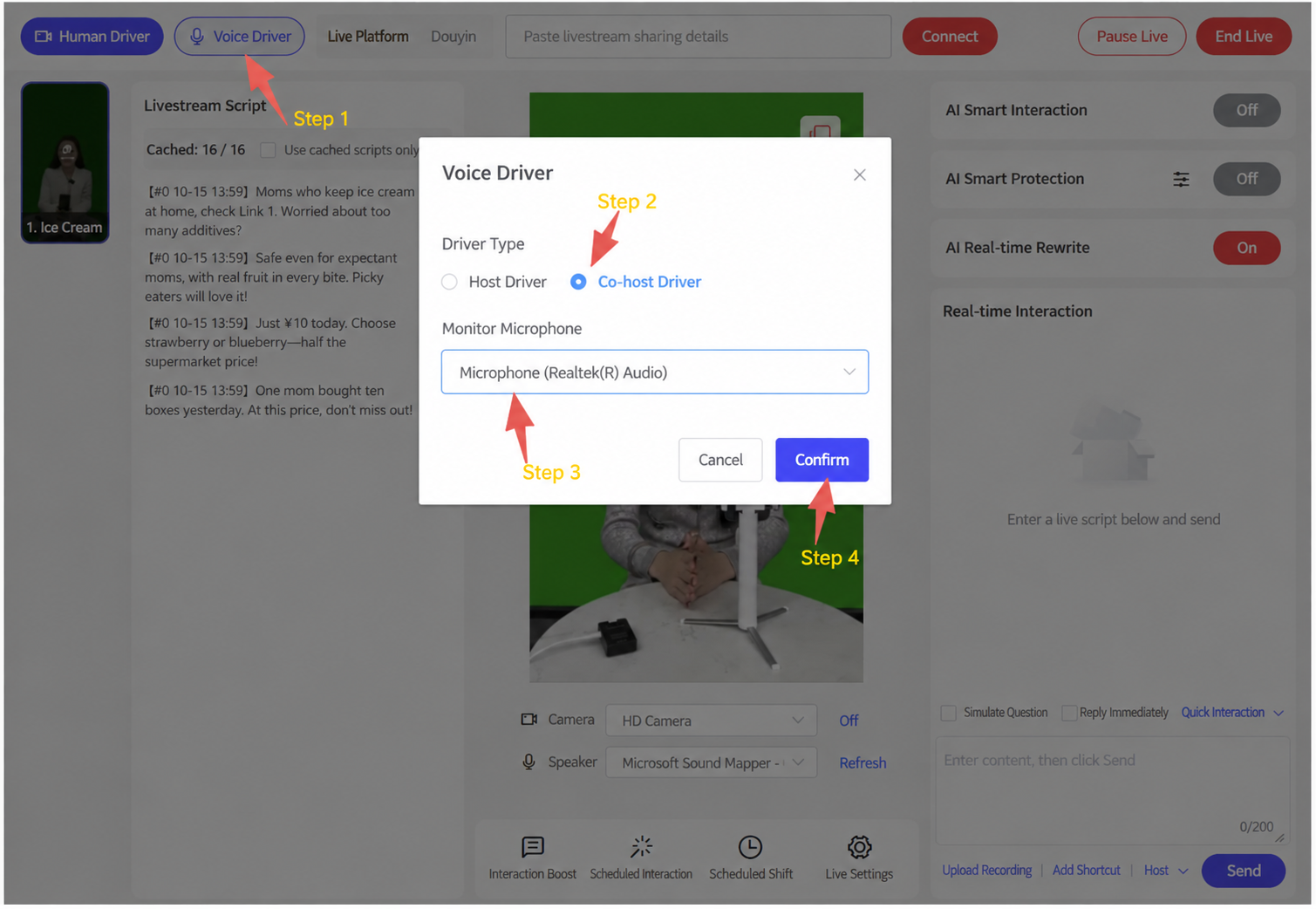
2. Digital Human + Real-Person Co-Host Real-Time Driving
Digital Human Host + Real-Person Co-Host
Take the image below as an example: the woman on the left is the digital human host, and the man on the right is the real-person co-host. In Livestream Companion, add a real camera, with the real person sitting in front of it. During the livestream, the real person uses the Co-Host Voice Driving feature to chime in in real time (every 3-5 minutes is recommended); the real person's voice is fed into the room through the microphone, the system recognizes it in real time, and the digital human automatically "closes its mouth to yield the floor."
See the Syntopia Digital Human Client Operation Manual for how to set up a digital human livestream room
In the top-left corner of the control console, click Voice Driving, and in the pop-up window select Co-Host Driving. For the Monitor Microphone option, select the microphone device plugged into the computer. The real person's voice is fed into the livestream room through the microphone, the system recognizes the real voice in real time, and the digital human automatically "closes its mouth to yield the floor."
After going live, click the "Co-Host Driving" button once and click Confirm — the audio status is monitored automatically throughout the entire livestream, with no other action needed.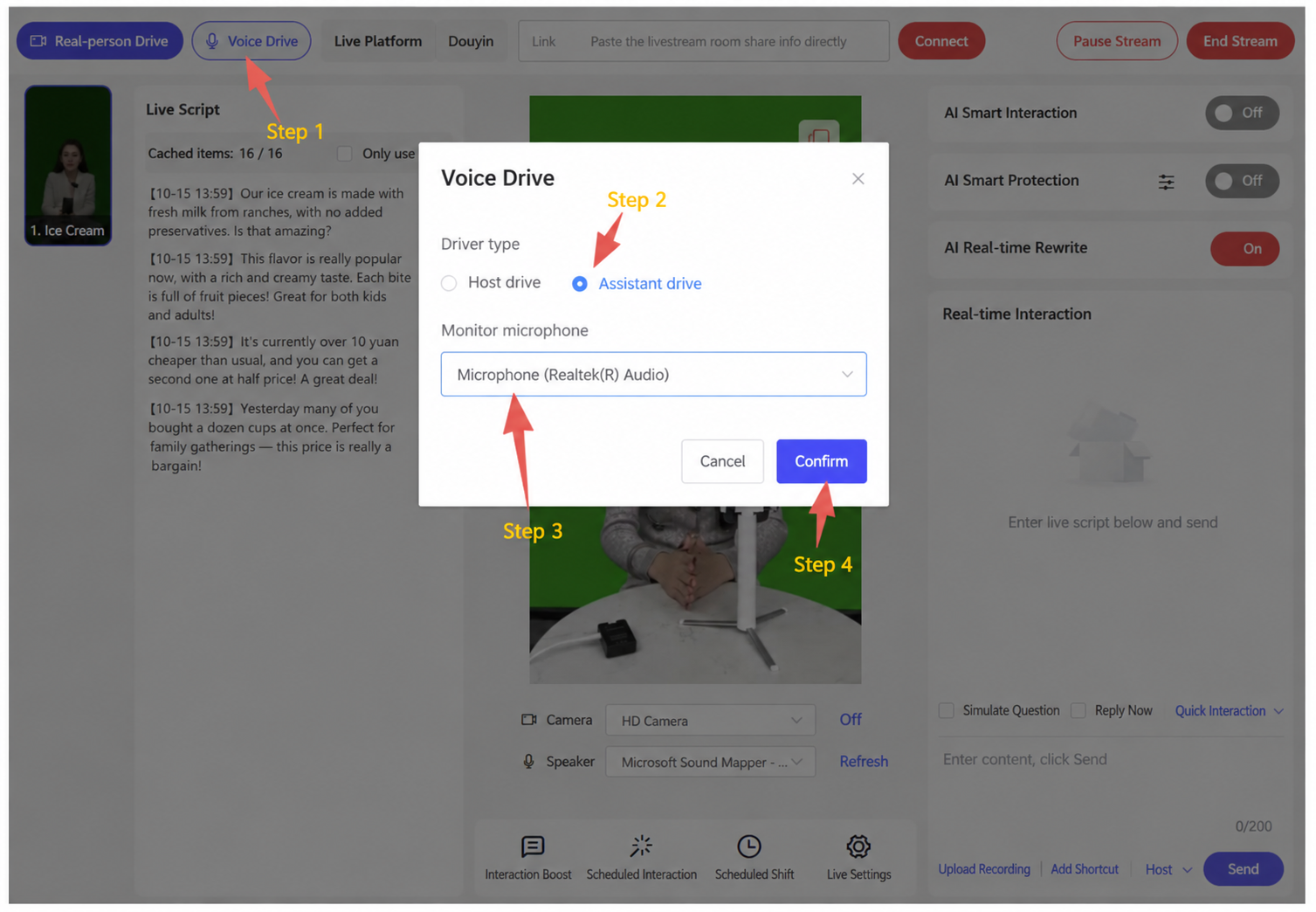
Supports two setup modes, "One-to-One" and "One-to-Many," to meet different scale requirements:
One-to-One: one real-person host works together with one digital human assistant. The digital human can handle standard content delivery (such as explaining terms or analyzing cases), and when a personalized or complex question arises, the real person can seamlessly step in and answer directly — achieving a perfect combination of automation and expertise.
One-to-Many: one real-person host can appear in multiple independent digital human livestream rooms simultaneously. Each room is equipped with its own dedicated digital human avatar, voice, products, and script, allowing simultaneous operation across multiple categories such as local-life services, e-commerce sales, and lead generation — boosting operational efficiency.
Currently, customer testing shows no issues with one real person appearing in 3-4 livestream rooms simultaneously; further data will require additional testing during actual livestreams.
3. Digital Human + Real-Person Host Real-Time Driving
Only the Digital Human Host Appears
Only the digital human host is shown — the real person doesn't need to appear on camera, and only needs to chime in and take over from the backend at any time (every 3-5 minutes is recommended); the real person's voice will be precisely matched to the digital human's lip movements in real time.
See the Syntopia Digital Human Client Operation Manual for how to set up a digital human livestream room
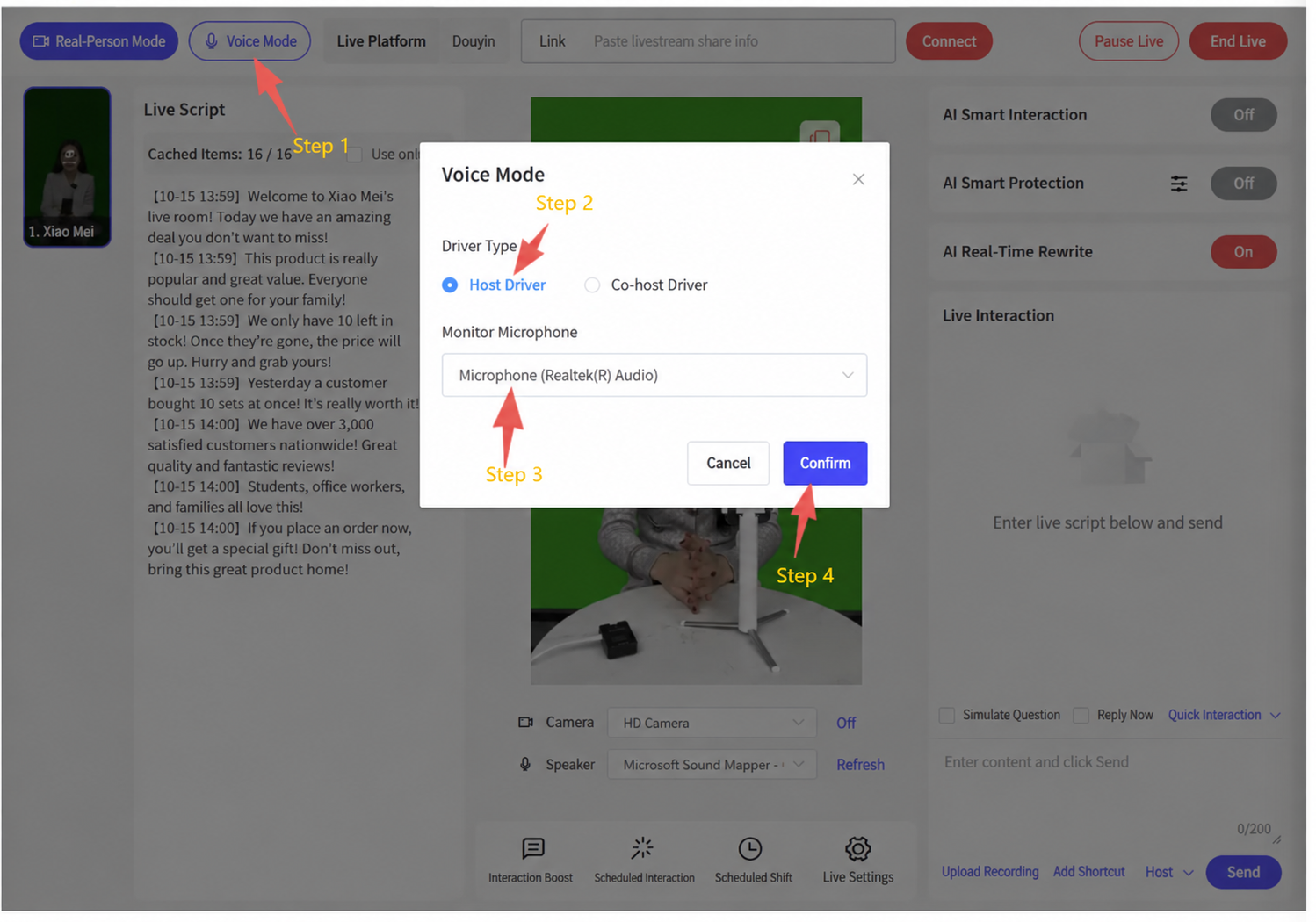
In the top-left corner of the control console, click Voice Driving, and in the pop-up window select Host Driving. For the Monitor Microphone option, select the microphone device plugged into the computer. The real person's voice is fed into the livestream room through the microphone, the system recognizes the real voice in real time, and the real person's voice is precisely matched to the digital human's lip movements in real time.
After going live, click the "Host Driving" button once and click Confirm — the audio status is monitored automatically throughout the entire livestream, with no other action needed.
Accompanying Tools & Asset Packs
These are standalone tools/asset packs referenced in this document. They are executables, installers, or large asset archives meant to be downloaded and run locally — unlike the rest of this manual, they are provided as direct downloads rather than embedded view-only content.
- 🔒 Deduplication sample pack (84 MB) — example material / case-study asset pack, English — paid plans · log in to download
- 🔒 OBS Real-Time Deduplicator (183 MB) — the special version of OBS with the deduplication tools, English interface (Chinese version on request) — paid plans · log in to download
- 🔒 Virtual Camera Rename Tool (818 KB) — utility to rename virtual camera devices — paid plans · log in to download
- Extract the download and run VC_redist.x64.exe (Microsoft runtime OBS needs).
- Open obs studio\bin\64bit\obs64.exe — there is no installer, the folder is OBS.
- In the Deduplicator panel on the right, click Inst next to Enable HD Camera once — this installs the virtual camera your live app sees as HD Camera.
- Never update OBS — click Skip Version if asked, and untick automatic update checks (Settings → General).