01_Model and Voice Training Upload Method
Model and Voice Training Upload Method
Model and Voice Training Upload Method
Recommended Computer Installation Requirements
1. First update the client, then launch it after the update.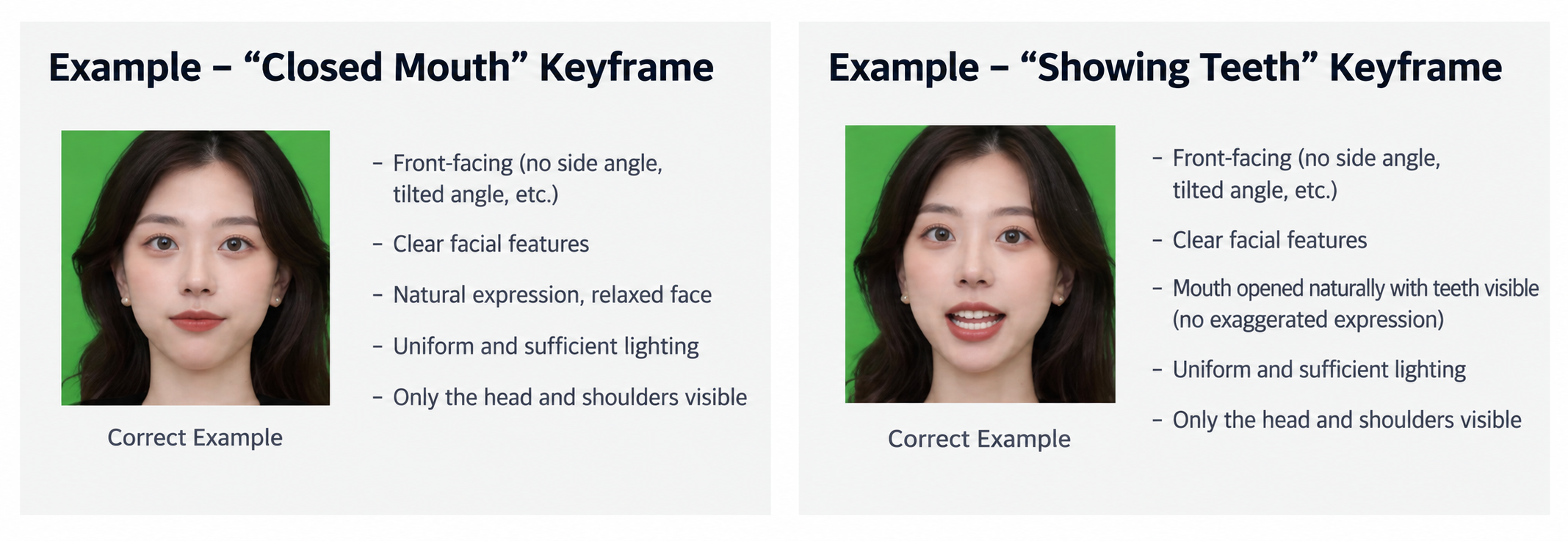
2. After launching the client, go to "Digital Twin" on the main screen.
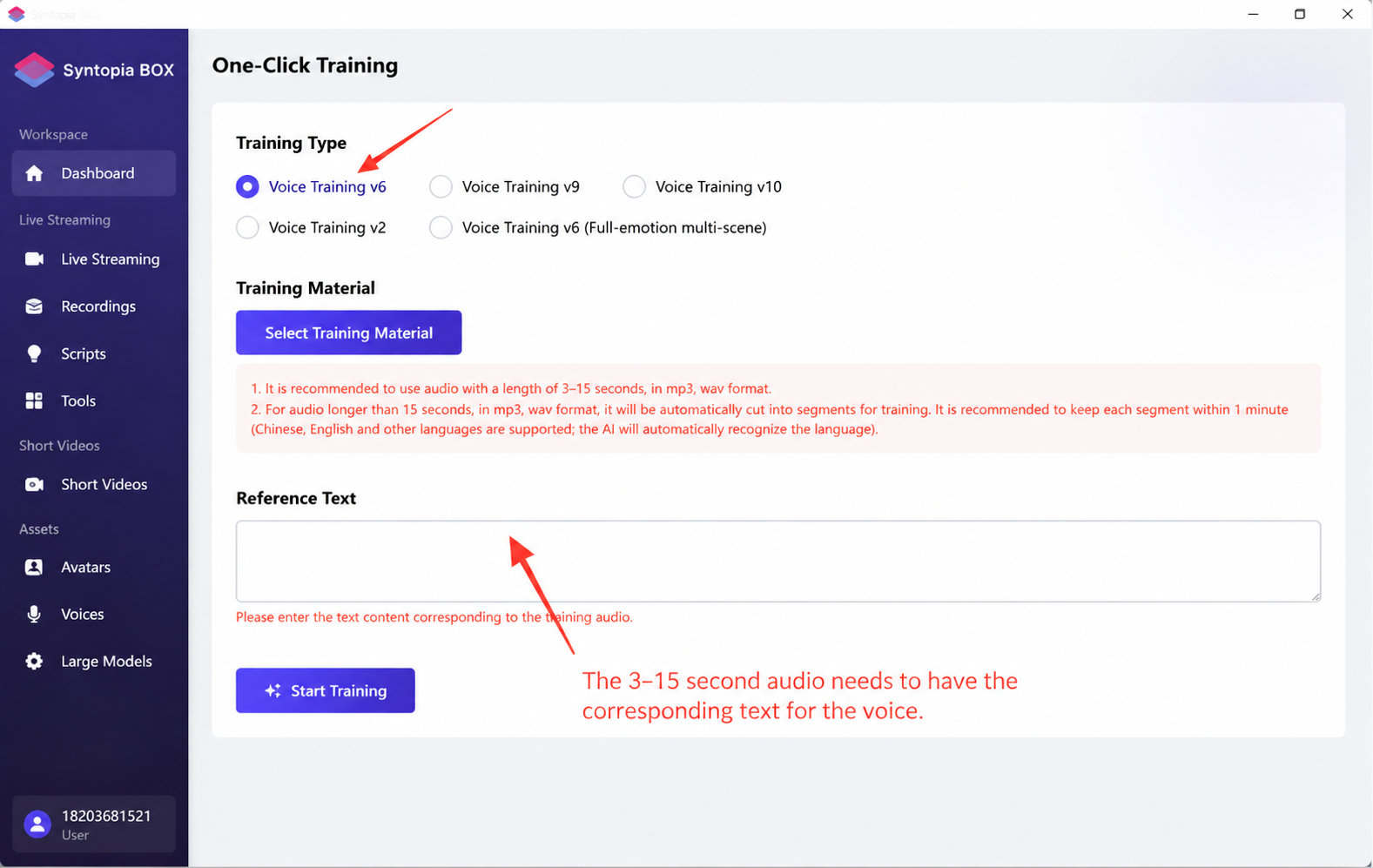
3. V6 voice training is recommended. Requirements: speak normally, wear a noise-cancelling microphone, and record 3-15 seconds of audio for a quick clone (for the most natural result, use 20+ minutes of clean audio — see section 17).
Difference between V6 and V9 voices: for V9 voice training, the audio volume must be raised before training; V9 voice uses less computer performance.
4. Avatar Training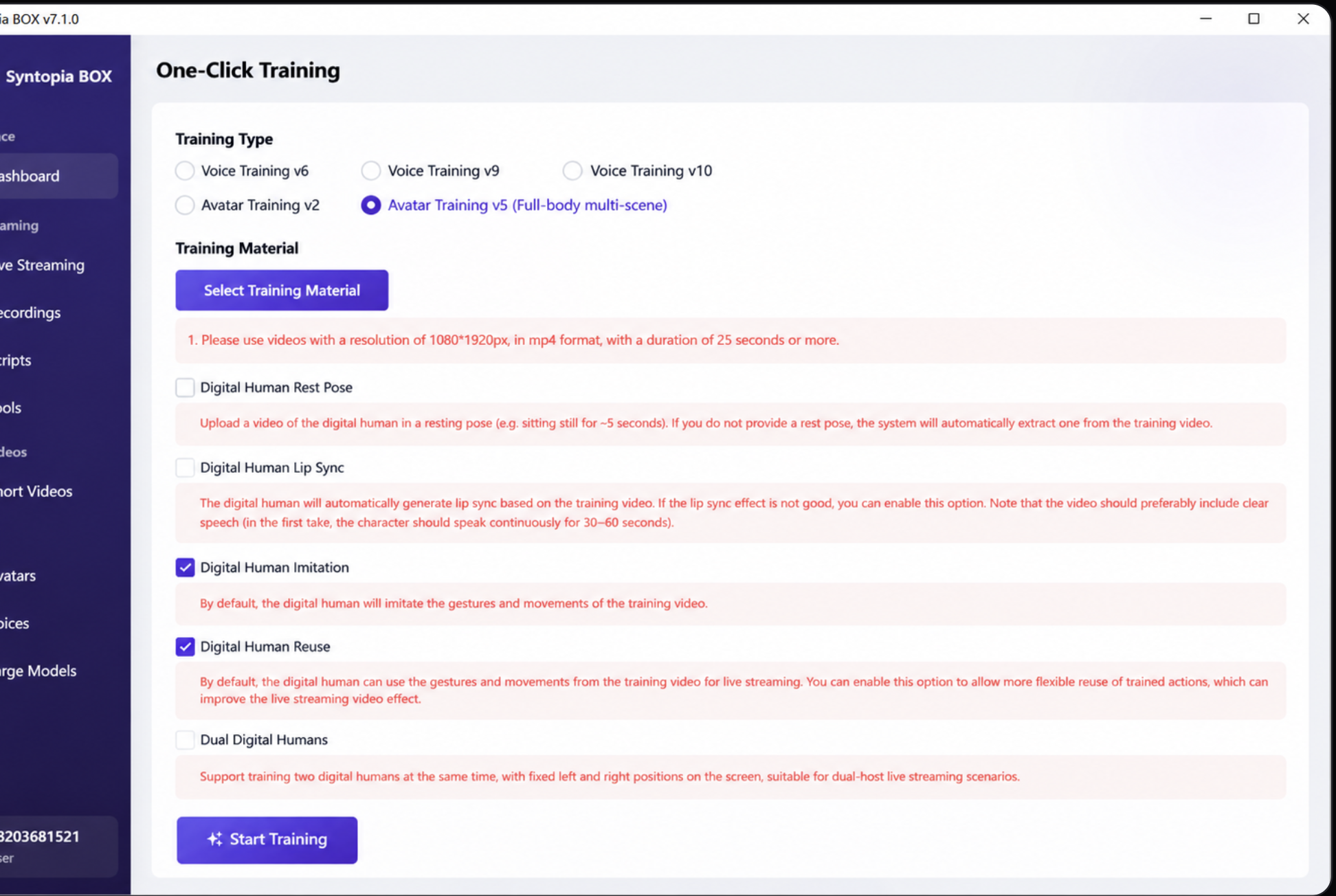
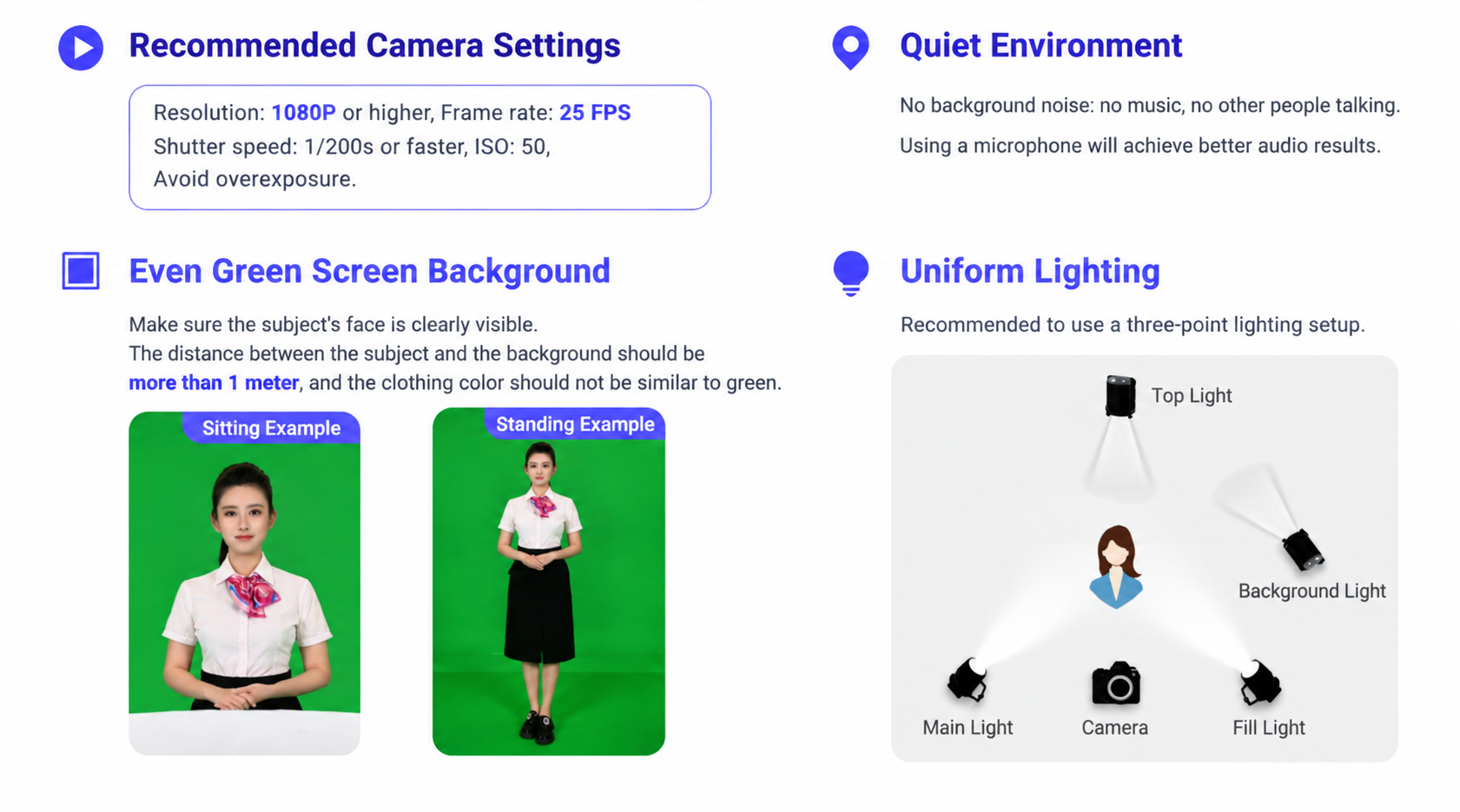
V2/V3/V5 Digital Human Host Appearance Recording Standards: Attachment 1_(One-Click Training) V2/V3 Digital Human Host Appearance Recording Standards
V2 avatars have high requirements for the source footage — you must speak normally, wear a noise-cancelling microphone, and keep the environment quiet. V3/V5 avatars have no requirements for the audio in the source footage; GPU acceleration must be enabled before training a V5 avatar.
Voice Cloning Collection Standards and Reference: Voice Cloning Collection Standards and Reference
How to Process V2/V3/V5 Model Green Screen Video: How to Process V2/V3 Model Green Screen Video?
Dual Digital Human Avatar Recording Standards: Dual Digital Human Host Appearance Recording Standards (Copy)
V5 avatar training is recommended; V5 avatars use more computer performance, so if the stream lags, train a V2/V3 avatar instead.
For V5 avatars, "Close Mouth" and "Reverse Playback" are checked by default; other options can be ignored and left unchecked.
5. Uploading the Avatar/Voice
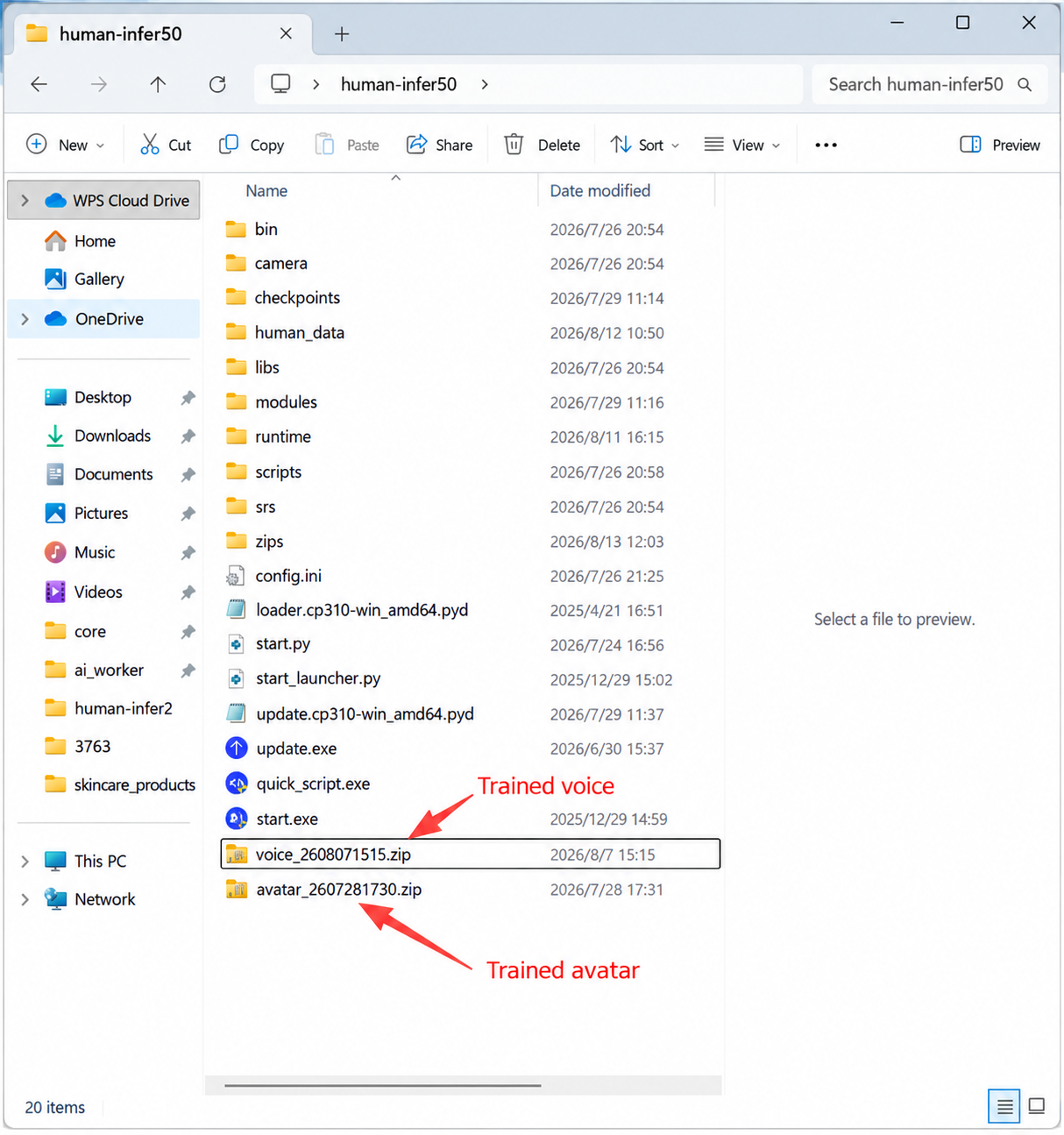
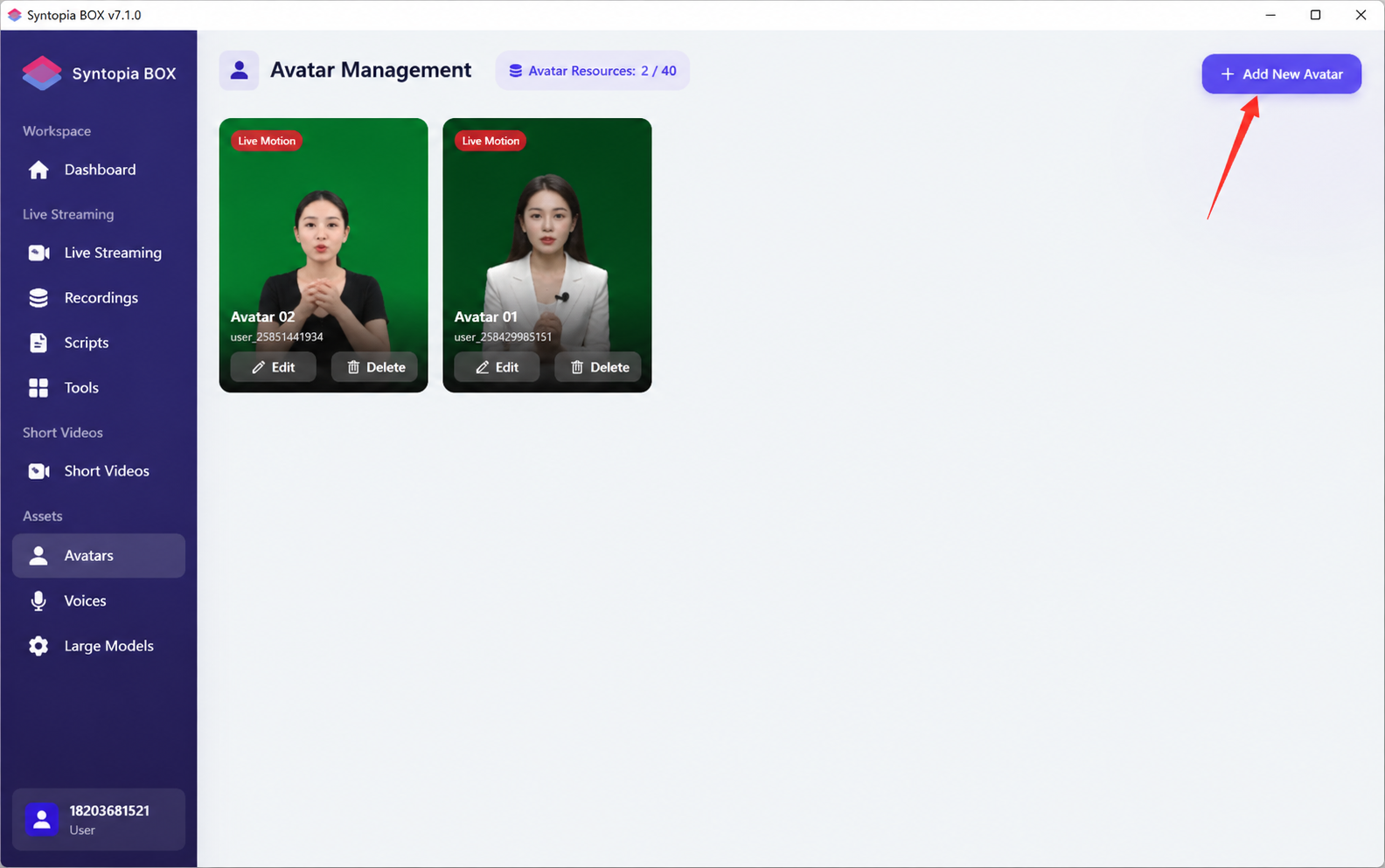
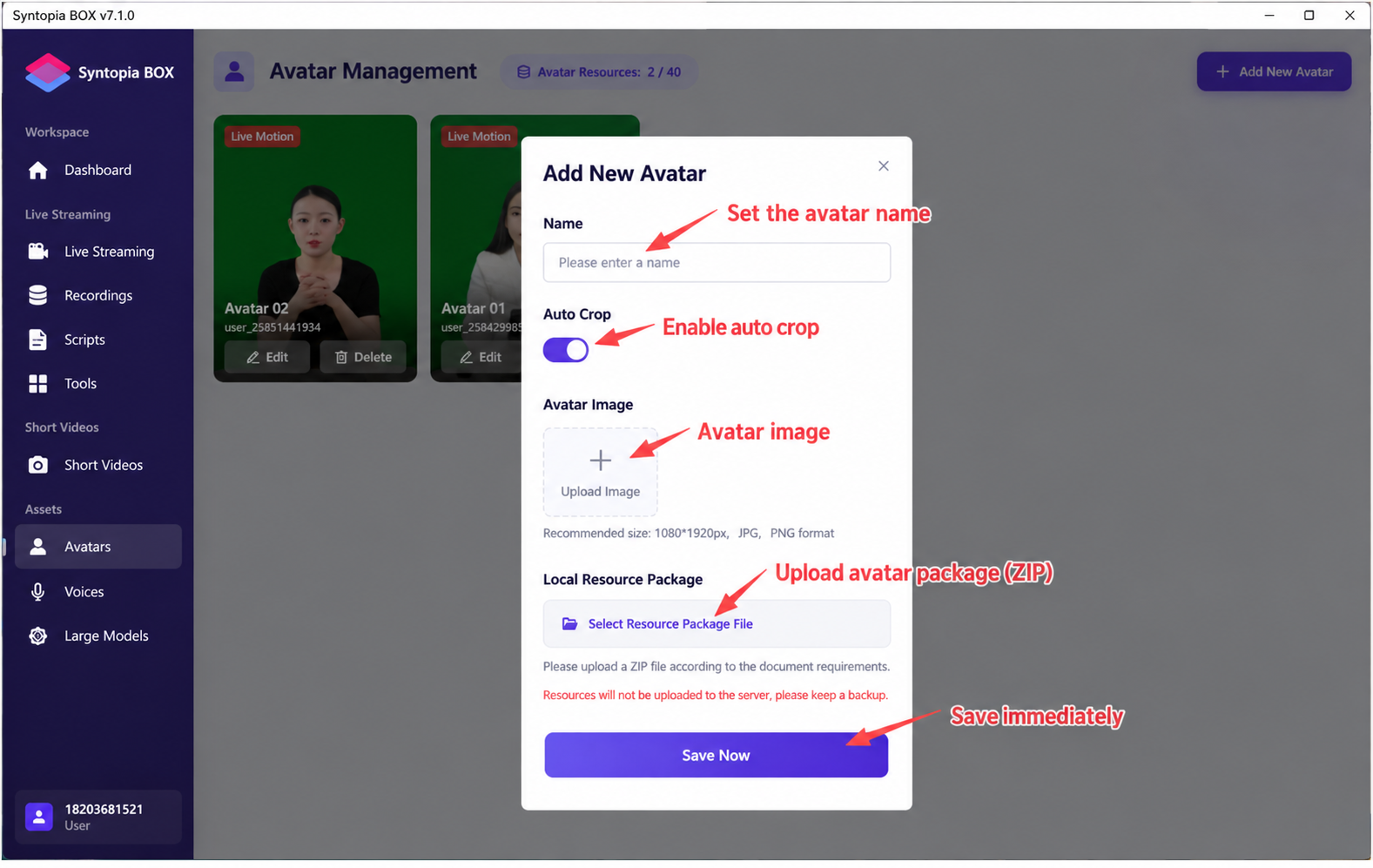
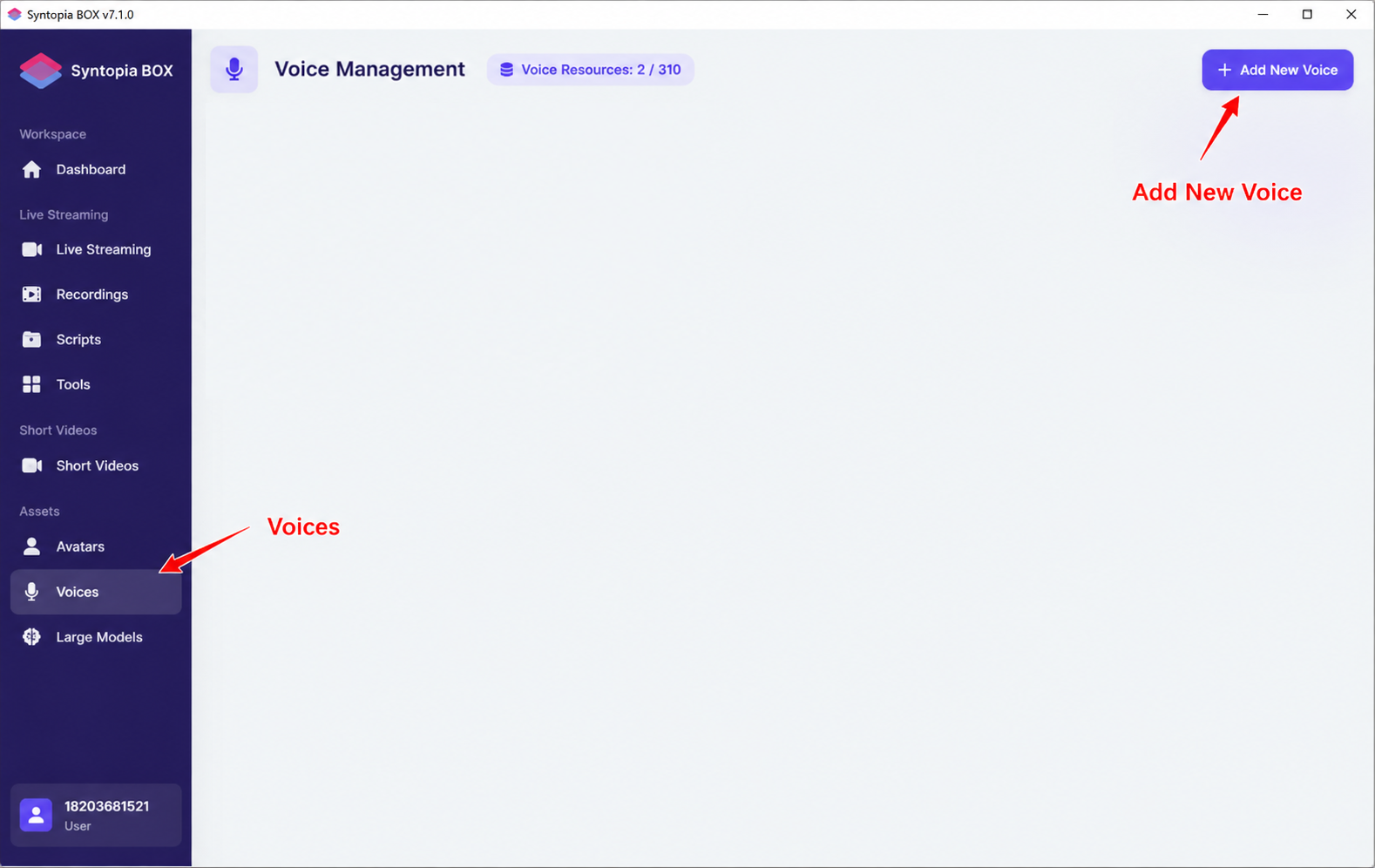
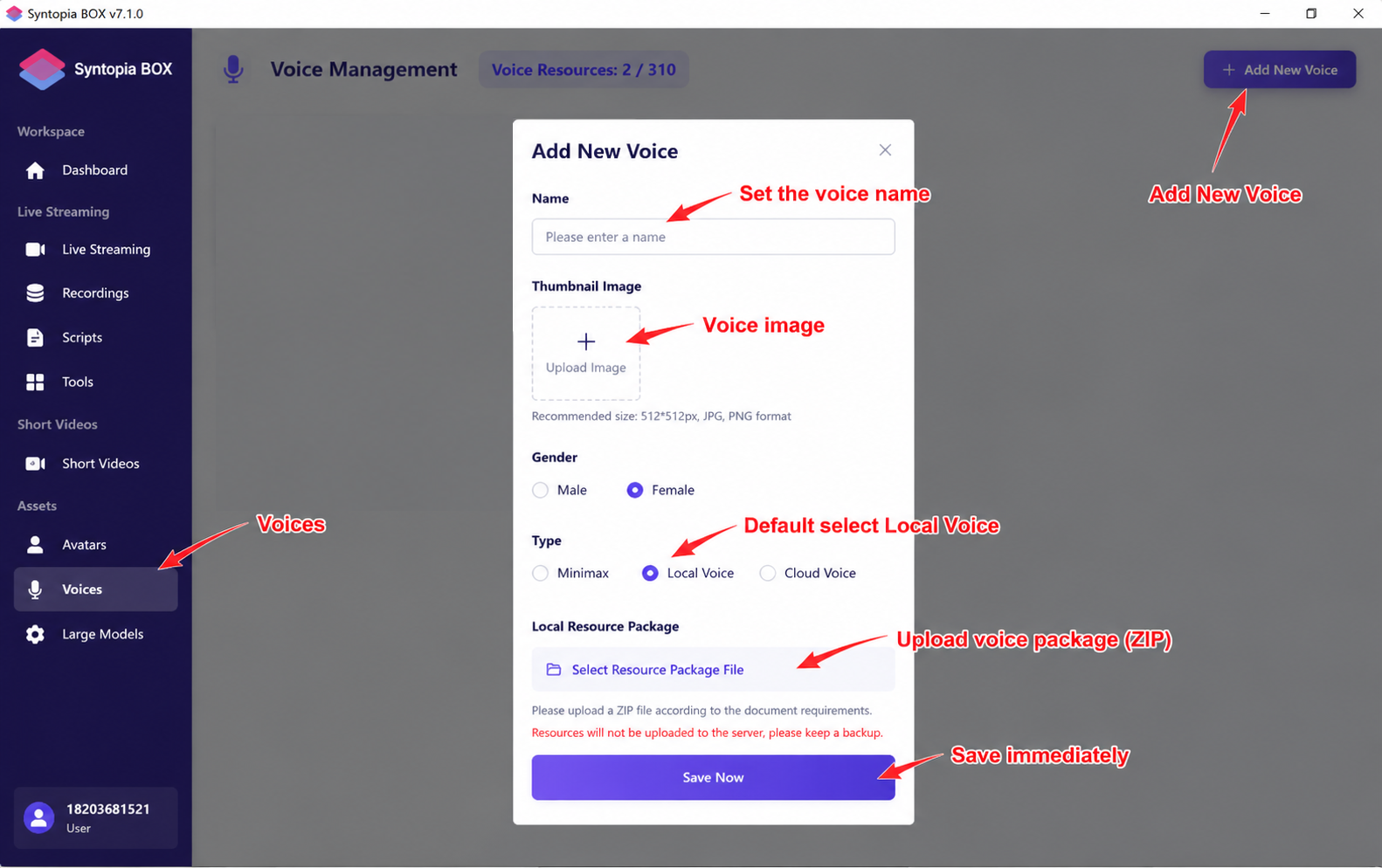
After training the avatar or voice, an avatar/voice zip package will be generated in the installation directory. On the client's main screen, under "Model"/"Voice," upload the corresponding trained model or voice zip package.