Syntopia Digital Human Client Operation Manual
Syntopia Digital Human Client Operation Manual
Account and Livestream Project Management
1. Click "Please enter phone number" and enter your 11-digit phone number.
2. Click "Please enter verification code" and enter the initial password (the last 4 digits of your phone number).
3. Click Login.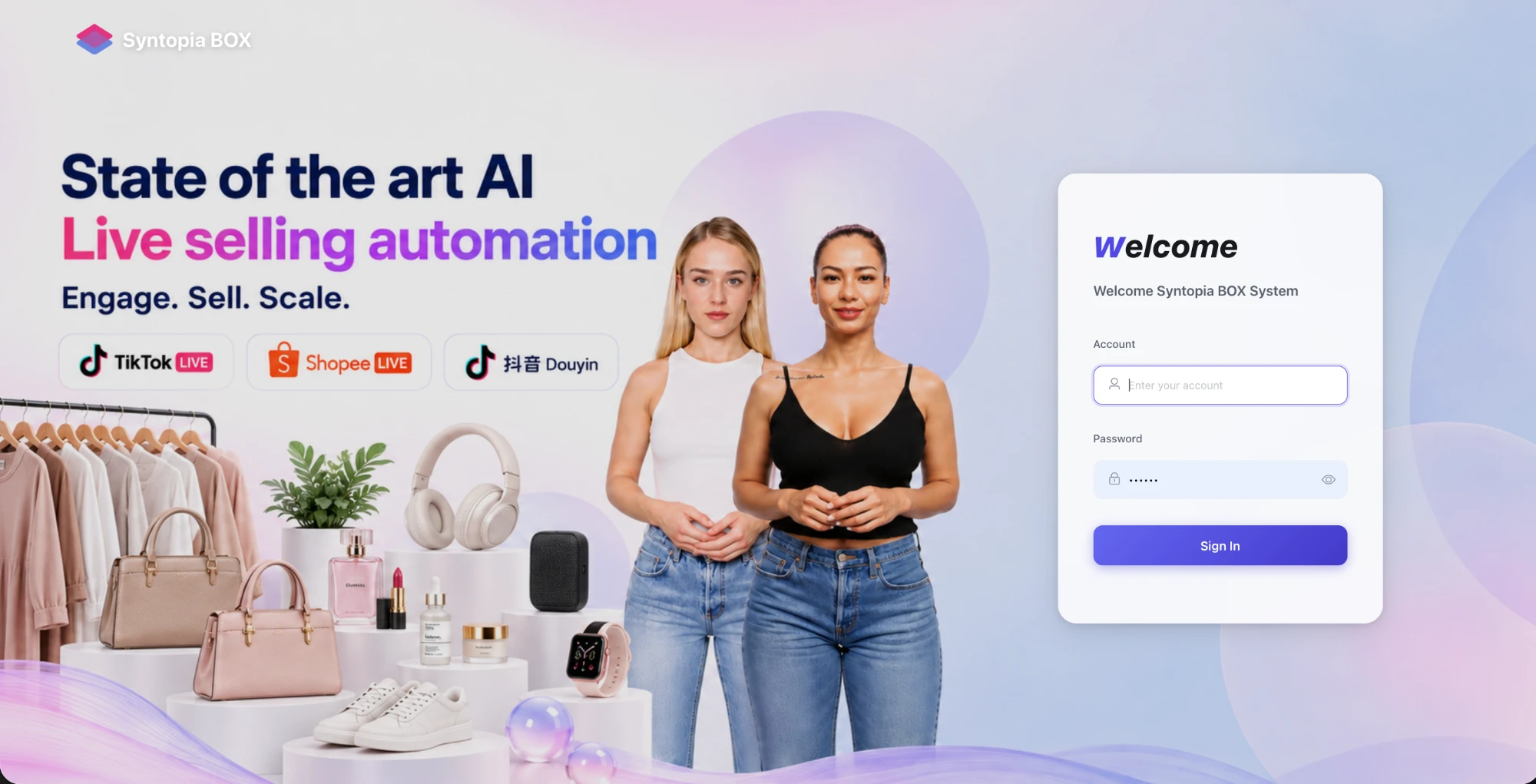
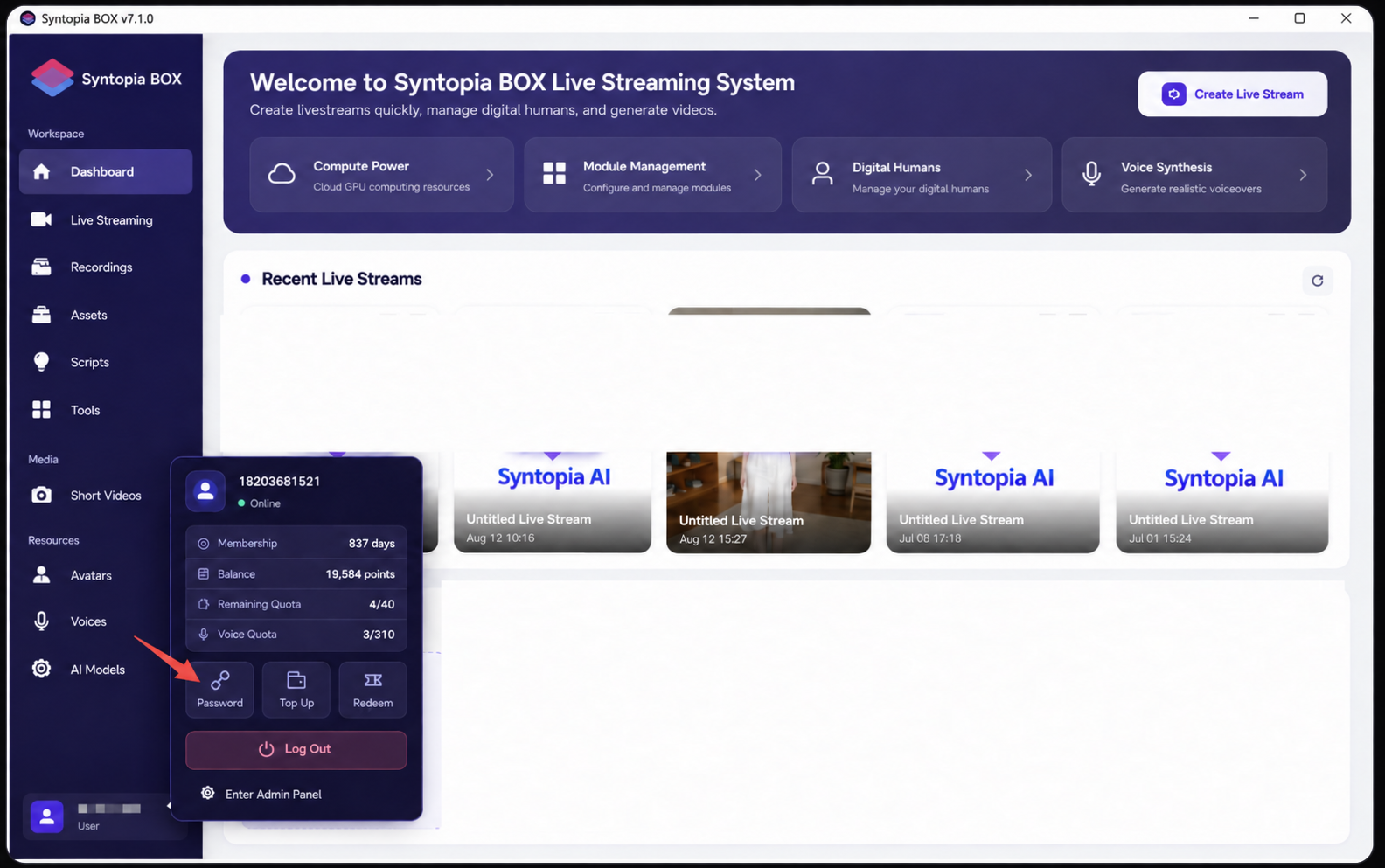
Click "My" to open the account window, where you can view your account benefits or log out. Click "Password" in the bottom left to change your password; after entering the new password, click Save.
Create a blank livestream template: click "New Livestream" and select Standard Mode as the livestream mode.
Standard Mode requires you to write your own script and generalize it yourself.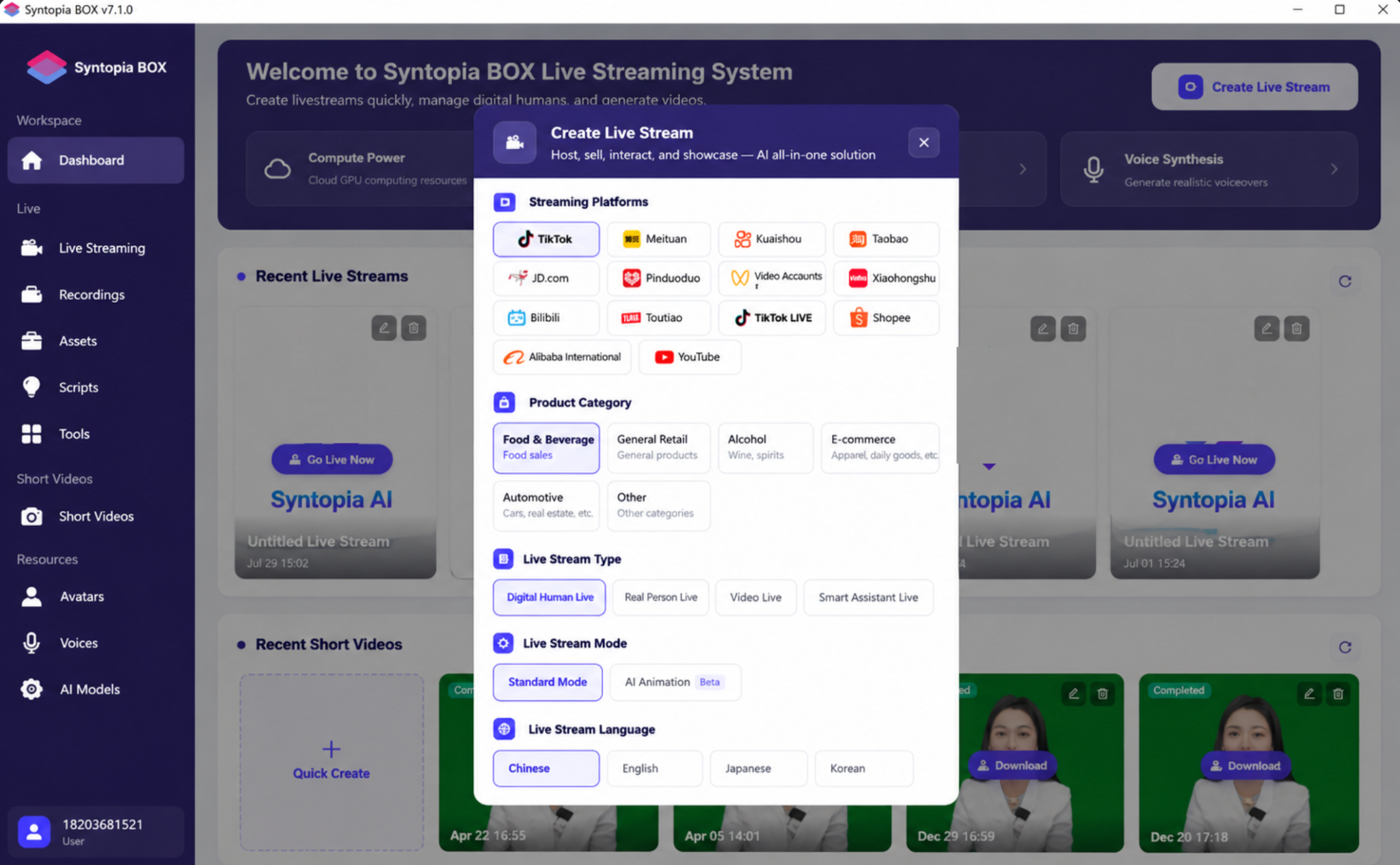
(1) Feature Overview
- The search box corresponds to the names of created livestreams; click "Search" to find livestreams matching the search criteria.
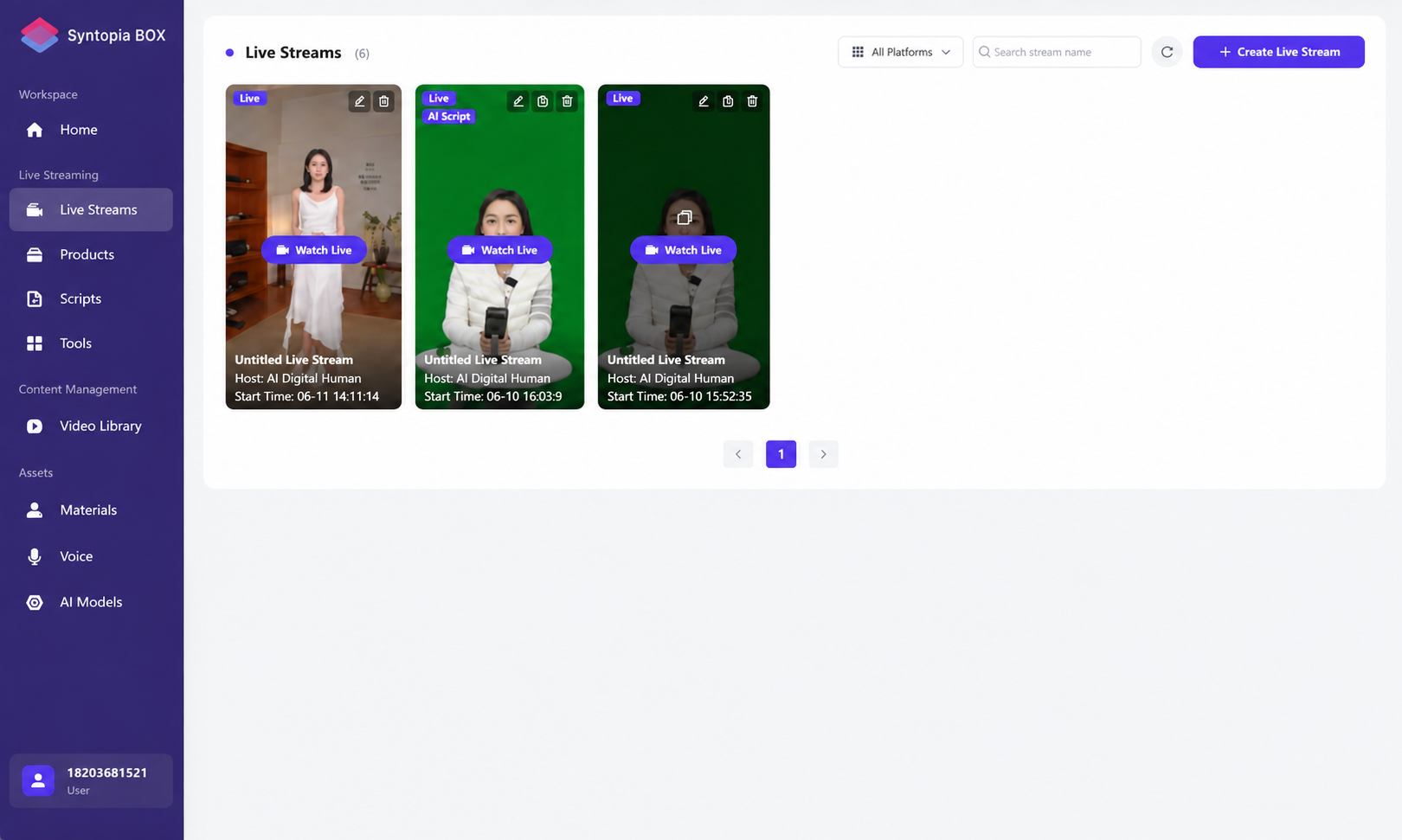
- Project management includes three actions: Go Live, Edit, and Delete. Click "Go Live Now" to enter the livestream control console.
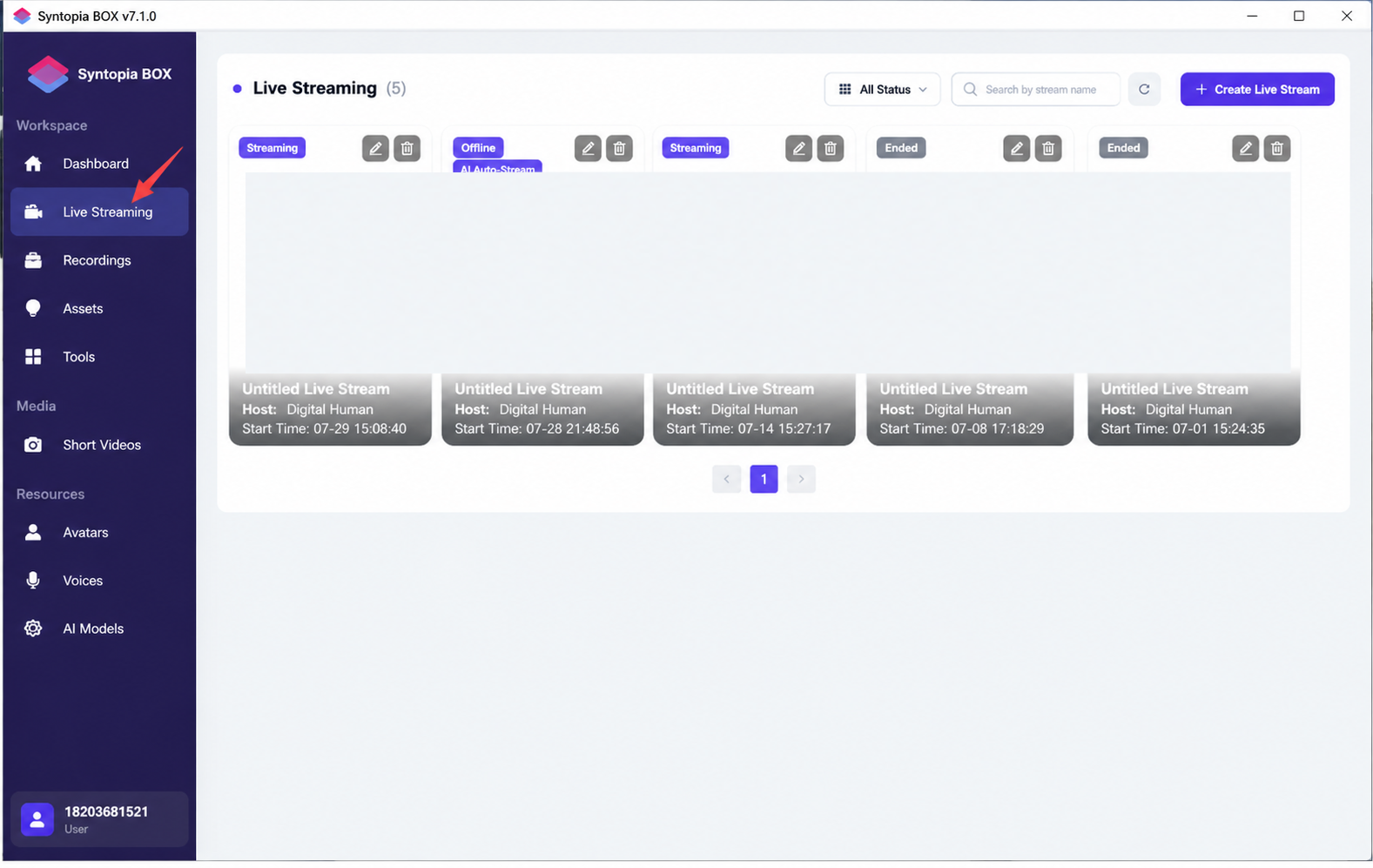
(2) Going Live
After the livestream is published successfully, simply click "Go Live Now"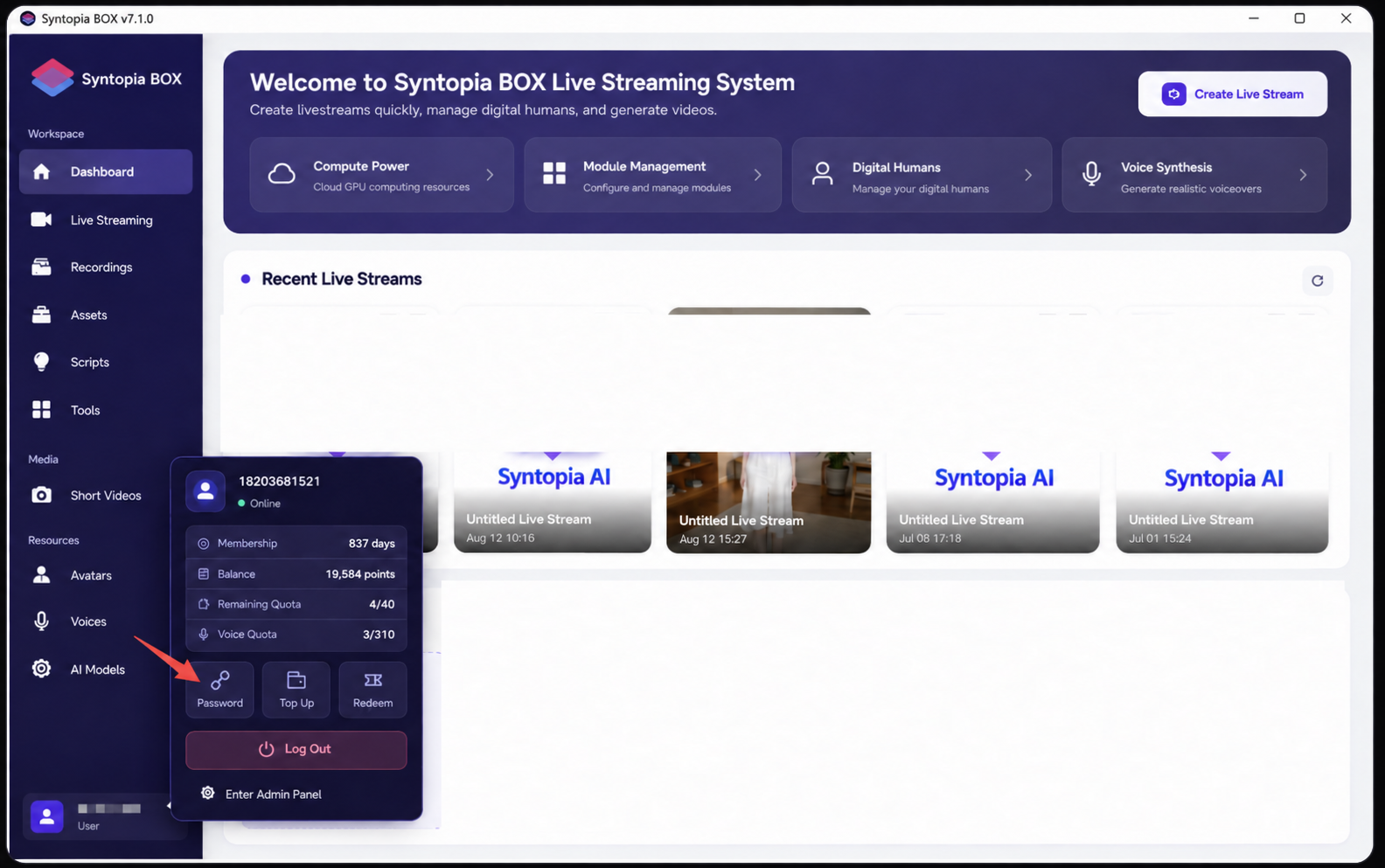
2.3 Creating a New Livestream Room
2.3.1 Overview of the Livestream Room Setup Page Display Areas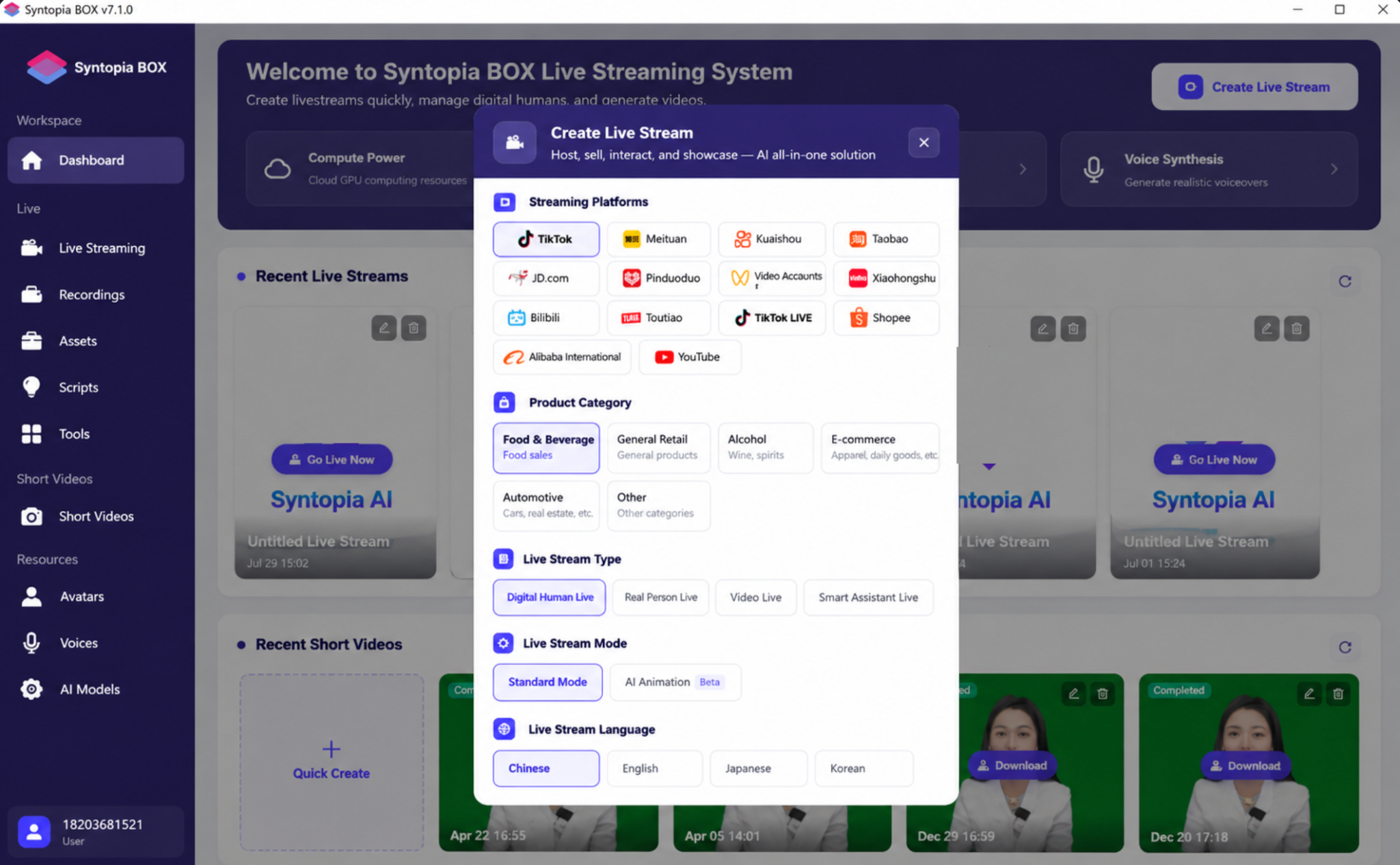
The livestream setup page has four functional areas: room decoration, adding products, setting scripts, dynamic scenes (can be added as needed), setting smart interaction, and setting the livestream rules workflow.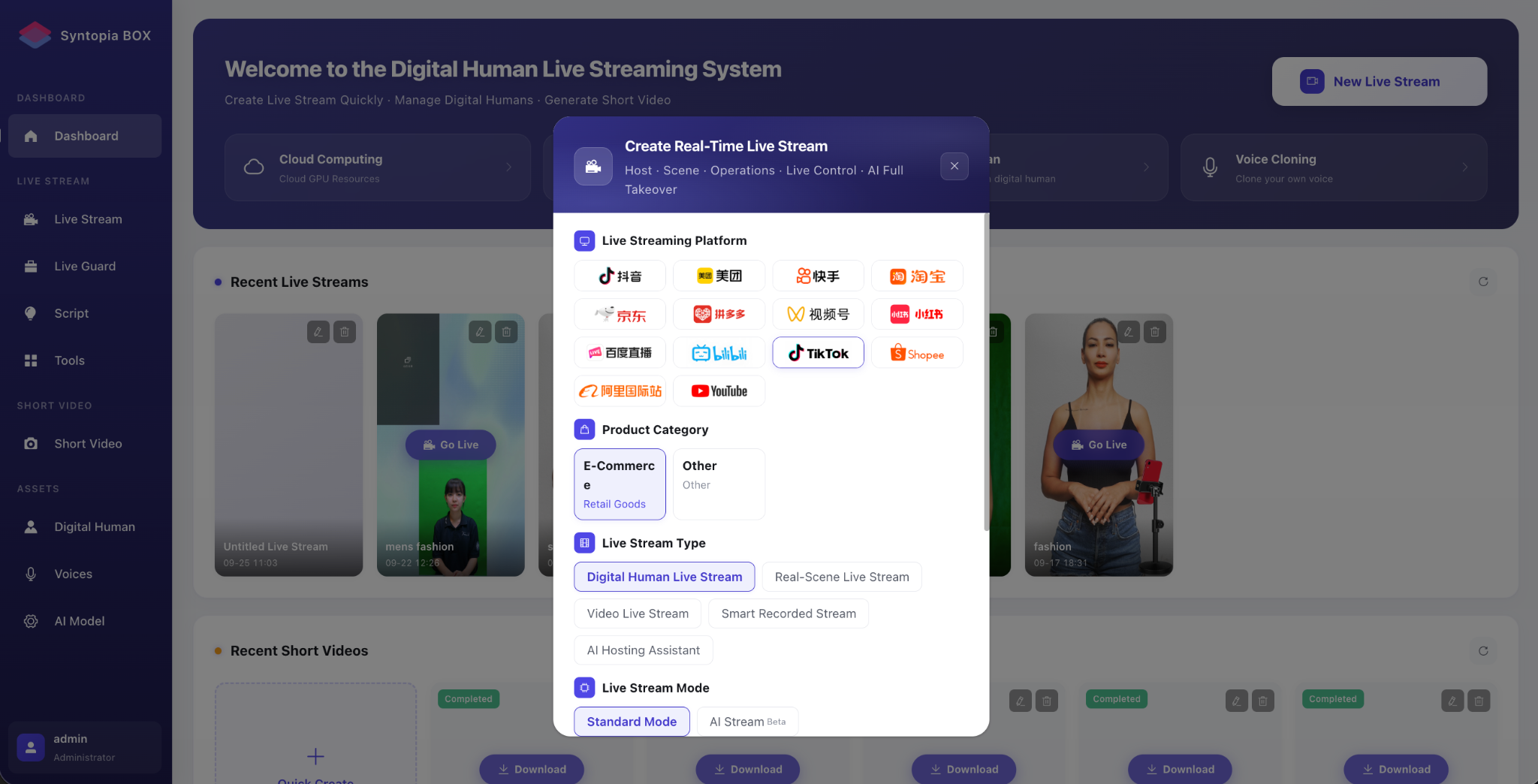
2.3.2 Creating a New Livestream
Click "New Livestream," select the livestream platform (9 major platforms supported), the product category, and the livestream type, then create the livestream.
Note! The selected product category must match your actual products! Food, General, and Hotel & Travel all fall under Group Buying.
2.3.4.1 Step 1: Set Up the Host
- Choose a Host
Choose a host suited to your actual needs for the livestream.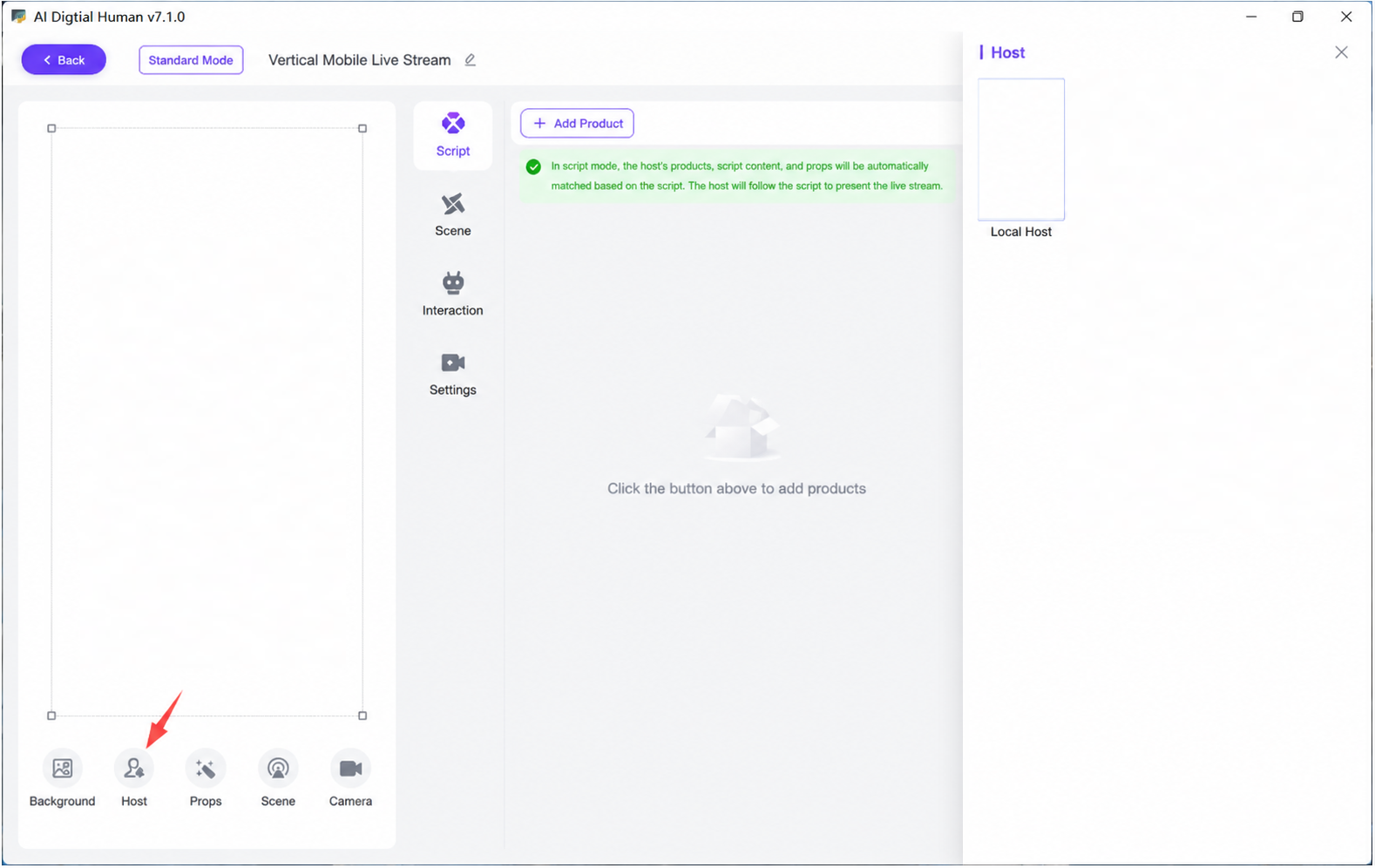
2.3.4.2 Step 2: Set Up Product Scripts
- Overview of the page display areas: upload products, supporting either manually adding products or one-click import
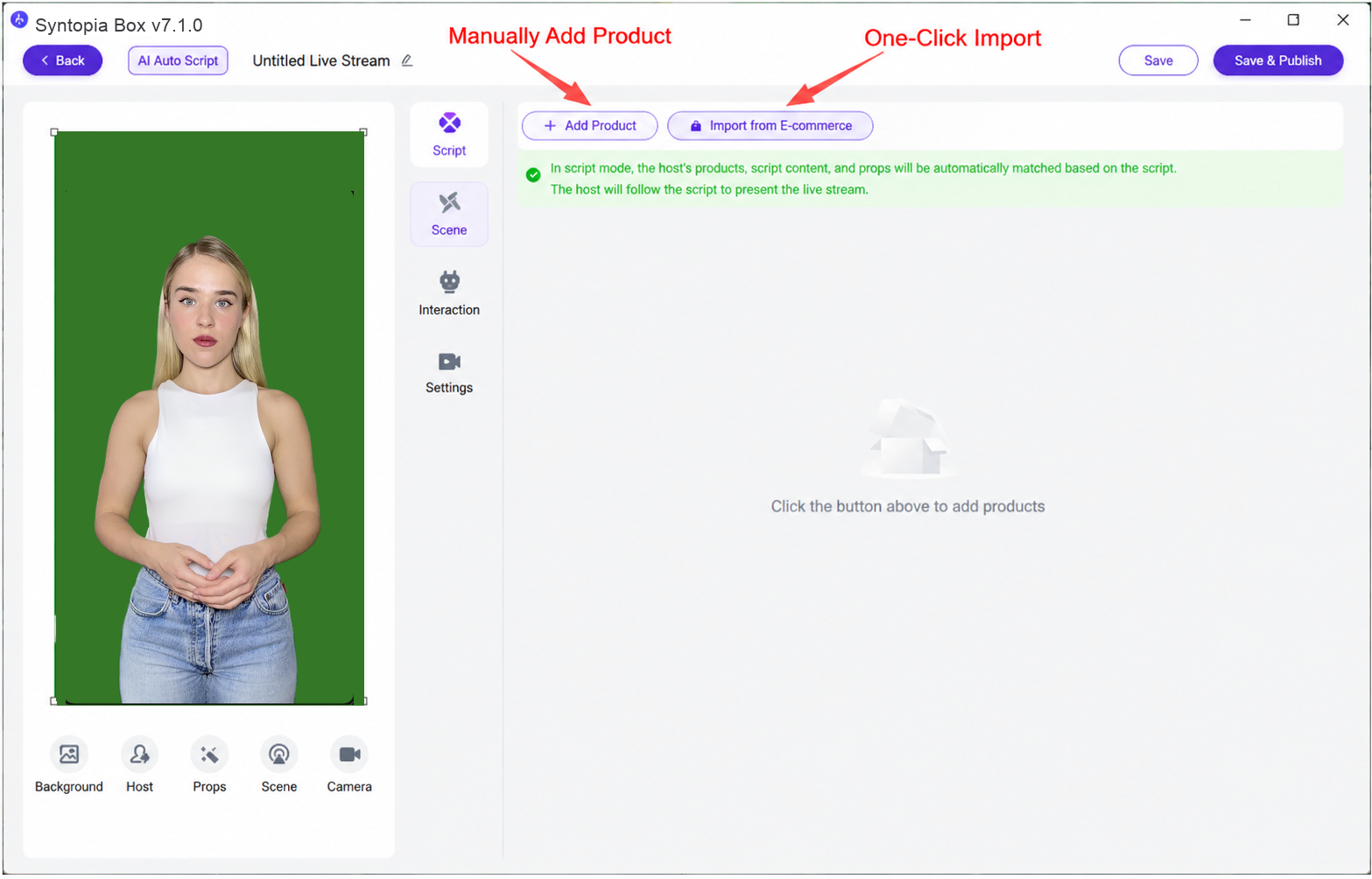 of Douyin products to generate scripts.
 - 2 Ways to Create a Product
- Method 1: One-Click Product Import with Auto-Generated Script
Click "One-Click Douyin Product Import" to jump to the platform and log in to your livestream account.
After logging in, select the products to import and click "Confirm Product" to automatically generate the livestream script for the product.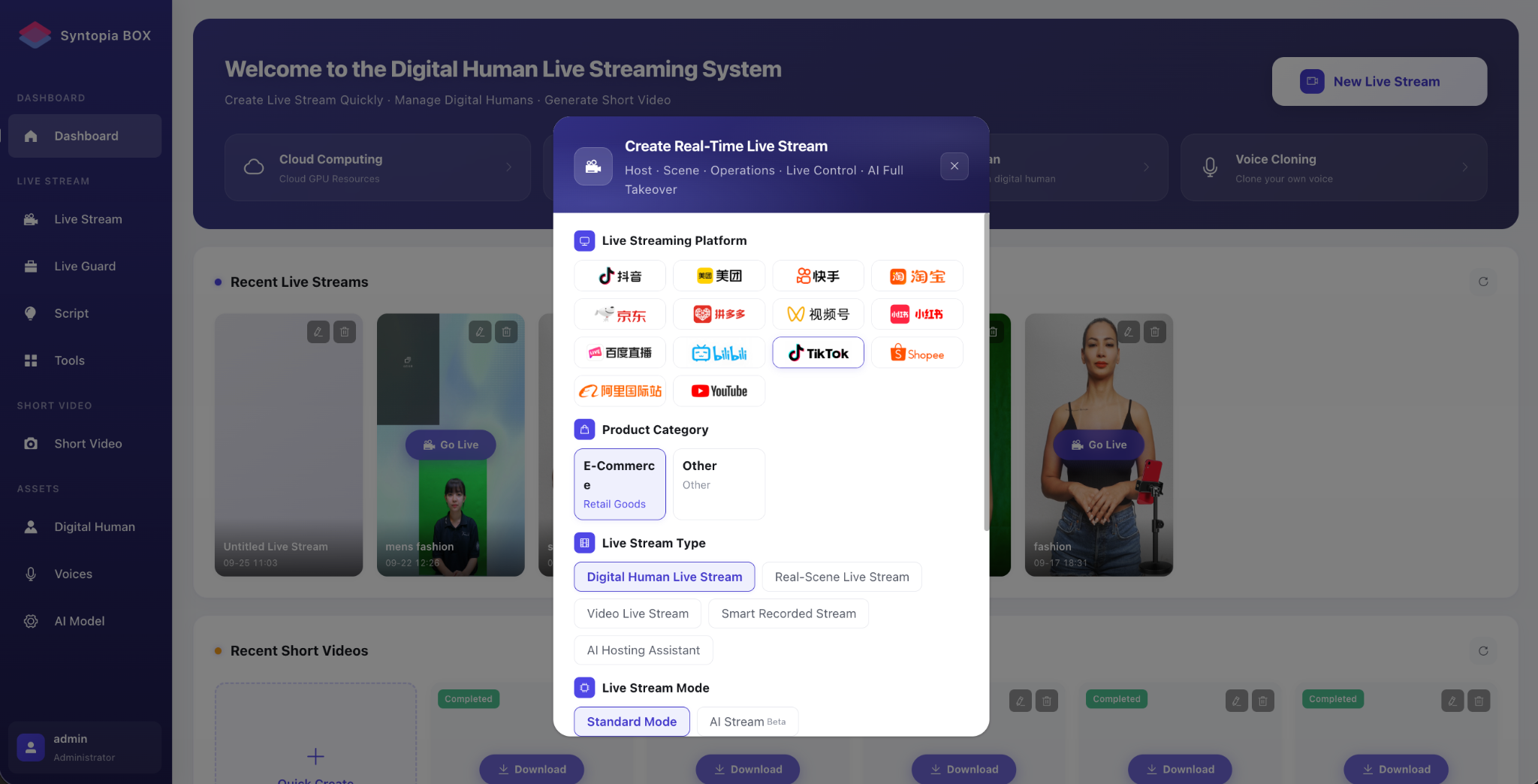
- Method 2: Manually Adding a Script
Click "+ Product"; in the pop-up window you can edit the product information, and in the product panel you can choose to edit the text script, bulk-import a text script, or upload audio as the script.
Shopping cart product numbering:
1. Item 1 is the link
2. Item 2 is the link
3. Item 3 is the link
The numbering is simply 1, 2, 3.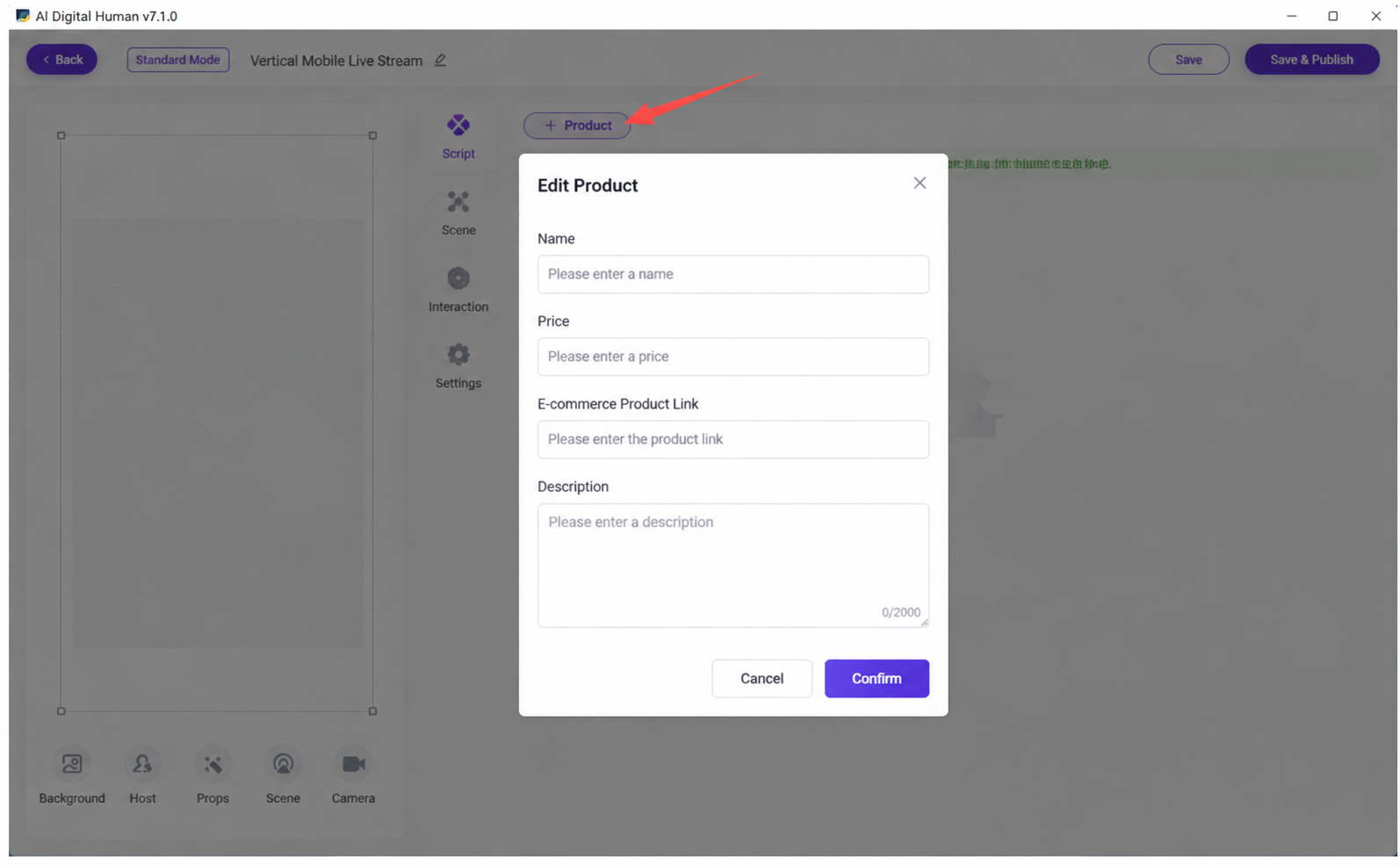
- Uploading a Script
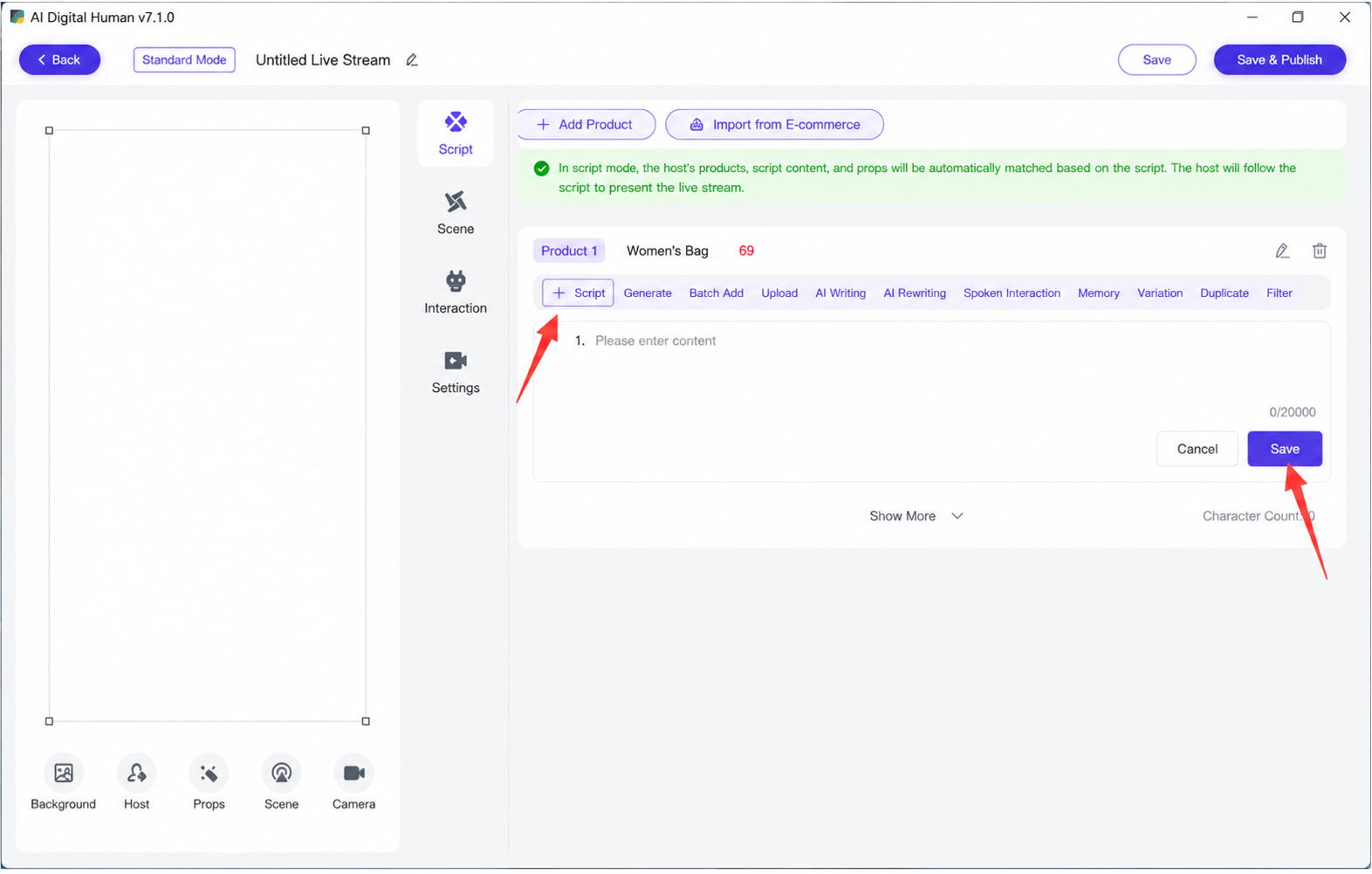 for a Single Product
Click the plus sign on the left; "Unnamed Product 1" will appear on the left, then enter the script content in the script field
- Bulk Uploading Scripts
How to bulk-upload scripts: press Enter twice between each script segment; the resulting script will be split into segments.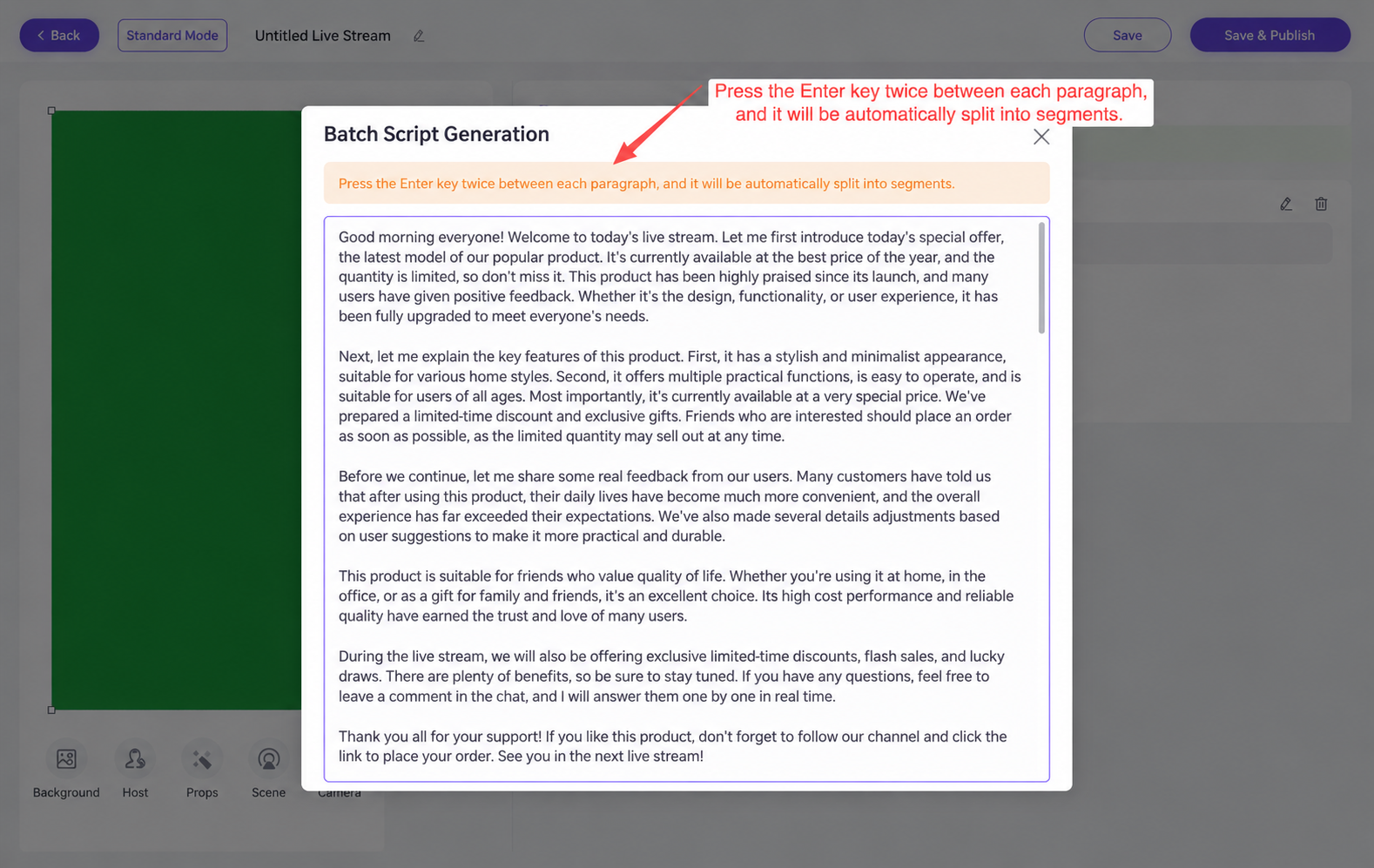
- Script
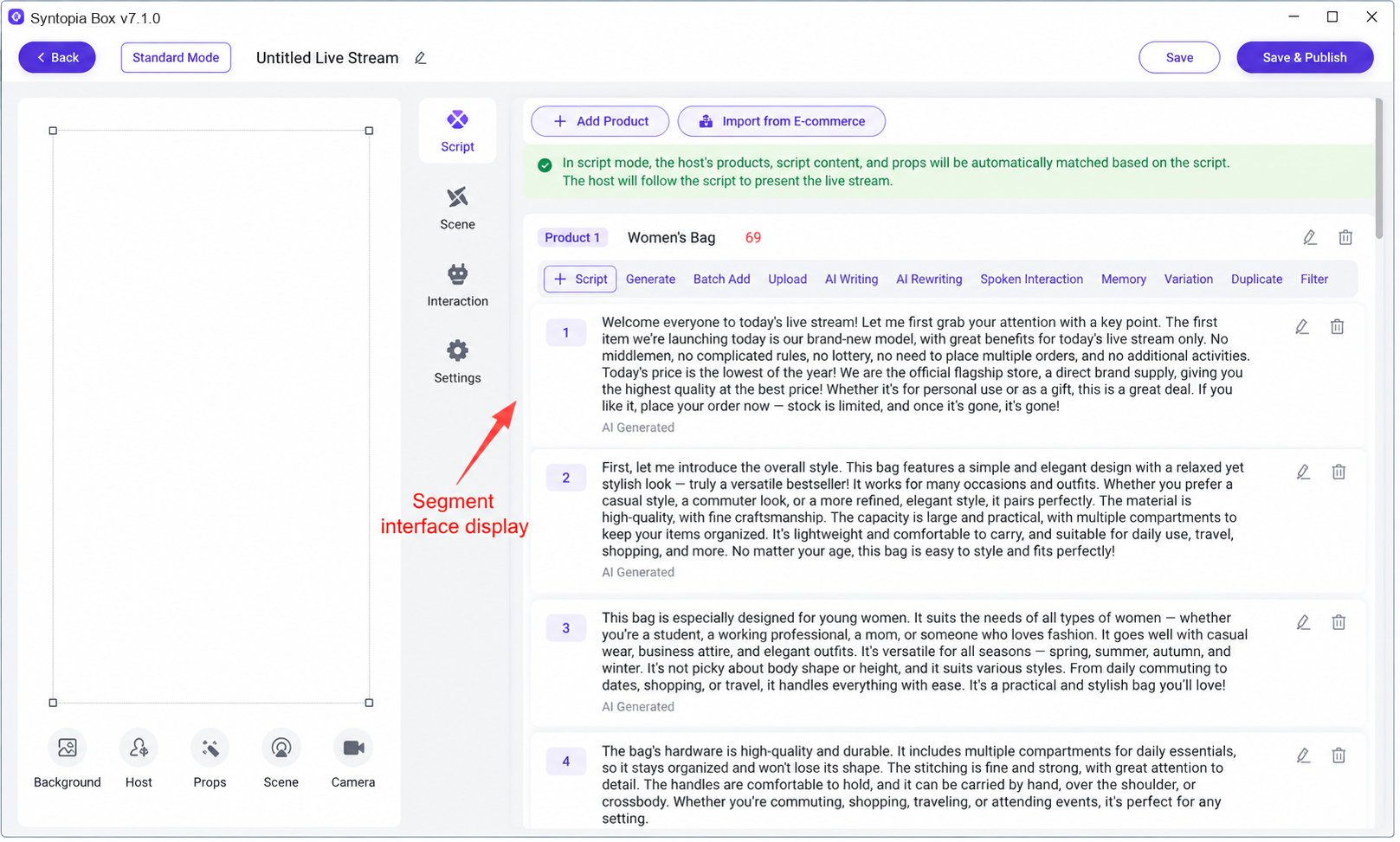 notes: a script segment of over 100 characters without a period, exclamation mark, question mark, etc. will be automatically filtered out during the livestream; it is recommended that a complete sentence not exceed 100 characters.
 - Method 3: Manually Uploading Audio
- AI Script Generalization
Click "AI Generalization 2.0" and the system will generalize the original script; the generalized content appears as shown below. During the livestream, the system will randomly pick one sentence from the options separated by "/" inside {} and one word from the options separated by "|" inside [] to use in the livestream. (AI Generalization 2 is recommended for livestreaming)!!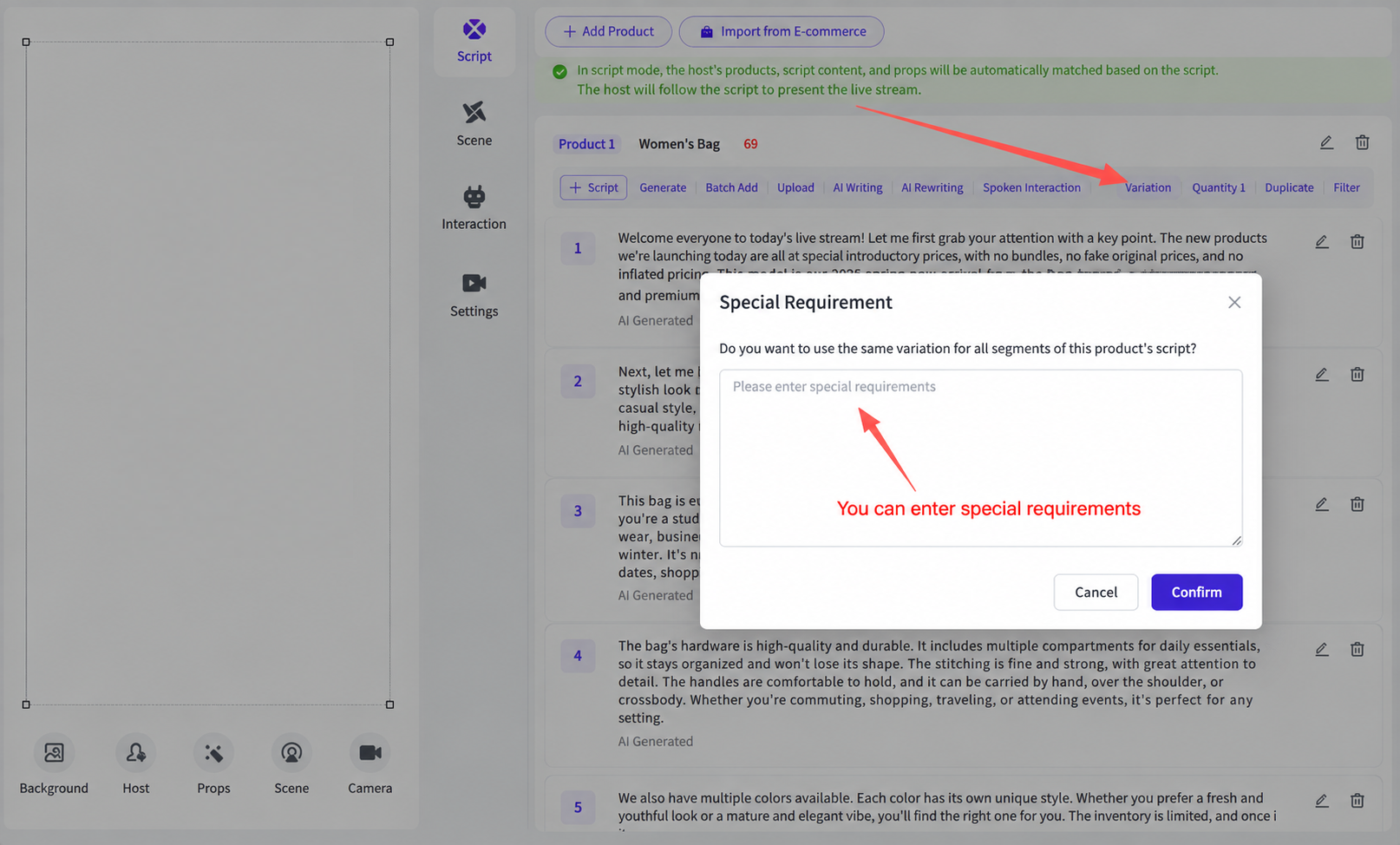
Because large models are not fully controllable, generalizing too many characters at once (e.g. 5,000 characters) is prone to errors that reduce the character count of the generalized script. It is recommended to generalize the script in segments. The video below is a tutorial on segmented generalization:
[Segmented Generalization.mp4]
- AI Continuation
The system automatically learns from the existing script content; click "AI Continuation" to continue the script, producing new content with a meaning similar to the original.
It is recommended to run AI Continuation 6-8 times in a row for every script!!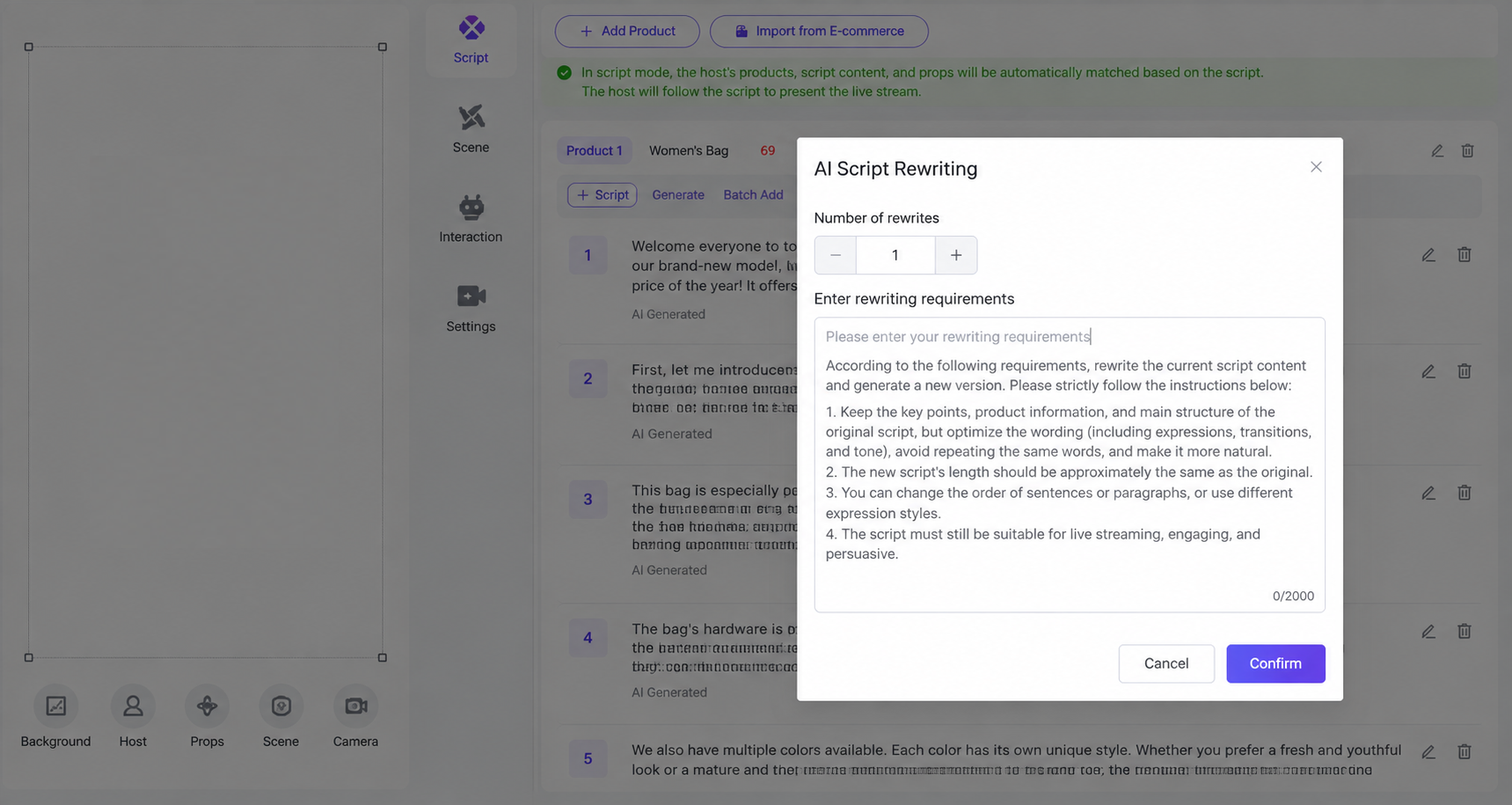
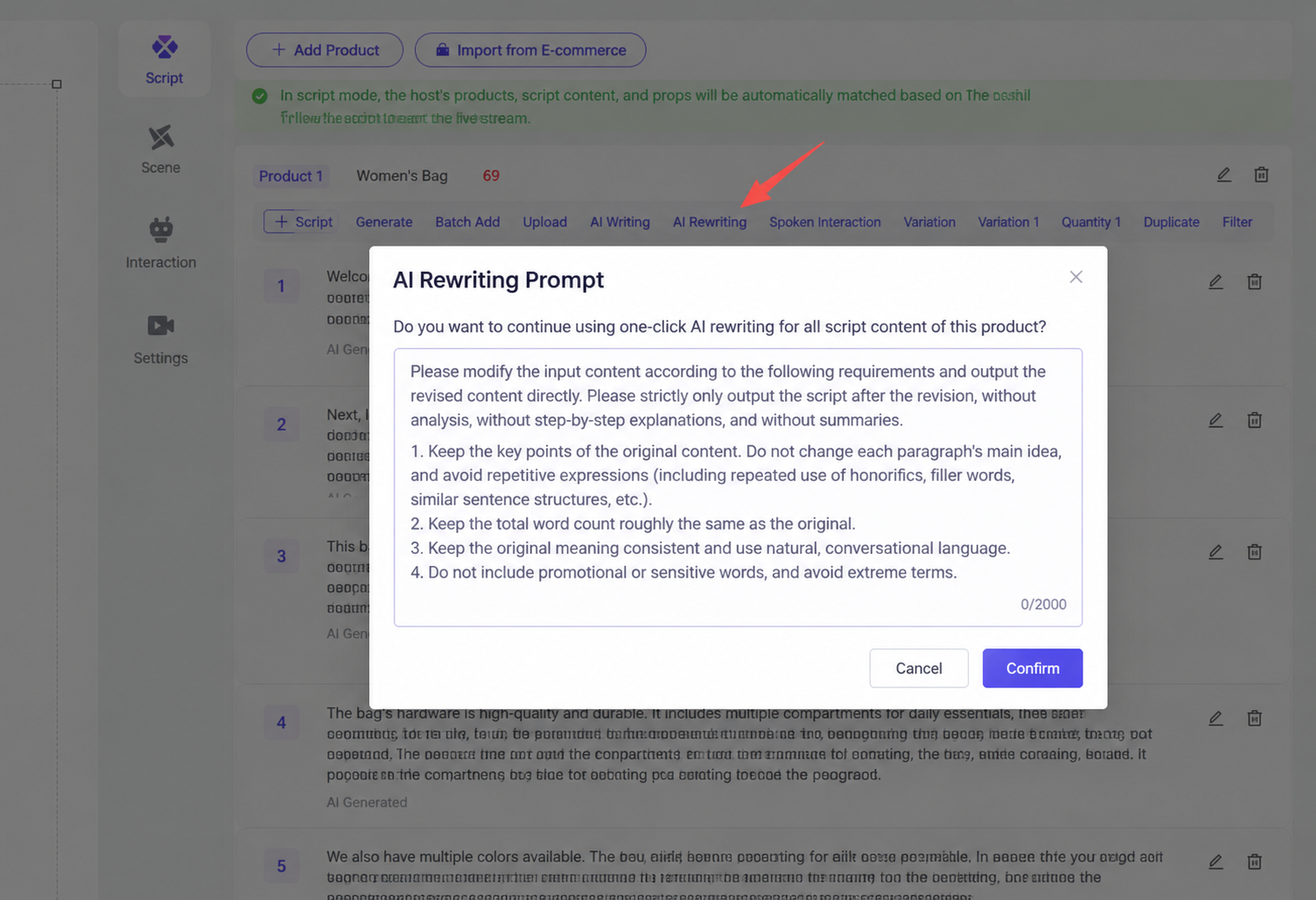
- AI Rewrite
Rewrites the content of the original script.
- One-Click Copy
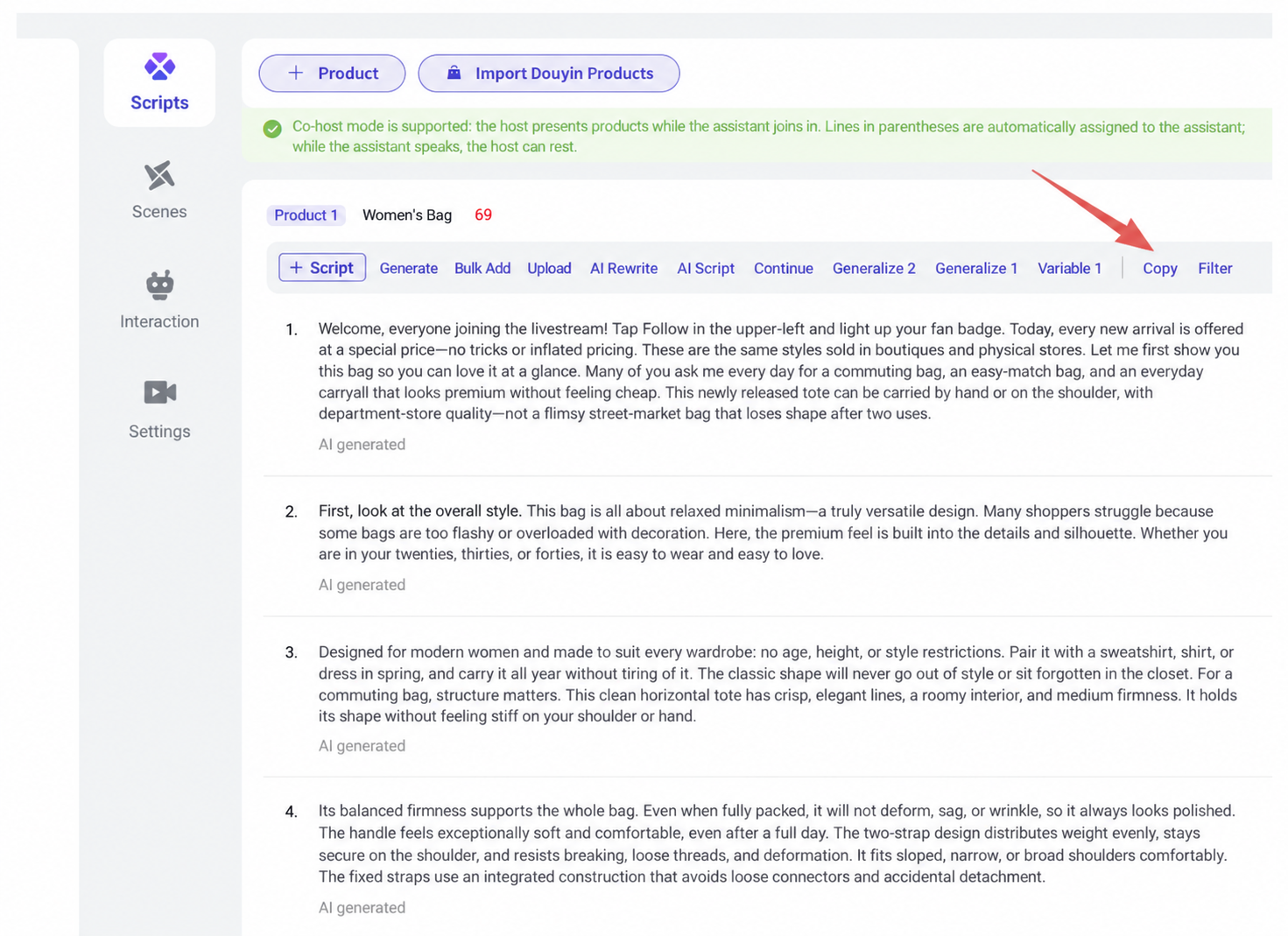
Copies all scripts for a single product in the livestream room with one click.
- Dynamic Scenes
Click the + button to upload dynamic scene assets as needed.
Note: when the digital host's script triggers a keyword, dynamic scene assets will pop up automatically at random.
Add scene assets, set trigger keywords (multiple keywords can be set, separated by English commas), set the asset display duration, then save.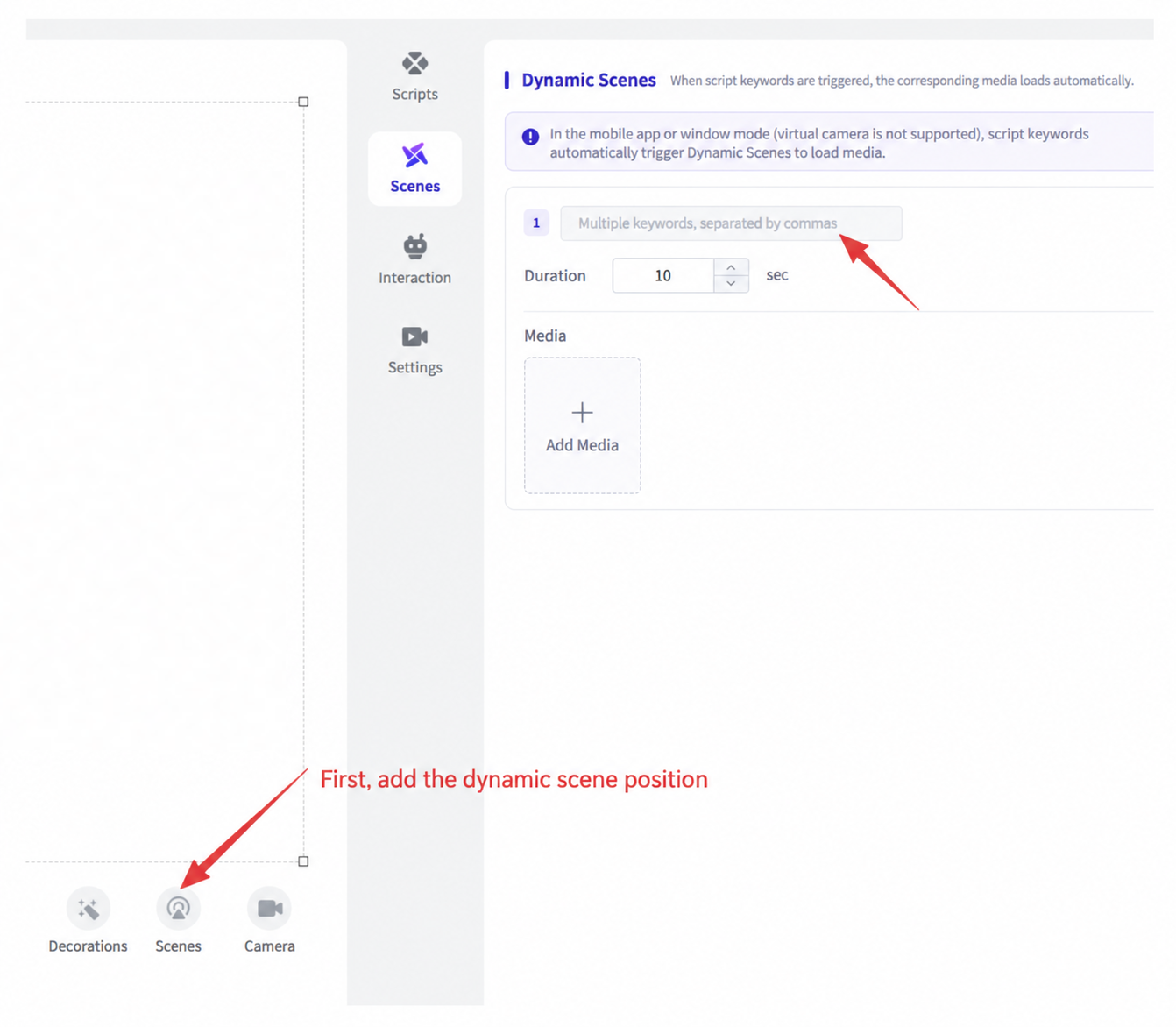
2.3.4.3 Step 3: Livestream Workflow Settings and Control Console Feature Overview
- Overview of the Page Display Areas
(1) Interaction Enhancement
Set keywords and enter the corresponding response in the input box. When a viewer asks about a keyword, the host will respond based on the content in the input box; using variables in the input box is recommended.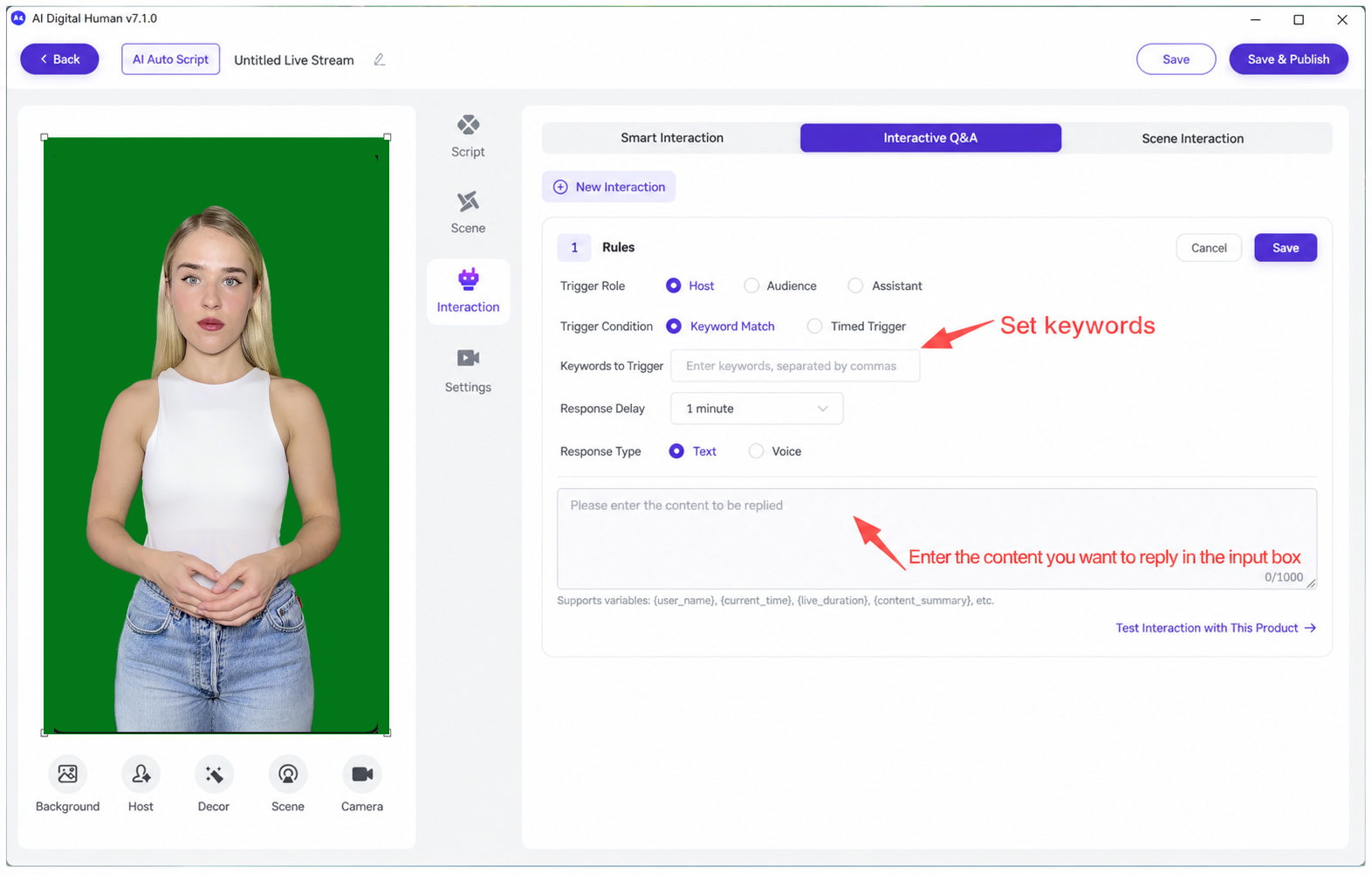
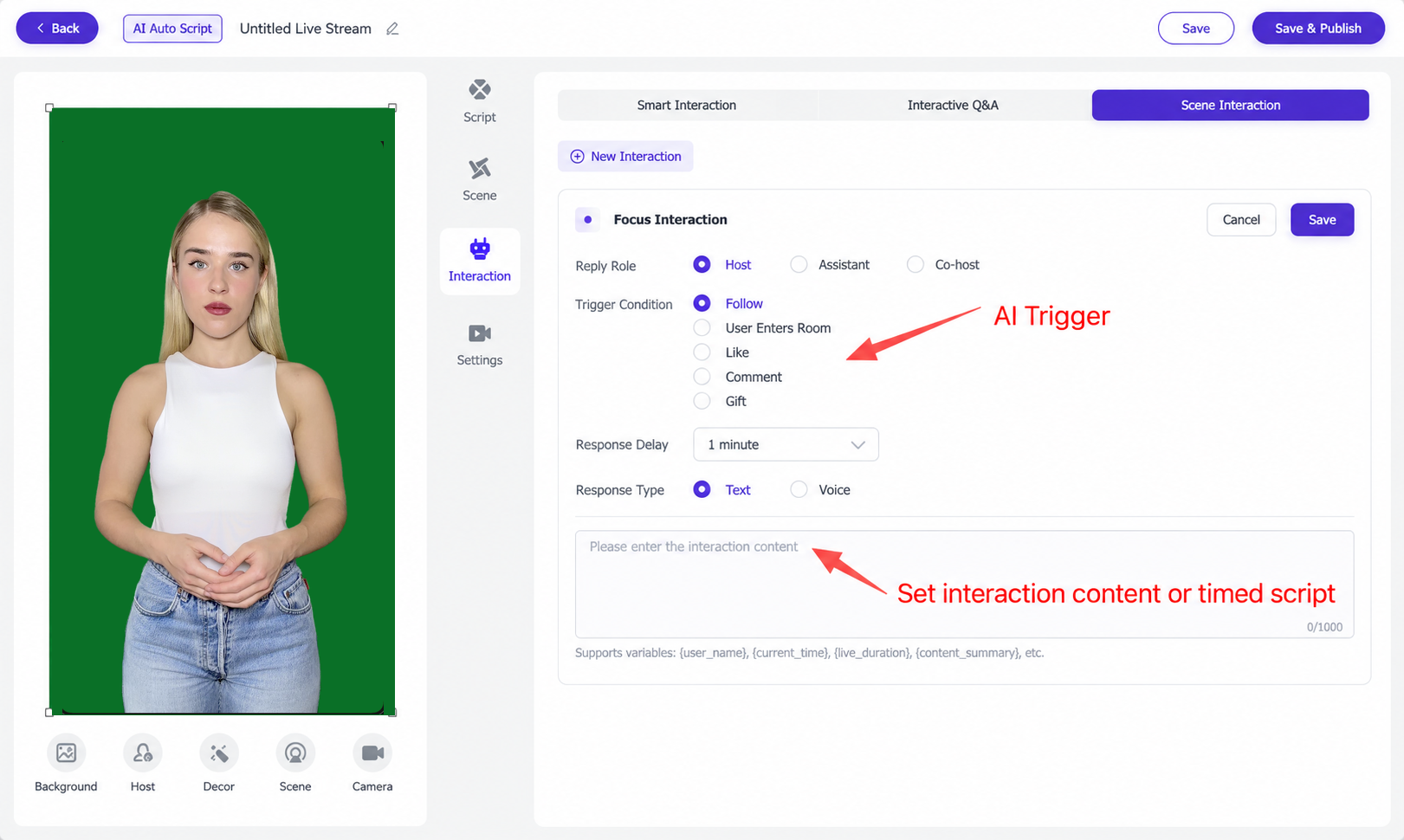
(2) Atmosphere Interaction
You can set scripts for when a user follows the account, enters the room, likes, or sends a gift, and you can also set scripts for scheduled announcements.
(3) Smart Interaction
Proactive interaction is built-in interactive content that appears within the livestream script, including default atmosphere prompts and default smart interaction.
Smart Interaction must be turned on before going live. The system automatically learns the room's product scripts, and when a viewer asks a question in the public chat, the digital host can respond quickly with a 1-on-1 smart reply, ensuring interaction in the room runs smoothly.
The interaction method can be set to host reply or comment reply. Note: comment-based interaction is only triggered when products were added via one-click import.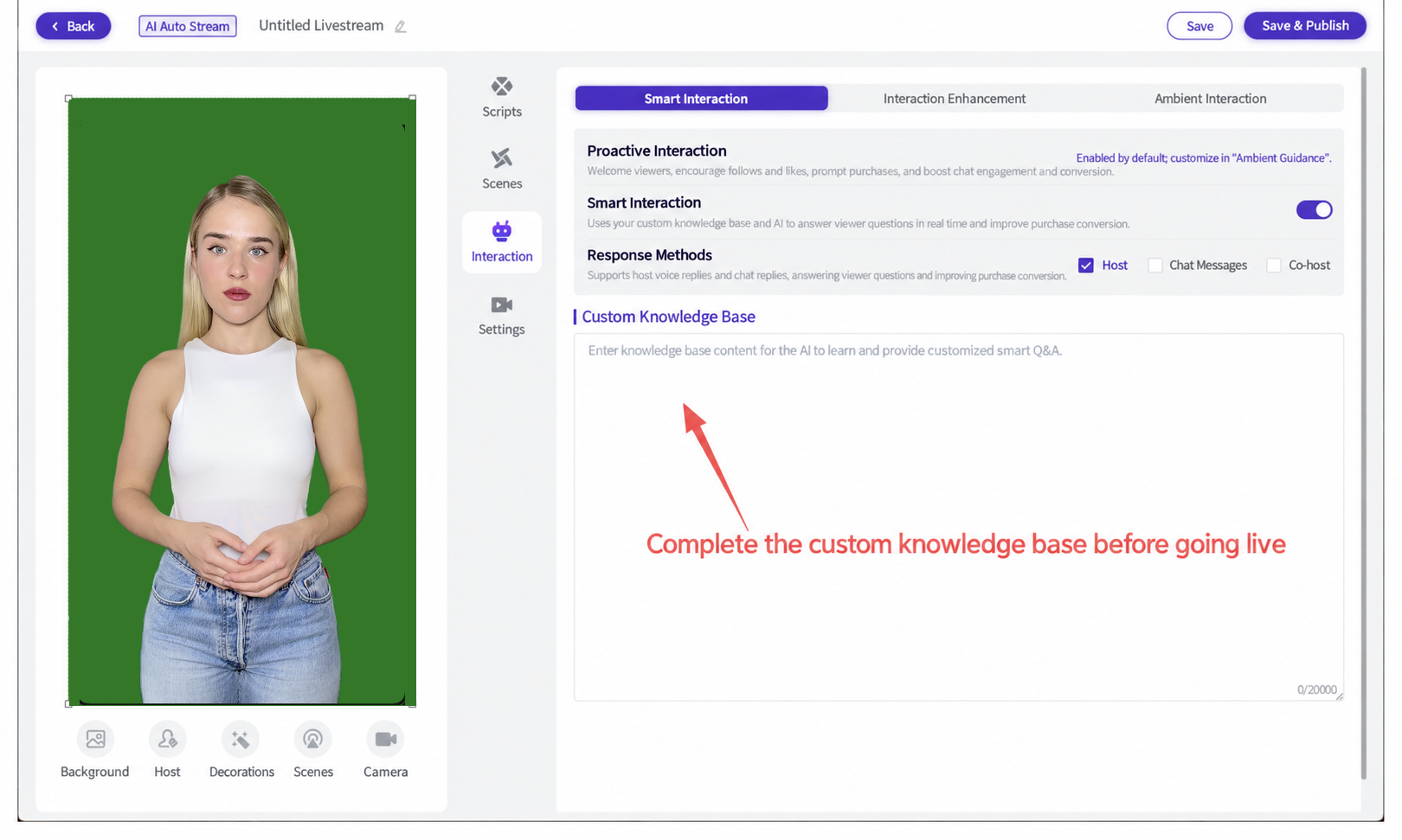
You can upload a custom knowledge base (product information) so the large model can learn it and enable customized smart Q&A.
(4) Livestream Settings:
Both the host and co-host can select from their own uploaded voices, and the speaking speed can be adjusted for both; click Save when done.
Product order: "Random Loop" randomizes the script order for each product. "Sequential Loop" plays the scripts in product order.
Banned words: enter banned words for the livestream room; by default, the host will not say these words during the livestream.
Non-responded users: manually add the nicknames of users not to respond to, one per line.
Non-responded questions: manually enter questions not to respond to, one per line.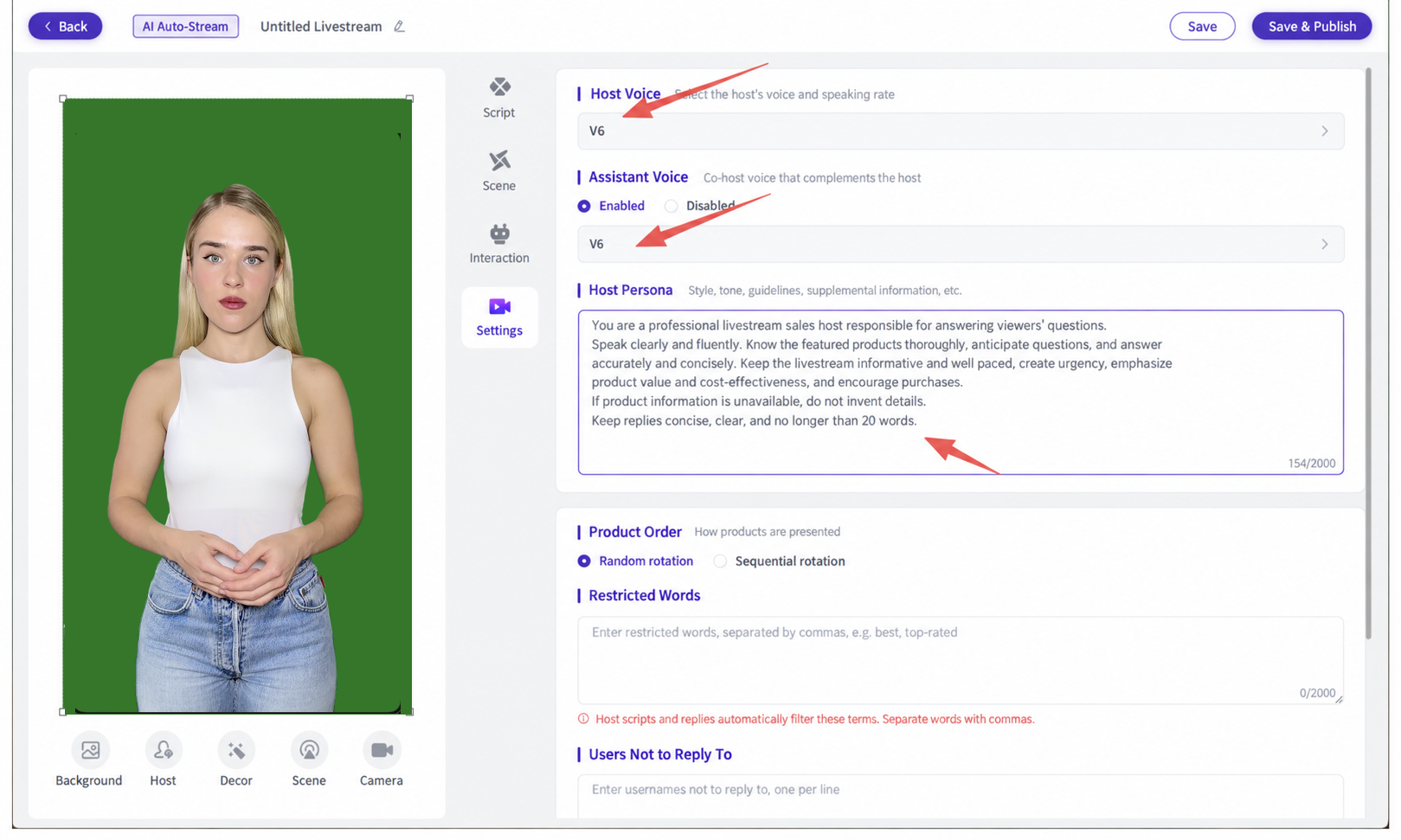
(5) Live Streaming
Once setup is complete, click "Save and Publish" in the top right, then click to start the live broadcast.
Note: you must click "Go Live Now" and wait 3 minutes before adding the camera in Livestream Companion.
 Overview of the Livestream Control Co
 nsole Features
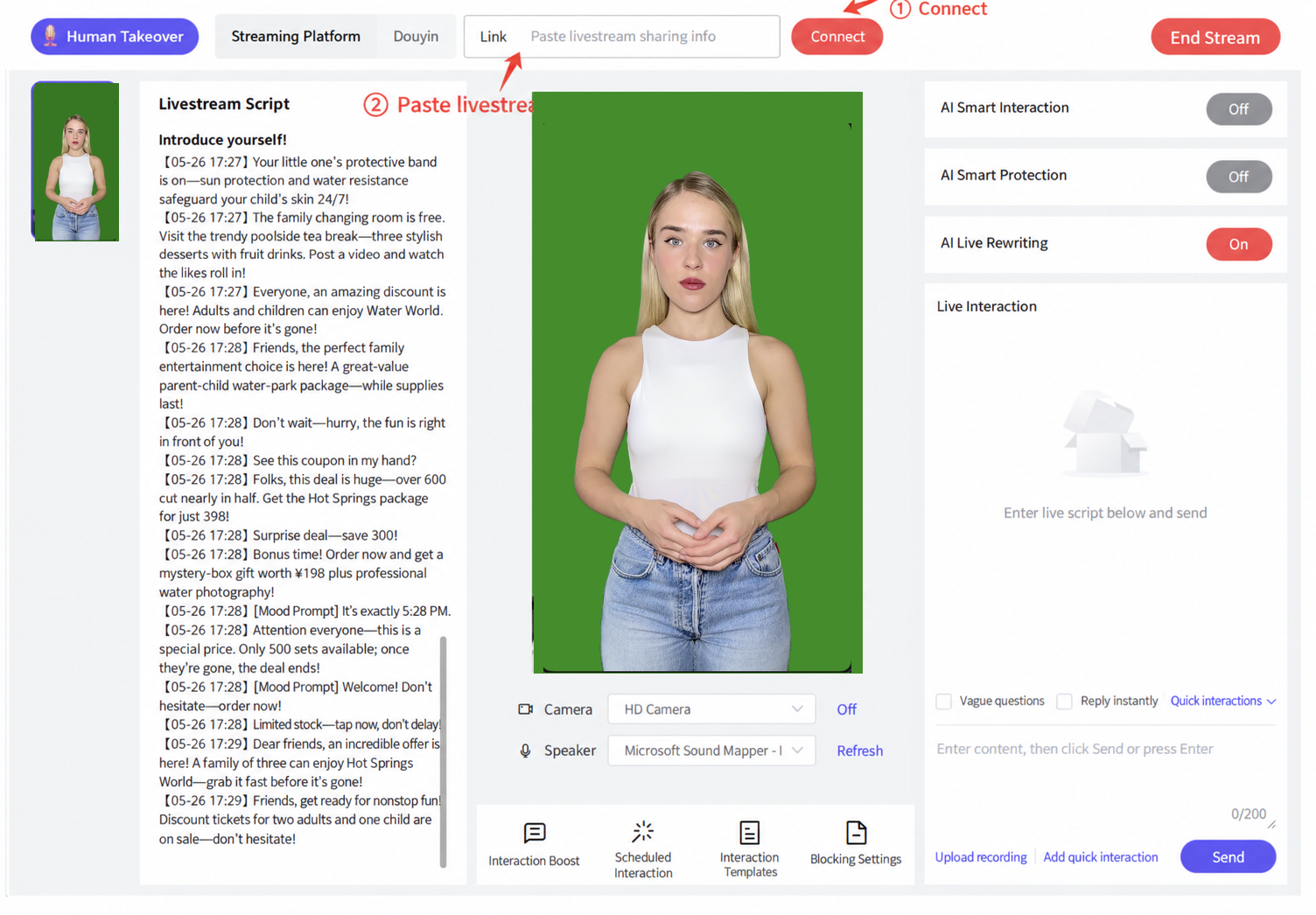
Click "Go Live Now" to enter the livestream control console
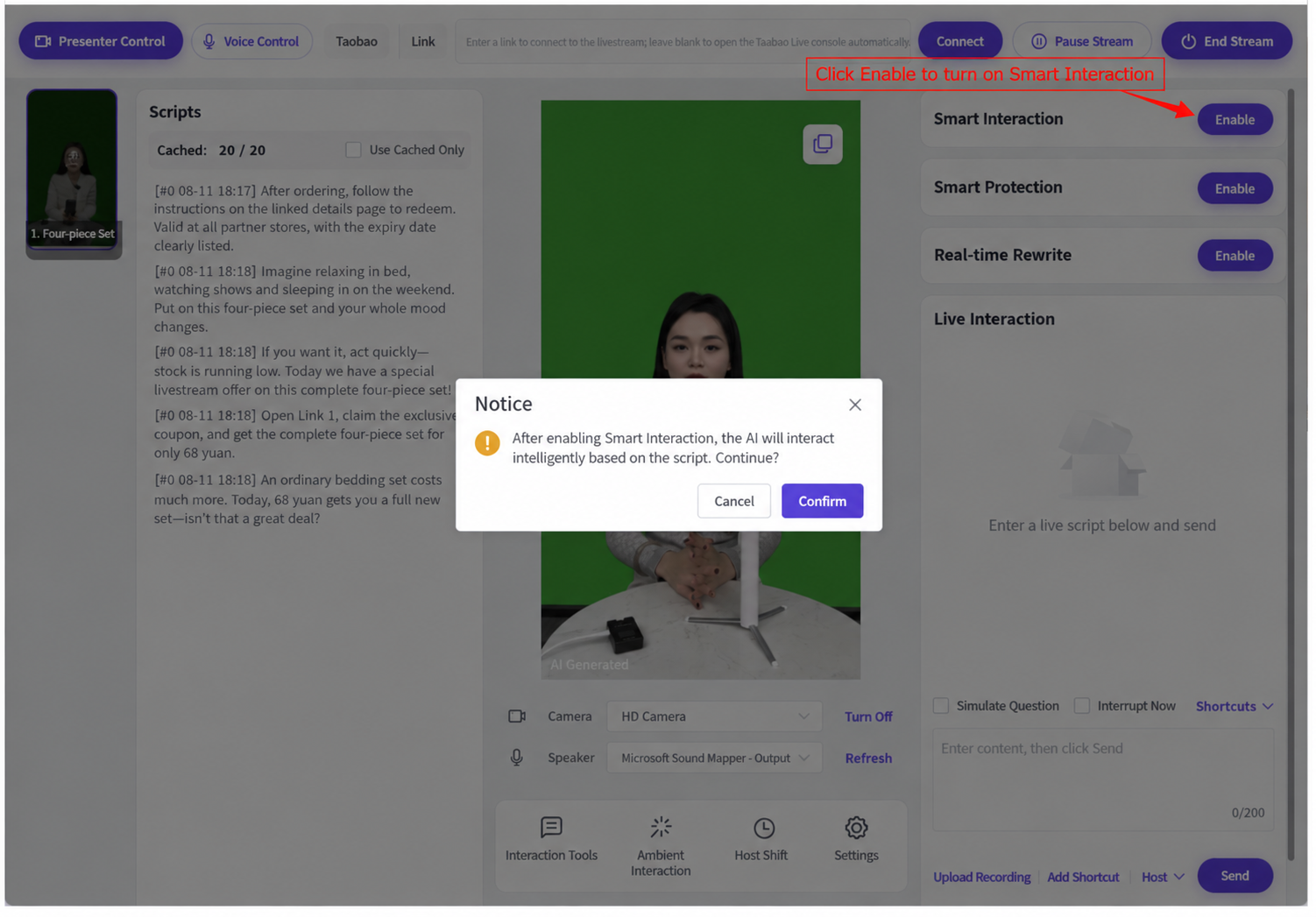
(1) AI Smart Interaction: once the livestream starts, Syntopia Digital Human's proprietary small model will automatically learn the room's product scripts + custom knowledge base + livestream small model. When a viewer asks a question in the comments, the digital host will provide an instant, one-on-one smart answer without disrupting the flow of the current livestream content, ensuring every user gets a timely, accurate response.
Prompt when enabling AI Smart Interaction: once Smart Interaction is enabled, the AI will interact intelligently based on the script — continue? Click Confirm.
(2) AI Smart Protection: a built-in livestream protection feature of the system.
Prompt when enabling AI Smart Protection: once Smart Interaction is enabled, the AI will interact intelligently based on the script — continue? Click Confirm.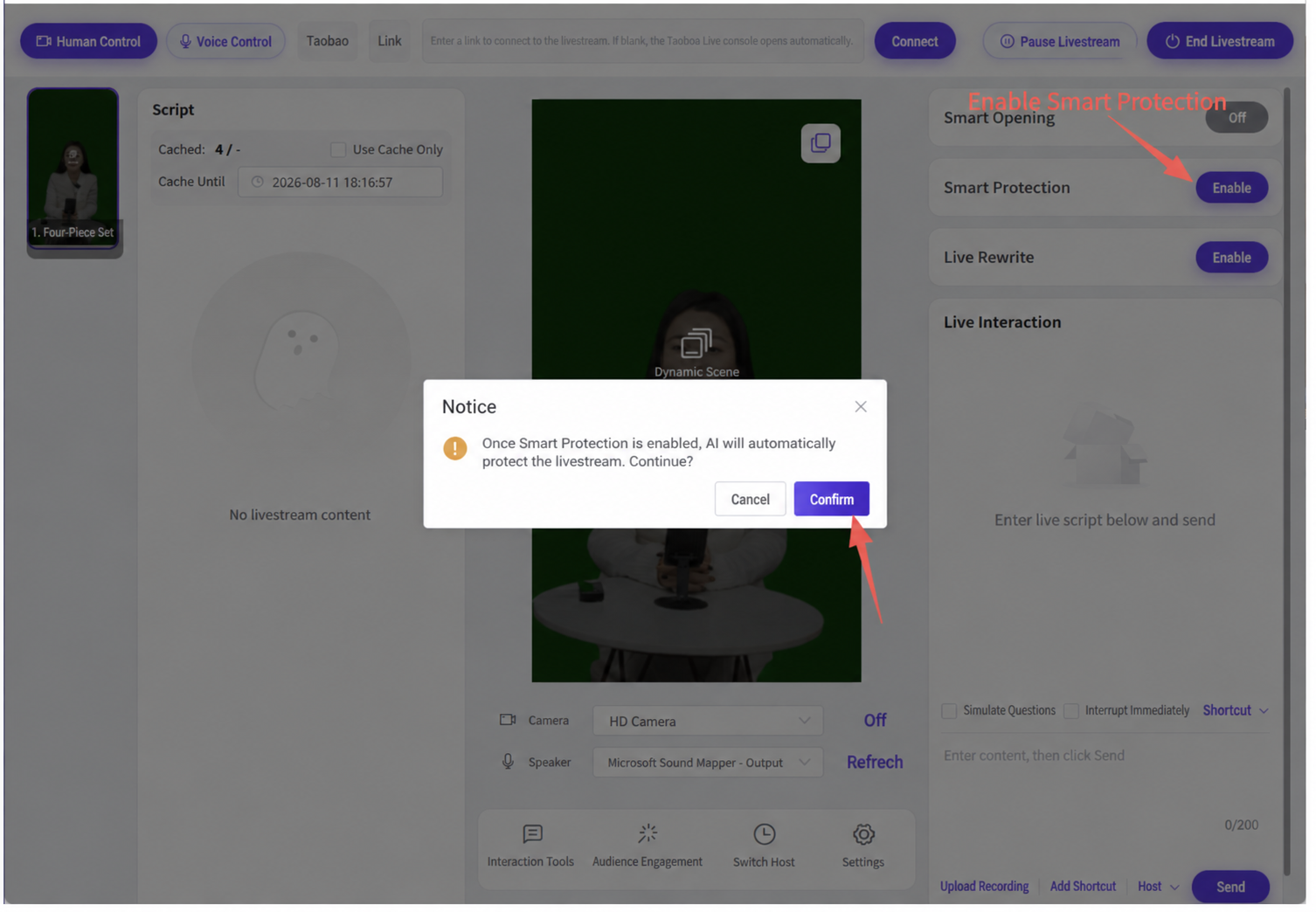
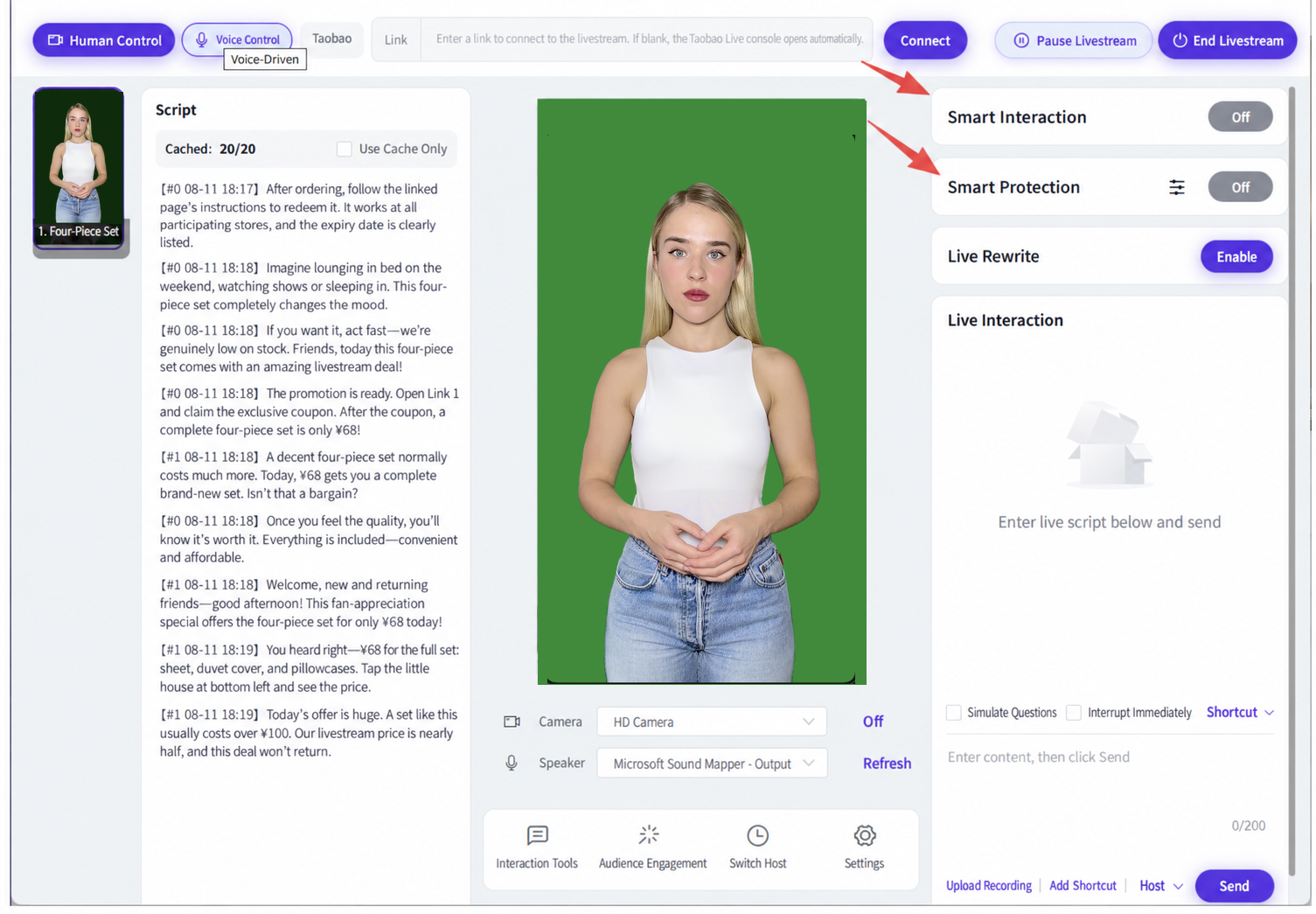
During the livestream, always keep AI Smart Interaction and AI Smart Protection turned on!
(3) Simulated Questions
Before going live in Livestream Companion or on another platform, first test whether interaction in the room works normally in the control console. For example, enter "where do you ship from," and the system will answer based on the custom knowledge base content it has learned.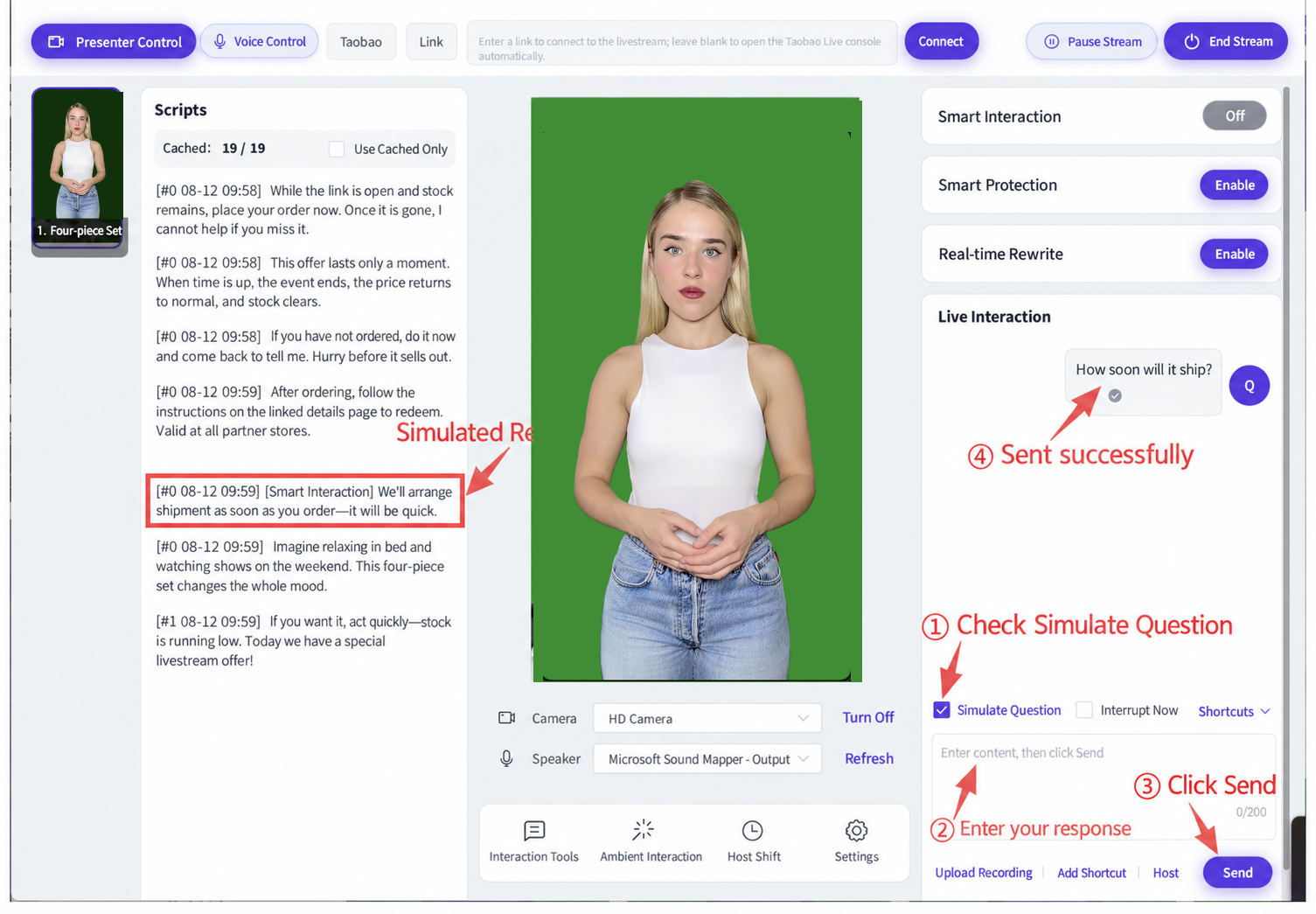
(4) Quick Interaction
During the livestream, some platforms require the host to complete a time-announcement verification; follow the on-screen instructions to complete it.
Check "Interrupt Immediately" and the host will immediately interrupt the current script to reply with "The current Beijing time is [current date] [current time]" or other pre-added quick interaction content.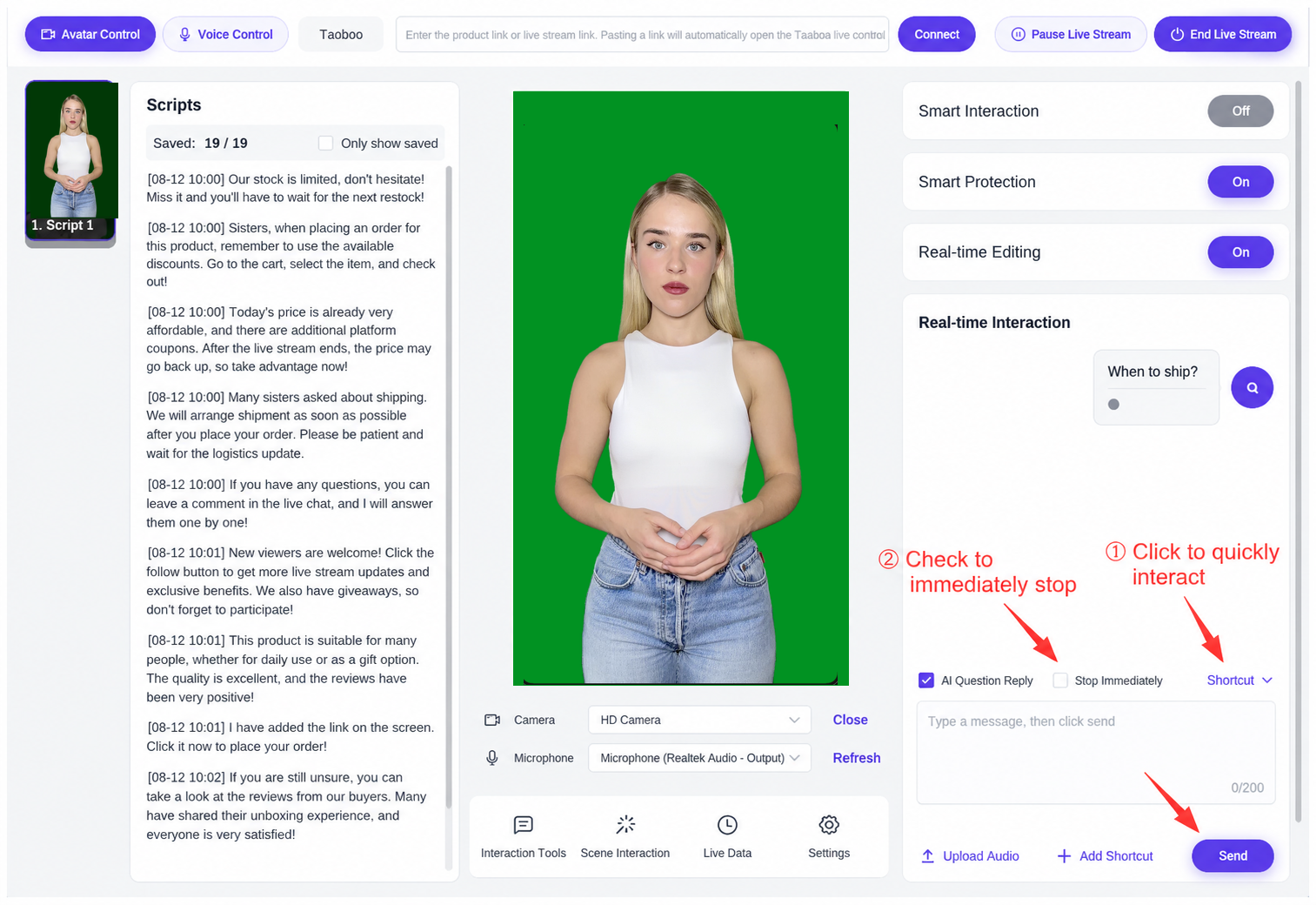
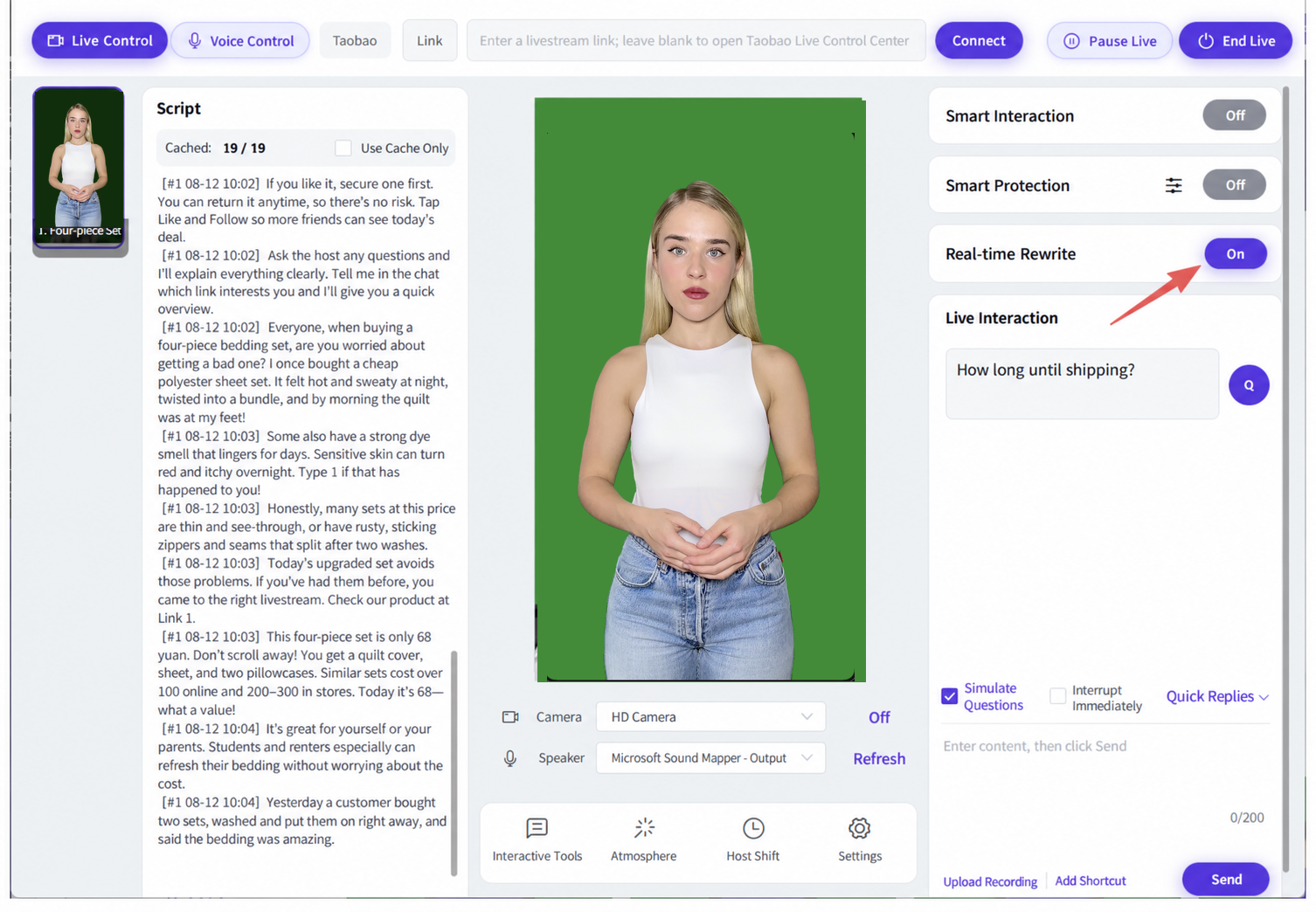
(5) Real-Time Script Rewriting
- For real-time script rewriting during the digital human livestream, click the "Enable" button in the top right, or you may choose to turn it off!
- Based on the livestream script provided by the merchant, the system can rewrite the script in real time during the livestream to drive the digital human live, ensuring the digital host never repeats the same line twice.
- After using AI generalization or variables, real-time rewriting can be turned off in the control console! Choose only one of AI generalization, variables, or real-time rewriting.
- Prompt: once real-time rewriting is enabled, the AI will automatically rewrite the livestream script — continue? You can click Cancel/Confirm
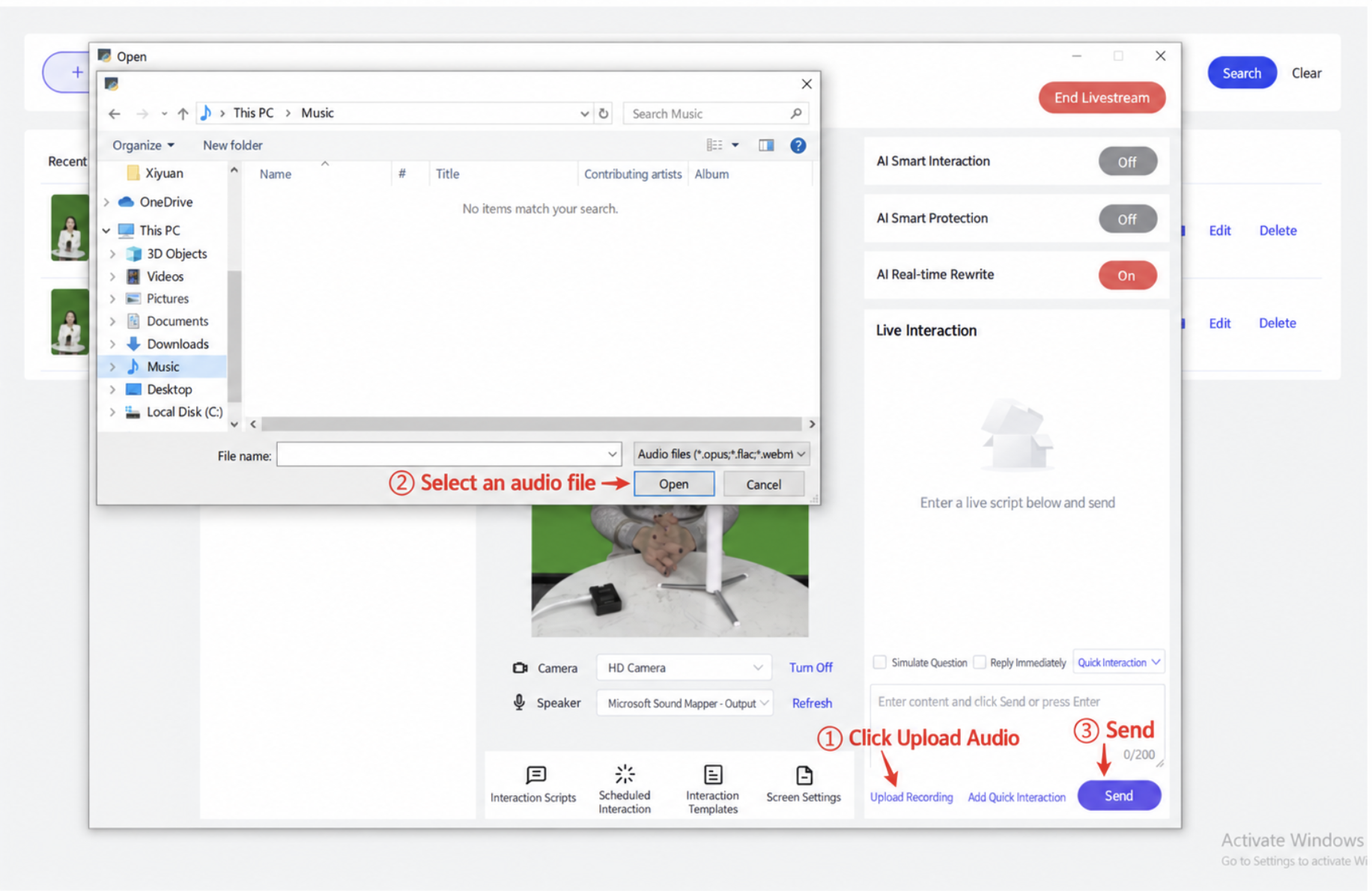
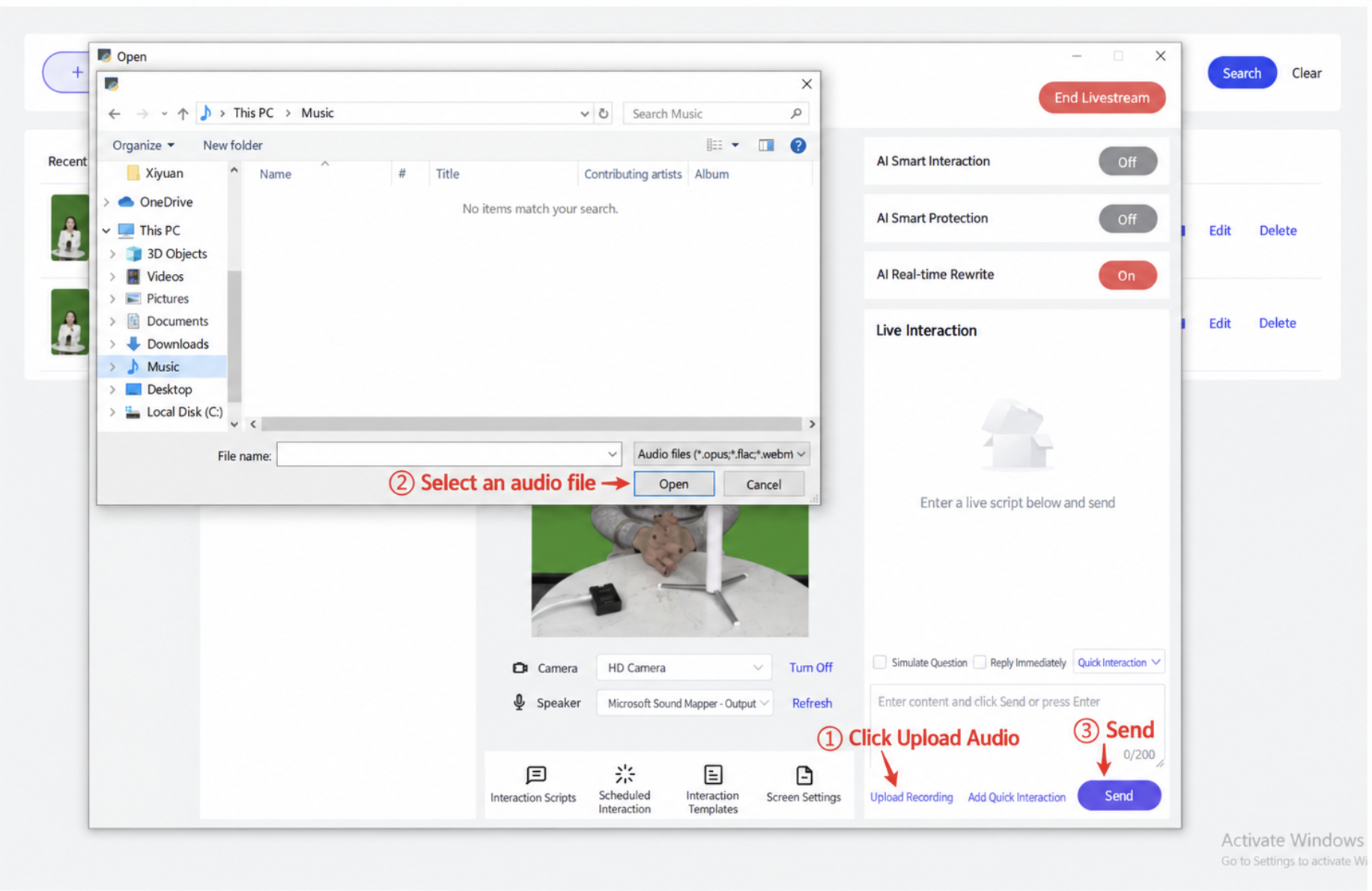
(6) Uploading a Recording
- During the livestream, you can enter a text reply or upload an audio reply, then send it.
(8) Camera and Speaker Selection
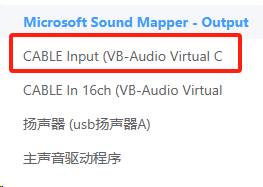
The camera defaults to "HD Camera." For the speaker, select "CABLE Input (VB-Audio Virtual Cable)."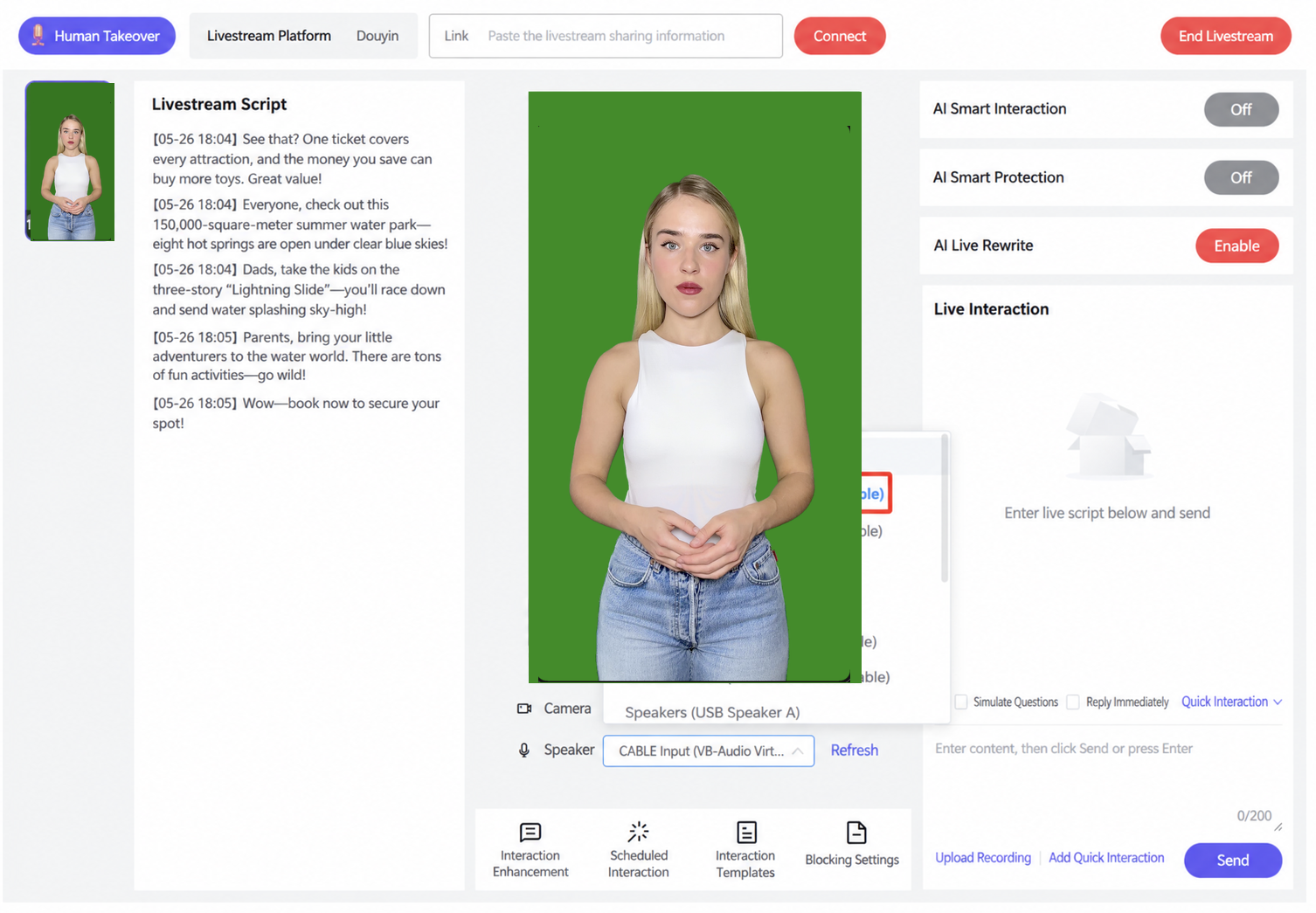
2.3.4.5 Step 4: Setting Up Livestream Companion and Going Live
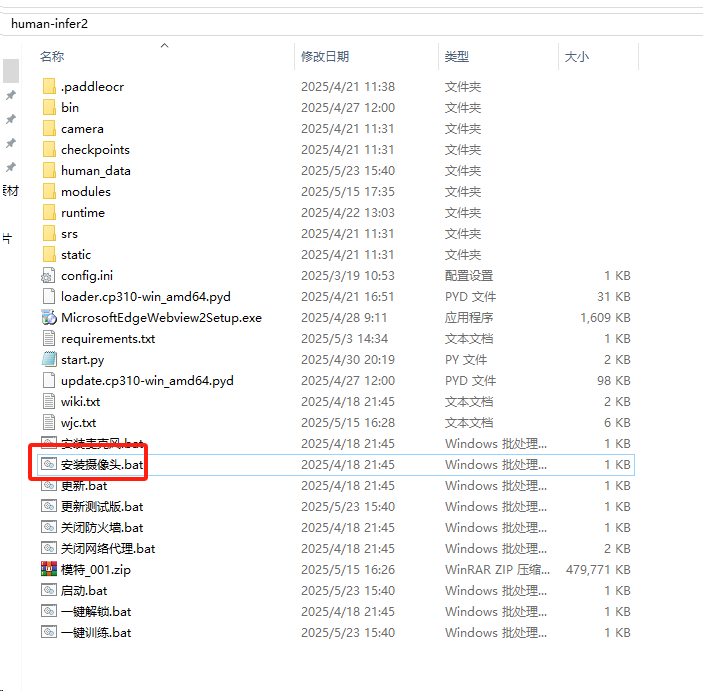
(1) In human-infer, click to install the camera.
(2) In human-infer, click to install the microphone.
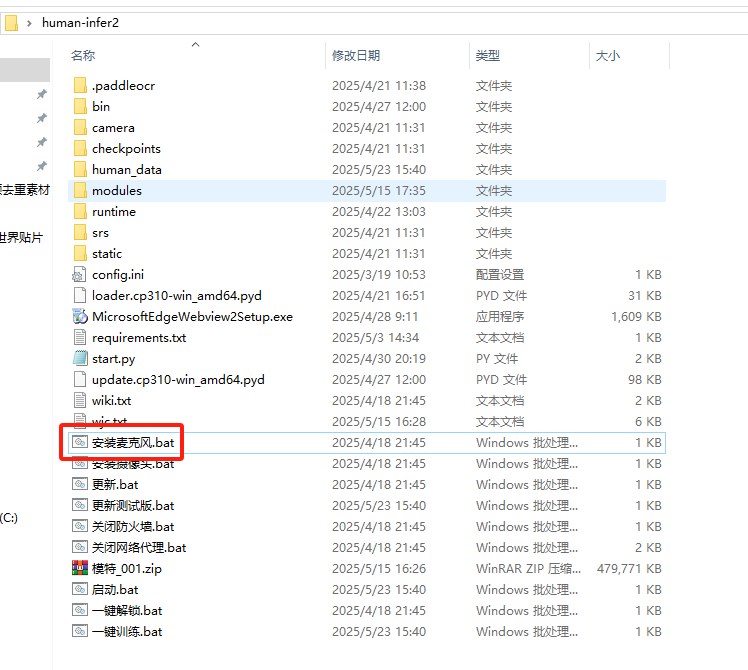
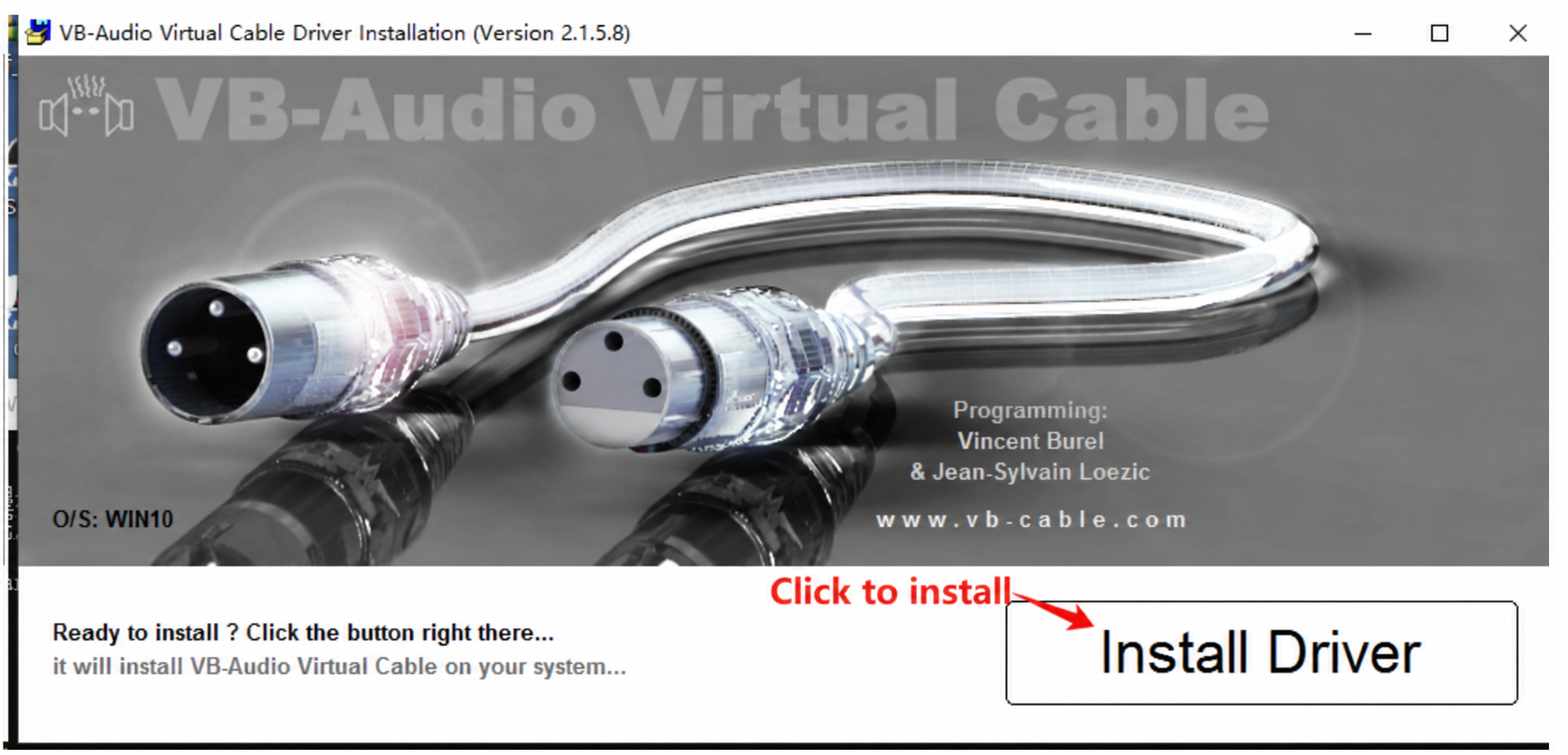
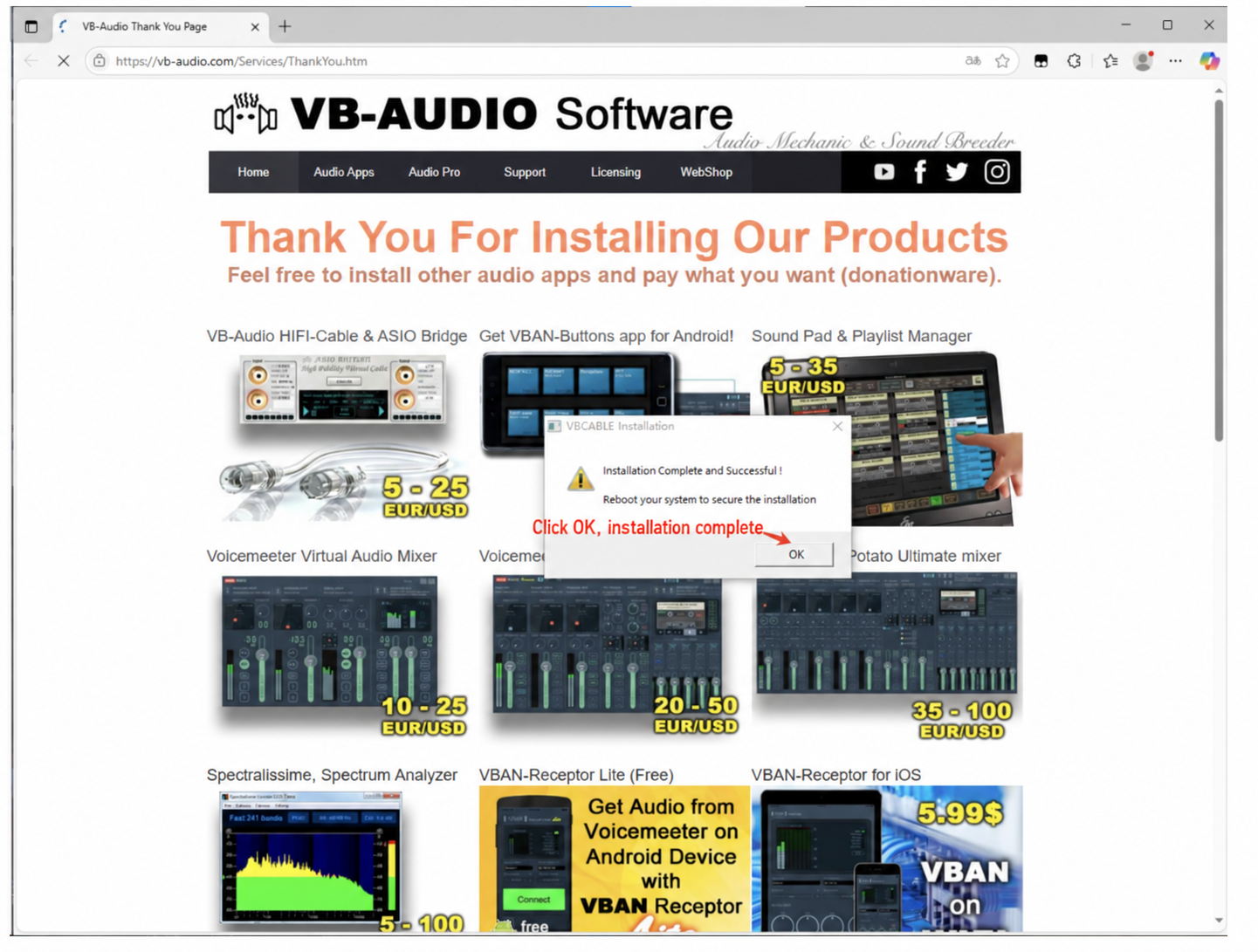
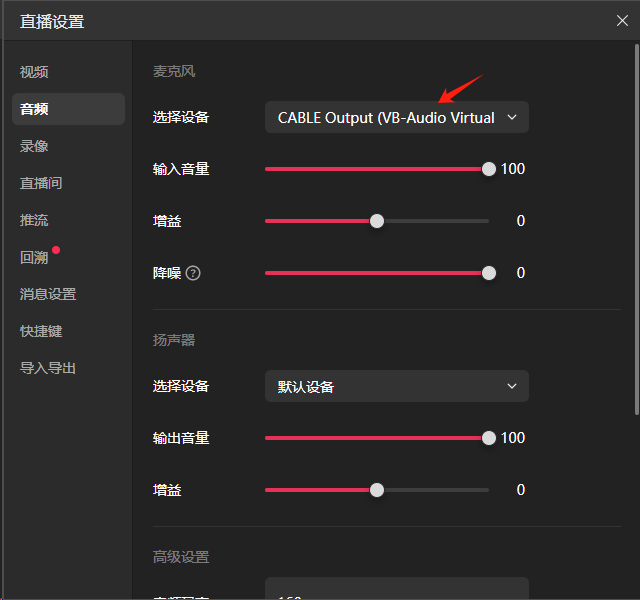
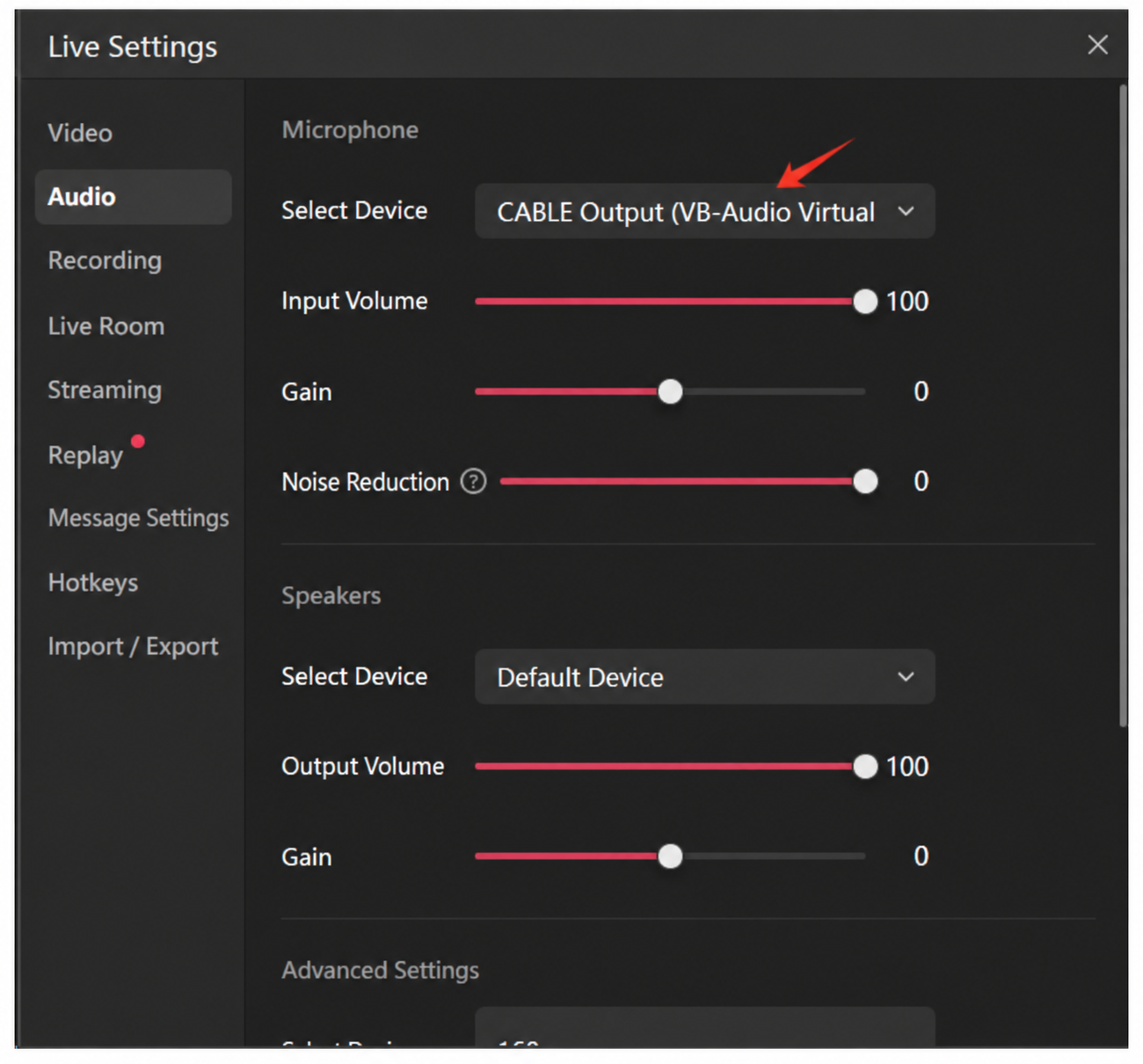
After installing the virtual microphone, set the computer's audio settings to "CABLE Input."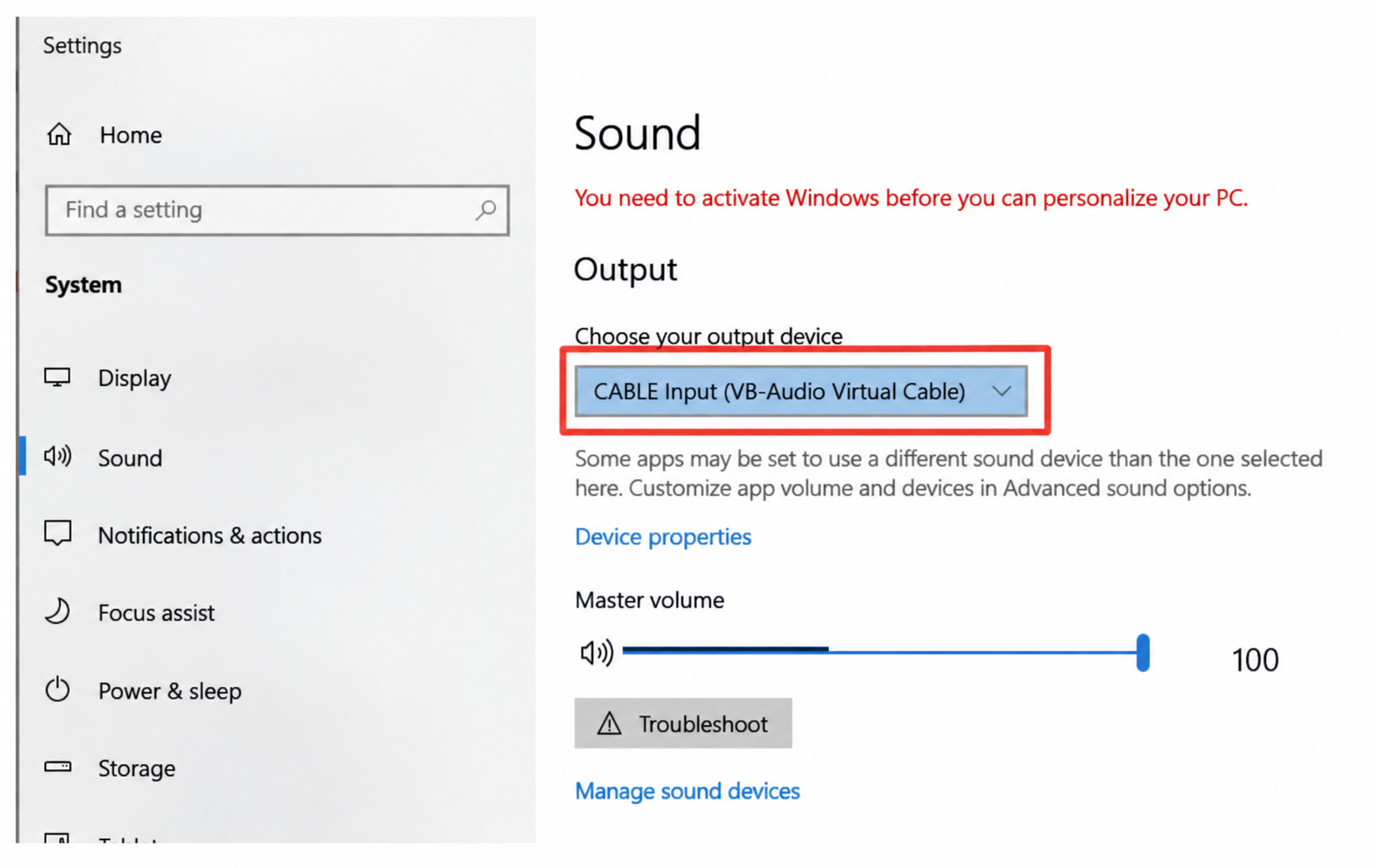
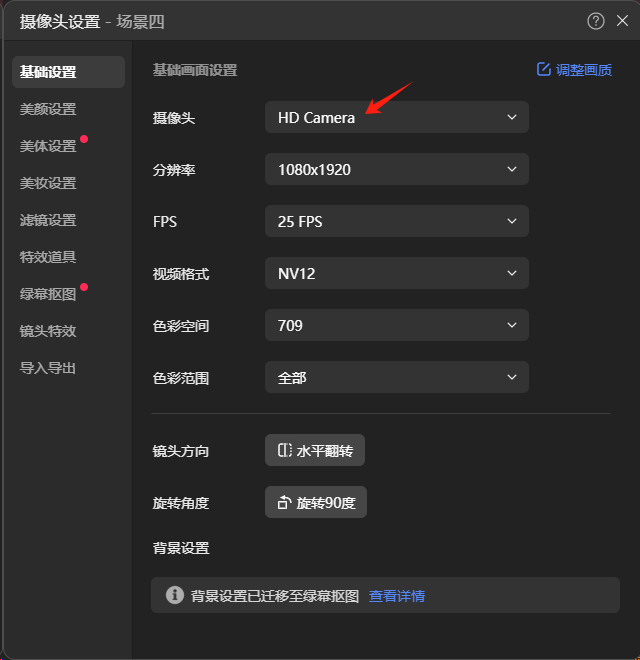
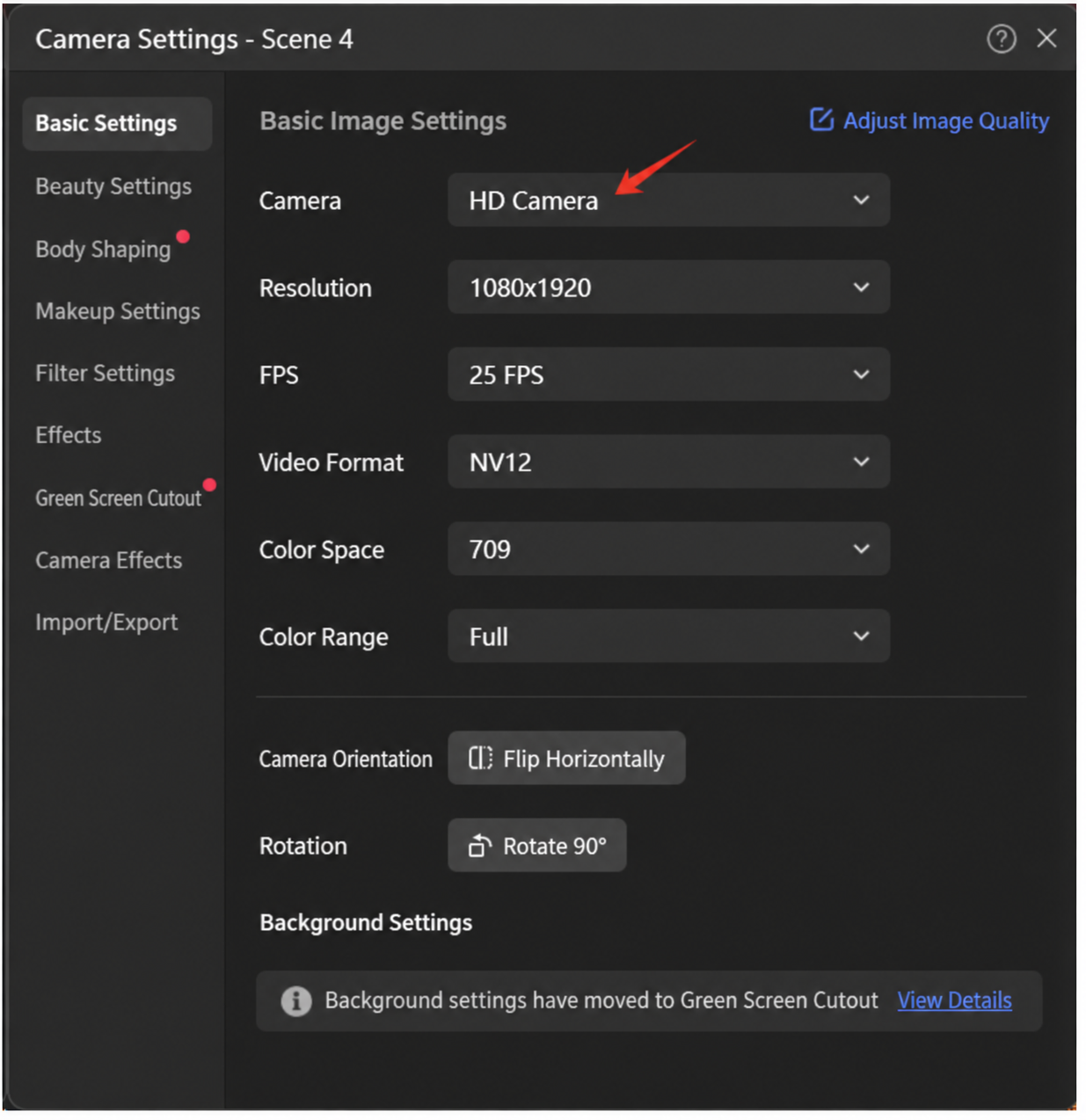
(3) After installing the camera and microphone in the client, select "CABLE Input (VB-Audio Virtual Cable)" in the control console, open Livestream Companion, set the camera to "HD Camera," and set the audio to "CABLE Output."
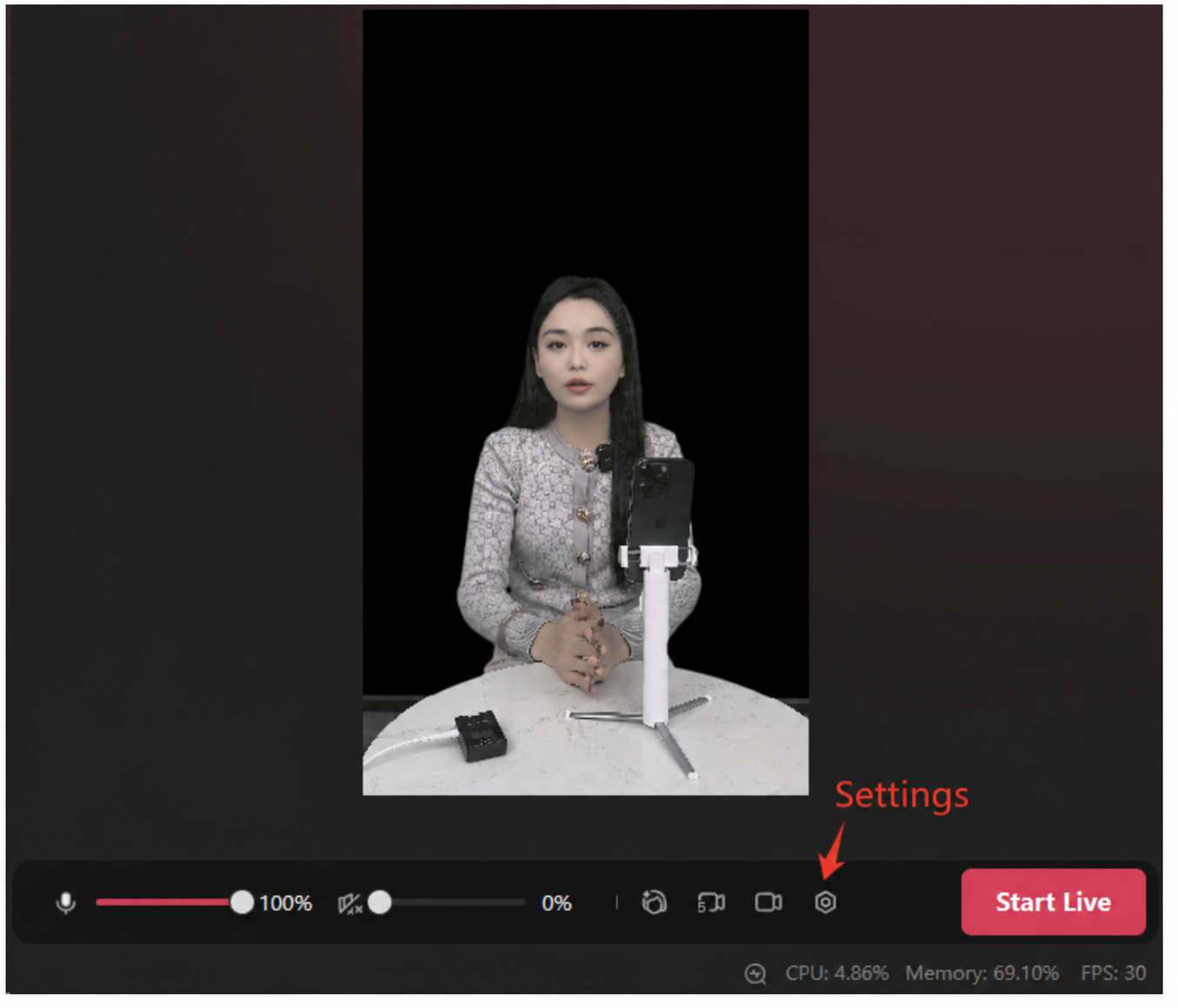
(3) In the desktop client, click [Go Live Now] to enter the control console, wait 3 minutes, then proceed in Livestream Companion.
- Open Douyin Livestream Companion, select the camera [HD Camera] to automatically capture the digital human's video and audio from the control console, and set up the livestream room as needed!
- Note: for a desktop livestream with dynamic scenes added, select Window Mode in the control console. Do not add the window directly in your live software — going live from a window is easily flagged. Instead, capture the window in OBS (Window Capture), click Start Virtual Camera, and add HD Camera as your camera.
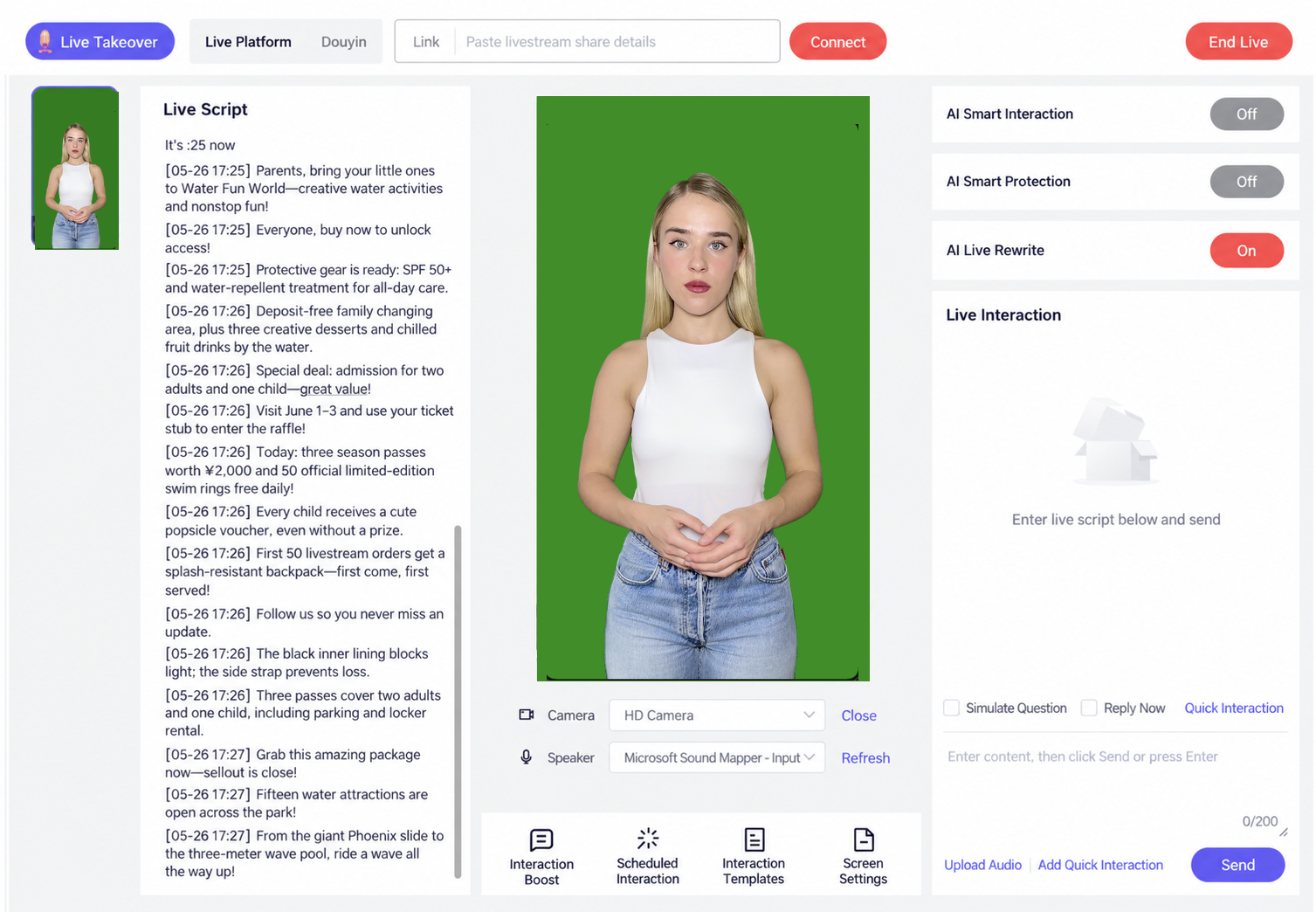
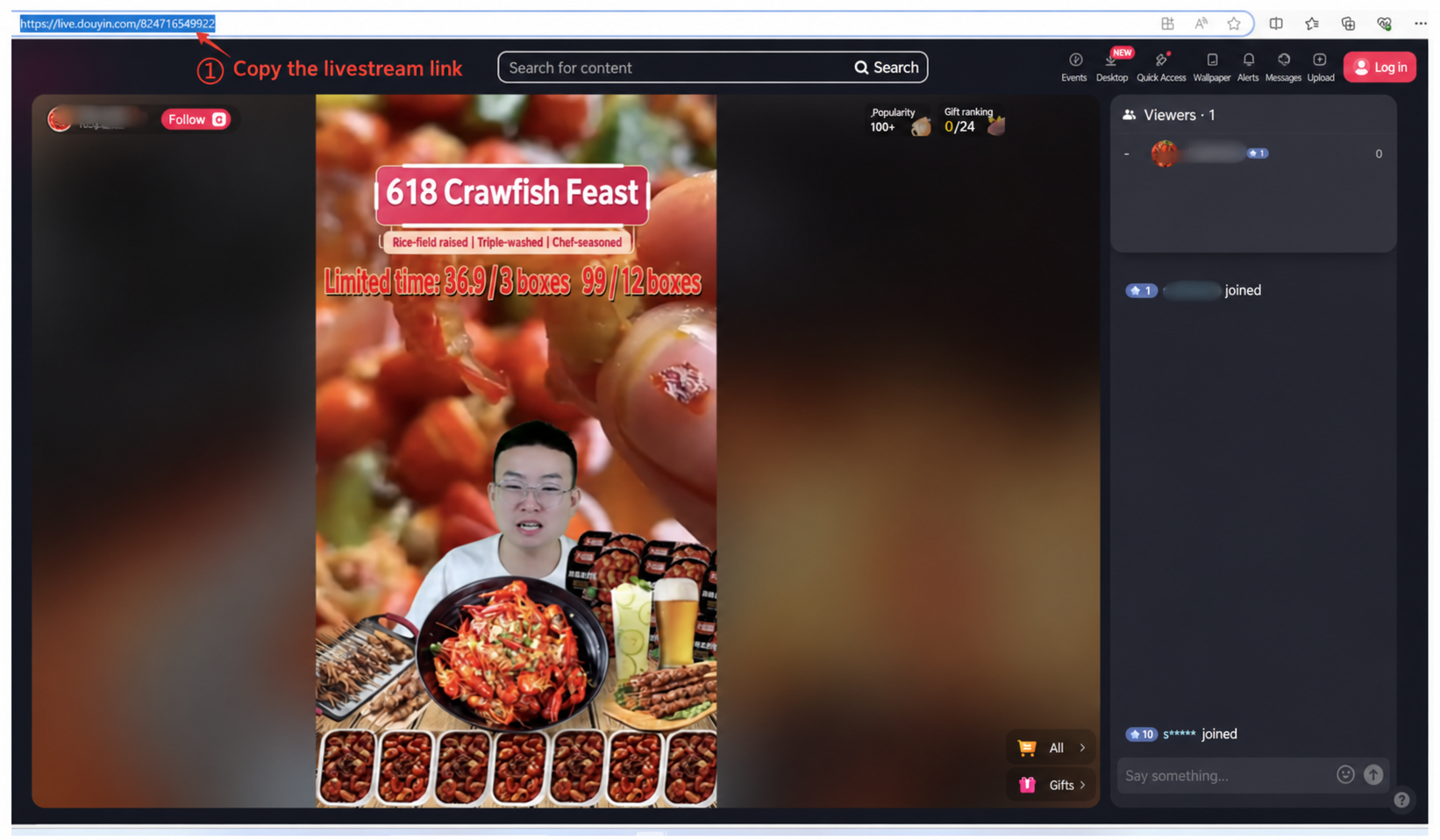
- After going live in Livestream Companion, open a browser and search for Douyin, go to the Douyin platform, search for the live room's "name," and copy the livestream link (close the browser right after copying). Paste it into the link field and click "Connect."
- Note: the page that pops up after clicking Connect must not be closed during the livestream — do not perform any actions on it!
During the livestream, while the digital host explains the products, the co-host provides real-time banter or responds to viewer comments, creating a smooth, natural livestream pace and lively interactive atmosphere that enhances the viewing experience.
Usage: the co-host's lines should be placed in parentheses; script content inside parentheses is automatically assigned to the co-host, and the main host pauses while the co-host speaks. See the script in the image below: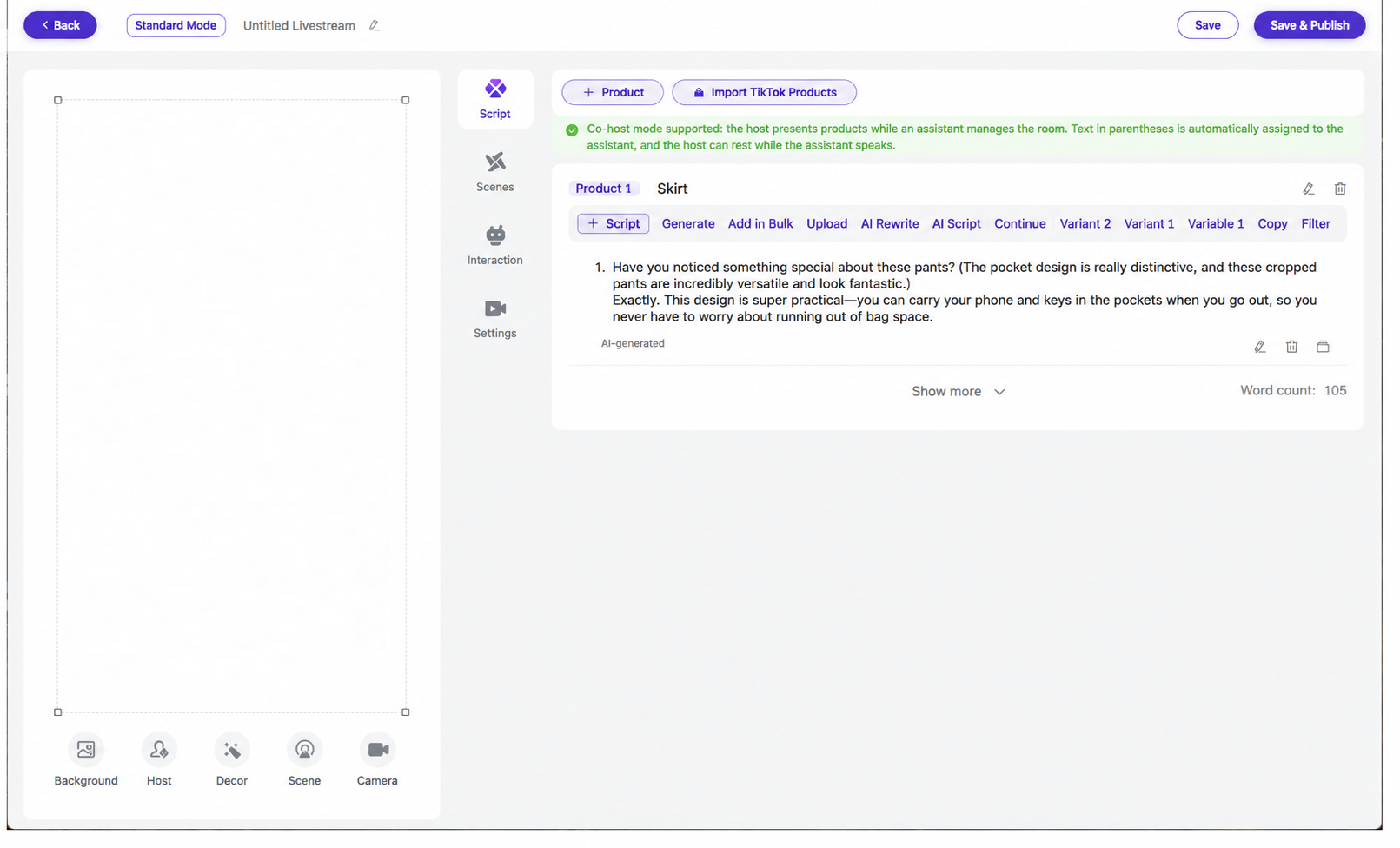
Set the host's and co-host's voice timbres: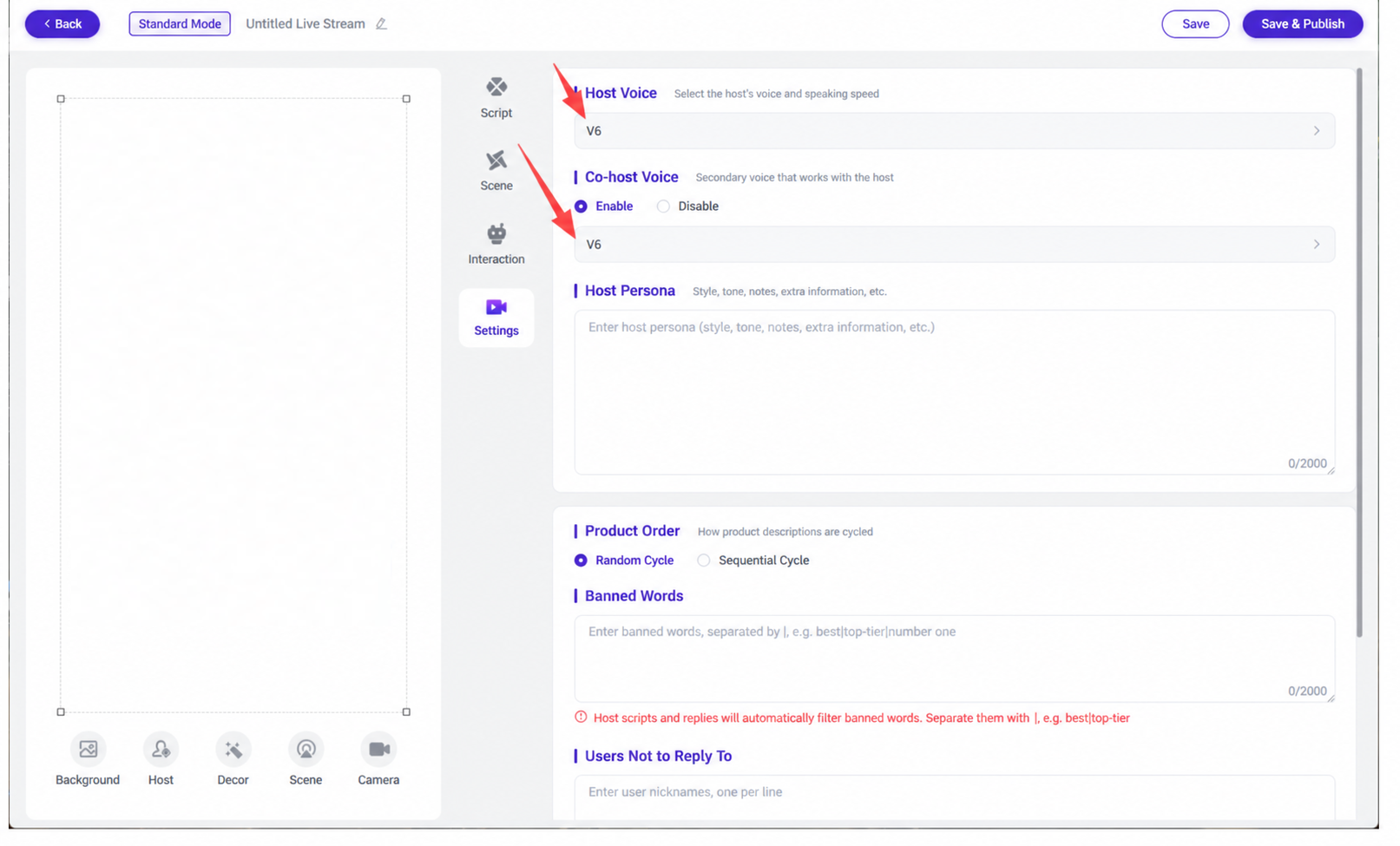
Note: to use Co-Stream Mode, you must check "Close Mouth" when training the V5 avatar. This way, the main host's mouth stays closed and silent while the co-host is speaking.
Cached Audio is mainly used to resolve lag issues in the digital human system during livestreaming. Here's how to use it:
After clicking "Go Live Now," the control console will show a screen for setting the cache duration. Set the cache duration in advance to generate cached audio. While running, check "Use Cache Only," and uncheck it once the cache is nearly used up.
[2025-11-12 10-33-17.mkv]
Select AI Auto-Broadcast as the livestream mode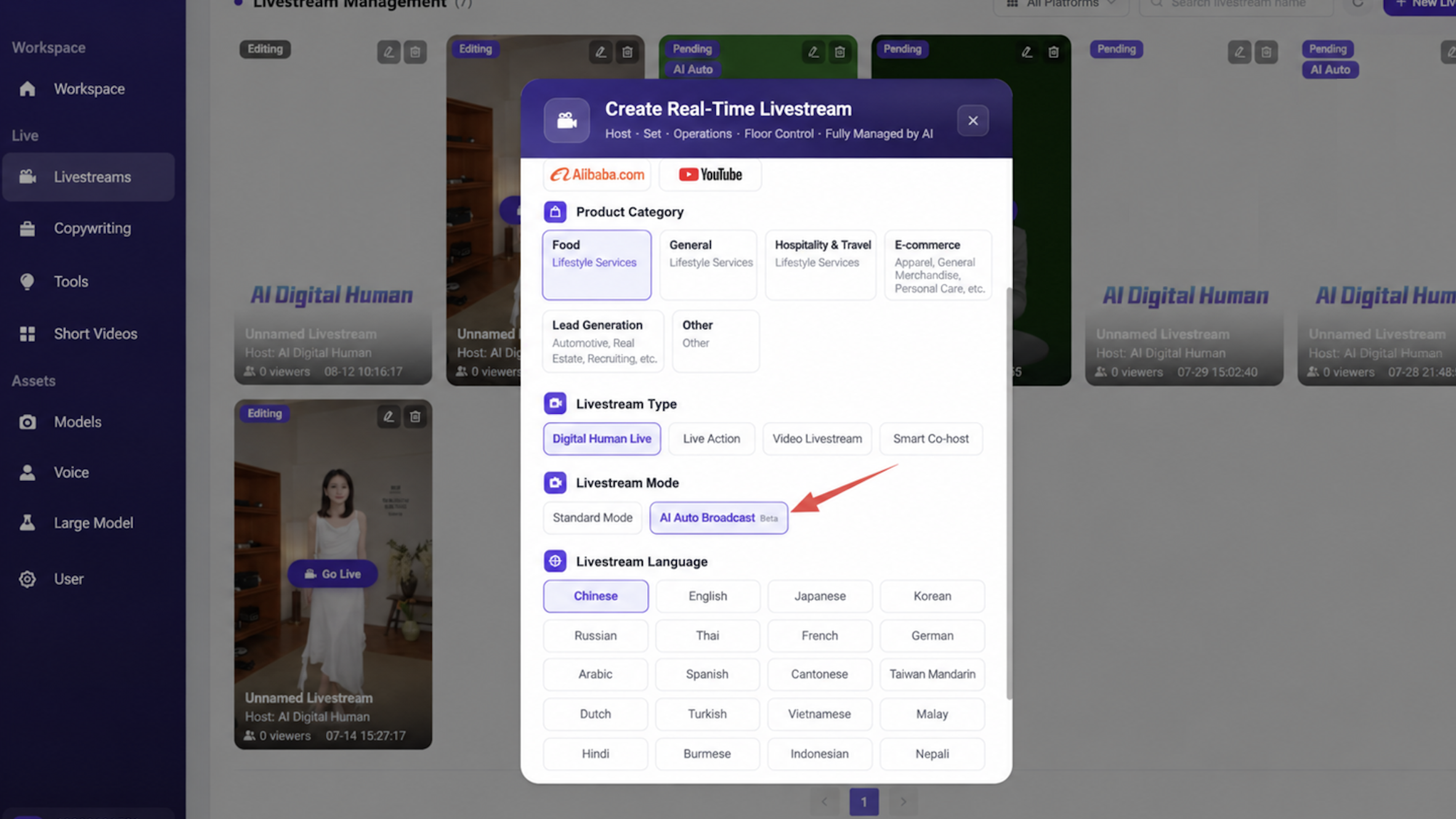
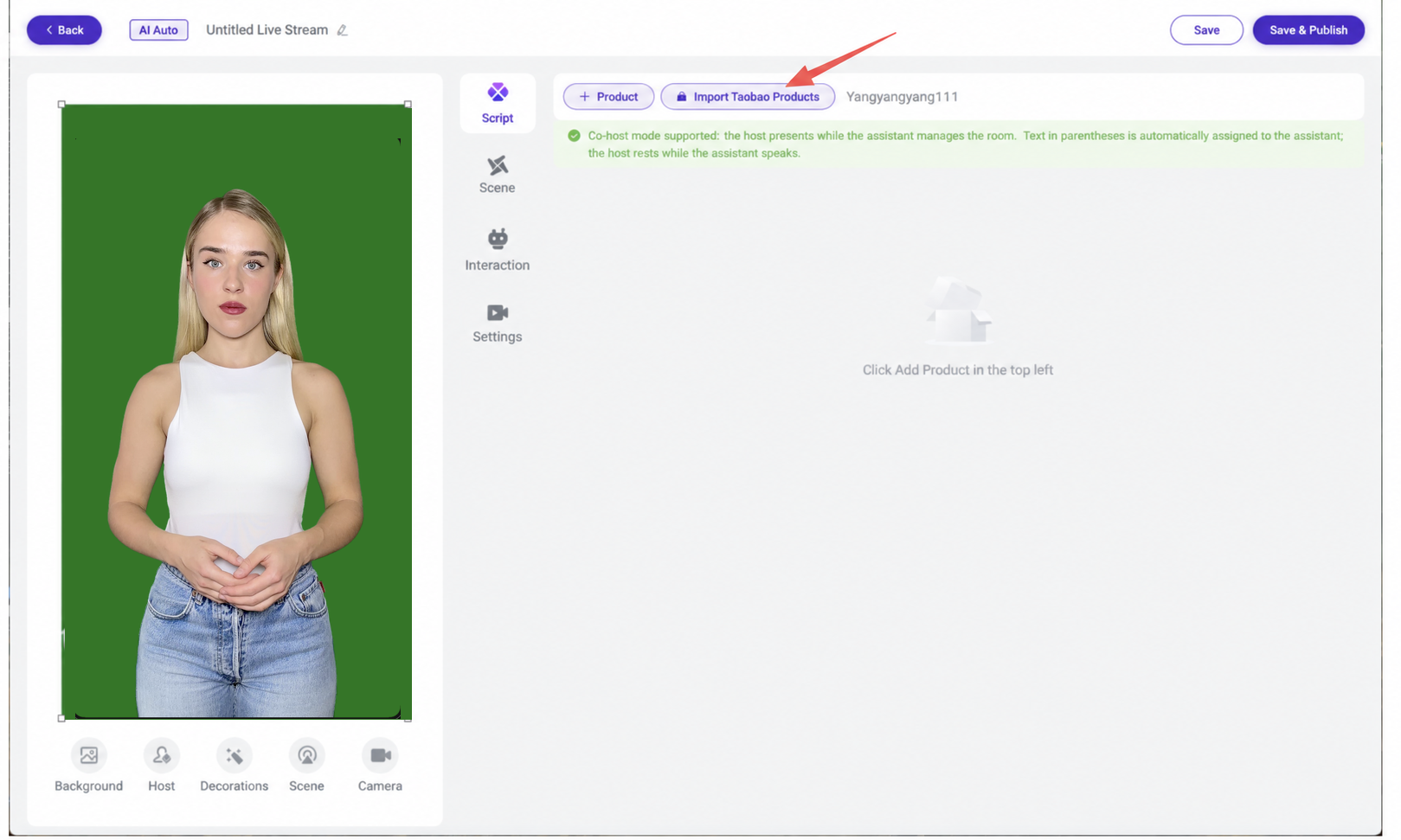
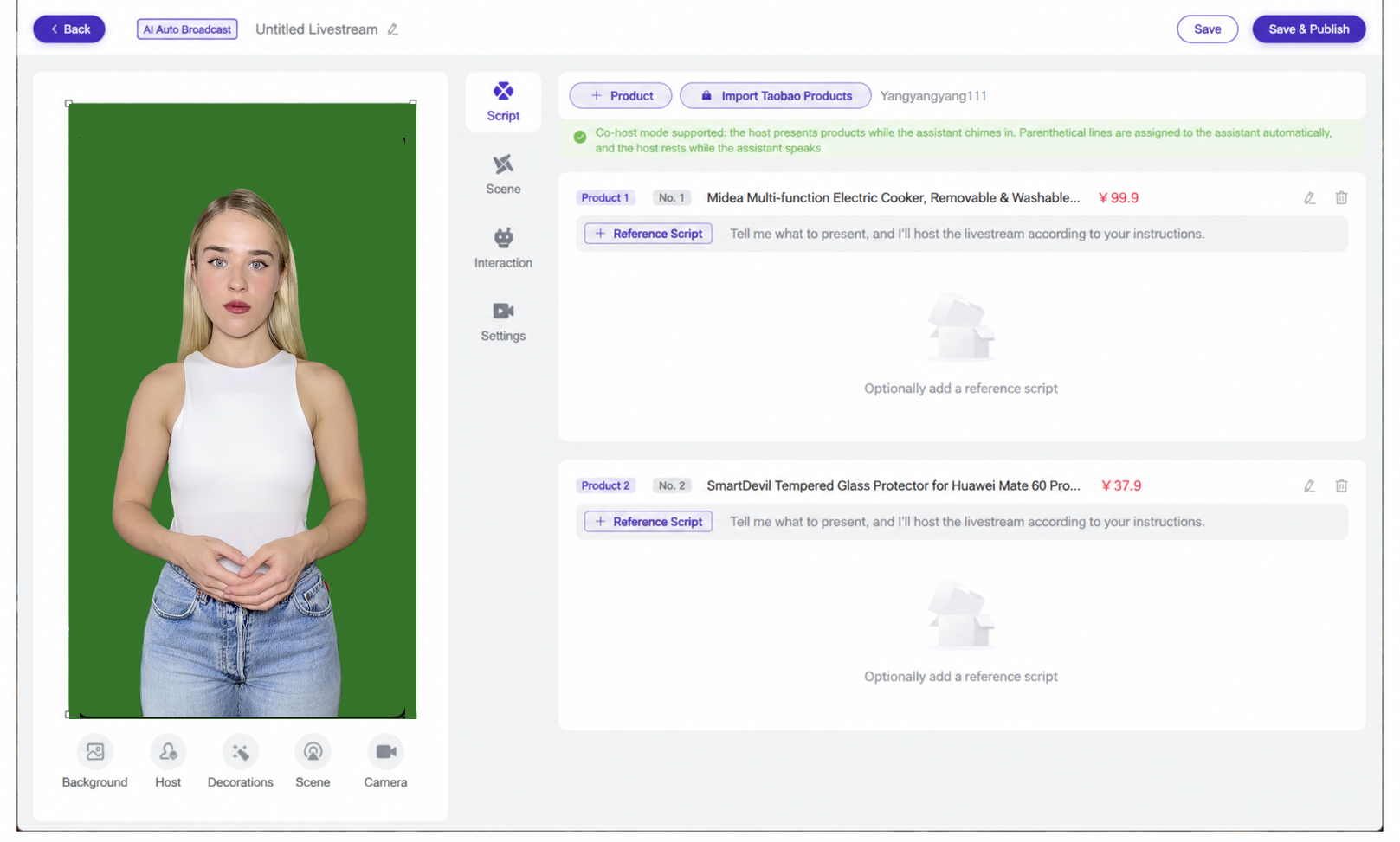
(Products can also be added manually.) After importing products, you may optionally set a reference script (with real-time script rewriting during the livestream); after saving and publishing, click "Go Live Now" and the system will automatically generate a script based on the product information to run the livestream.
When using AI Auto-Broadcast, you can add product information in the host persona to ensure the livestream script is accurate!
Auto Shift Change is divided into in-room and out-of-room shift changes. An in-room shift change primarily swaps the host's avatar and voice, while an out-of-room shift change swaps the entire livestream room, including the script, avatar, voice, and room background.
Turn on the scheduled shift-change feature in the control console, then set which livestream room to switch to (make sure the script, model, voice, and room background assets are all different). A shift change every 2-3 hours is recommended!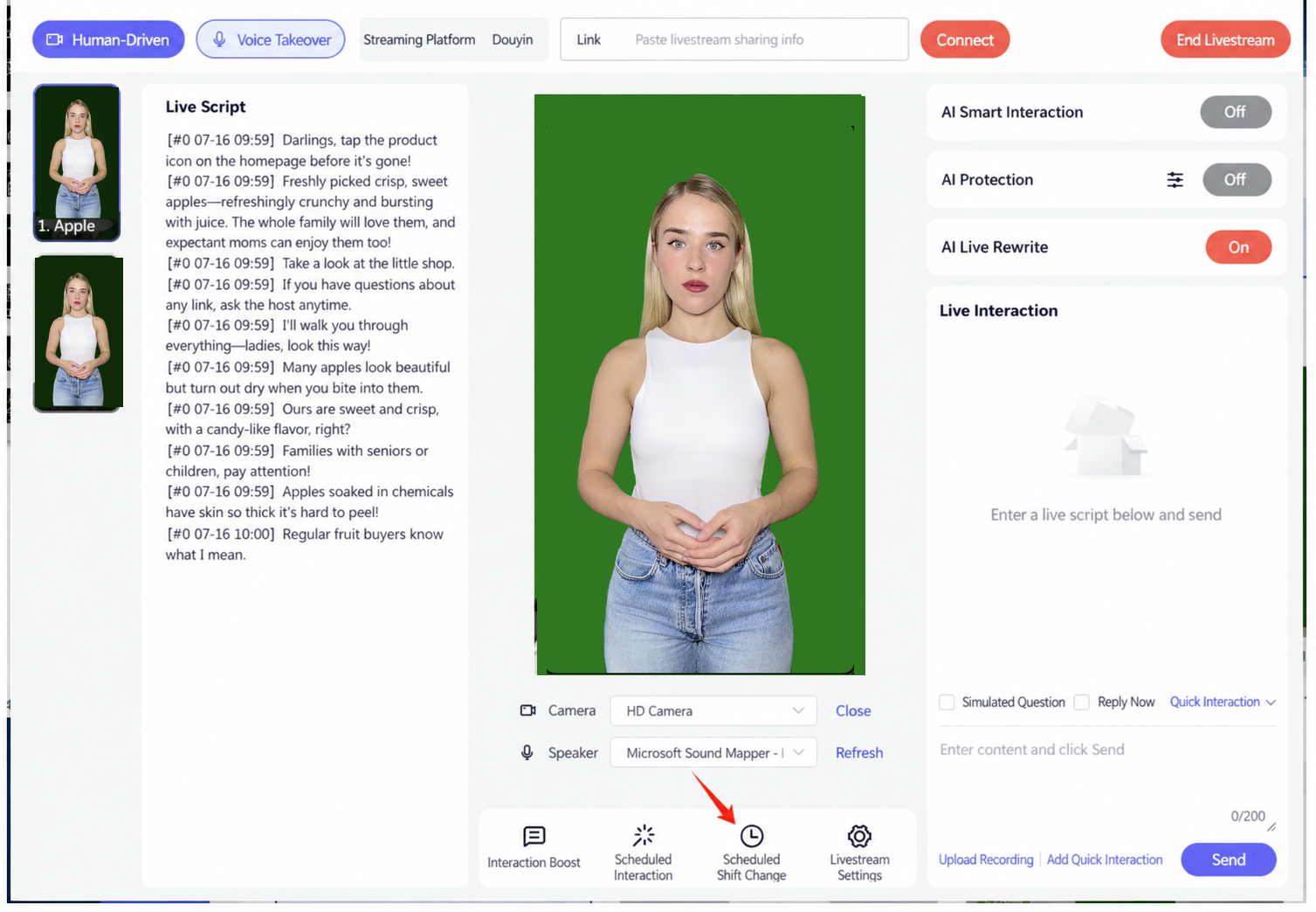
In-Room Shift Change
Only swaps the avatar and voice, as follows: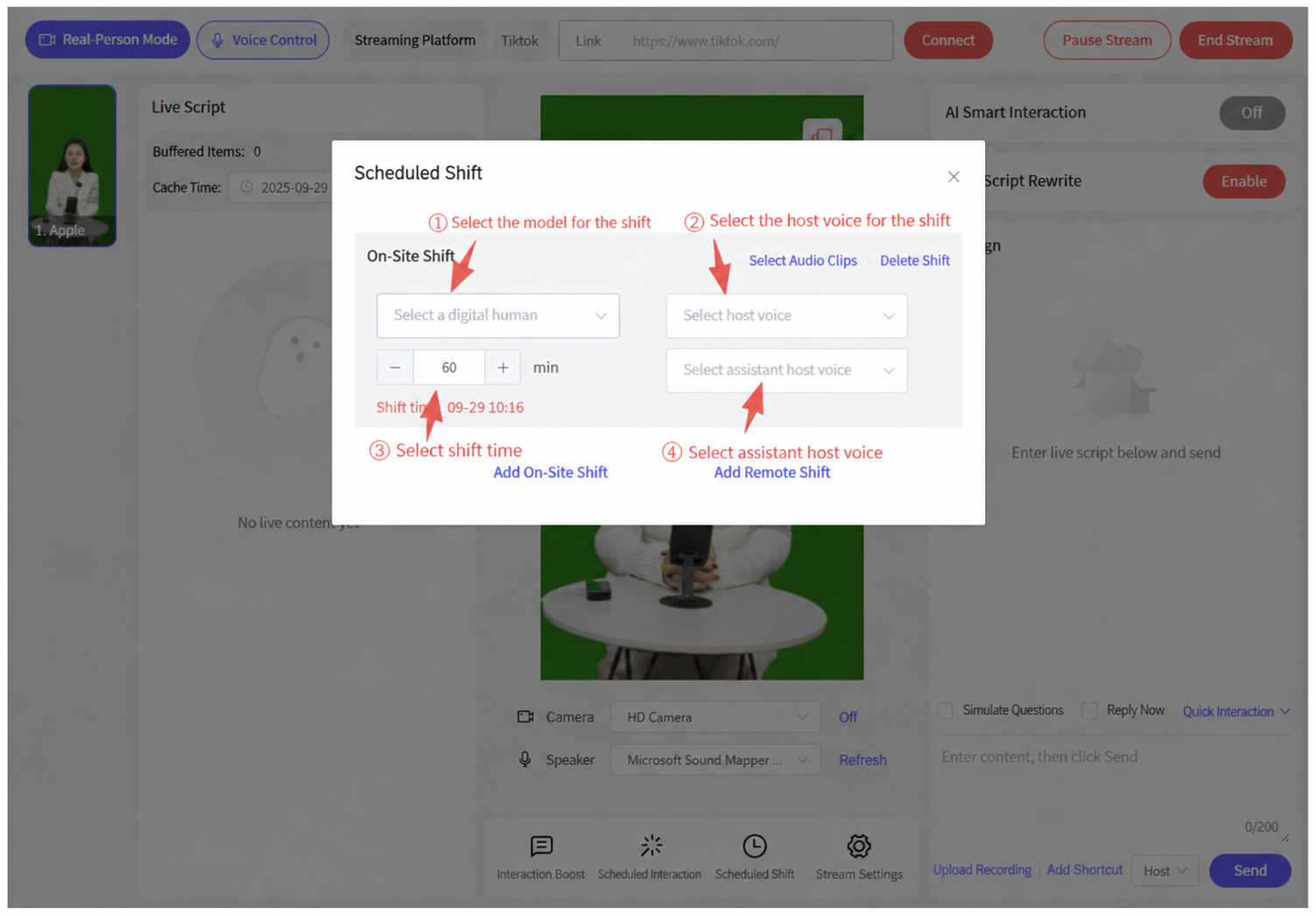
Out-of-Room Shift Change
Swaps all assets of the livestream room: model, voice, script, room decoration assets, and fragmented audio.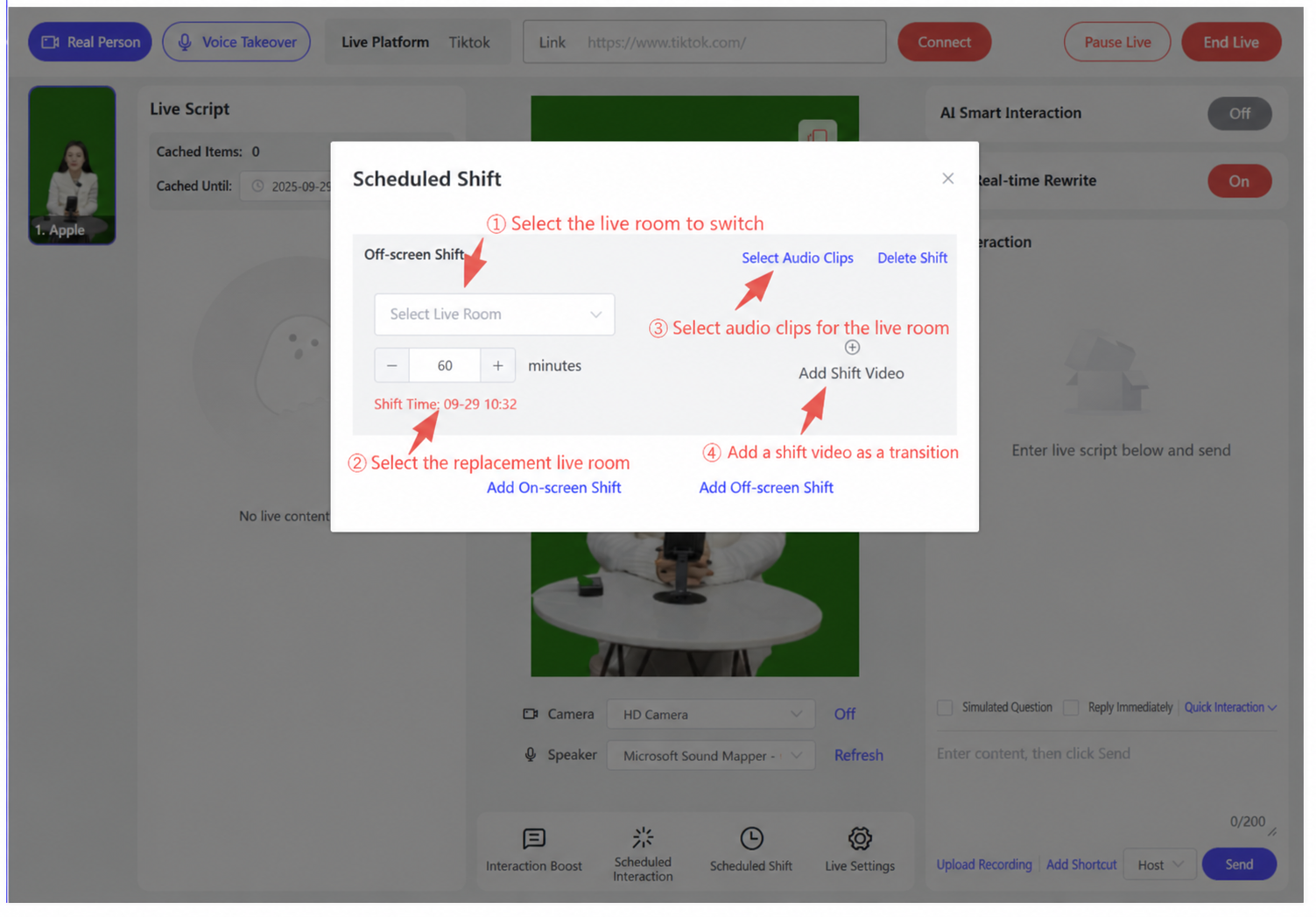
A shift-change video is a video played in the livestream room during the shift change (optional, used as a transition). Note! When using a shift-change video, you must select Window Mode (using a capture card).
Recommended computer specs for real-time driven livestreaming:
V2/V3 Voice + V2/V3 Avatar:
CPU:i5-12400
RAM: Minimum 32GB
OS: Windows 10 or above
GPU: RTX 3060 dedicated graphics card or better, 12GB+ VRAM
Storage: M.2 SSD, 500GB or more
See attachment: Syntopia Digital Human Third-Party Platform Livestream Tutorial
3. Common Livestream Room Interaction Issues and Solutions
- Q: Why does the host still not interact with the comment section even though keywords were set?
- A: Check the following steps
- Check whether the link in the control console was entered correctly.
- The host will finish the current product's script line before replying to comments; if a single script line is too long, this can prevent a real-time reply.
- Check whether operations staff are sending keywords too frequently in the Douyin/Kuaishou/Tmall/Taobao/JD.com livestream room. Sending keywords repeatedly within a few seconds is likely to be flagged by the platform as a bot spamming comments, in which case the keyword will no longer trigger and the host cannot reply. In this case, wait 30 seconds before sending keywords in the comments again, and it's recommended to send keywords intermittently while observing whether the host responds
- If all the above steps have been checked, close the livestream room's connection, reconnect it, and observe whether interaction resumes
- Q: Why do some keywords get a reply while others don't?
- A: After checking the steps above, if one specific keyword fails to trigger interaction while other keywords work normally, it is likely that this keyword is being blocked by the platform. In this case, set up other keywords with similar meaning and observe whether interaction works.
4. How to Connect Interaction to Third-Party Livestream Platforms
- Douyin: open the livestream room in a desktop browser, copy the link, then close the browser; in Syntopia Digital Human Livestream, go to "Go Live Now" - enter the control console - select Douyin as the livestream platform, paste the link, and click Connect. The page that appears after clicking Connect must not be closed or hidden.
- Kuaishou: open the livestream room in the Kuaishou app and copy the room's short link; in Syntopia Digital Human Livestream, go to "Go Live Now" - enter the control console - select Kuaishou as the livestream platform, paste the link, and click Connect. The page that appears after clicking Connect must not be closed or hidden.
- WeChat Channels: in Syntopia Digital Human Livestream, go to "Go Live Now" - enter the control console - select WeChat Channels as the livestream platform, click Connect, and scan the QR code to log in to the WeChat Channels admin backend. The page that appears after clicking Connect must not be closed or hidden.
- TikTok: open the livestream room in a desktop browser, copy the link, then close the browser; in Syntopia Digital Human Livestream, go to "Go Live Now" - enter the control console - select TikTok as the livestream platform, paste the link, and click Connect. The page that appears after clicking Connect must not be closed or hidden.
- Meituan: open the livestream room in the Meituan app and copy the room link; in Syntopia Digital Human Livestream, go to "Go Live Now" - enter the control console - select Meituan as the livestream platform, paste the link, and click Connect. The page that appears after clicking Connect must not be closed or hidden.
- Pinduoduo: open the livestream room in the Pinduoduo app and copy the room link; in Syntopia Digital Human Livestream, go to "Go Live Now" - enter the control console - select Pinduoduo as the livestream platform, paste the link, and click Connect. The page that appears after clicking Connect must not be closed or hidden.
- Taobao: open the livestream room in the Taobao app and copy the room link; in Syntopia Digital Human Livestream, go to "Go Live Now" - enter the control console - select Taobao as the livestream platform, paste the link, and click Connect. The page that appears after clicking Connect must not be closed or hidden.
- JD.com: in Syntopia Digital Human Livestream, go to "Go Live Now" - enter the control console - select JD.com as the livestream platform, click Connect, and scan the QR code to log in to the JD Livestream admin backend. The page that appears after clicking Connect must not be closed or hidden.
- Xiaohongshu (RED): in Syntopia Digital Human Livestream, go to "Go Live Now" - enter the control console - select Xiaohongshu as the livestream platform, click Connect, and scan the QR code to log in to the Xiaohongshu Livestream admin backend. The page that appears after clicking Connect must not be closed or hidden.