16_Capture Card Usage Method
Capture Card Usage Method
Capture Card Usage Method
Capture Card Purchase Link
[JD.com] https://3.cn/2-j3I9g3 "[Best-Seller #1] Video Capture Card / 4K HD"
Click the link to open it directly and purchase the first item
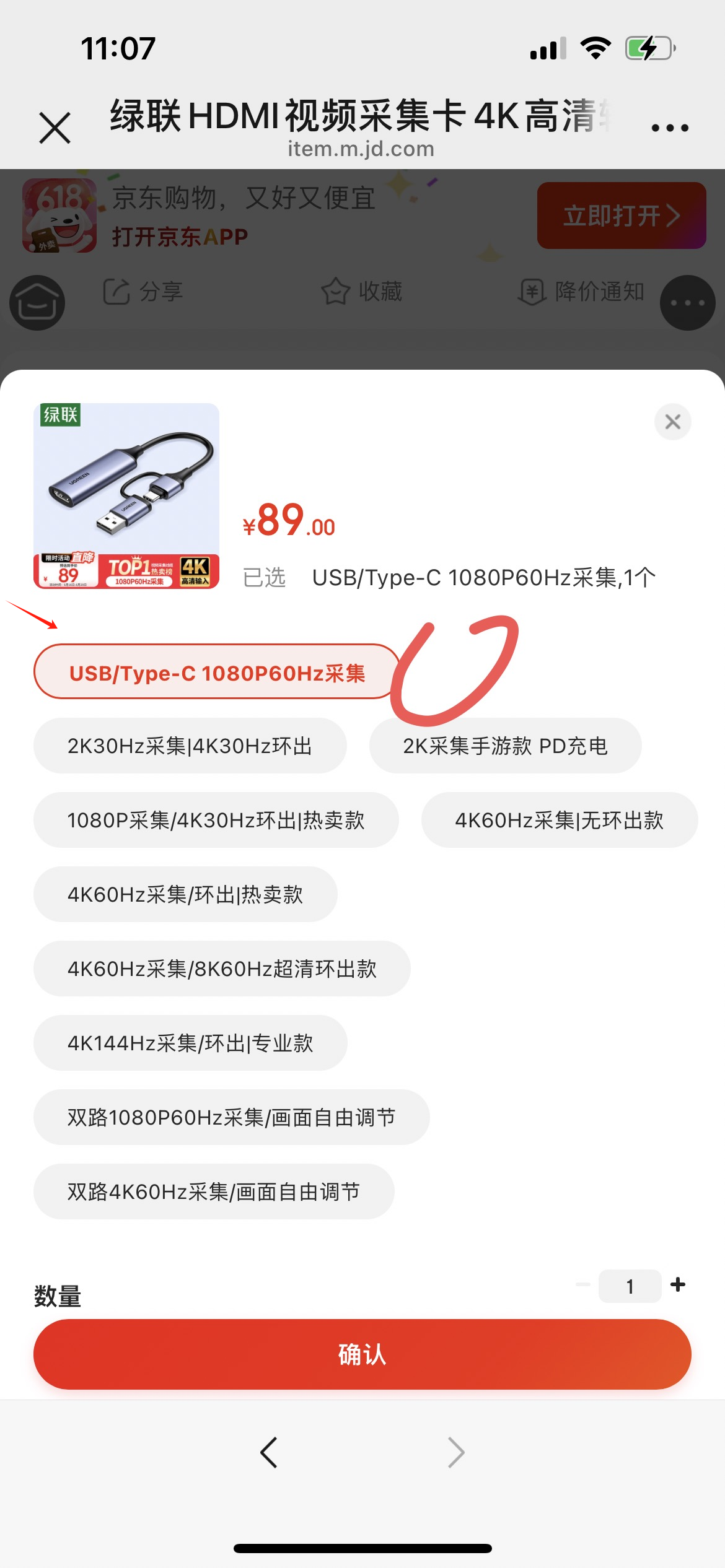
Purchase an HDMI-to-DisplayPort cable in advance!!! (Search "HDMI to DP cable" on JD.com or Taobao)
https://item.jd.com/100111046638.html?extension_id=eyJhZCI6IjE5OTAiLCJjaCI6IjIiLCJza3UiOiIxMDAxMTEwNDY2MzgiLCJ0cyI6IjE3NTU1ODI2MTIiLCJ1bmlxaWQiOiJ7XCJjbGlja19pZFwiOlwiNTcxN2QzYjItZjNiMy00Y2E4LWE2OTctZDljZDA0ODI0NWNhXCIsXCJtYXRlcmlhbF9pZFwiOlwiNTUzOTY3MDc3NTFcIixcInBvc19pZFwiOlwiMTk5MFwiLFwic2lkXCI6XCIxNWZmNDVlMi1jZjgzLTRmZDctOTFkYy0zYmYxNjZiYjAxNTJcIn0ifQ==&jd_pop=5717d3b2-f3b3-4ca8-a697-d9cd048245ca&abt=0
1. The capture card is shown below
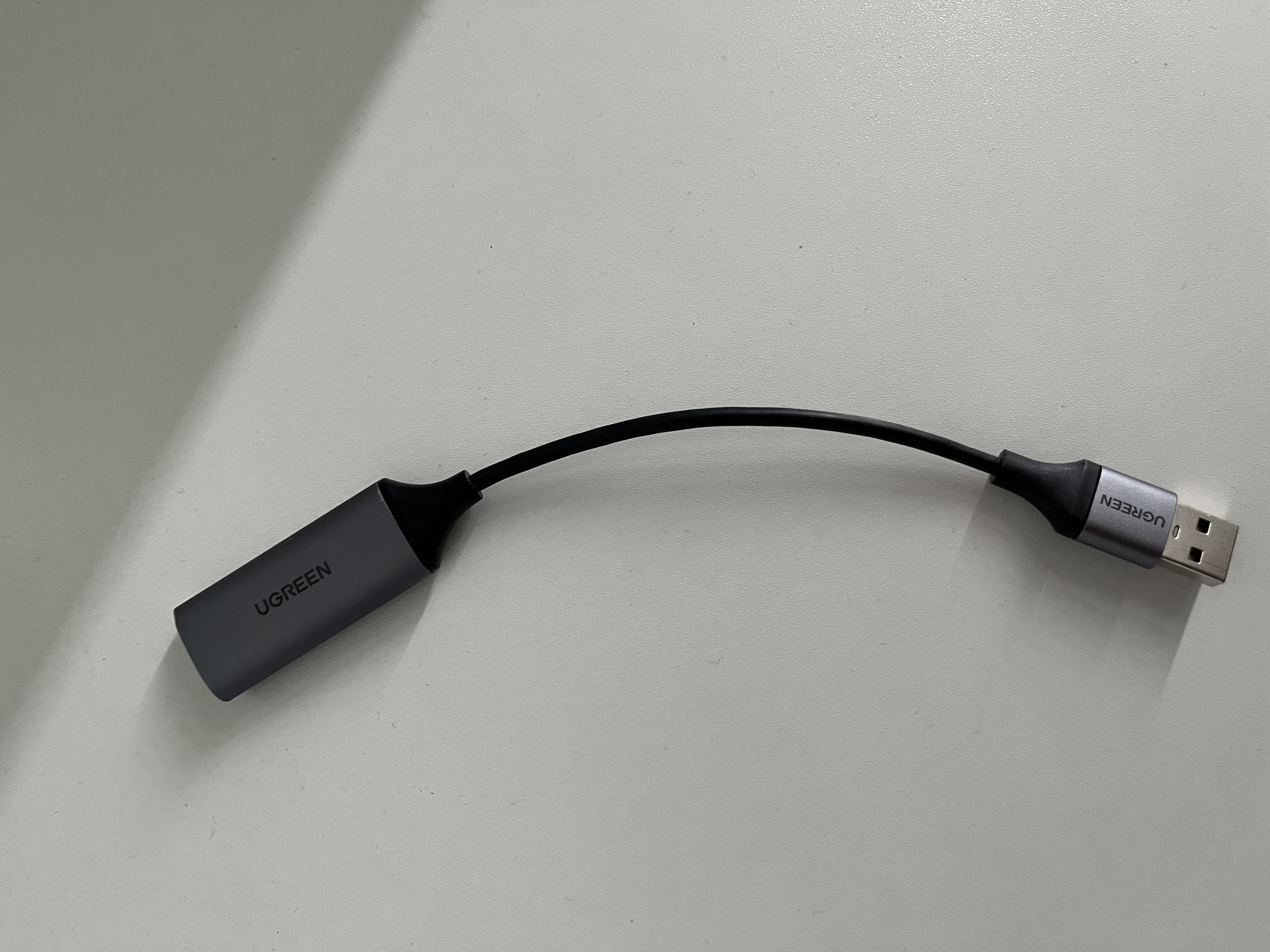
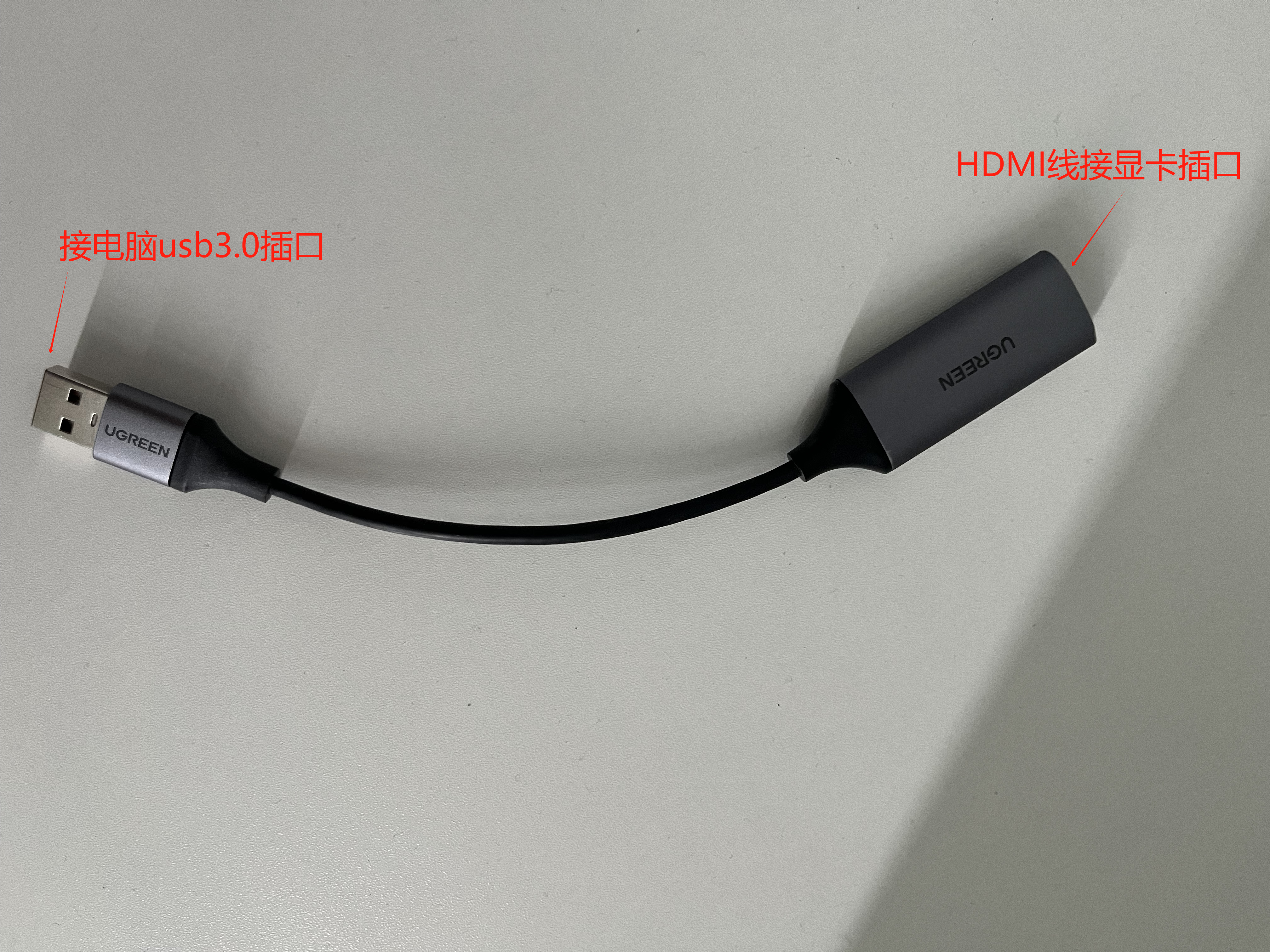
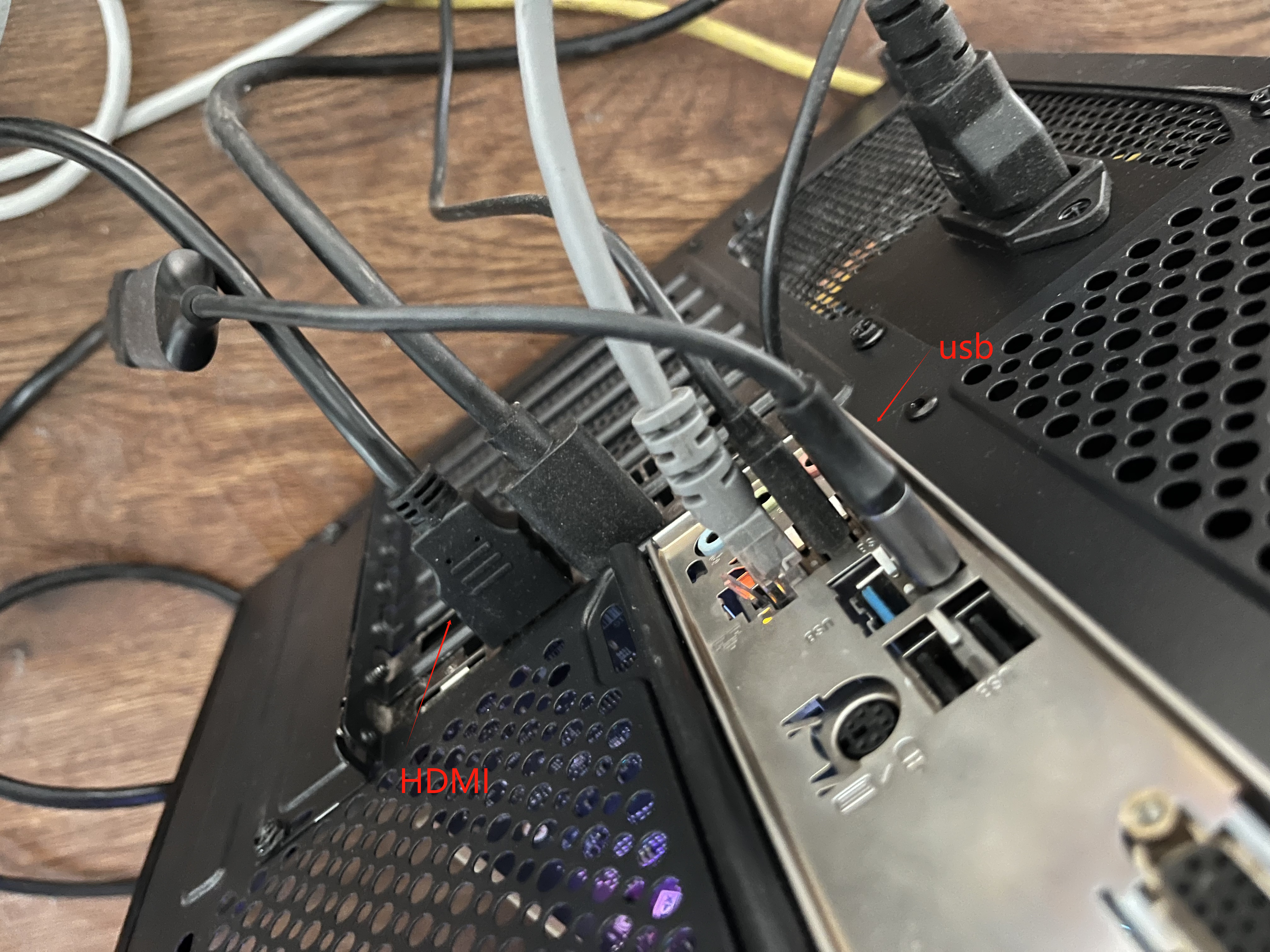
2. Connect the capture card's USB cable to the computer's USB 3.0 port, and connect the HDMI port to the computer's graphics card port
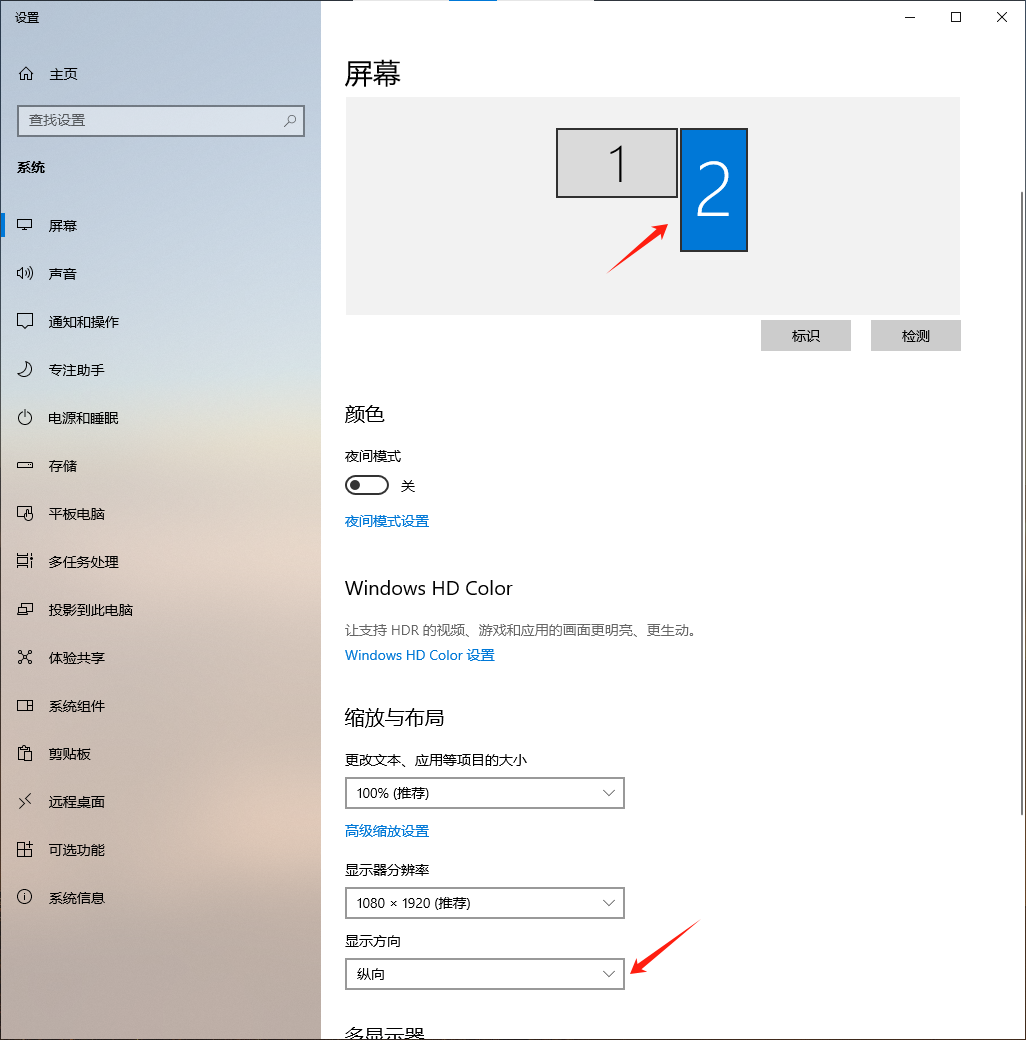
3. Right-click the mouse, select Display Settings, and set Display 2 to portrait orientation
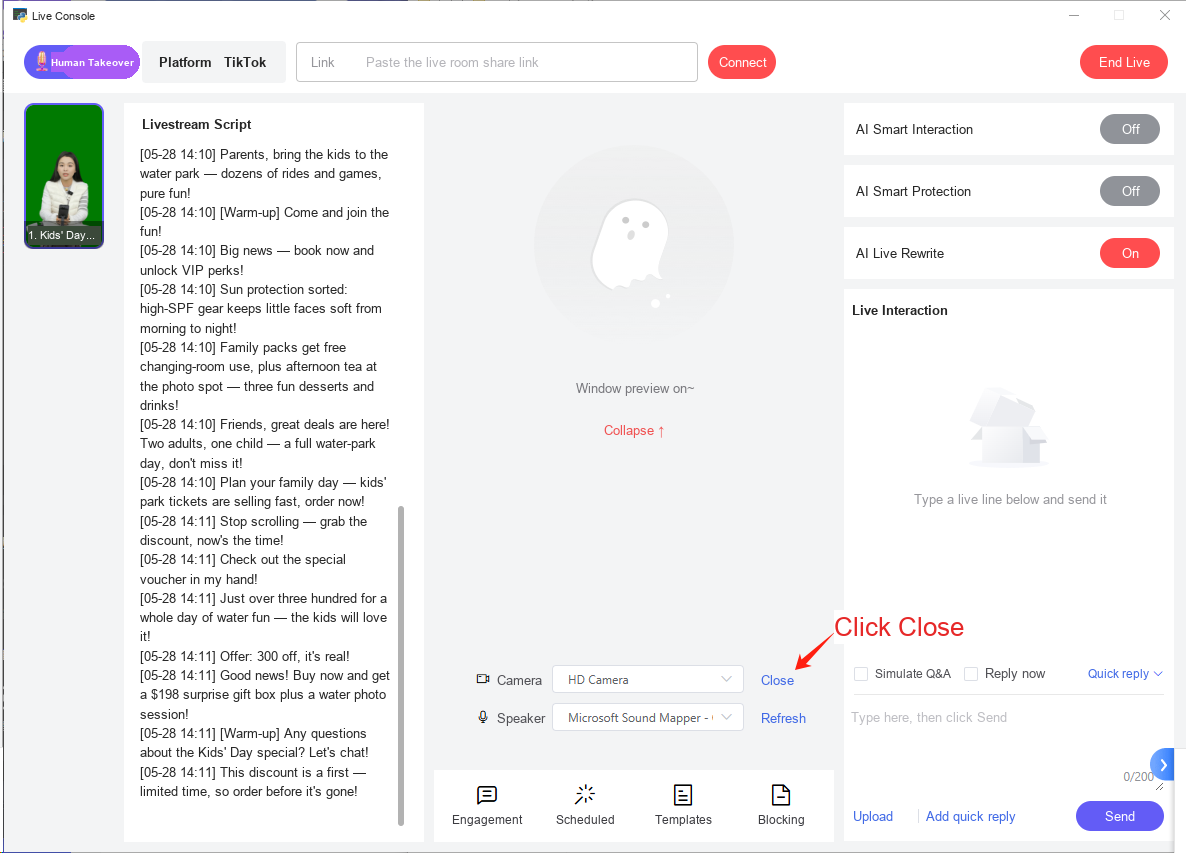
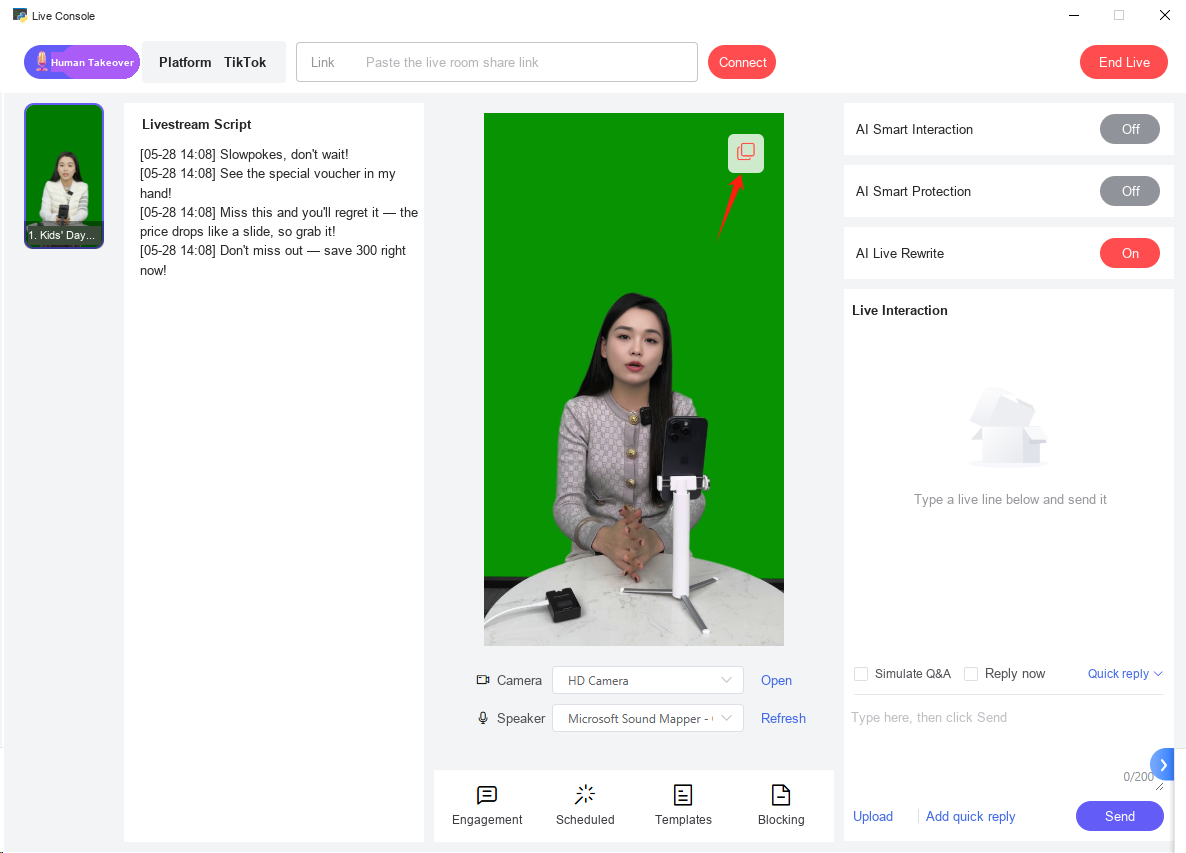
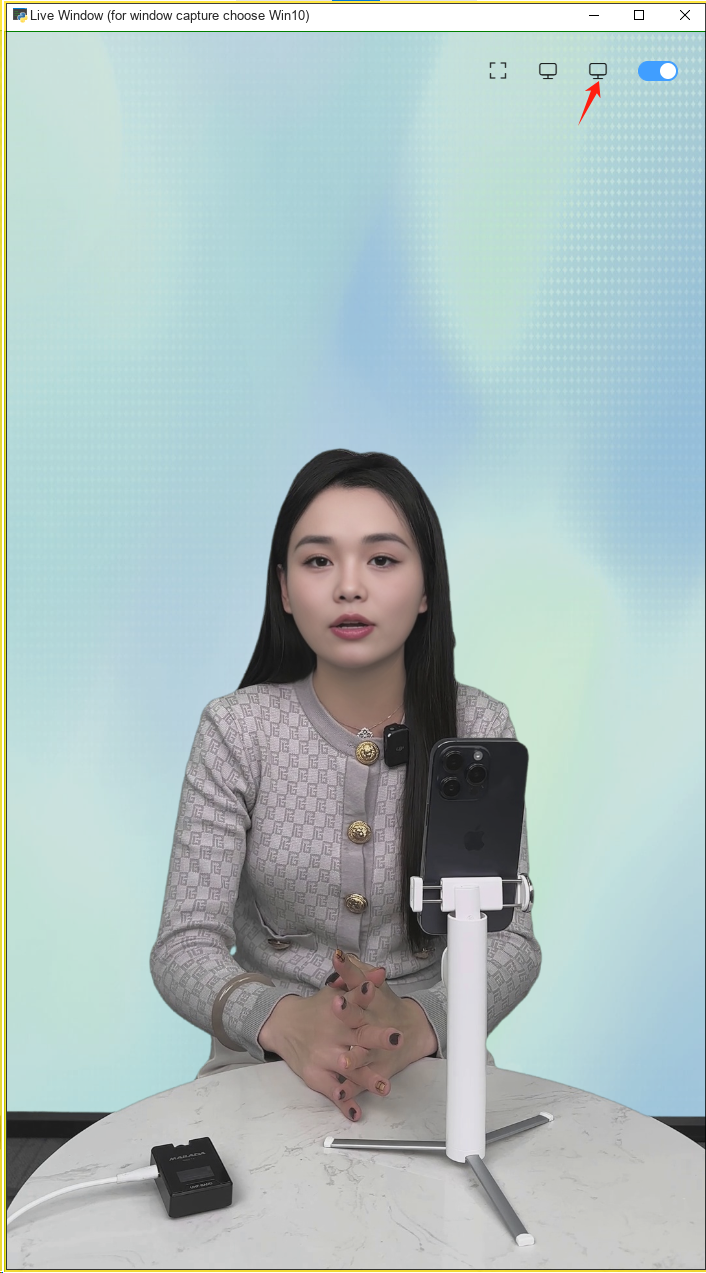
4. In the digital human software, click Go Live Now, turn off HD_Camera in the control console, and once the digital human starts moving, click Window Mode — in the top-right of Window Mode, select the second computer icon
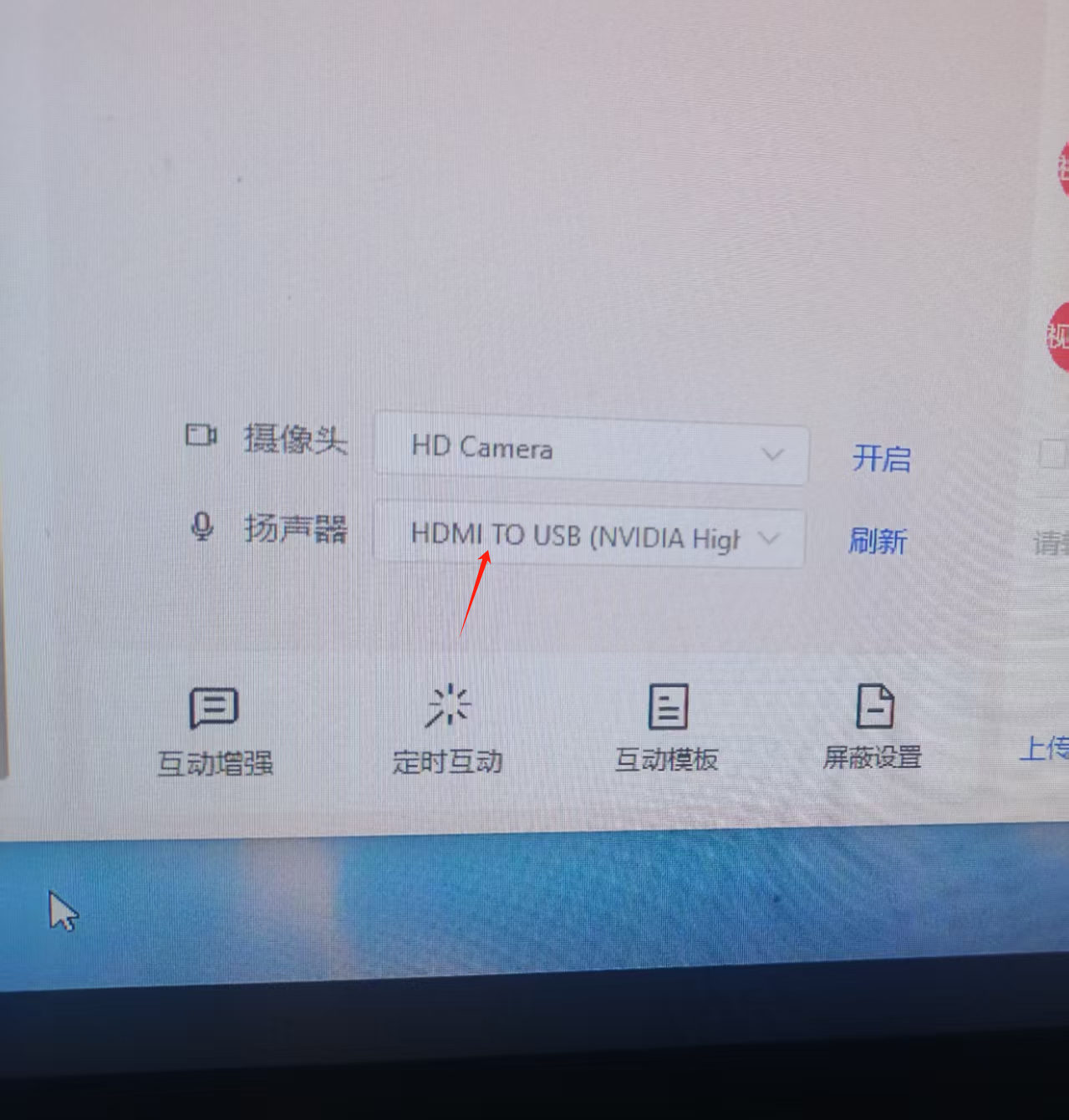
5. In the control console, set the speaker to HDMI or the sound card, and also select the capture card's sound card on the livestream platform. Set the computer's audio settings to CABLE Input or the capture card's sound card (choose whichever one produces sound).
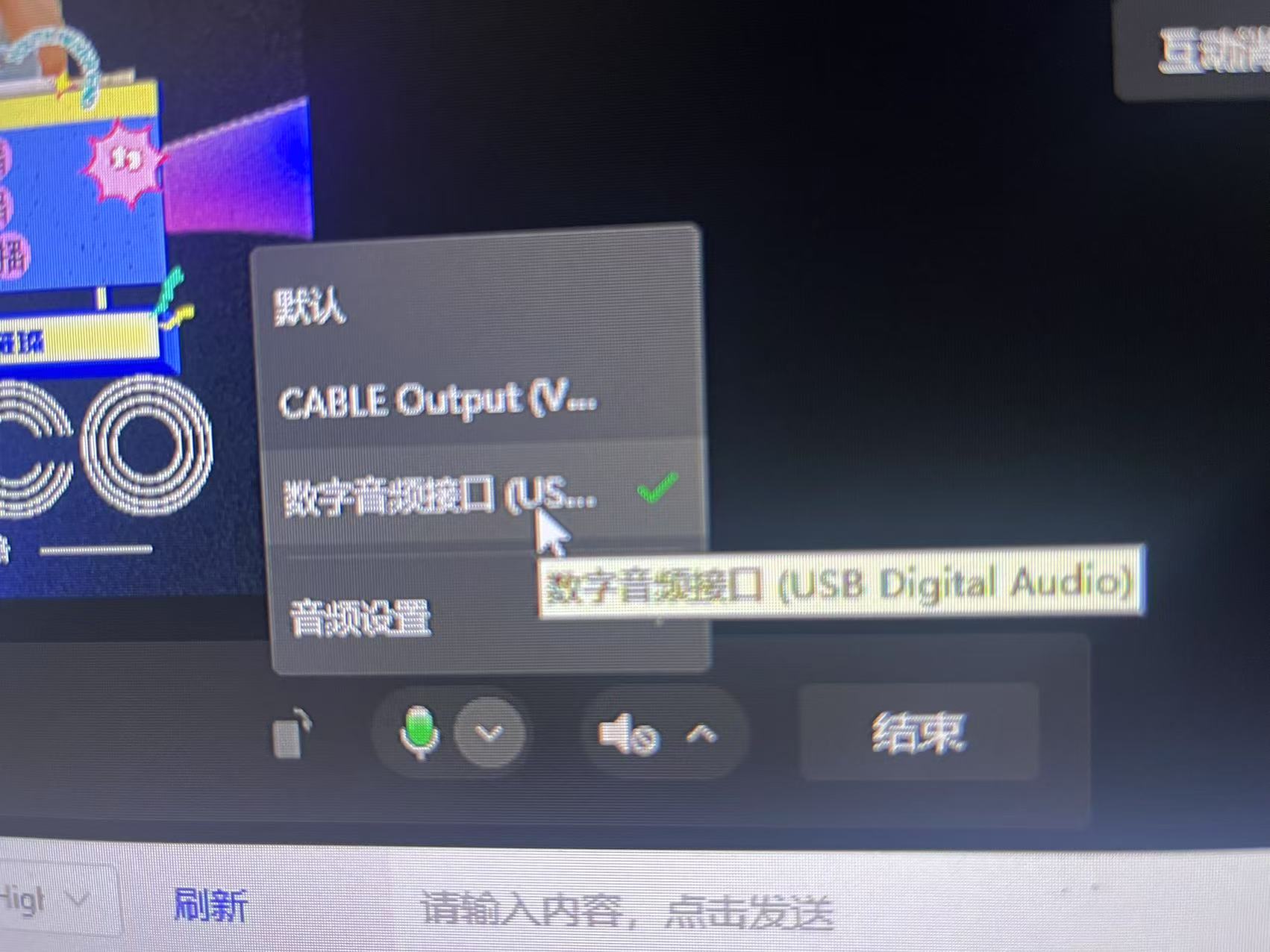
- Open the livestream platform and select the camera whose name includes "USB."