06_Livestream Companion Common Functions Operation
Livestream Companion Common Functions Operation
1. How to Adjust Livestream Room Resolution
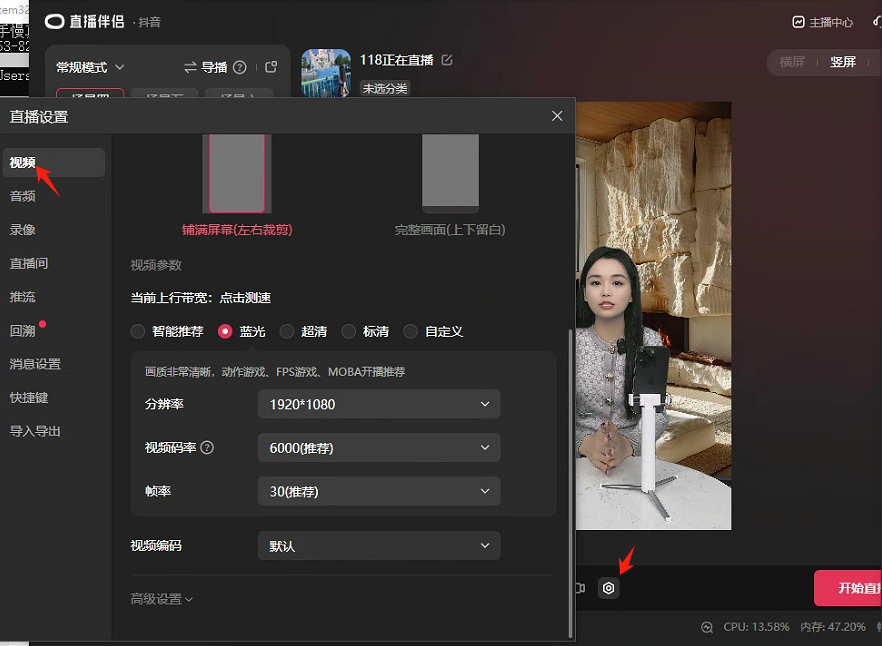
As shown below, use the settings button at the bottom of Livestream Companion: [Livestream Settings] → [Video] → [Video Parameters] to adjust between Blu-ray, Ultra HD, and Standard Definition. Higher bitrate and frame rate produce better picture quality, but a high frame rate requires stronger CPU, GPU, memory, and network support — it's recommended to use the values suggested by Livestream Companion.
Selecting Smart Recommendation will generally auto-match the appropriate performance settings based on your computer's specs. Note: even after configuring this, the actual livestream quality will still be affected by network conditions.
2. Using Livestream Companion's Green Screen Keying to Display Overlays
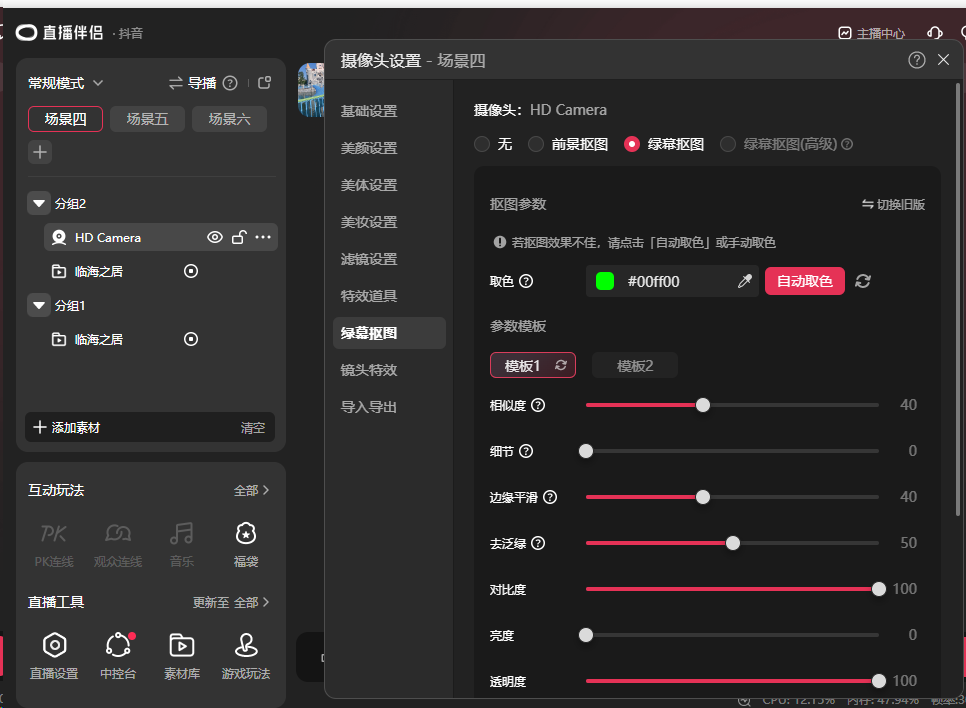
This feature is mainly used when broadcasting from a desktop computer and you want to display corresponding overlays and multi-camera video in the livestream room
1. In the Syntopia Digital Human system, select a green screen background for the livestream room decoration.
2. Open Livestream Companion and add a camera; when adding the camera, enable [Green Screen Keying] — the default parameter template can be used for its settings.
3. Add assets (i.e. background and decoration assets); you can choose from the system's built-in assets or upload your own.
3. Livestream Room Settings
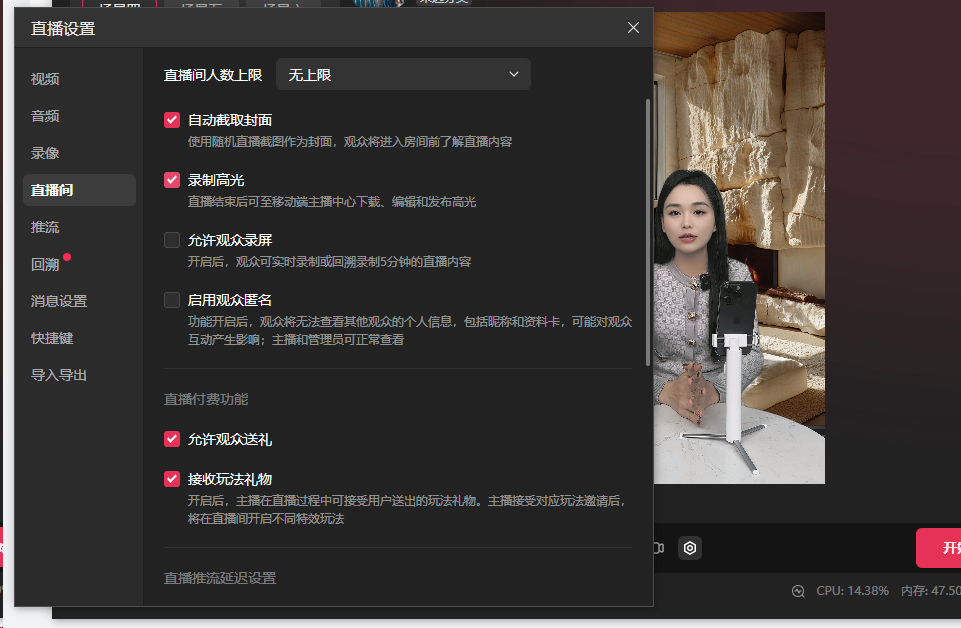
Uncheck "Anonymous Users," and configure the livestream room as shown below