Laike Latest Non-Real-Name Livestreaming
This tutorial is a bit long — please read patiently, don't act randomly, and don't rush.
Step 1: First sign up for Douyin Laike, using a phone number
Step 2: choose your registration category — Wedding Services, or Mall Shopping. Select "Standalone Store." Step 3: claim a store — you must choose an address within 1km of the business license's registered location. Open Amap (Gaode Maps) on your phone, search the address, and look within a 1km radius. Go in and find "Shopping," preferably selecting a supermarket, with the primary category set to Shopping — Daily Necessities
Step 4: Upload documents
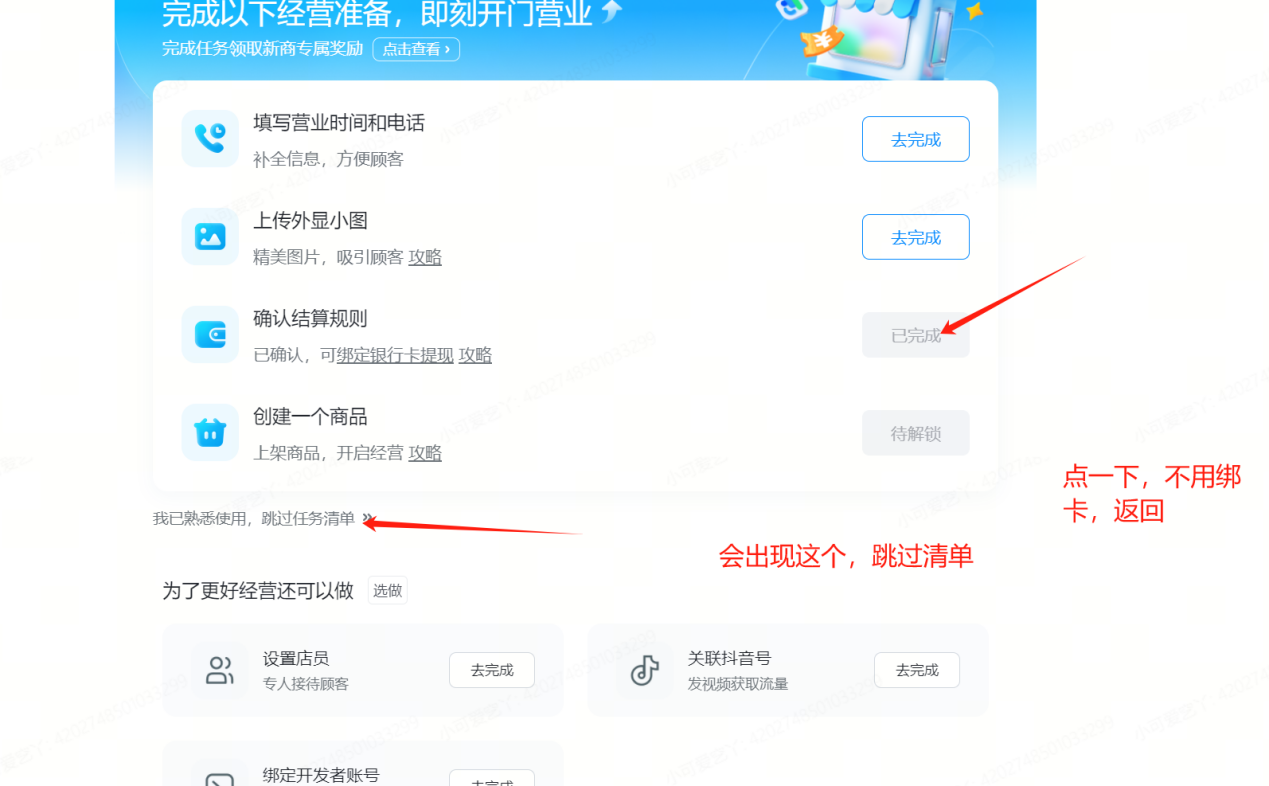
Set the primary category to Daily Necessities, and the secondary category to Shopping/Home & Building Materials. Step 5: skip the task checklist — many people get stuck on this step. When clicking to confirm the settlement rules, click into it, check the confirmation box, then go back; refresh after a few minutes and it will appear
Step 6: Redirect
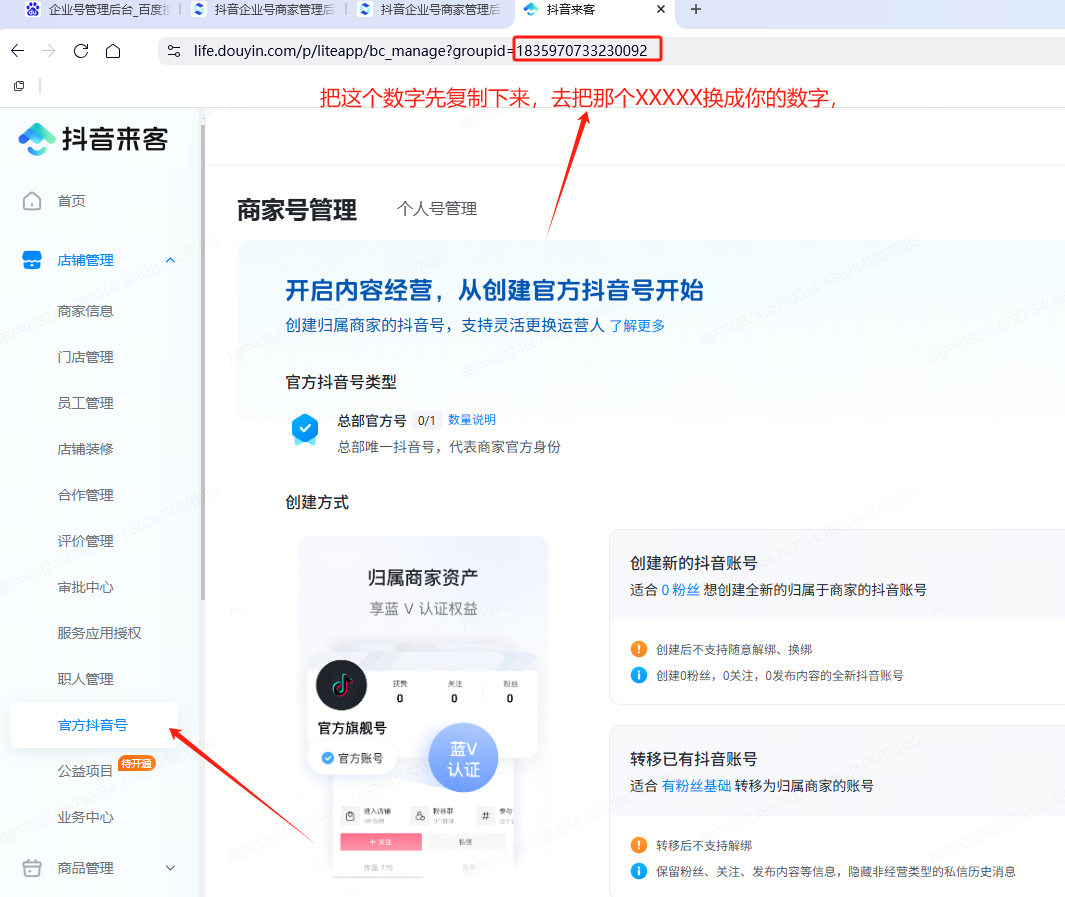
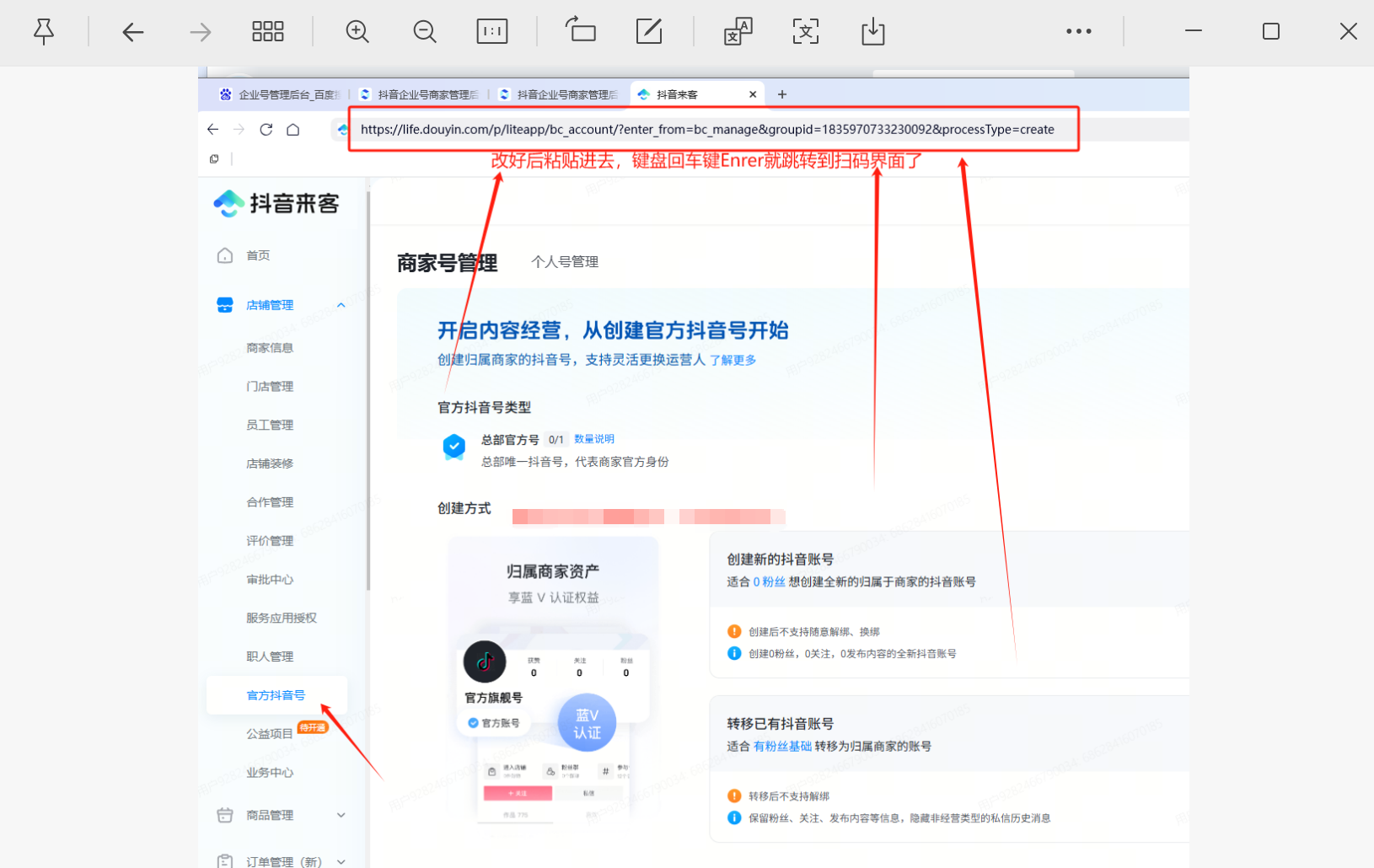
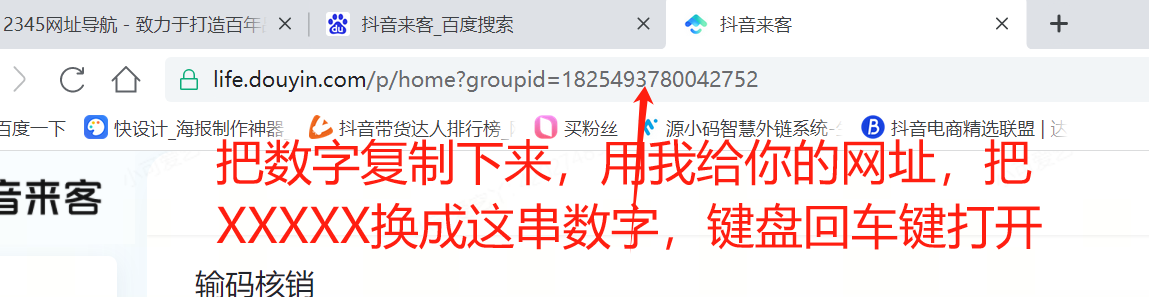 https://life.douyin.com/p/liteapp/bc_account/?enter_from=bc_manage&groupid=XXXXXXXXXXX&processType=create
This is the redirect link — remember to replace XXXXXXX with your own number. Many people don't read the tutorial carefully... Please pay attention, this is the key point...
Step 7: Link Your Douyin Account
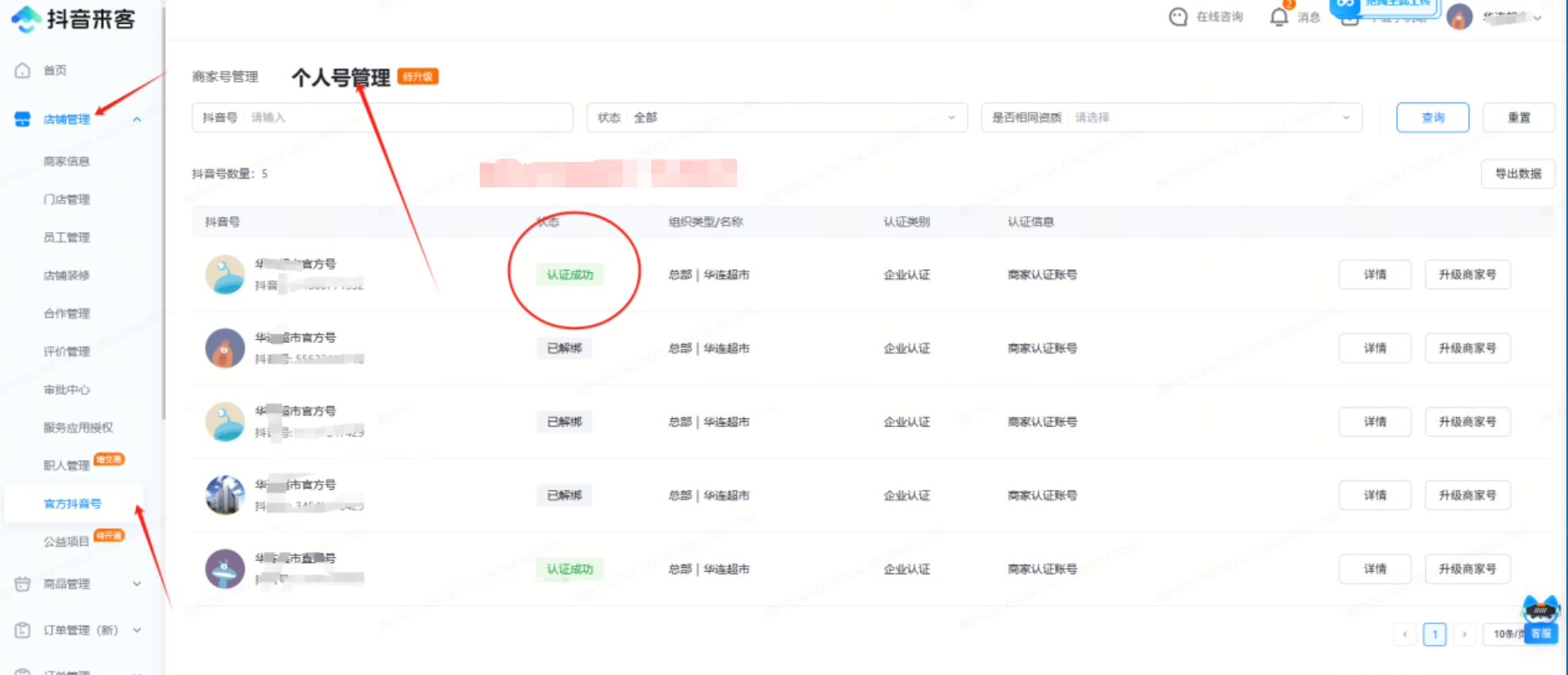
Once it shows verification succeeded, enable the Leads Upgrade — accept it on your phone. If there's no lead management option, the secondary category hasn't been added — you must add the Shopping/Home & Building Materials secondary category; if that doesn't work, the license may be the issue, and you'll need to choose based on what the license allows. Go to Store Management and add the secondary category. This is mandatory — without a secondary category there are no leads. Then refresh the page; once Lead Management appears, go to the lead-capture component to upgrade, and tap Agree to Upgrade on your phone — be sure to follow the tutorial carefully!!!!!!!!!!
Then go back to the Laike backend, find the official Douyin account, go to Personal Account Management, find that Douyin account and unbind it, then scan the QR code again to force-enable product-sales permissions
After unbinding, find the WeChat QR code below to force-enable (Showcase permissions). You must complete all the steps above before scanning this QR code. Once scanned, wait for review — you must wait for review, you must wait for review, you must wait for review. You'll receive a message on your phone...
Don't rush. Don't be impatient — we understand you're eager to get the account up and running, but we're prioritizing stability. If approved, you'll get a message on your phone. This means the review passed. If it fails, this won't work
Once approved, don't rush — approval means all permissions have been force-enabled with 0 followers. Go to Ocean Engine Baiying to pay the deposit, then fill in all the payment account details in the mobile app (there's a screenshot guide at the bottom of the payment section on your phone). At this point, search Baidu for the "Enterprise Account Management Backend,"
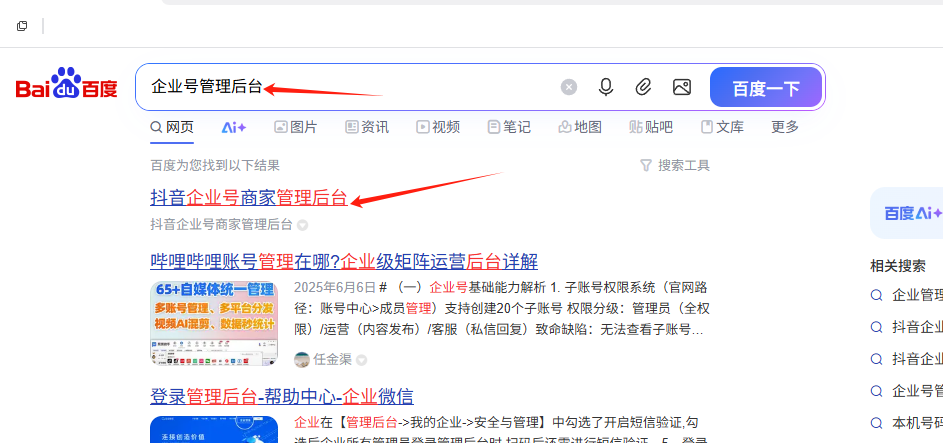
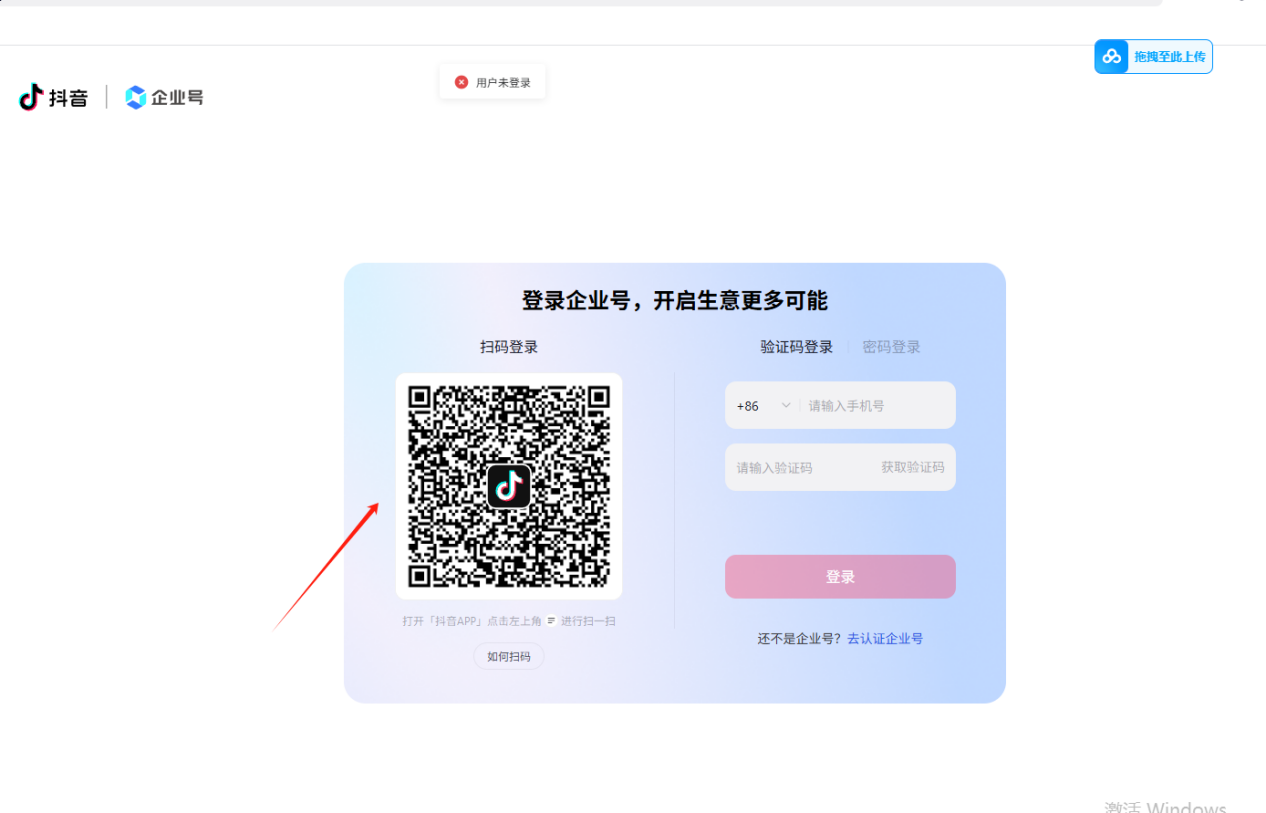
Scan the QR code to log in; in the top-right corner, click the avatar and there will be an option below to close the enterprise account — the required submissions are the same as for a semi-verified ("blue") account. Wait a few minutes for review to pass. Refresh the page with F5, and if it automatically logs you out, that means the review passed.
Whether going live via phone or via Livestream Companion, go live first, then add the link in the Volcano Engine edition of Ocean Engine Baiying — it will sync to the official version (remember, add the link in the Volcano Engine edition of Baiying). Then upgrade leads and accept on your phone
Scan the QR code for Ocean Engine Baiying — if this comes up, it's correct. Click in to pay the deposit, and once paid, go back to your phone to continue
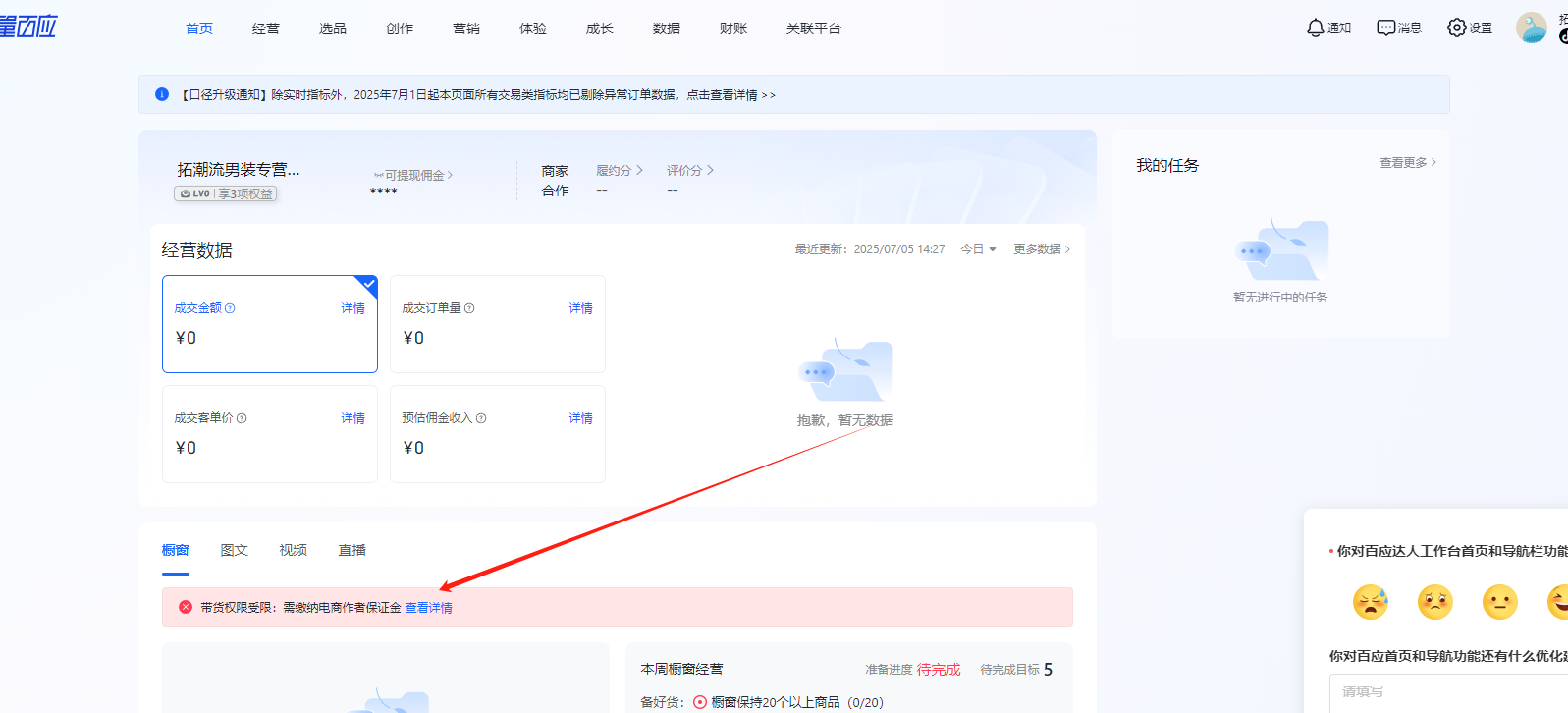
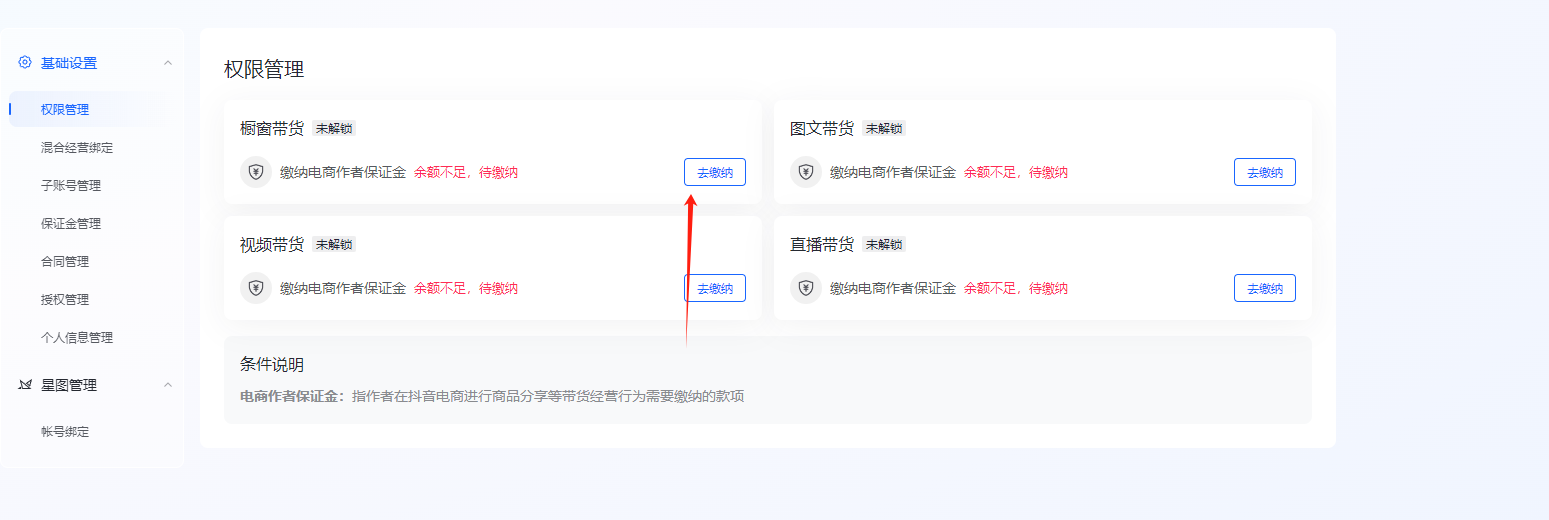
Once the deposit is paid, open the Douyin "Me" tab, tap the three-line menu in the top-right, open More Features, find the Douyin Creator Center, scroll down, and click into E-Commerce Sales — you'll find it redirects directly, without the payment-collection option. Don't worry, here's the trick.
Click "All Tools." Find Permissions and Account, click in, and submit as required. Click to upload your ID card — if it won't upload, that's fine, don't rush, since this tutorial has to be thorough. Go to the Qualification Center to edit your qualifications and upload your ID card, wait for review (a few minutes is enough), then click back in and submit — that's it. Once approved and payment-collection qualification is enabled, you can go live and sell products. The link goes in Douyin Ocean Engine Baiying; if you can't attach it there, scan the Volcano Engine QR code, log in to Baiying, copy the link, and add it there.
However, after trying a few times, it seems that in Douyin's Ocean Engine Baiying, adding the link to the selection cart in advance also lets it attach — just add it directly to the selection cart. Test this yourself: in Douyin Ocean Engine Baiying, find the link, click in, add to selection cart, add to showcase,
Then just go live on Douyin directly. If you notice the link drops off, just re-add it — it's not that complicated