09_Fragmented Audio SOP
Fragmented Audio SOP
1. Host Audio Fragmentation
Audio Splitting
- Find a livestream room in the same product category as your own. The recorded audio must be clean with no noise, with clear articulation; the voice must carry emotion, and the speaking pace must not be too fast.
- Use the free software below to record the livestream room, then import the video into CapCut (Jianying), separate the audio, and export only the WAV audio.
- In the Syntopia Digital Human client's left navigation bar, find [Tools], click in, and find the [Fragmented Audio Splitting] feature to split the audio.
Free recording software: 📦 [Zip Archive] StreamCap_1.0.1_Win_x64(2).zip
(File size: 93.6MB, exported with this document; see the file in the same directory)
- [Fragmented Audio Splitting] cuts the audio at points where the voice pauses, so the audio being split must have a clear pause after each sentence is finished.
- Breath-point splitting has high requirements for the fluency of the host's speech — otherwise the resulting split segments will feel noticeably disjointed.
- Once splitting is complete, you can identify poorly split audio segments by checking each audio file's name (the name is the transcribed text of that segment) and fix them accordingly.
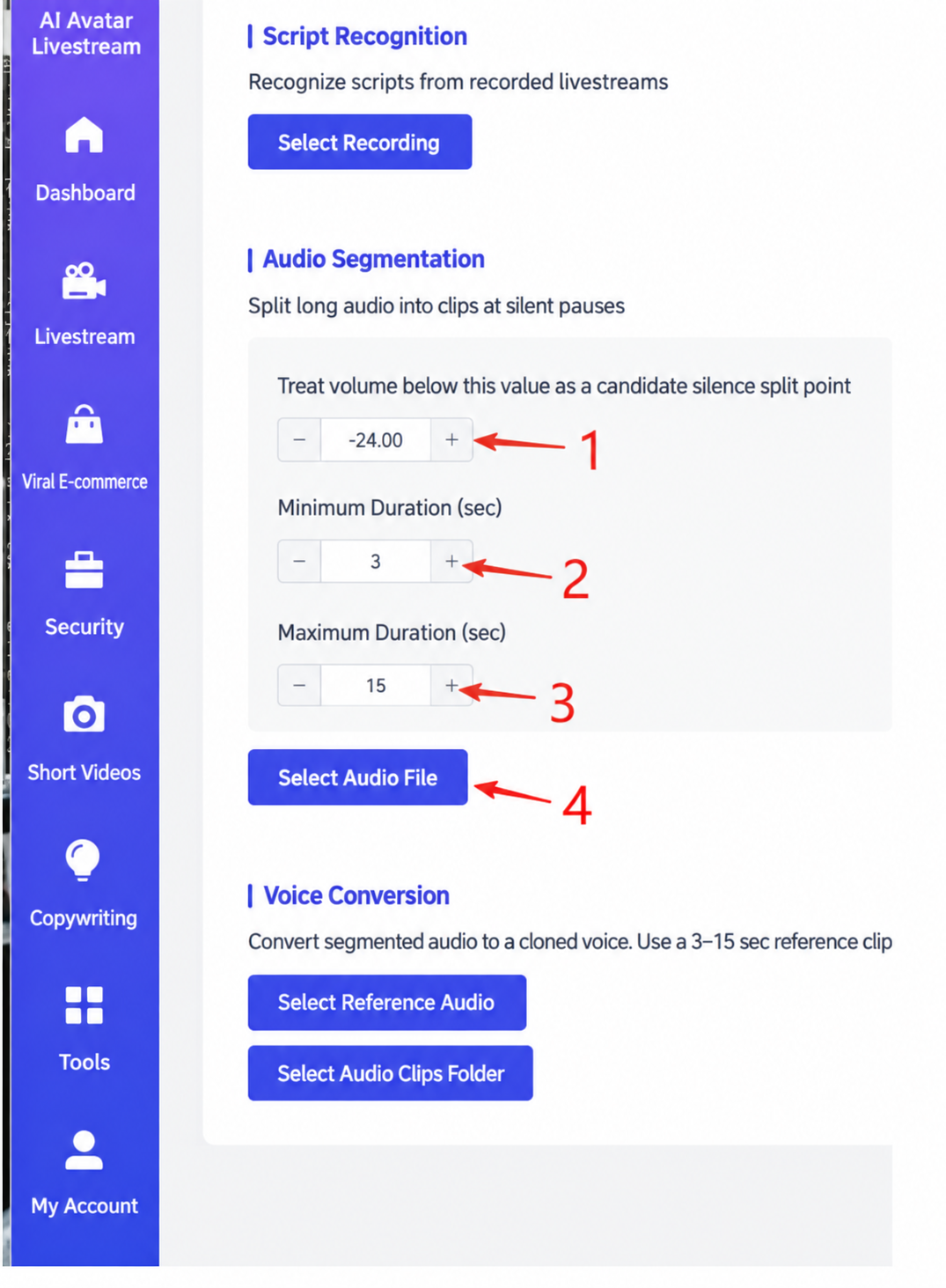
The image shows the operation interface for the "Fragmented Audio Splitting" feature in the AI Digital Human Livestream Platform's toolbar. At the top of the interface is the "Tools" heading, with three feature options below it: "Script Recognition," "Fragmented Audio Splitting," and "Voice Conversion." Under "Fragmented Audio Splitting," there are three parameter fields: "Volume below this value is treated as a candidate silent split point," "Minimum Duration (seconds)," and "Maximum Duration (seconds)," corresponding to numbers 1, 2, and 3. Below that is a "Select Audio File" button, corresponding to number 4. This image relates to the host audio fragmentation process described in the surrounding text, visually showing the operation interface and parameter settings.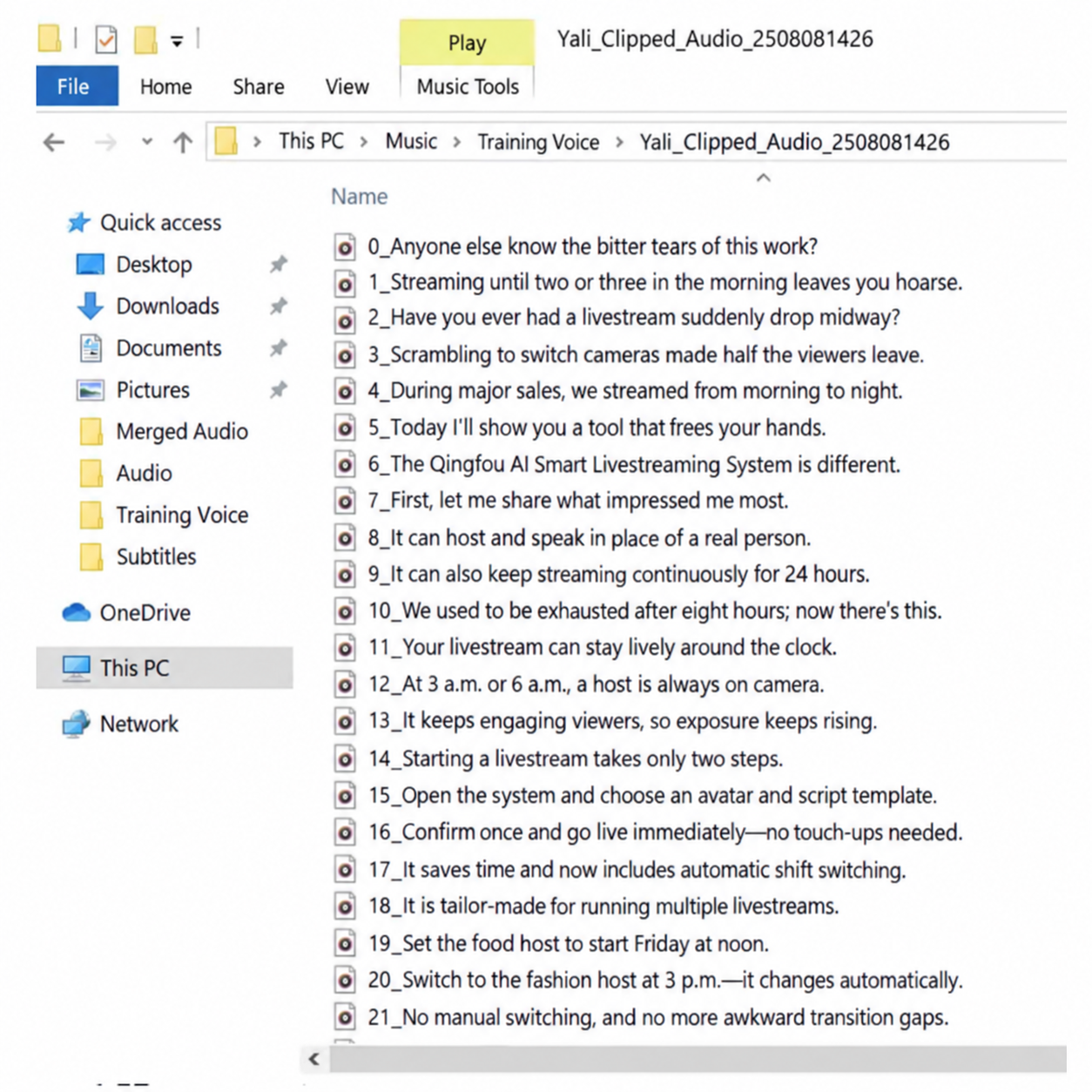
The image shows a computer folder interface, with the folder named "Yali_Fragmented Audio." The folder contains multiple audio files, all named starting with "0_But this line's...", with a .wav extension, such as "0_But this line's bitter tears, does any sister feel the same as me, in order to..." and so on. There is a "Play" button on the right. This image relates to the "Host Audio Fragmentation Splitting" section of the document, illustrating that poorly split audio can be identified and handled by checking the audio file names.
Voice Conversion
When the recorded livestream room audio has a different voice timbre than the one you want to present, you can use Voice Conversion to change the timbre.
For example, if you want the digital human's voice to sound female but the recorded livestream audio is a male voice, you can use Voice Conversion to convert the male voice into a female voice.
Even if both are female or both are male voices, Voice Conversion is still needed to ensure a consistent timbre — otherwise the resulting voice in the livestream room will sound jarring.
Before using Voice Conversion, the audio must first be fragmented and split, and only then converted.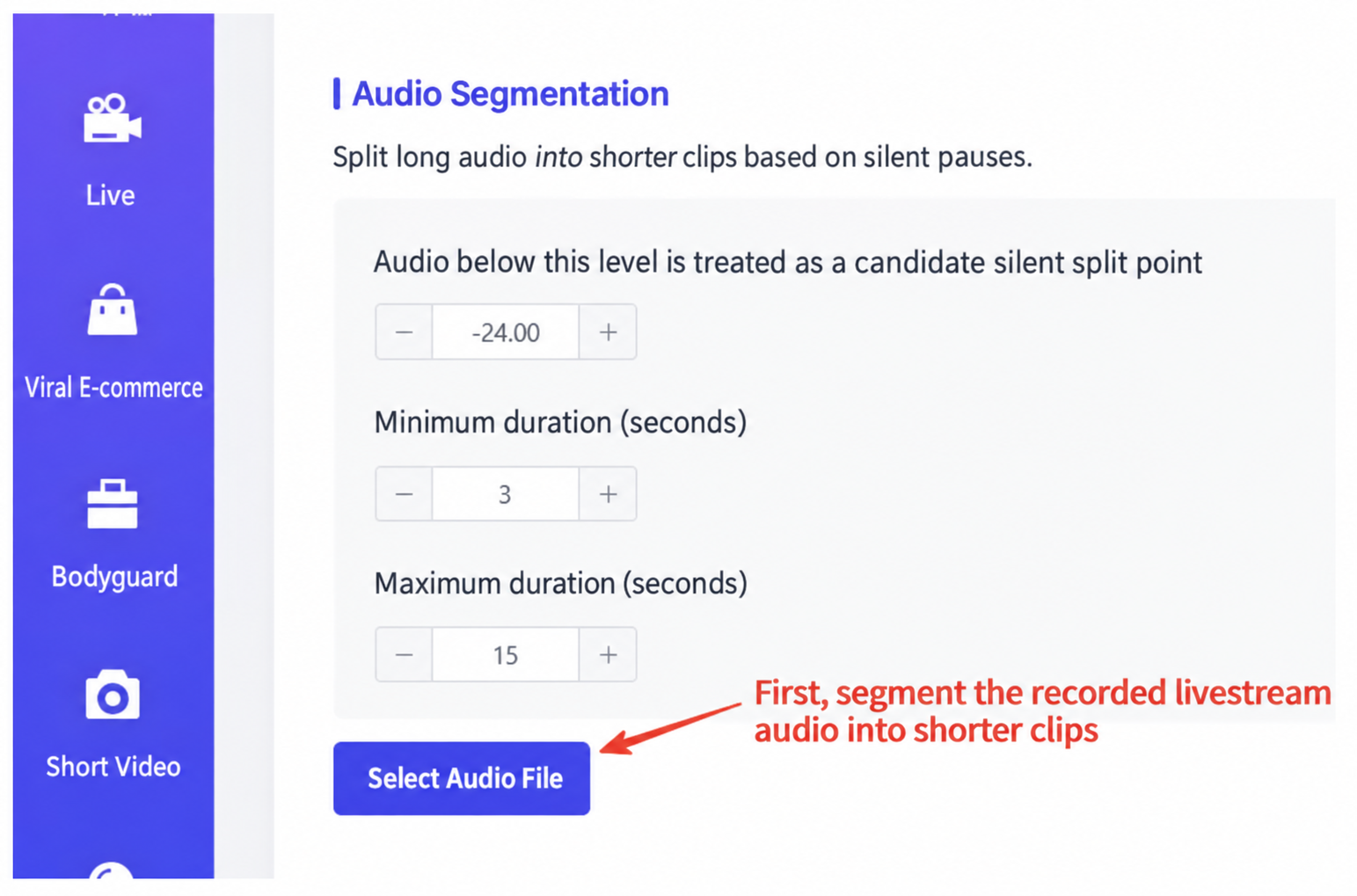
The image shows the audio processing interface of the digital human livestream platform, used to split long audio into fragments based on silent pauses. At the top of the interface is a "Select Audio File" button, with settings below for the volume threshold, minimum duration, and maximum duration, corresponding to the candidate silent split point (volume below this value), minimum duration (seconds), and maximum duration (seconds). A red arrow at the bottom of the image points to the "Select Audio File" button, with a text note reading "First fragment the recorded livestream audio," echoing the host audio fragmentation process described in the surrounding text.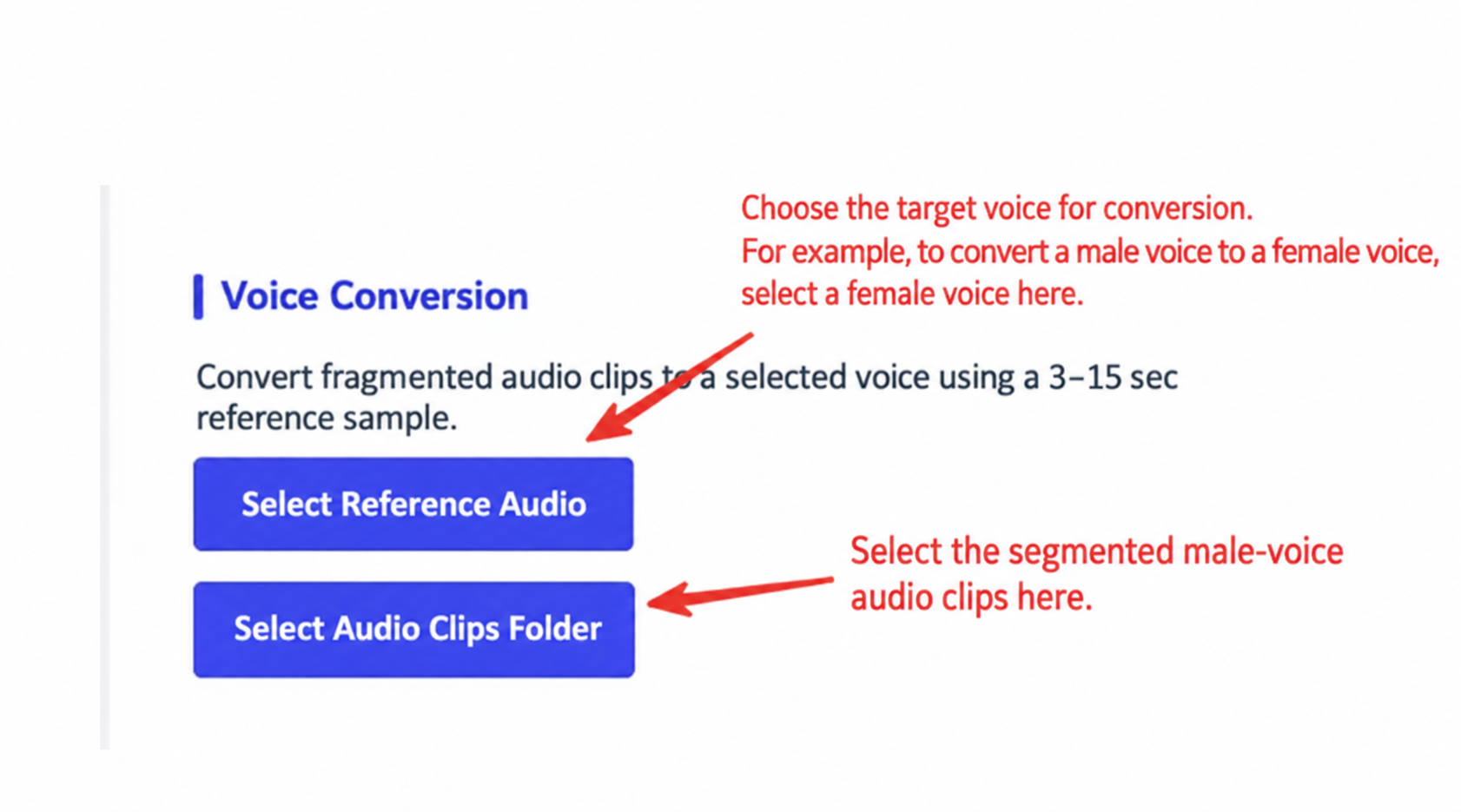
The image shows the Voice Conversion operation steps. The text at the top explains selecting the target voice timbre after conversion — for example, select "Female" to convert a male voice to female. Below are two blue buttons, "Select Reference Audio" and "Select Fragmented Folder," corresponding to selecting the reference audio and the fragmented audio respectively, with arrows pointing to each button. This image closely relates to the surrounding text, which describes the background and steps of Voice Conversion, visually showing the key selection steps in the process.
Approach 1: Digital Human + AI Voice + Fragmented Audio
- In the Syntopia Digital Human backend, select the digital human model, cloned voice, and script, then click Go Live. In the control console's [AI Protection], select the fragmented audio folder and adjust the interval duration between each fragmented audio clip — a random interval of 40-120 seconds is recommended.
- The audio files in the fragmented folder are files that have been voice-converted to match the digital human's timbre.
- For the AI Voice + Fragmented Audio insertion approach, at least 1,000 fragmented audio segments are recommended.
- Once a fragmented audio clip has been used once without triggering a violation, it can be used again after 7 days.
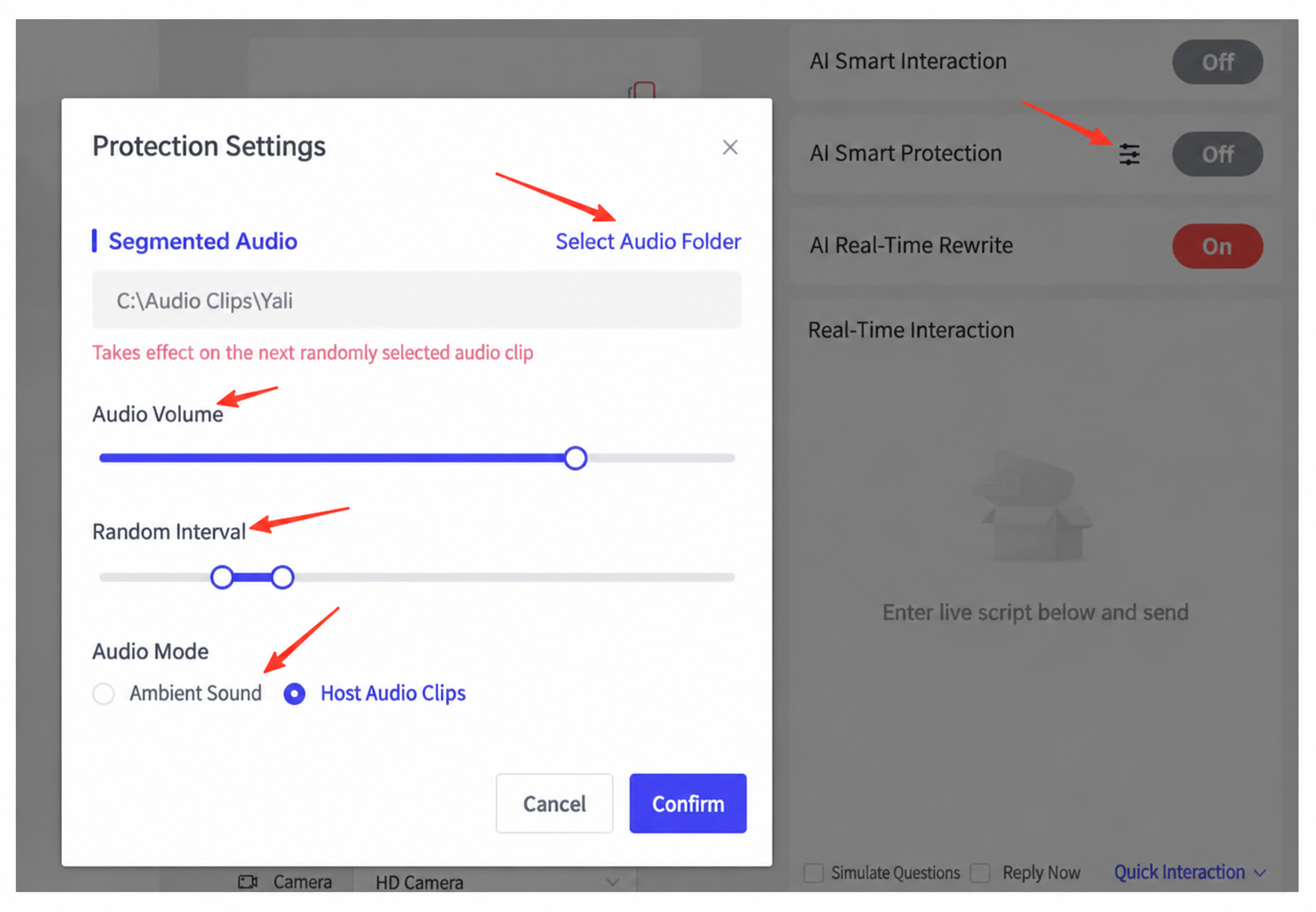
The image shows the AI Protection settings interface in the livestream control console. The interface has settings such as "Select Audio Folder," "Audio Volume," "Random Interval," and "Audio Mode," with a red arrow pointing to "Audio Mode," which is set to "Host Fragmented." This image relates to the "Digital Human + Pure Fragmented Audio" approach in the document, corresponding to Approach 2's instructions for selecting the split fragmented audio folder and adjusting the interval duration in the control console's AI Protection settings, visually showing the operation interface.
Approach 2: Digital Human + Pure Fragmented Audio
No script needs to be imported at all — all product information is placed in the custom knowledge base instead.
Simply go to AI Protection in the control console, select the split fragmented audio folder, and adjust the interval duration between each fragmented audio clip.
Be sure the random interval never exceeds the shortest duration among the fragmented audio clips — for example, if the shortest fragmented audio clip is 3 seconds, the maximum random interval must not exceed 3 seconds; otherwise the digital human's mouth may move with no sound coming out.
Pure fragmented audio will cause replies to be slower — please do not use this if that's a concern.
- For the Digital Human + Pure Fragmented Audio approach, at least 6,000 fragmented audio segments are recommended.
- Once a fragmented audio clip has been used once without triggering a violation, it can be used again after 7 days.
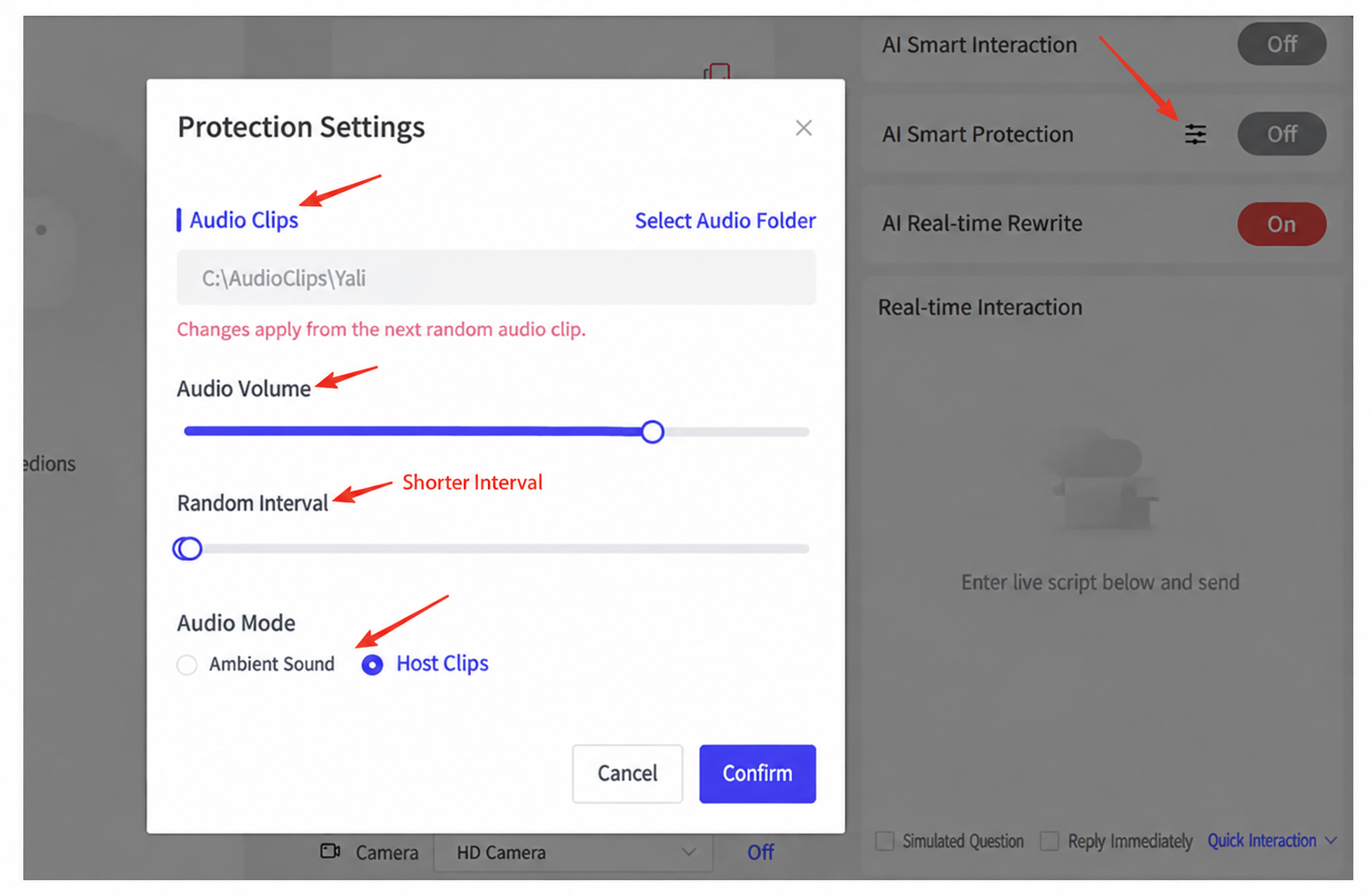
The image shows the "Fragmented Audio" related settings within the "Protection Settings" interface. The interface has an "Audio Volume" slider, a "Random Interval" option, and an "Audio Mode" selection box, with a red arrow pointing to "Random Interval," showing "Short Interval." This image closely relates to the surrounding text, which — when describing the Digital Human + AI Voice + Fragmented Audio approach — notes that the random interval must never exceed the minimum duration of the fragmented audio; this image visually shows the location of the random interval setting, helping to clarify the setting requirement.
2. Co-Host Audio Fragmentation
- Find the co-host's audio from the livestream room and run [Fragmented Audio Splitting] on it; the co-host's voice does not need Voice Conversion — the fragmented clips can be used directly.
- When the co-host's voice plays, the host's audio will duck — that is, the digital host's voice volume is lowered to bring out the co-host's voice, making the livestream room feel more authentic.
3. Ambient Sound Fragmentation
- Record some ambient sounds commonly found in livestream rooms — for example, a factory livestream will have noisy machine sounds — with a recording duration of 1-2 hours.
- Then use software to split and fragment the audio, and in the control console's AI Protection, select the fragmented ambient audio folder, choose "Ambient Sound," and adjust the appropriate volume and interval between each ambient sound clip.
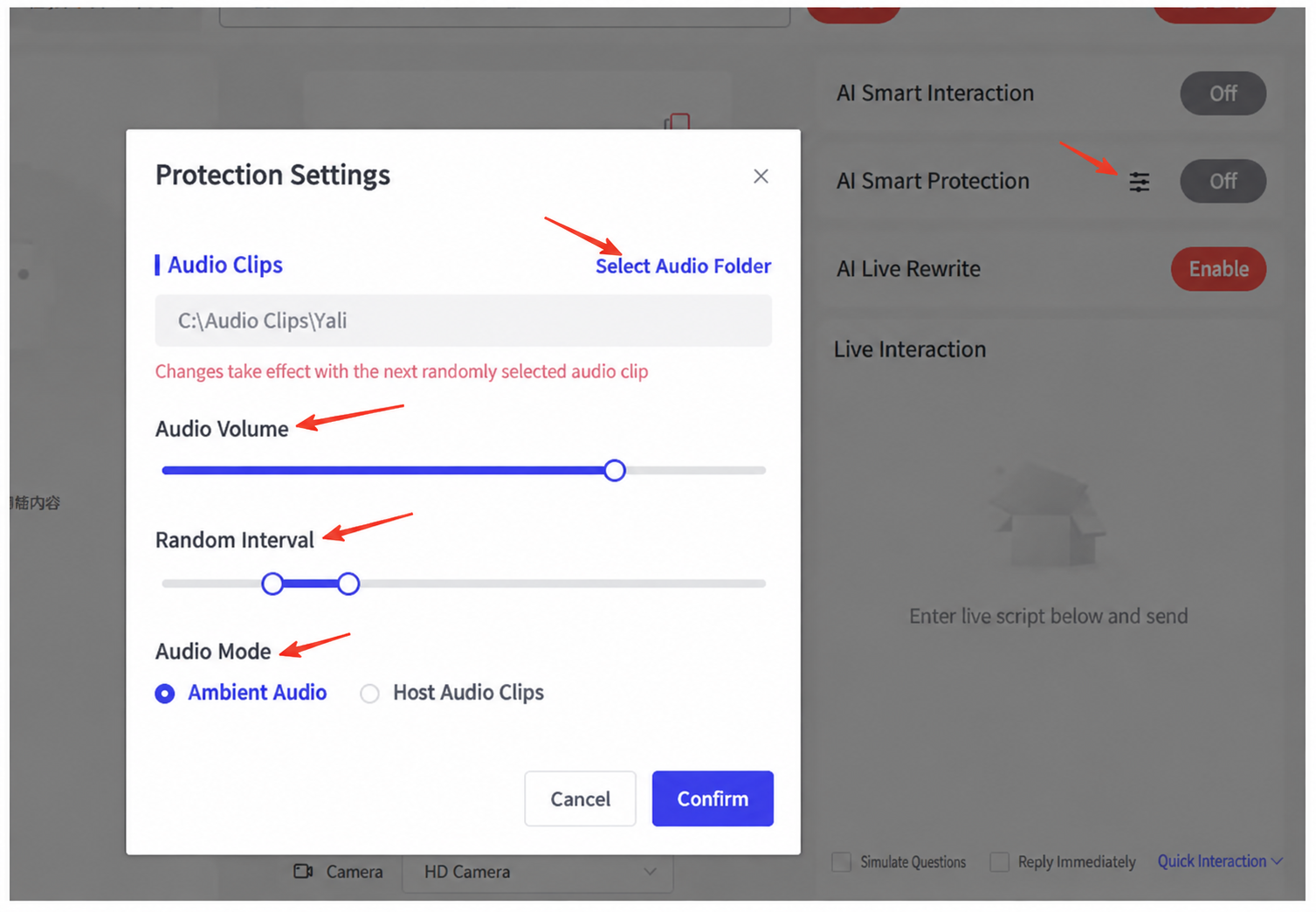
The image shows the AI Protection settings interface in the control console. The "Fragmented Audio" option is selected, with the audio folder shown as "C:\\Audio Track Split Yali," along with a note that the setting takes effect for the next randomly-selected fragmented audio clip. There are three adjustable settings: "Per-Clip Volume," "Random Interval," and "Audio Mode," where the "Per-Clip Volume" slider is at the middle position, the "Random Interval" slider is on the left, and "Audio Mode" is set to "Ambient Sound." There are "Cancel" and "Confirm" buttons in the top-right corner of the interface. This image relates to the surrounding text describing how to fragment audio using the software and configure it in AI Protection, visually showing the setup steps.