11_AI Digital Human Livestream Software Bodyguard Feature Tutorial
AI Digital Human Livestream Software "Bodyguard Feature" Usage Tutorial
AI Digital Human Livestream Software "Bodyguard Feature" Usage Tutorial
1. Entering the Bodyguard Feature Interface
- Launch the main software to open the AI Digital Human Livestream Software, log in to your account to enter the main interface, then click "Bodyguard" in the left navigation bar to enter the livestream monitoring configuration screen.
2. Basic Configuration
- Livestream Platform
The default platform is Douyin.
- Set keywords — when a preset keyword appears in the livestream picture, comments, or system prompts, Bodyguard will immediately flag it as a high-risk event.
Find the keyword input box; the system has already set the following keywords:
Banned, Not Real-Time, Violation Alert, CAPTCHA/Human Verification, Verification Started
Supports manually adding new keywords (one per line).
Purpose of the Keywords and Example Typical Use Cases:
Banned:
Purpose: Risk interception — when the Douyin platform issues a violation-related prompt during the livestream, AI Bodyguard immediately flags it as a risk event and triggers an emergency stream shutdown.
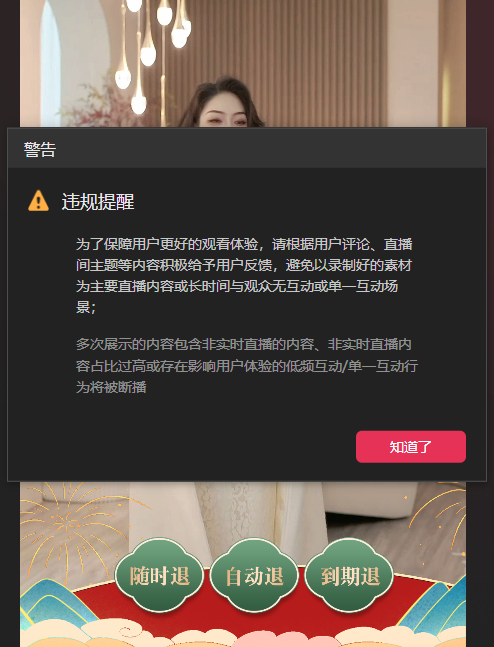
Not Real-Time:
Purpose: Abnormal livestream status monitoring — detects the platform's "non-real-time" warning for the livestream feed (such as "livestream content is not being transmitted in real time"), commonly triggered when: pre-recorded footage passed off as a livestream is detected by the platform.
Violation Alert:
Purpose: General violation warning — matches Douyin pop-up warnings (such as "Violation detected, please correct immediately")
Example: when Douyin pops up a "Violation Alert" dialog, the keyword match succeeds, triggering the alarm and countdown.
CAPTCHA/Human Verification:
Purpose: Real-identity verification interception — when the platform pops up a "human verification" dialog (such as a slider CAPTCHA or click-recognition), AI Bodyguard automatically captures the screen to prompt the user to verify, or automatically ends the stream.
- Setting the Auto-End-Stream Countdown Duration
Countdown time (delay time) options:
10 seconds / 20 seconds / 30 seconds / 40 seconds
The core purpose of the auto-end-stream countdown is to reserve time for the host to handle the risk, balancing emergency risk avoidance with livestream continuity, while ensuring losses are quickly contained when a violation is triggered.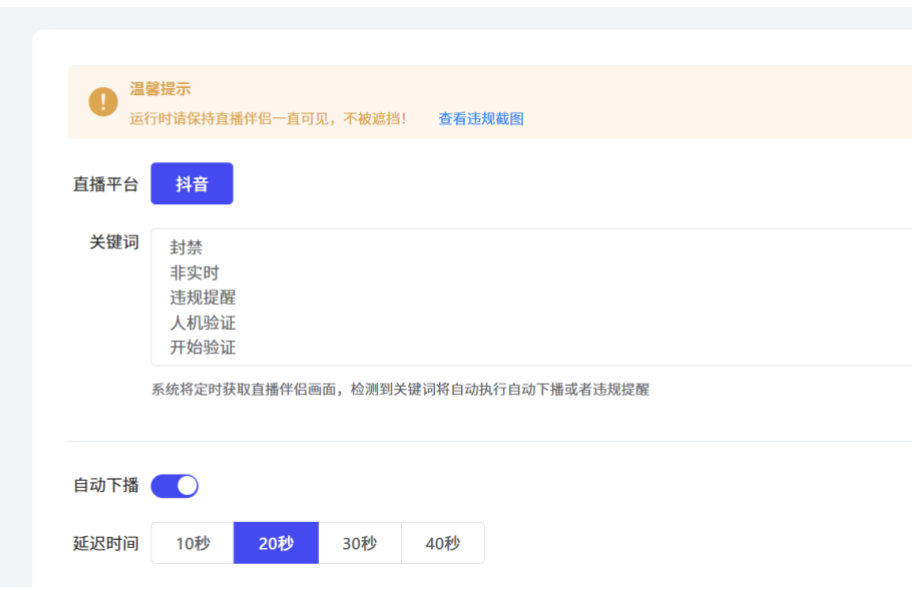
3. Real-Time Alert System Configuration
- Enabling Voice Alert Alarms
Turn on the "Violation Alert" toggle and check the "Speaker Alarm" option.
Click "Preview" to hear the alert sound in advance (default is a beeping alarm).
- Response Mechanism
When the alarm is triggered, the computer's speaker continuously sounds the alarm.
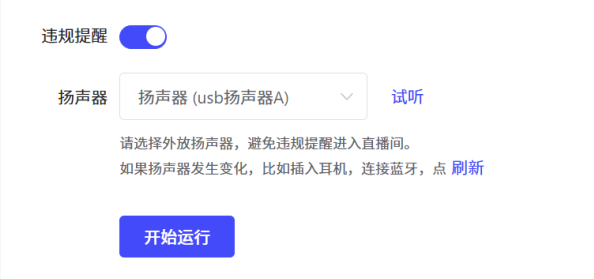
Click Start Running, and the Bodyguard feature will be enabled normally.
4. Scheduled Start/End Streaming
Automatically starts and ends the livestream according to the configured start and end times.
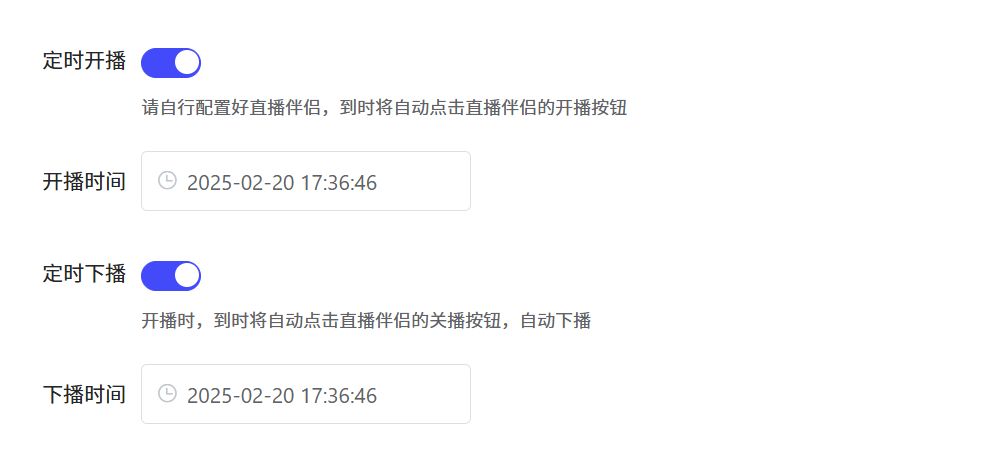
Note! Always keep the screen scaling at 100%.
5. Remote Face Verification

When logging into a Douyin account and going live in Livestream Companion, a face verification prompt may appear requesting livestream permission. This can be handled remotely using OBS + a capture card. The specific steps are as follows:
1. Make a WeChat video call with the person who needs to complete real-name verification
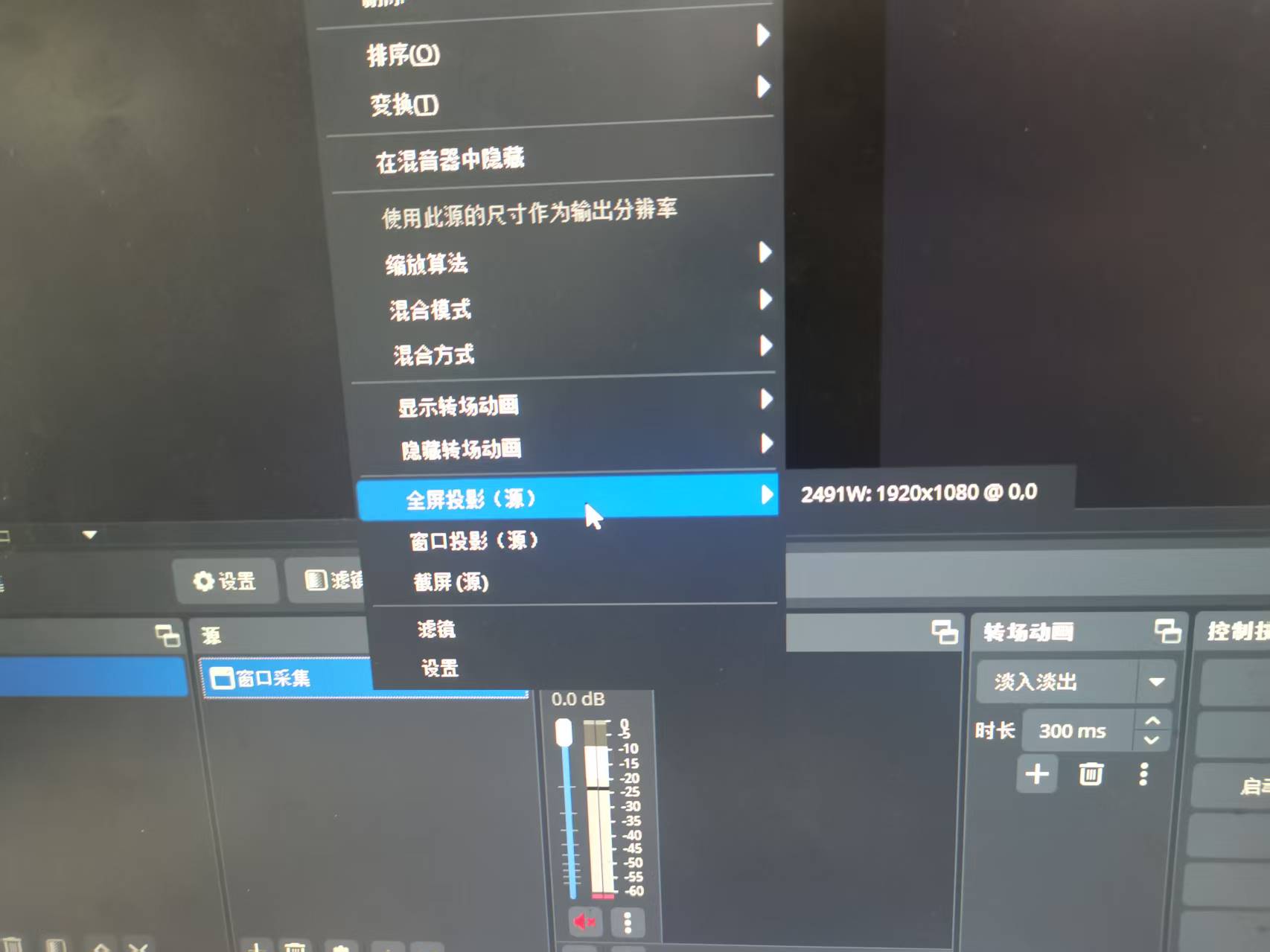
2. In OBS, add the WeChat video window as a source
3. Right-click and select Fullscreen Projector, then choose the capture card — at this point, the WeChat video call picture has been fed into the capture card