Real-Person Driving & One-to-Many Livestreaming
What this is
Real-person driving is a livestream mode where a real human is the host — not a synthetic avatar. The person sits in front of a camera, and Syntopia BOX uses AI only to drive their lip movements to match the livestream script. The host doesn’t actually have to talk: on screen their mouth moves and speaks the script, while they simply stay in frame.
Because the host is a real person, this is not an “AI avatar” or a “clone.” The face and body on screen are a real human; the AI handles only the speaking.
One-to-many (“一拖多”) builds on top of that: one real person, on one camera, can power many livestream rooms at once — each on its own account, each interacting with its own audience independently.
How one-to-many actually works
- What’s shared is the real person’s camera picture (their face and body).
- What’s independent on each PC is everything else: each PC runs its own script, reads its own room’s comments, and drives that same face’s lip-sync differently for its own conversation, then streams to its own account.
So: one real human on one camera → N PCs → N livestream rooms, each live and interacting on its own, all wearing the same person’s face. The body and gestures look the same across rooms (it’s one camera), but each room has different mouth movements, different audio, and different replies to that room’s comments.
That’s the headline benefit: one host appears to be live in many rooms at once, each room fully interactive, without that person physically repeating the stream N times.
Two output routes — and when to use each
| Route | Use it for | RTMP needed? |
|---|---|---|
| HD Camera (virtual camera) | The normal, simple case — one PC. The host is output as a virtual webcam that the livestream platform / LIVE Studio picks up directly. | No |
| RTMP over LAN | Real-person driving + one-to-many — sharing one real person’s camera across many PCs. | Yes (plus a capture card + OBS) |
For ordinary synthetic-avatar livestreaming — and for pre-recorded video deduplication — you use the HD Camera route and don’t need RTMP at all. RTMP is specifically for this real-person, multi-PC case.
Part A — Real-person driving on a single PC
A real human is the host; Syntopia BOX drives their lip movements to match your script. On a single PC you only need the host’s own computer camera.
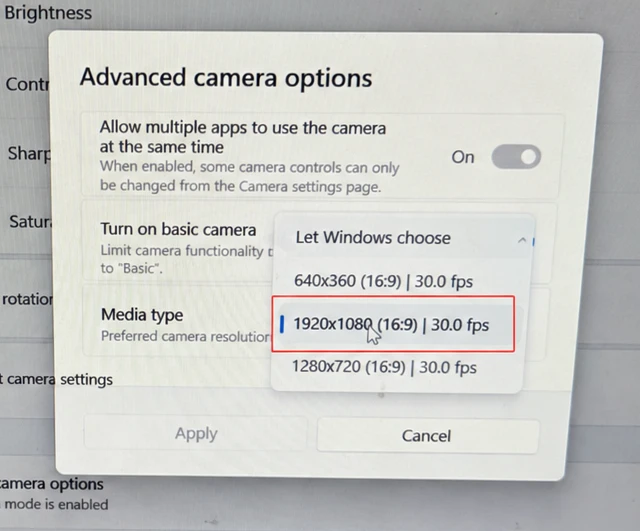
Step 1 — Set your camera to 1920×1080
In Windows camera settings → Advanced camera options, set the Media type to 1920×1080 (16:9).
Step 2 — Go Live and start Real-Person Mode
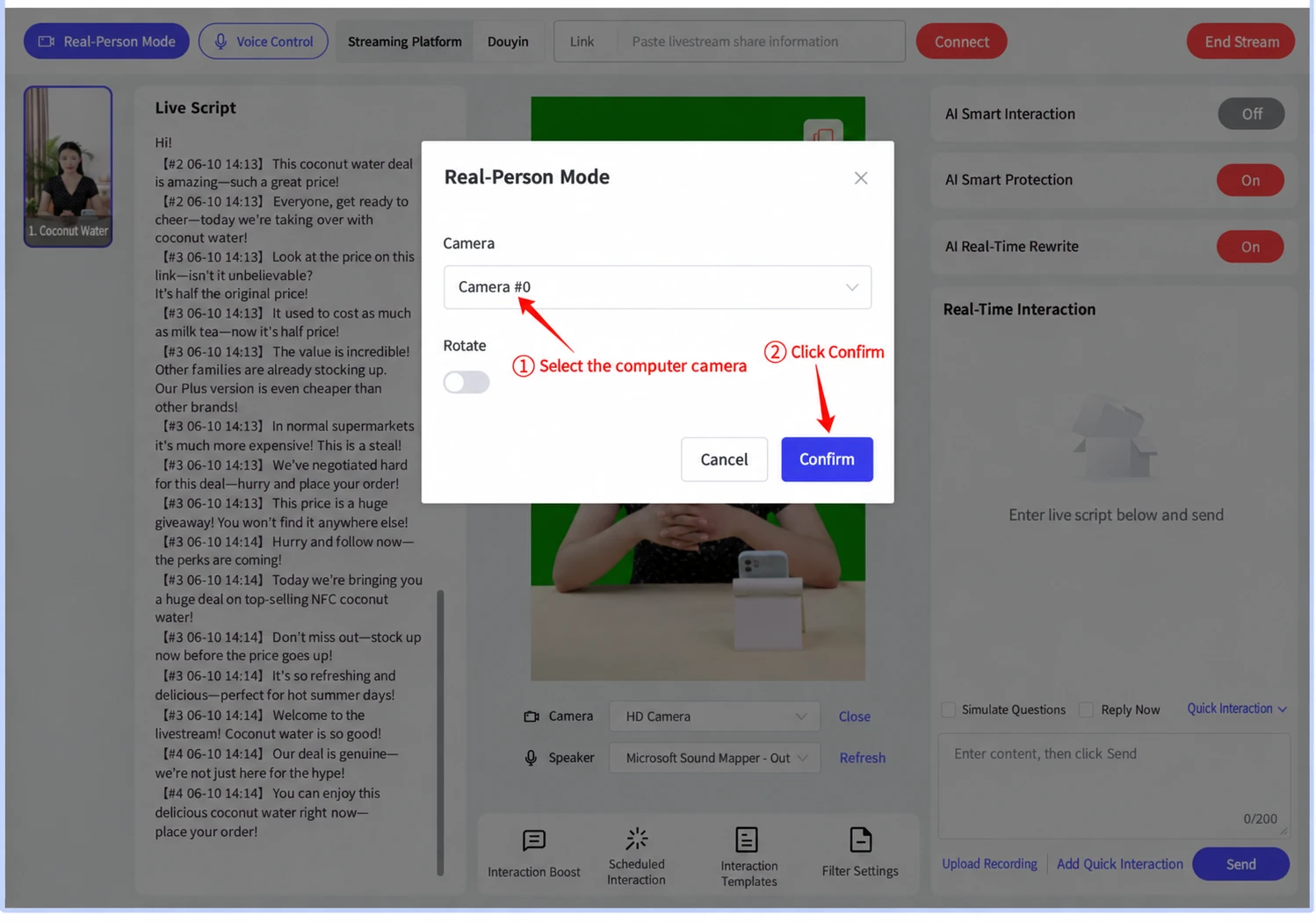
Build your livestream room, click Go Live, then click Real-Person Mode (top-left). Select your computer’s camera and click Confirm.
Step 3 — The host is live
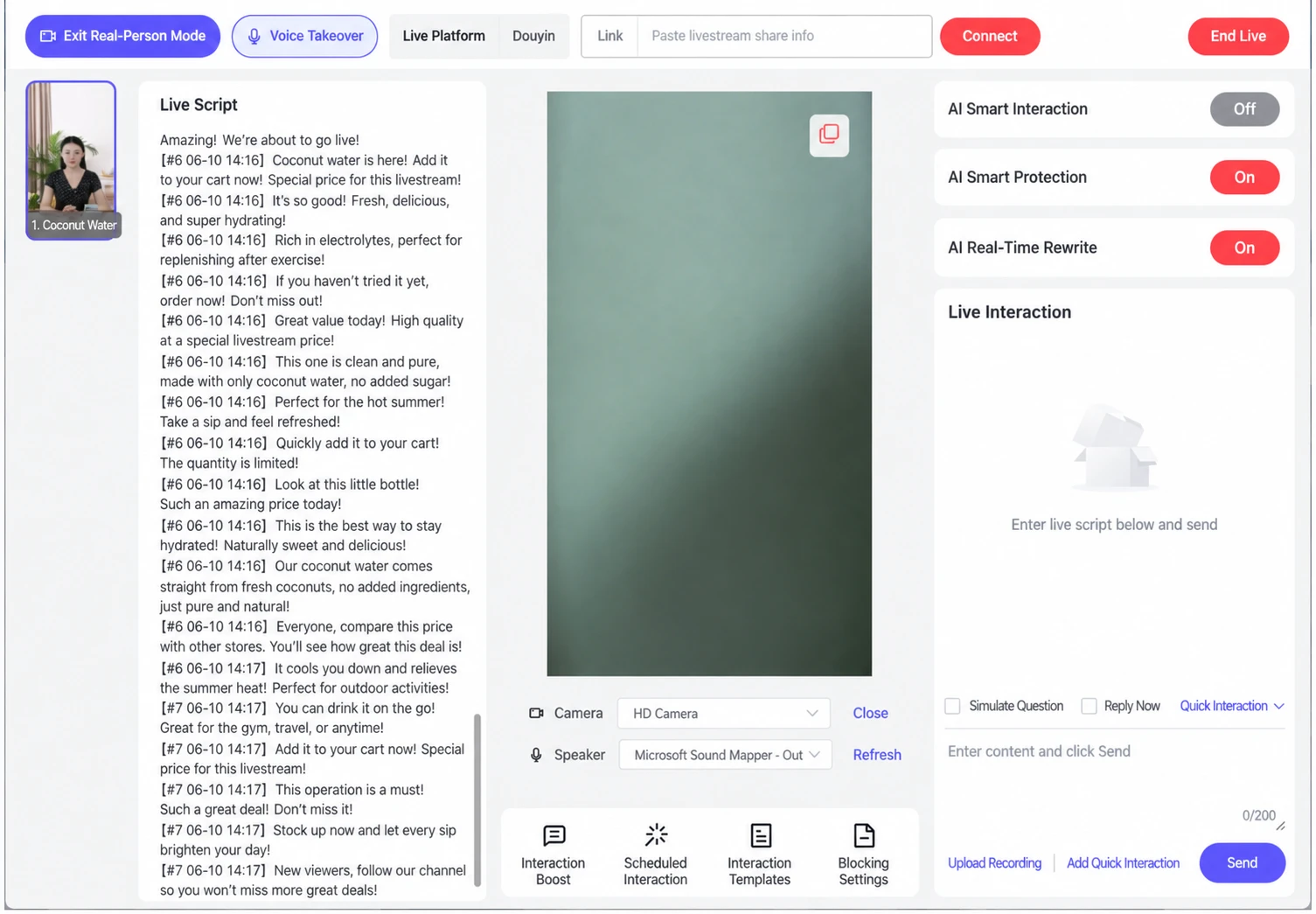
After ~30 seconds the console switches to your camera feed. The host simply stays in frame while Syntopia BOX drives their lip movements to match the script — they don’t need to speak. To stop, click Exit Real-Person Mode.
Part B — One-to-many: one host across many PCs (over your LAN)
The trick is to share that single camera feed to every PC on your local network using RTMP, so each PC can run its own live room from the same host. Do steps 1–4 on the source PC (where the host and camera are), then do step 5 on every PC that will go live.
Step 1 — Copy the RTMP address from Syntopia BOX
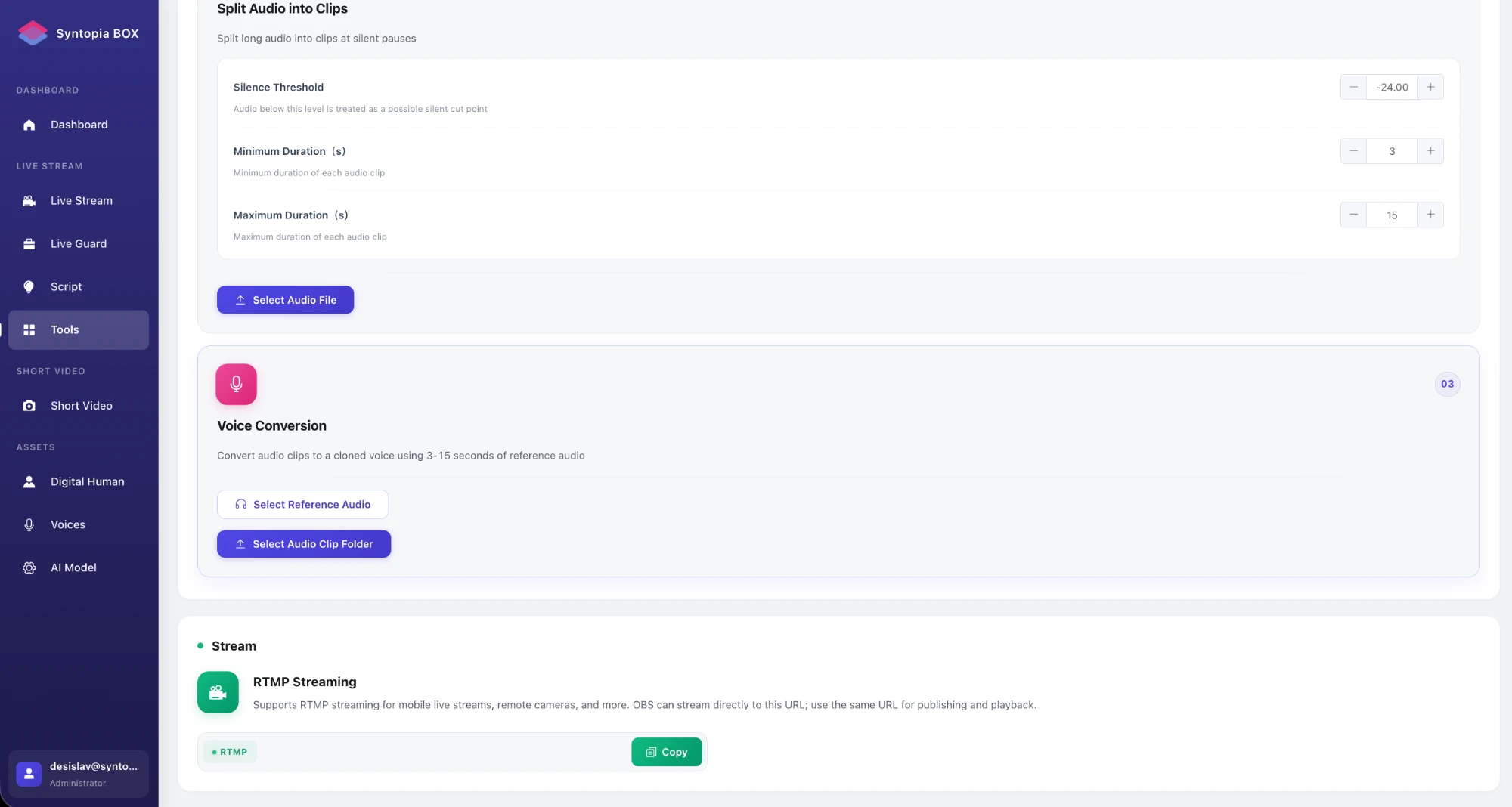
In Syntopia BOX, open Tools and scroll to the Stream section. Under RTMP Streaming, click Copy to copy the local address (it looks like rtmp://192.168.x.x:3935/live/livestream). Pushing and pulling both use this same address.
Step 2 — Point OBS at that address
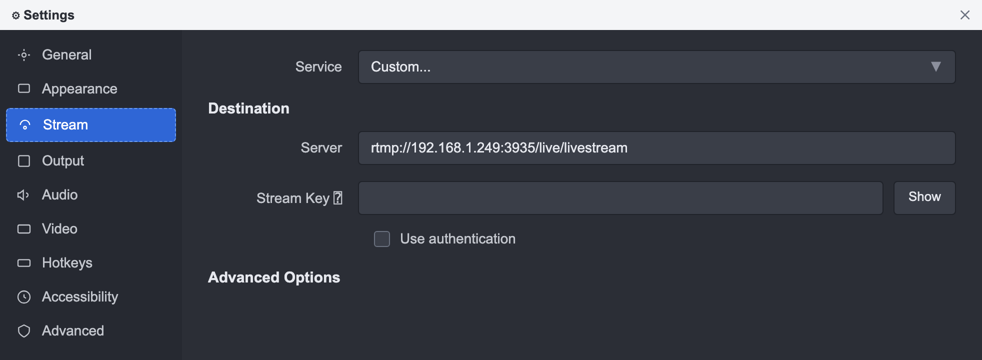
Open OBS, go to Settings → Stream, and set Service to Custom. Paste the address into Server, leave the Stream Key blank, and turn authentication off.
Step 3 — Set the OBS video output to vertical
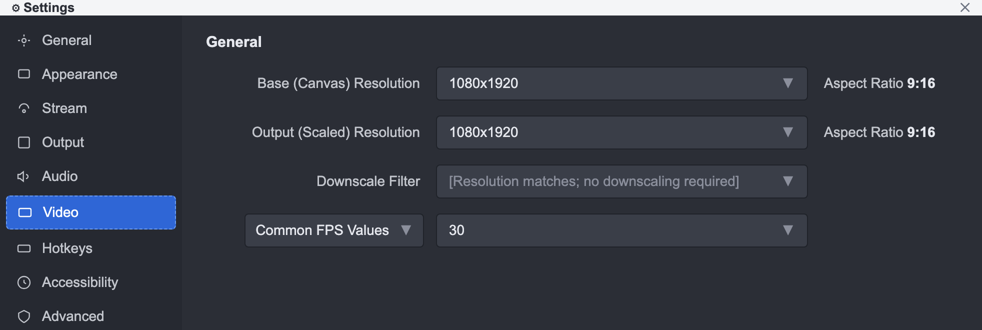
In Settings → Video, set both the Base (Canvas) and the Output (Scaled) resolution to 1080×1920 (9:16), and set the frame rate to 30 (or 25).
Step 4 — Add the camera and start streaming
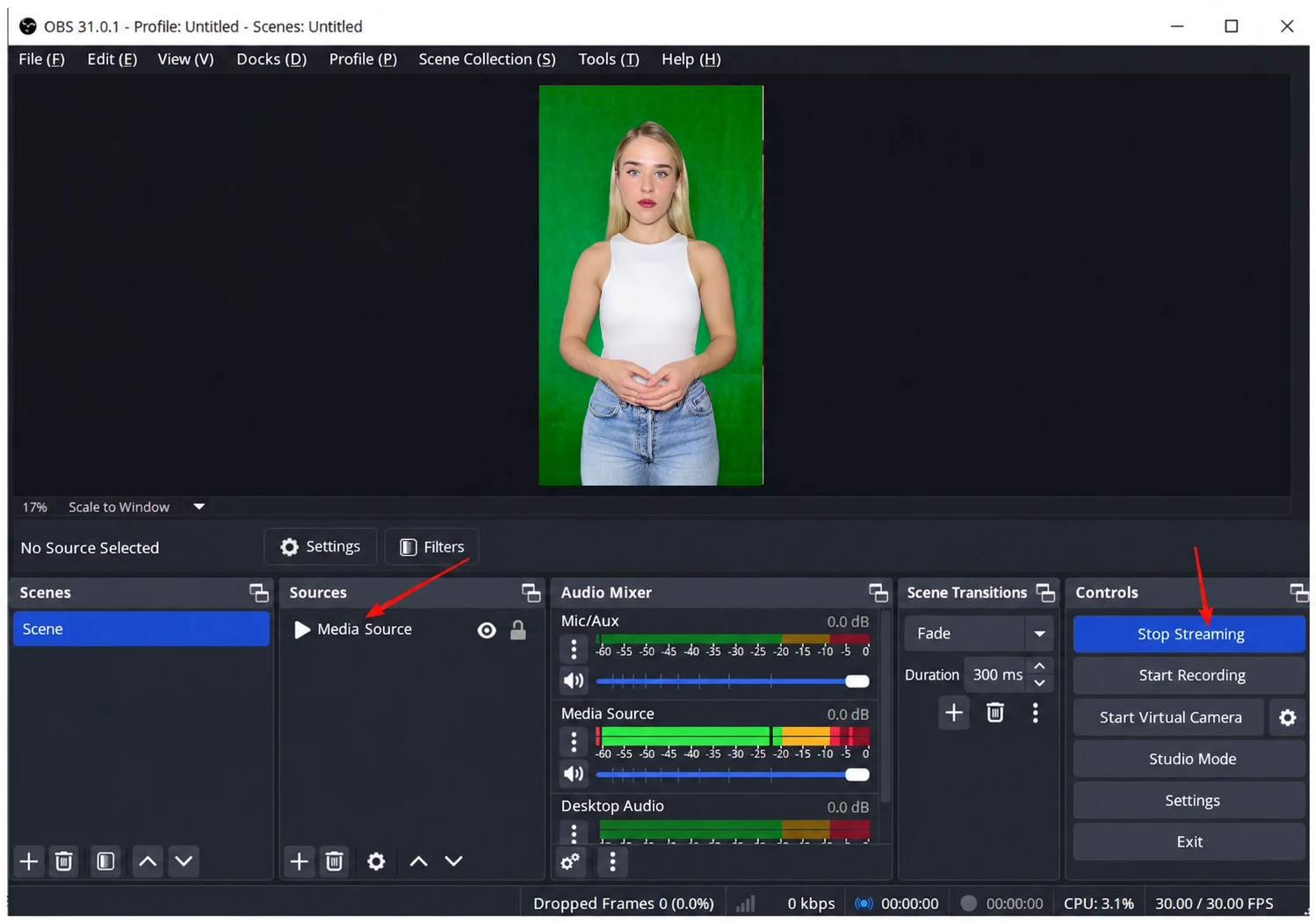
Back on the OBS main screen, add your host’s camera as a source (brought in through the capture card), then click Start Streaming. OBS now pushes the host’s picture to the local RTMP address.
Step 5 — Pull the feed into Syntopia BOX on every PC
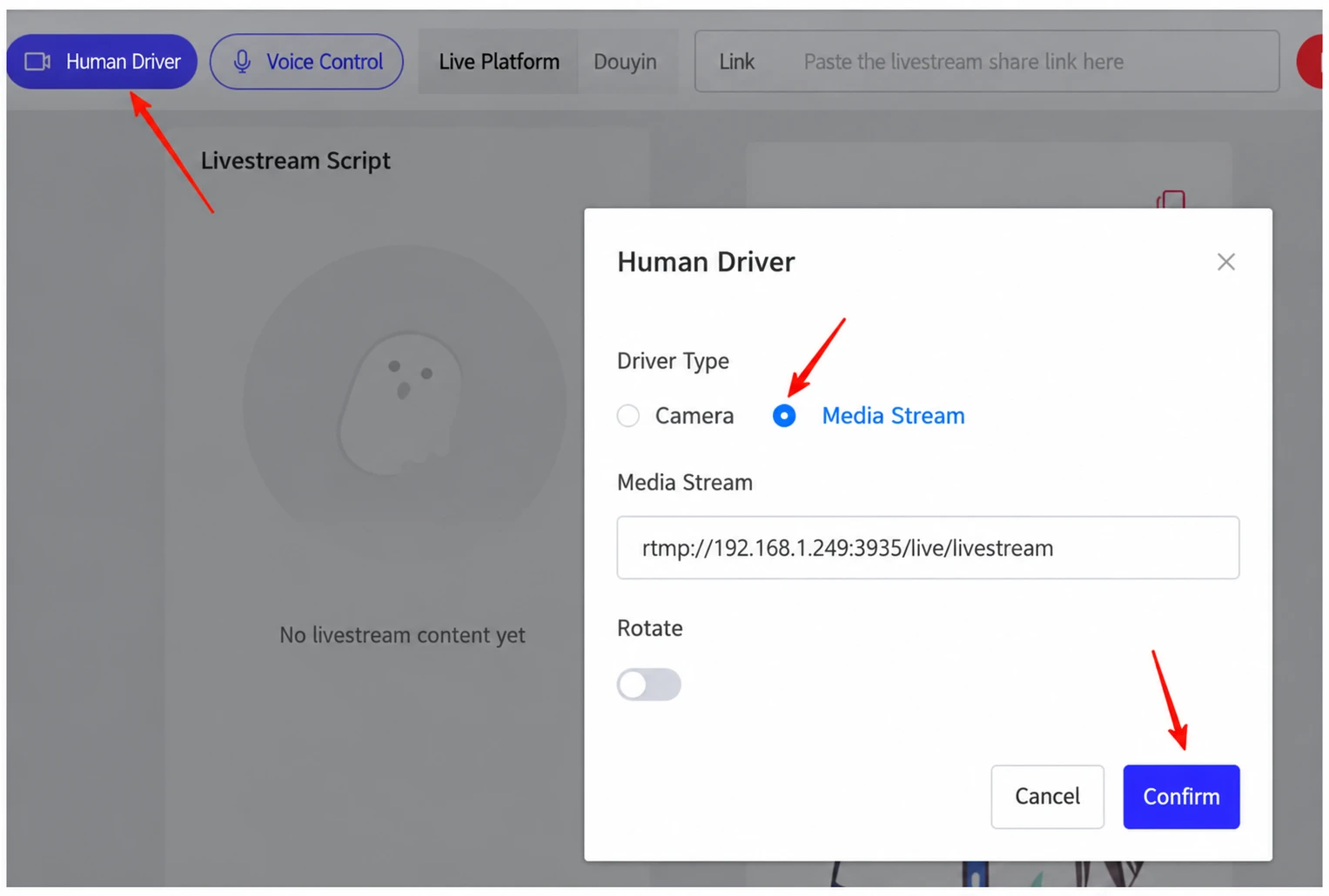
On each PC (the source PC and every other PC on the same LAN): open the broadcast console and click Human Driver. Set Driver Type to Media Stream, paste the same RTMP address, then click Confirm. Give each PC its own script and point it at its own livestream room / account.
Result: one camera, one real host → as many interactive livestream rooms as you have PCs, each on its own account. The same picture appears on every PC, while each one runs its own conversation and replies to its own room.
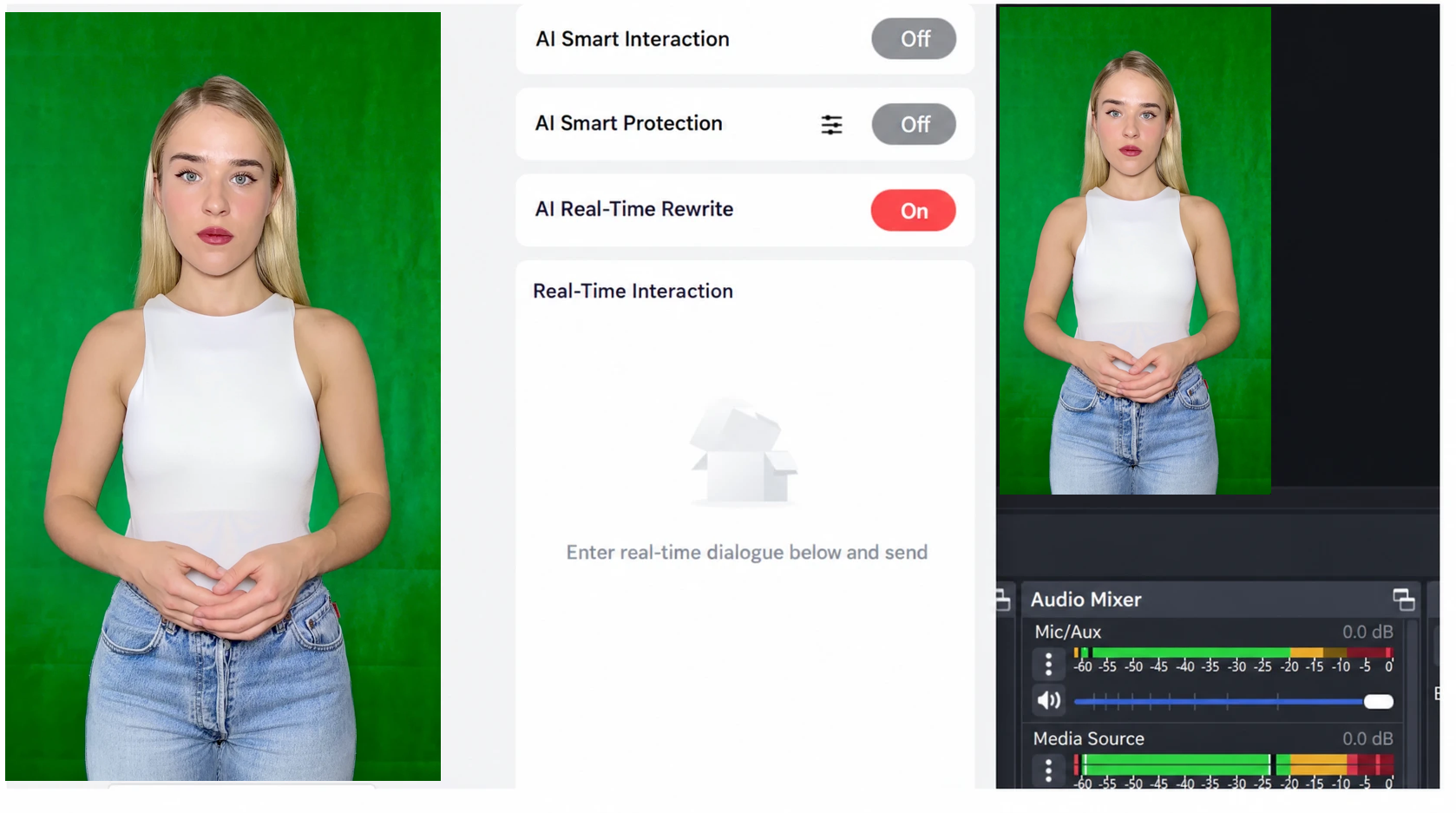
“Other computers on the same local network can link to the same picture through the streaming address — so you only need one camera to run one-to-many.”
What you need
- A camera (1080p) and a capture card.
- OBS on the source PC.
- PCs on the same local network — one per livestream room you want to run.
- Syntopia BOX capacity: each live room runs its own Syntopia BOX session on its own account, so you need enough capacity for the number of simultaneous rooms. The camera is shared, but the BOX sessions are not — plan on one Syntopia BOX account (or livestream slot) per concurrent room.
Good to know
- Real-person driving shows a real human host; AI only drives the lip-sync. Don’t describe it as an AI avatar or a clone.
- The host’s gestures and pose are identical across all rooms (one camera); only the speech, lip movements and comment-replies differ per room.
- This path is more advanced than normal single-PC streaming — use the HD Camera route unless you specifically want a real human host and/or one host across many rooms.